Showing posts with label Server Hardware. Show all posts

Wednesday, 12 December 2018

Intel Technology Provider for 2019

We just received word of our renewal for the Intel Technology Provider program:

image

We've been system builders since the company began in 2003 with my building systems for more than a decade before that!

One of the comments that gets made on a somewhat frequent basis is something along the lines of being a "Dinosaur". ;)

Or, this question gets asked quite a lot, "Why?"

There are many reasons for the "Why". Some that come off the top are:

  • We design solutions that meet very specific performance needs such as 150K IOPS, 500K IOPS, 1M IOPS and more
  • Our solutions get tested and thrashed before they ever get sold
    • We have a parts bin with at least five figures worth of broken vendor's promises
  • We have a solid understanding of component and firmware interactions
  • Our systems come with guaranteed longevity and performance
    • How many folks can say that when "building" a solution in a Vendor's "Solution Tool"?
  • We avoid the finger pointing that can happen when things don't live up to muster

The following is one of our lab builds. A two node Storage Spaces Direct (S2D) cluster utilizing 24 Intel SSD DC-4600 or D3-4610 SATA series SSDs flat meaning no cache layer. The upper graphs are built in Grafana while the bottom left is Performance Monitor watching the RoCE (RDMA over Converged Ethernet via Mellanox) and the bottom right is the VMFleet WatchCluster PowerShell.

image

We just augmented the two node setup with 48 more Intel SSD D3-4610 SATA SSDs for the other two nodes and are waiting on a set of Intel SSD 750 series NVMe PCIe AiCs (Add-in-Card) to bring our 750 count up to 3 per node for NVMe cache.

Why the Intel SSD 750 Series? They have Power Loss Protection built-in. Storage Spaces Direct will not allow any cache devices hold any data in the storage's local cache if it is volatile. What becomes readily discoverable is that writing straight through to NAND is a very _slow_ process relative to having that cache power protected!

We're looking to hit 1M IOPS flat SSD and well over that when the NVMe cache setup gets introduced. There's a possibility that we'll be seeing some Intel Optane P4800X PCIe AiCs in the somewhat near future as well. We're geared-up for a 2M+ run there. :D

Here's another test series we were running to saturate the node's CPUs and storage to see what kind of numbers we would get at the guest level:

image

Again, the graphs in the above shot are Grafana based.

The snip below is our little two node S2D cluster (E3-1270v6, 64GB ECC, Mellanox 10GbE RoCE, 2x Intel DC-4600 SATA SSD Cache, 6x 6TB HGST SATA) pushing 250K IOPS:

image

We're quite proud of our various accomplishments over the years with our high availability solutions running across North America and elsewhere in the world.

We've not once had a callback asking us to go and pick-up our gear and refund the payment because it did not meet the needs of the customer as promised.

Contrary to the "All in the Cloud" crowd there is indeed a niche for those of us that provide highly available solution sets to on-premises clients. Those solutions allow them to have the uptime they need without the extra costs of running all-in the cloud or hybrid with peak resources in the cloud. Plus, they know where their data is.

Thanks for reading!

Philip Elder
Microsoft High Availability MVP
MPECS Inc.
Co-Author: SBS 2008 Blueprint Book
www.commodityclusters.com
Our Web Site
Our Cloud Service

Friday, 18 August 2017

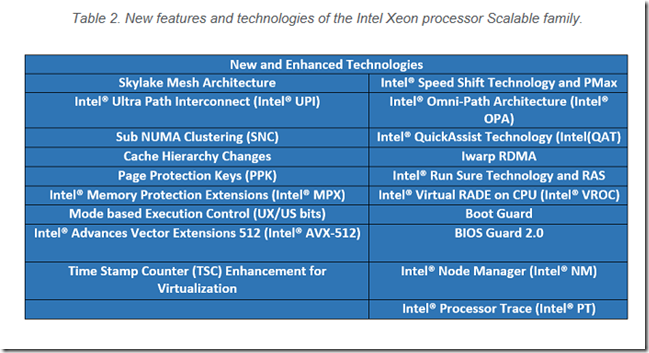
A Few Thoughts on the Intel Xeon Processor Scalable Family

The original article is here: Intel® Xeon® Processor Scalable Family Technical Overview.

This quick post is for the time challenged folks trying to figure things out as far as how the new Intel Xeon Processor Scalable Family relates to the previous generation Intel Xeon Processor E5-2600 series.

Please note that all of the images below are from the above article.

image

The above grid gives us an idea of which processor grade goes where. Our standard go-to has been the Intel Xeon Processor E5-2620 through the E5-2640 which were at one time the mainstream processors.

The next tier for us would be the E5-26*3 and E5-26*7 series that provided high bin counts (GHz) with low core counts.

Now we can see that the mainstream processors are Silver and the performance grade are Gold.

image

In the charge above 2S, 4S, 8S is the number of sockets the processor supports. DPC is DIMMs Per Channel.

image

As we can see, there are just a few new features included in the new processor family.

Some Thoughts

There is a definite glaring omission in this new processor family: Fourth Generation PCIe :(

As we all know, the data bus is playing catch-up (blog post) to storage and to some extent networking.

While the newly introduced Purley platform has integrated PCIe NVMe ports on the server boards and backplanes there is still a lack of clarity as far as what we need to make things work on the Intel Server System platform.

The PCIe channel count bump from 32 to 48 is most certainly not enough especially with the spec stuck in Generation 3. A pair of 100Gb Mellanox Ethernet cards and a few PCIe NVMe SSDs and we're pretty much saturating the bus ... again.

And one more thing as we've not had a chance to compare apples to apples yet, the new processors look to be more expensive than the previous generation E5-2600v4 equivalents. And, it seems as the core counts go up so do the prices in an almost exponential way.

We'll post some price comparisons in another blog post.

Have a great weekend and thanks for reading!

Philip Elder
Microsoft High Availability MVP
MPECS Inc.
Co-Author: SBS 2008 Blueprint Book
Our Cloud Service

Monday, 10 July 2017

VELCRO Ties: It’s not easy being green!

This spring and now summer I’ve been spending a lot of time in the garden. From getting things ready for planting, planting, and now keeping the weeds at bay and the plants from being thirsty!

Well, on one of the trips into one of our Canadian Tire big box hardware stores I stumbled across these:

image

Yeah, okay, so what you might say?

Well, that 45' role was $6 before taxes. $6!

Needless to say, I purchased a good number of roles while I was there to use as wire ties in our Proof-of-Concept (PoC) systems plus others.

I personally don't have a problem with the colour green. ;)

Philip Elder
Microsoft High Availability MVP
MPECS Inc.
Co-Author: SBS 2008 Blueprint Book
Our Cloud Service
Twitter: @MPECSInc

Saturday, 12 November 2016

Server Hardware: The Data Bus is Playing Catch-Up

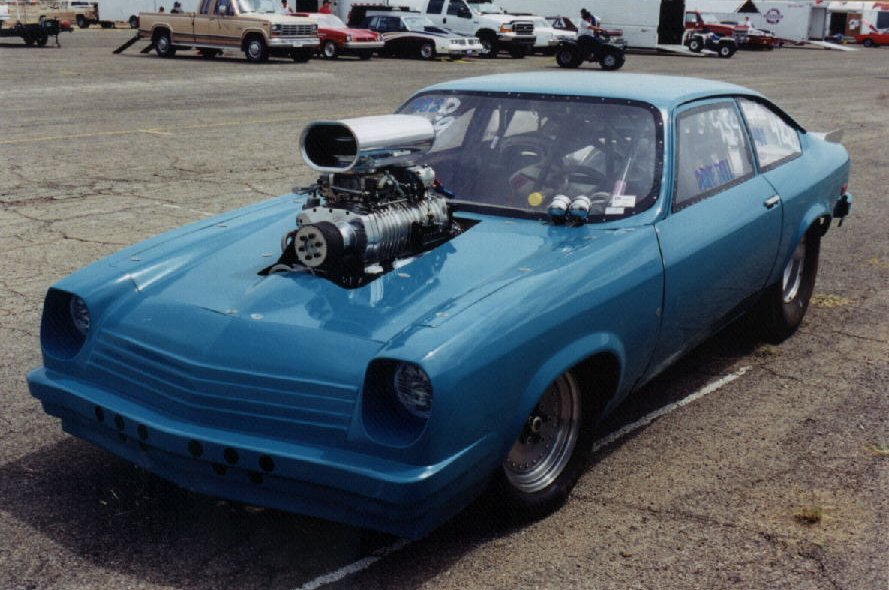
After seeing the Mellanox ConnectX-6 200Gb announcement the following image came to mind:

image

Image credit

The Vega/Monza was a small car that some folks found the time to stuff a 454CID Chevy engine into then drop a 671 or 871 series roots blower on (they came off trucks back in the day). The driveline and the "frame" were then tweaked to accommodate it.

The moral of the story? It was great to have all of that power but putting down to the road was always a problem. Check out some of the "tubbed" Vega images out there to see a few of the ways to do so.

Our server hardware today does not, unfortunately, have the ability to be "tubbed" to allow us to get things moving.

PCI Express

The PCI Express (PCIe) v3 spec (Wikipedia) at a little over 15GB/Second (that's Gigabytes not Gigabits) across a 16 lane connector falls far short of the needed bandwidth for a dual port 100Gb ConnectX-5 part.

As a point of reference, the theoretical throughput of one 100Gb port is about 12.5GB/Second. That essentially renders the dual port ConnectX-5 adapter a moot point as that second port has very little left for it to use. So, it becomes essentially a "passive" port to a second switch for redundancy.

A quick search for "Intel Server Systems PCIe Gen 4" yields very little in the way of results. We know we are about due for a hardware step as the "R" code (meaning refresh such as R2224WTTYSR) is coming into its second to third year in 2017.

Note that the current Intel Xeon Processor E5-2600 v4 series only has a grand total of 40 PCI Express Generation 3 lanes available. Toss in two PCIe x16 wired lanes with two ConnectX-4 100Gb adapters and that's going to be about it for real throughput.

Connectivity fabric bandwidth outside the data bus is increasing in leaps and bounds. Storage technologies such as NVMe and now NVDIMM-N, 3D XPoint, and other such memory bus direct storage technologies are either centre stage or coming on to the stage.

The current PCIe v3 pipe is way too small. The fourth generation PCI Express pipe that is not even in production is _already_ too small! It's either time for an entirely new bus fabric or a transitioning of the memory bus into either a full or intermediate storage bus which is what NVDIMM-N and 3D XPoint are hinting at.

Oh, and one more tiny point: Drawing storage into the memory bus virtually eliminates latency ... almost.

Today's Solutions

Finally, one needs to keep in mind that the server platforms we are deploying on today have very specific limitations. We've already hit some limits in our performance testing (blog post: Storage Configuration: Know Your Workloads for IOPS or Throughput).

With our S2D solutions looking to three, five, or more years of service life these limitations _must_ be at the forefront of our thought process when in discovery and then solution planning.

If not, we stand to have an unhappy customer calling us to take the solution back after we deploy or a call a year or two down the road when they hit the limits.

***

Author's Note: I was just shy of my Journeyman's ticket as a mechanic, in a direction towards high-performance, when the computer bug bit me. ;)

Philip Elder
Microsoft High Availability MVP
MPECS Inc.
Co-Author: SBS 2008 Blueprint Book
Our Cloud Service
Thursday, 26 May 2016

Hyper-V Virtualization 101: Hardware and Performance

This is a post made to the SBS2K Yahoo List.

***

VMQ on Broadcom Gigabit NICs needs to be disabled at the NIC Port driver level. Not in the OS. Broadcom has not respected the spec for Gigabit NICs at all. I’m not so sure they have started to do so yet either. :S

In the BIOS:

  • ALL C-States: DISABLED
  • Power Profile: MAX
  • Intel Virtualization Features: ENABLED
  • Intel Virtualization for I/O: ENABLED

For the RAID setup we’d max out the available drive bays on the server. Go smaller volume and more spindles to achieve the required volume. This gains us more IOPS which are critical in smaller virtualization settings.

Go GHz over Cores. In our experience we are running mostly 2vCPU and 3vCPU VMs so ramming through the CPU pipeline quicker gets things done faster than having more threads in parallel at slower speeds.

Single RAM sticks per channel preferred with all being identical. Cost of 32GB DIMMs has come down. Check them out for your application. Intel’s CPUs are set up in three tiers. Purchase the RAM speed that matches the CPU tier. Don’t purchase faster RAM as that’s more expensive and thus money wasted.

Be aware of NUMA boundaries for the VMs. That means that each CPU may have one or more memory controller each. Each controller manages a chunk of RAM attached to that CPU. When a VM is set up with more vRAM than what is available on one memory controller that memory gets split up. That costs in performance.

Bottlenecks not necessarily in order:

  • Disk subsystem is vastly underperforming (in-guest latency and in-guest/host Disk Queue Length are key measures)
    • Latency: Triple digits = BAD
    • Disk Queue Length: > # Disks / 2 in RAID 6 = BAD (8 disks in RAID 6 then DQL of 4-5 is okay)
  • vCPUs assigned is greater than the number of physical cores – 1 on one CPU (CPU pipeline has to juggle those vCPU threads in parallel)
  • vRAM assigned spans NUMA nodes or takes up too much volume on one NUMA node
  • Broadcom Gigabit VMQ at the port level

The key in all of this though and it’s absolutely CRITICAL is this: Know your workloads!

All of the hardware and software performance knowledge in the world won’t help if we don’t know what our workloads are going to be doing.

An unhappy situation is spec’ing out a six to seven figure hyper-converged solution and having the client come back and say, “Take it away I’m fed up with the poor performance”. In this case the vendor over-promised and under-delivered.

Some further reading:

Philip Elder
Microsoft High Availability MVP
MPECS Inc.
Co-Author: SBS 2008 Blueprint Book
Our Cloud Service

Tuesday, 30 June 2015

Hyper-V Virtualization 101: Hardware Considerations

When we deploy a Hyper-V virtualization solution we look at:
  1. VM IOPS Requirements
  2. VM vRAM Requirements
  3. VM vCPU Requirements
In that order.

Disk Subsystem

The disk subsystem tends to be the first bottleneck.
For a solution with dual E5-2600 series CPUs and 128GB of RAM requiring 16 VMs or thereabouts we'd be at 16 to 24 10K SAS drives at the minimum for this setup with a 1GB hardware RAID controller (non-volatile or battery backed cache).
RAID 6 is our go-to for array configuration.
Depending on workloads one can look at Intel's DC S3500 series SSDs or the higher endurance DC S3700 series models to get more IOPS out of the disk subsystem.

RAM

Keep in mind that the physical RAM is split between the two processors so one needs to be mindful of how the vRAM is divvied up between the VMs.
Too much vRAM on one or two VMs can cause the physical RAM to be juggled between the two physical CPUs (NUMA).
Note that each VM’s vRAM gets a file written to disk. So, if we are allocating 125GB of vRAM to the VMs there will be 125GB of files on disk.

CPU

And finally, each vCPU within a VM represents a thread to the physical CPU. For VMs with multiple vCPUs every thread (vCPU) for that VM needs to be processed by the CPU's pipeline in parallel. So, the more vCPUs we assign to a VM the more the CPU's logic needs to juggle the threads to have them processed.
The end result? More vCPUs is not always better.
I have an Experts Exchange article on Some Hyper-V Hardware and Software Best Practices that should be of some assistance too. In it I speak about the need to tweak the BIOS settings on the server, hardware configurations to eliminate single point of failures (SPFs), and more.

Conclusion

In the end, it is up to us to make sure we test out our configurations before we deploy them. Having a high five figure SAN installed to solve certain performance “issues” only to find out they exist _after_ the fact can be a very bad place to be in.
We test all aspects of a standalone and clustered system to discover its strengths and weaknesses. While this can be a very expensive policy, to date we’ve not had one performance issue with our deployments.
Our testing can also be quite beneficial to present an IOPS and throughput reports based on sixteen different allocation sizes (hardware and software) to our client _and_ the vendor complaining about our system. ;)
Philip Elder
Microsoft Cluster MVP
MPECS Inc.
Co-Author: SBS 2008 Blueprint Book

Tuesday, 10 March 2015

Cluster: Asymmetric or iSCSI SAN Storage Configuration and Performance Considerations

We When we set up a new asymmetric cluster, or if one is using an iSCSI SAN for central storage, the following is a guideline to how we would configure our storage.

Our configuration would be as follows:

  • JBOD or SAN Storage
    • 6TB of available storage
  • (2) Hyper-V Nodes
    • 256GB ECC RAM Each
    • 120GB DC S3500 Series Intel SSD RAID 1 for OS
    • Dual 6Gbsp SAS HBAs (JBOD) or Dual Intel X540T2 10GbE (iSCSI)

There are three key storage components we need to configure.

  1. Cluster Witness (non-CSV)
    • 1.5GB Storage
  2. Common Files (CSV 1)
    • Hyper-V Settings Files
    • VM Memory Files
    • 650GB Storage
  3. Our VHDX CSVs (balance of 5,492.5GB split 50/50)
    • CSV 2 at 2,746.25GB
    • CSV 3 at 2,746.25GB

Given that our two nodes have a sum total 512GB of RAM available to the VMs, though we’d be provisioning a maximum of 254GB of vRAM at best, we would set up our Common Files CSV with 650GB of available storage.

VHDX CSVs

We split up our storage for VHDX files into at least two Storage Spaces/LUNs. Each node would own one of the resulting CSVs.

We do this to split up the I/O between the two nodes. If we had just one 5.5TB CSV then all I/O for that CSV would be processed by just the owner node.

It becomes pretty obvious that having all I/O managed by just one of the nodes may present a bottleneck to overall storage performance. At the least, it leaves one node not carrying a share of the load.

Performance Considerations

Okay, we have our storage configured as above.

Now it’s time to set up our workloads.

  • VM 0: DC
  • VM 2: Exchange 2013
  • VM 3-6: RDHS Farm (Remote Desktop Services)
  • VM 7: SQL
  • VM 8: LoBs Line-of-Business apps), WSUS, File, and Print

Our highest IOPS load would be SQL followed by our two RDSH VMs and then our LoB VM. Exchange likes a lot more RAM than I/O.

When provisioning our VHDX files we would be careful to make sure our high IOPS VMs are distributed between the two CSVs as evenly as possible. This way we avoid sending most of our I/O through one node.

Why 650GB for Common Files?

Even though our VM memory files would take up about 254GB of that available storage one also needs space for the configuration files themselves, though they are quite small in size, and also additional space for those just-in-case moments.

One such moment is when an admin pulls the trigger on a snapshot/checkpoint. By default the differencing disk would be dropped into the Common Files storage location.

One would hope that monitoring software would throw up an alarm letting folks know that their cluster is going to go full-stop when that location runs out of space! But, sometimes that is _not_ the case so we need room to run our needed merge process to get things going again.

How do I know?

Okay, all of the above is just fine and dandy and begs the following question: How do I really know how the cluster will perform?

No one client’s environment is like another. So, we need to make sure we take performance baselines across their various workloads and make sure to talk to LoB vendors about their products and what they need to perform.

We have a standing policy to build out a proof-of-concept system prior to reselling that solution to our clients. As a result of both running baselines with various apps and building out our clusters ahead of time we now have a pretty good idea of what needs to be built into a cluster solution to meet our client’s needs.

That being said, we need to test our configurations thoroughly. Nothing could be worse than setting up a $95K cluster configuration that was promised to outperform the previous solution only to have that solution fall flat on its face. :(

Test. Test. Test. And, test again!

NOTE: We do _not_ deploy iSCSI solutions anywhere in our solution’s matrix. We are a direct attached storage (SAS based DAS) house. However, the configuration principles mentioned above apply for those deploying Hyper-V clusters on iSCSI based storage.

EDIT 2015-03-26: Okay, so fingers were engaged prior to brain on that first word! ;)

Philip Elder
Microsoft Cluster MVP
MPECS Inc.
Co-Author: SBS 2008 Blueprint Book

Monday, 20 October 2014

How vCPUs Interact With Physical CPUs - Resources

Here are some excellent resources on how a hypervisor such as Hyper-V interacts with the CPU pipeline.

Essentially, having a bit of time while waiting for some things to complete I’ve done a bit of digging to figure out if the premise “All VM threads (vCPUs) must be processed in parallel” still applies to the CPU pipelines and architectures of today.

Check out the conversation I’ve been having with Brian Elhert on his blog with the videos as it seems that the premise no longer holds true.

There are other VM performance thoughts that we have had since day one that need to be tested or verified based on Brian’s responses.

In our experience the following can have an impact on a VM’s performance:

  • Assigning more vCPUs to a VM than physical cores (threads) available on one CPU
  • Assigning vCPU count to a VM as the number of physical cores (threads) on one CPU
  • Assigning enough vRAM to a VM to force its contents to be split between memory controllers

Hat Tip: @BrianEh (Brian Elhert)

Further reading on tuning Windows Server 2012 R2:

Philip Elder
Microsoft Cluster MVP
MPECS Inc.
Co-Author: SBS 2008 Blueprint Book

Chef de partie in the SMBKitchen ASP Project
Find out more at
Third Tier: Enterprise Solutions for Small Business

Thursday, 19 June 2014

Cluster Node BIOS and Hardware Configuration Tips

Here are some tips for configuring the nodes in a Hyper-V or Scale-Out File Server failover cluster.

Staggered Start

image

  • Stagger the node start times to give storage enough time to come online

One of the important tests to run when working with a new JBOD unit or storage shelf is to time the unit's power-up to production ready time.

In the case of the Intel JBOD2224S2DP with 24 Seagate Savvio spindles installed the staggered start of each disk group actually takes a bit of time to process. So, we set our Grizzly Pass servers to start at 150 seconds and up for each storage node and then 210 and up for each Hyper-V server node.

Processor C States

image

  • Processor C States are set to Disabled

Why the C States interfere with storage access and transfer abilities is a bit of a mystery but they do need to be turned off.

Also, take careful notes of all BIOS settings set up on one node and make sure to set all other node's BIOS settings to the same ones.

Performance Setting

Pedal to the metal:

image

Make sure the performance profiles are set to maximum!

We need all available power at all times.

PXE Boot

We suggest turning PXE Boot and the NIC's option ROM off.

image

Confirm in the Boot Order manager that there are no NICs available for boot. If any show up there make sure to disable them.

While in the NIC configuration settings one can make a note of the NIC MAC addresses to help with configuration further on into the node setup process.

Reboot and OS Boot Checks

We've seen some issues with OS Boot Watchdog Timers:

image

Most modern BIOS firmware should be able to sense that Windows Server 2012 R2 has booted and settled into its working role. But, we have seen cases in older BIOS versions where the server would mysteriously reboot after 10 minutes (we timed it after noticing that the reboots were happening close to the same time).

Boot Options

And finally, for now we are not enabling EFI Optimized Boot options on our nodes:

image

We need to run some tests with 2012 R2 U1 before we commit to the new setup in production.

Make sure to disable the USB Boot Priority or that OS Load flash drive will be booted to on node reboots!

Cluster Node Configuration

When it comes to setting up the node specifications one needs to choose carefully.

This again is one area where Intel Server Systems outshine Tier 1.

The Intel Server System R1208JP4OC is an Intel Xeon Processor E5-2600 v1/v2 series 1U server with a single socket. The big plus to this server is the ability to have two SAS HBAs and two 10GbE or 56Gb InfiniBand cards installed.

As far as we know no Tier 1 single socket 1U server shares this ability anywhere. So, we get a really good performing server at an excellent entry level price point.

We make sure to design our clusters around their intended purpose at the storage, Scale-Out File Server, and Hyper-V levels.

With these tools that are included in Windows Server 2012 RTM/R2 we have an amazing ability to build a single asymmetric cluster (2 nodes and 1 JBOD) at a very lucrative price that fits in really well at the SMB level (12-13 seats plus - yes, we sell clusters into SMB) right up to a million IOPS plus transaction oriented cluster.

Remember that consistency in hardware, firmware, settings, and drivers is the key to cluster performance and stability.

Philip Elder
Microsoft Cluster MVP
MPECS Inc.
Co-Author: SBS 2008 Blueprint Book
Chef de partie in the SMBKitchen ASP Project
Find out more at
Third Tier: Enterprise Solutions for Small Business

Friday, 23 May 2014

Three Intel Server Systems based Hyper-V and Scale-Out File Server Clusters

Here are three base Intel Server Systems configurations we are working on for our Intel Modular Server replacement in a Data Centre or client setting.

Unfortunately, the Intel JBOD does not self-power at this time. So, for SMB/SME solutions we will be supplying a DataON DNS-1640 2U JBOD as it will automatically power-up after a full power outage.

All solution sets are based on Windows Server 2012 R2 as a starting point for Hyper-V, Storage Spaces, and SOFS.

  • Option 1: Asymmetric Hyper-V Cluster via Storage Spaces CSV
    • Intel Server System R2208GZ4GC, Dual E5-2640, 128GB ECC or 256GB ECC, 120GB SSD RAID 1, dual SAS HBAs, add-in Intel i350T4 PCIe
    • Intel JBOD2224S2DP
  • Option 2: Hyper-V Cluster via SMBv3 Scale-Out File Server cluster and Storage Spaces
    • Intel Server System R1208JP4OC, E5-2640, 128GB ECC, 120GB SSD RAID 1, dual SAS HBAs, Intel X540T2 I/O Module, Intel X540T2 PCIe
    • Intel JBOD2224S2DP
    • Intel Server System R1208JP4OC, E5-2640, 128GB ECC, 120GB SSD RAID 1, Intel i350T4 PCIe, Intel X540T2 I/O Module, Intel X540T2 PCIe
    • NETGEAR XS712T 10GbE Switches
  • Option 3: Hyper-V Cluster via SMBv3 Scale-Out File Server cluster and Storage Spaces with enclosure resilience
    • (3) Intel Server System R2208GZ4GC, Dual E5-2640, 128GB ECC, 120GB SSD RAID 1, SIX SAS HBAs, Intel X540T2 I/O Module, Intel X540T2 PCIe
    • (3) Intel JBOD2224S2DP
    • (2) Intel Server System R2208GZ4GC, Dual E5-2640, 128GB ECC, 120GB SSD RAID 1, Intel i350T4 PCIe, Intel X540T2 I/O Module, Intel X540T2 PCIe
    • (2) NETGEAR 24-Port 10GbE Switches
  • Storage Networking Option
    • Option 2 and Option 3 can be facilitated by InfiniBand NICs and Switches
      • Enables RDMA and 56Gbps per connection
      • Microsoft's 1.4M IOPS demo based on InfiniBand backend
      • Intel Server Systems have an InfiniBand I/O Module with the second being a Mellanox PCIe

The first setup is relatively simple while the second two require some structuring around how the networking is configured to allow for SMB Multi-Channel on the storage network side.

At this point the above setups utilizing Intel Server Systems provide us with an amazing value for our IT budgets.

5 year warranties and next business day on-site support options can be had too.

We purchase our Intel Channel product primarily through ASI Canada. Ingram Micro, Synnex Canada, and Tech Data Canada are also Intel Authorized Distributors.

As an FYI we continue to build our own server systems because the experience proves to be invaluable when it comes to troubleshooting problems especially when software vendors are pointing fingers.

Building our own systems also gives us a very strong foundation for creating server configurations that will work with a client workload set.

And finally, it allows us to be very particular with Tier 1 vendors when it comes to creating a server configuration using their hardware.

EDIT: Note that we _always_ install a physical DC on our cluster networks. For option 1 it would probably be an HP MicroServer while the others would be a 1U single socket with some storage for ISOs.

Philip Elder
Microsoft Cluster MVP
MPECS Inc.
Co-Author: SBS 2008 Blueprint Book

Chef de partie in the SMBKitchen ASP Project
Find out more at
Third Tier: Enterprise Solutions for Small Business

Thursday, 27 March 2014

A Hyper-V Hardware and Software Configuration Guide

We install iDRAC Enterprise, iLO Advanced, or Intel RMM in the server for out-of-band KVM over IP management. Of course one needs to set a static IP address to that unit in order to gain access when DHCP goes offline. :)

The host should have a static IP address. We add the host to DNS so we can resolve the name while the guest DC is online.

We do _not_ join the guest's domain. We use John Howard's HVRemote to configure the host and a desktop OS based machine on the domain that has RSAT installed to manage that host. The Windows desktop OS machine or VM will also have a static IP address.

We plug a bootable USB flash drive with the host OS installer files, drivers, and management utilities into the host and _leave it there_ for the host's entire life. With the KVM over IP we are able to re-install the host OS and reconfigure it in short order if there is a need.

  • System Configuration
    • BIOS: Disable C3/C6 States
    • Fastest GHz on CPU over number of Cores
    • Correct memory speed for that CPU
    • 1 memory stick per channel (16GB sticks are not that expensive anymore)
    • Populate slot 0 on _all_ memory channels with same stick size for best performance
    • Hardware RAID on Chip with 1GB of Non-Volatile or flash backed cache
    • RAID 6 across (8) 10K SAS (blog post on why we only use SAS) spindles minimum
    • Two Logical Drives set up on RAID Controller
      • 90GB for host OS
      • Balance to VHDX files
    • A minimum of two (2) Intel Gigabit Server NICs
      • Port 0 on both teamed for management
      • Port 1+ on both teamed for exclusive vSwitch usage

We set a static page file of 4,192MB on the system partition as one of our first steps. A Hyper-V Role only server should never need the swap file. That would just kill the system.

We do not use Broadcom NICs. They get disabled in the BIOS.

We always have a standalone DC in a cluster setting. Some will forgo such a step but that DC can be critical to keeping time on the domain for guest OS DCs and especially high load SQL, Exchange, and other data driven Line-of-Business applications. It can also be critical to bringing a cluster back online of something goes awry.

Philip Elder
Microsoft Cluster MVP
MPECS Inc.
Co-Author: SBS 2008 Blueprint Book

Chef de partie in the SMBKitchen ASP Project
Find out more at
Third Tier: Enterprise Solutions for Small Business

Monday, 10 February 2014

Hyper-V Standalone or Cluster Node BIOS Settings

We we set up a new Hyper-V server whether standalone or cluster node we always walk through the BIOS settings on every server to verify that they are set correctly.

image

We make sure to disable the C States (this BIOS shows C3/C6) as they somehow interfere with performance as well as Live Migration throughput.

We are leaving Hyper-Threading enabled and Turbo Boost enabled for Windows Server 2012 and newer versions as the OS is now more than capable of dealing with vCPU threads being shifted out of parallel by a Core speed change.

image

If one is experiencing performance anomalies with a cluster setup then the first place to start is the BIOS settings as one of the nodes probably has an incorrect setting.

Philip Elder
Microsoft Cluster MVP
MPECS Inc.
Co-Author: SBS 2008 Blueprint Book

Chef de partie in the SMBKitchen
Find out more at
Third Tier: Enterprise Solutions for Small Business

Wednesday, 18 December 2013

Repeat After Me: SATA Does Not Belong In Servers Part Deux

For the last number of years we have stopped deploying servers with SATA drives installed.

There are so many reasons why we stopped but here are a few comparisons to SCSI/SAS:

  • SATA does not have the ability to manage a high I/O workload
  • SATA only offers a single inbound and outbound data port while SAS offers dual ports for redundant paths
  • SATA does not have the health monitoring capabilities with SMART certainly not cutting it
  • SATA does not offer anywhere near the capabilities and command set that SAS does for server related tasks, disk redundancy, disk sharing, and so much more

There is a reason why disk manufacturers have tacked on SAS controllers to SATA platter sets. These so-called NearLine drives offer all of the SAS goodness but with SATA capacities.

Here is the first public, that I know of, presentation from Microsoft on the _why_ SATA does not belong in servers.

To quote specifically:

1.Use the per I/O control mechanism that is known as Force Unit Access (FUA). This flag specifies that the drive should write the data to stable media storage before signaling (sic) is finished. Applications that have to do this make sure that data is stable on the disk issue FUA to make sure that data is not lost if a power failure occurs.

Server-class disk drives (SCSI and Fibre Channel) generally support the FUA flag. On commodity drives (ATA, SATA, and USB), FUA might not be honored. (emphasis added) This can potentially leave data in an inconsistent state unless the drive's write cache is disabled. Make sure that the disk subsystem handles FUA correctly if you depend on this mechanism

When listening to a discussion on this the above applies even when SATA disks are used in a properly configured RAID setup whether software (host-based) or hardware RAID on Chip.

In addition, if one were to be setting up a Storage Spaces cluster with multiple paths to the JBOD unit then one would be required to set it up with SAS based SSDs for the high performance storage tier. SATA will work in a single server and single enclosure lab like setting but _not_ in production.

We have had other posts on this topic that outline many other reasons for our decision to drop SATA in servers. The SATA category and the SAS category would be one place to start. :)

Philip Elder
Microsoft MVP
MPECS Inc.
Co-Author: SBS 2008 Blueprint Book

Chef de partie in the SMBKitchen
Find out more at
Third Tier: Enterprise Solutions for Small Business

Friday, 29 November 2013

A Server 2008 R2 Core Uptime Mark

Here is a little glimpse into one of our mid-range running Server Core setups:

image

The command: systeminfo | find "System Boot Time"

We are almost exactly three months short of two years for this particular Hyper-V server. It has been a workhorse with nary a problem.

  • Intel Server System SR1695GPRX2AC
  • Intel Xeon X3470
  • 32GB Kingston ECC
  • Intel RAID with 4x 300GB 15K SAS in RAID 10

To date we have _a lot_ of these particular Intel Server Systems in production both as standalone Hyper-V servers as well as Hyper-V Cluster nodes and we have been very happy with them.

They are rock solid and their performance is excellent.

Happy Thanksgiving to our US readers. :)

Philip Elder
Microsoft MVP
MPECS Inc.
Co-Author: SBS 2008 Blueprint Book

Chef de partie in the SMBKitchen
Find out more at
Third Tier: Enterprise Solutions for Small Business

Friday, 20 September 2013

System Uptime on an SQL Server

We are in the process of running some maintenance on a series of servers we rarely get to touch.

image

We have the LoBs offline or in limited usage at the moment:

image

This particular physical server’s sole purpose in life is to host SQL database instances.

So, while it is has been a good run for the server we are about to terminate the close to two year run. :)

For obvious reasons it is our preference to keep things up to date in the server operating system and the server services running on top of that OS. However, sometimes business dictates that we do not touch unless there is a very good reason to.

We do have a number of such situations. In this case, the LoBs provided us with the opportunity to reboot, run some updates, reboot, and then service pack the various SQL instances.

We now have a fairly happy SQL server that will probably keep running for another year or so until we move this particular client over to a Hyper-V failover cluster.

Have a great weekend everyone and thanks for reading. :)

Philip Elder
MPECS Inc.
Microsoft Small Business Specialists
Co-Author: SBS 2008 Blueprint Book

Chef de partie in the SMBKitchen
Find out more at
www.thirdtier.net/enterprise-solutions-for-small-business/

Windows Live Writer

Friday, 13 September 2013

Why We Never Dedicate a NIC Port to a VM

We never dedicate a NIC port to a VM. We always _team_ NIC ports. Generally there are two teams in standalone and cluster setups.

Team0: Management (Port 0 on NIC 0 and 1)

Team 1: vSwitch (Ports 1+ on NIC 0 and 1) – Dedicated

I kinda understand the logic of doing that, that is dedicating a NIC port to a VM. However, the whole purpose of virtualization is to separate the guest operating system from the hardware. So, one needs to break from that mindset.

There is no reason why the dual Intel quad-port configurations (8 ports total with 6 for the vSwitch) we do would have a problem with the in some cases 20+ VMs running on the host.

Team configuration exception to the rule would be for CAD/CAM/High Bandwidth needs:

  • Team0: Management (Port 0 on NIC 0 and 1)
  • Team1: vSwitch High I/O (Port 1 on NIC 0 and 1)
  • Team2: vSwitch General VMs (Ports 2+ on NIC 0 and 1)

That leaves a dedicated pair to the higher network bandwidth VM or VMs. We would leave VM density on Team1 at two or three maximum.

BTW, in a disaster recovery scenario having things teamed makes recovery a lot simpler. Trying to keep track of all of those vSwitch names mapped to what VM would be a real PITA when things were tense. Plus, getting all that configured would be that much more time wasted getting things back. Keep It Simple Sir

Oh, and one more thing: Why would one use a dedicated physical port on each node in a cluster for a highly available guest hosted on that cluster?

That leaves a single point of failure and yet we see that it is quite common for NIC teaming to not be used.

With NIC teaming now built into Windows Server 2012 RTM and newer there is no real reason to avoid teaming NICs or NIC Port groups to avoid that single point of failure.

So, when architecting a cluster setup please use NIC Teaming.

Philip Elder
MPECS Inc.
Microsoft Small Business Specialists
Co-Author: SBS 2008 Blueprint Book

Chef de partie in the SMBKitchen
Find out more at
www.thirdtier.net/enterprise-solutions-for-small-business/

Windows Live Writer

Tuesday, 25 June 2013

SMBKitchen: Just Released: Hyper-V Cluster Configuration Considerations

This chapter, just released to the SMBKitchen Project’s knowledgebase, is jam packed with pearls that were the result of _months_ of trial and error plus sifting through all of the very incomplete and lacking vendor documentation.

image

Covered are all of the key elements required for setting up a Hyper-V Cluster on the Intel Modular Server with or without Direct Attached Storage via two SAS Controllers.

Also covered are the key elements required for setting up a cluster on a two or more node setup that utilize SAS based DAS intelligent storage. This configuration is the one we have been running with and is now our main focus as the Intel Modular Server has been retired.

image

This document covers a lot of different areas including node configuration, storage, networking, and more.

Cluster for highly available virtual machines, and now that we have the 2012 R2 bits, for Storage Spaces are an important part of our SMB business strategy going forward into the On-Premises and Hybrid future.

Coming soon for the SMBKitchen project will be a series of How-To videos on everything from teaming in Windows Server 2012 via PowerShell to configuring RemoteFX. There are plans to do cluster How-To videos as well.

Tie that into the author’s chats we have once a month that give subscribers front-line access to the authors and I am sure that we are providing great value for the subscription dollars! :)

Philip Elder
MPECS Inc.
Microsoft Small Business Specialists
Co-Author: SBS 2008 Blueprint Book

Chef de partie in the SMBKitchen
Find out more at
www.thirdtier.net/enterprise-solutions-for-small-business/

Windows Live Writer

Wednesday, 12 June 2013

SMBKitchen: My Hyper-V Configuration Guide Is Released!

I'm very excited to announce that my Hyper-V Configuration Guide has been released to the SMBKitchen Project's knowledgebase!
image
I walk through a number of critical areas in this guide relative to deploying a properly sized Hyper-V virtualization solution.
  • Questions to ask the client
    • Verticals they serve, software products used, data volume and growth
  • Various solution grades
    • Entry, mainstream/mid-level, and high performance configurations
  • Needs analysis
    • Find the top five key pain points for the prospect/client
  • Hardware
    • Bottlenecks in the system and how to address them
    • CPU and Memory
  • Client types
    • 10 seat accounting firm
    • 35 seat architectural/engineering firm
    • 55 seat manufacturing client
  • Each client type gets a number of options made available. Each option is explained with highlights of what they provide value for the client/prospect.
    I believe this chapter in the SMBKitchen solution kit will be well worth your time.
    And, when it comes time for the next Author's Chat subscribers will have the chance to discuss and ask questions about the many points in this article!
    Soon to come: Hyper- V Cluster Configuration Considerations
    image
    This document is composed of the pearls born of many a month of painstaking sifting through vendor's documentation tied into much trial and error. :)
    Our blog article on How to Subscribe to the SMBKitchen.
    Philip Elder
    MPECS Inc.
    Microsoft Small Business Specialists
    Co-Author: SBS 2008 Blueprint Book
    Chef de partie in the SMBKitchen
    Find out more at
    www.thirdtier.net/enterprise-solutions-for-small-business/
    Windows Live Writer

    Thursday, 9 May 2013

    Repeat after me: SATA does not belong in servers.

    One of the very last servers we deployed with SATA drives had yet another failure in it.

    There is a new Intel R2208GZ4GC 2U server in place with eight 600GB 10K SAS drives configured in a RAID 6 array already installed and waiting for tax season to slow down for them (they are an accounting firm).

    image

    Our client recently moved to a new location with the servers now located in a dedicated room in the basement. The little A/C unit in that room was a leftover from the previous occupant that we were not too sure about.

    Well, the hot spare in this server, an Intel Server System SR1560SFHS with three 750GB Seagate ES series SATA drives, died about four months ago. Since the system was slated for replacement we left the remaining two in a RAID 1 array alone.

    Well, that ended this morning with one of the drives in the pair having gone full stop. This was probably due to the fact that the temp in the room upon arrival this afternoon was close to 90F.

    Someone had fired up the A/C unit without realizing that the hose that puts the heat outside was not connected to the back of the unit. Thus all of the heat it was trying to pull out plus its own heat yielded a very high temperature in that room.

    Once the hose was affixed to the back of the unit the temperature started to come down.

    So, here we are writing this blog post at 2216Hrs on a Wednesday evening after having logged in to check on the progress of the array rebuild and the above was what we saw.

    The RAID controller is an Intel RAID Controller SRCSASRB with battery backup.

    SATA does not belong in a server when it comes to spindled hard drives. This experience with the blind failure and the dismal rebuild times, during off hours no less, are definitely a part of it.

    SAS/SCSI was designed and engineered to run in server environments. SATA was not.

    The firmware tweaks that the hard drive vendors have introduced, along with the pretty much failed NCQ effort, to try and mimic a SAS setup within the SATA controller do not come close to the performance, longevity, and stability that SAS drives offer.

    By the way, this goes for NearLine SAS drives as well. These drive types are SATA internals with SAS electronics slapped on to the external of the drive. There is a very good reason why the drives are called "NearLine". :)

    The cost on 2.5" 10K SAS drives in 300GB and 600GB sizes have come down quite a bit in the last year. The 900GB 10K SAS drives are still relatively expensive per Gigabyte but provide an opportunity for a large aggregate of storage when needed.

    Another way to look at it is this: How many RMA efforts have gone in to server setups with SATA drives in them? Compare that with the servers that have SAS setups. In our case, where we have lots of servers deployed, there is virtually no comparison. Over time the SAS drives have completely trumped the SATA drives in all aspects.

    Even with 24x7x365 by 4 hour response times most vendors require time wasted on the phone prior to initiating that on-site visit to replace the failed drive. This time is expensive and to some extent a waste.

    Oh, and one more thing: If going with parity in an array go RAID 6 with at least eight 10K spindles and make sure the RAID controller has either flash backed cache or a battery backup.

    Storage is almost always the weakest point in a server both for hardware failures and I/O bottlenecks. Kill both. Use a wide array of eight spindles or more and make sure the drives 10K SAS.

    The risk when using SATA is just not worth the "savings" IMNSHO (in my not so humble opinion).

    Philip Elder
    MPECS Inc.
    Microsoft Small Business Specialists
    Co-Author: SBS 2008 Blueprint Book

    Chef de partie in the SMBKitchen
    Find out more at
    www.thirdtier.net/enterprise-solutions-for-small-business/

    Windows Live Writer

    Monday, 29 April 2013

    Hyper-V: Defragment the “Drive” in a Guest OS?

    This post is as a result of a discussion on the SMB Virtualization Yahoo Group.

    The article is in the TechNet Wiki:

    Bryan’s response about whether to defragment the guest starts with it being relative to personal preference.

    Indeed, we have a very specific reason set for _not_ defragmenting within a guest OS.

    Why not?

    For most VHD/VHDX deploys there has been an underlying disk subsystem set up. Sometimes on a RAID array hosting 4, 6, 8, 16, or more disks. Sometimes on a SAN or DAS with 16+ disks.

    Now, we set up a _fixed_ VHD/VHDX file in the first place so as to limit file fragmentation at the host storage level (whether local, SAN, or DAS).

    Some folks prefer to allocate dynamically expanding VHD/VHDX files however over time in larger storage situations defragmentation can indeed have an impact on storage throughput/IOPs.

    Disk access is not the same for a guest OS. Running a defragment routine within the guest OS does not improve Read/Write access for a set of spinning platters as it could have back when.

    In fact, running a defragmentation routine within the guest OS may only serve to load down the disk subsystem with unnecessary I/O for no real gains.

    Back in the day we did indeed test disk setups for our NT Server deploys and found that over time a system partition integrated swap file caused disk access times to increase and overall throughput to degrade.

    When we started to deploy our servers with a dedicated swap file partition with a defined swap file on that partition the server’s disk performance over time remained relatively robust.

    Philip Elder
    MPECS Inc.
    Microsoft Small Business Specialists
    Co-Author: SBS 2008 Blueprint Book

    Chef de partie in the SMBKitchen
    Find out more at
    www.thirdtier.net/enterprise-solutions-for-small-business/

    Windows Live Writer