Showing posts with label XP Pro Mode. Show all posts

Tuesday, 27 October 2009

Windows 7 XP Mode – Those VHDs Are Portable!

We just rebuilt a client’s Lenovo T500 that we had installed Windows 7 RTM and XP Mode RC onto.

Besides the need to start fresh with an RTM version of XP Mode, our client also had us install a 160GB Intel second generation Solid-State Drive.

So, we decided to start with a fresh install of the Windows 7 Enterprise x64 OS and XP Mode.

The main thing to keep in mind when it comes to working with RTM versions of XP Mode and users changing out their hardware is the ability to take that XP Mode VM with them to the new system.

Another reason to keep this in mind is that the previous drive in this case was encrypted with BitLocker. We may have been able to gain access to it if we had a similar T500 series around the shop and the original BitLocker backup key . . . maybe.

Thus, a new consideration when it comes to migrating a user’s profile to a new workstation (workstation setup checklist post) is to get those VHDs.

Philip Elder
MPECS Inc.
Microsoft Small Business Specialists
Co-Author: SBS 2008 Blueprint Book

*Our original iMac was stolen (previous blog post). We now have a new MacBook Pro courtesy of Vlad Mazek, owner of OWN.

Windows Live Writer

Monday, 26 October 2009

Windows 7 - Need XP Mode IE7 Available In Win7 Host. How?

One of the advantages of XP Mode on Windows 7 is the ability to limit the browser version in the XP Mode VM to IE7. Out of the box, the VM actually has IE6 installed, so for some developers that still see a good chunk of IE6 browsers to their site, can make sure to deny any version upgrades to Internet Explorer to keep IE6 available to them.

Okay, so we have our XP Mode VM set up and configured to access the Internet. We have IE7 installed and ready to go. But, there is no Blue E in the list of available XP Mode Applications. In fact, there are no XP Mode applications listed at all!

So, we want that Blue E to appear to our Windows 7 host.

Now, one of the catches to needing that shortcut to appear is the need to manipulate the Start Menu folders. Our user that needs access to IE7 does not need any further access to the XP Mode VM, so we are not allowing them to reside in the Local Administrators group.

The only group they will be in will be the Remote Desktop Users group as they will not be allowed into the VM otherwise. Don't forget, the application virtualization is actually a Terminal Services session! So, if the user needing access to applications in the XP Mode VM is not in at least the Remote Desktop Users group they will not have any access to the VM and its virtualized applications at all.

Now, to get the Blue E to appear as an available XP Mode Application, we need to drag the IE shortcut into the following location:

  • C:\Documents and Settings\All Users\Start Menu\Programs\


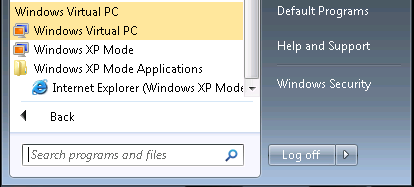
Once the shortcut is under the Programs folders it will appear in the Windows XP Mode Applications folder:

09-10-24 XP Mode IE Shortcut.png

Right click and hold on the IE shortcut and drag it up to the desktop and the user is good to go.

Since we do not want the XP Mode VM to catch the update to IE8 via WSUS we are running the following script on the XP Mode VM to make sure we gain access to all of the available updates:


  • wuauclt /resetauthorization /detectnow


We will also download the IE8 Blocker utility and run it on the XP Mode VM to make sure that IE8 does not automatically get installed via WSUS.

Yes, in this case the XP Mode VM is domain joined. It, and the other XP Mode VM that will be used for this purpose as well are in a unique OU under SBSComputers and will have a very specific Group Policy Object settings structure in place to keep them as buttoned up as we can.

The reason for this setup in this particular client's case is due to an online Web facing database they use where the developer has insisted that no IE8 browsers access the application until IE8 has been fully tested. Unfortunately, that will not be until next year due to the lack of funds on their part (non-profit).

The Windows 7 host user will be the user account to be found in the Remote Desktop Users group. They will not have local admin rights on the XP Mode VM with the only task being accomplished being accessing the online Web application via IE7.

Philip Elder

MPECS Inc.

Microsoft Small Business Specialists

Co-Author: SBS 2008 Blueprint Book


*Our original iMac was stolen (previous blog post). We now have a new MacBook Pro courtesy of Vlad Mazek, owner of OWN.

Thursday, 22 October 2009

Windows 7 - Windows XP Mode Direct Download Link

For some strange reason we cannot seem to get the download started for the RTM version of Windows 7’s Windows XP Mode.

Here are the direct download links:

The download page is here:

While Windows XP Mode will certainly deal with the issue of needing to run legacy applications on or under Windows 7, it is far from the best answer.

We have had a need to implement XP Mode for our accounting firm clients due to the need to run a lot of applications that are just not coded for the Windows Vista/7 platform.

As a result, we have some first-hand experience. We will leave those experiences for another post. Suffice it to say that XP Mode will work, but it may not be a very satisfactory solution in the long run.

Philip Elder
MPECS Inc.
Microsoft Small Business Specialists
Co-Author: SBS 2008 Blueprint Book

*Our original iMac was stolen (previous blog post). We now have a new MacBook Pro courtesy of Vlad Mazek, owner of OWN.

Windows Live Writer

Monday, 31 August 2009

Windows 7 Ultimate XP Pro Mode on ThinkPad T500 Good To Go

As we go to forward with implementing Windows 7 Ultimate for our clients, one of the first things we check for is the ability to have Intel Virtualization (VT) enabled in the BIOS.

The new version of Virtual PC that XP Pro Mode runs on will require that VT or AMD’s equivalent be enabled in the BIOS.

By default when we do find the VT settings exposed in the BIOS, it looks as though laptop manufacturers are leaving the settings disabled out of the box:

Windows 7 T500 Intel Virtualization 001

When implementing Windows 7 Ultimate or Windows 7 Enterprise with the intent of running XP Pro Mode, the BIOS level settings need to be checked.

Note that this particular Lenovo ThinkPad T500 has the Centrino 2 vPro chipset. Even then, finding the settings shown in the BIOS depends on the manufacturer of the laptop.

We have seen some Centrino 2 vPro series laptops where the settings were not exposed. We have one here in the shop, but have not had the chance to unpack it and load Windows 7 Ultimate and the XP Pro Mode RC to verify that the settings are enabled by default.

Philip Elder
MPECS Inc.
Microsoft Small Business Specialists
Co-Author: SBS 2008 Blueprint Book

*All Mac on SBS posts will not be written on a Mac until we replace our now missing iMac! (previous blog post)

Windows Live Writer

Wednesday, 12 August 2009

Toshiba Tecra S10 – Virtualization Is Disabled By Default in BIOS

We just received a new Toshiba Tecra S10 laptop that does not even have a product page on Toshiba’s site yet.

The unit is a new model Tecra S10 with a Core 2 Duo T9600 2.8GHz CPU and 4GB of RAM. The principle reason for sourcing this model is the high resolution 1680x1050 LCD along with the extra processing power presented by the Intel C2D T9600.

We will be installing Windows 7 Ultimate x64 on this laptop as we require XP Pro Mode. Toshiba seems to be a bit behind Acer on the architecture front as the Windows Vista on it is x86 (32bit). Acer has started factory shipping all of their laptops with Windows Vista x64 versions which means 64bit Acer drivers are available for their products.

The lack of 64bit drivers for the Tecra may present a bit of a problem with Windows 7 x64. If it does, we will back off and install the x86 version of Windows 7 Ultimate x86.

Since we require XP Pro Mode, we need to verify if the BIOS on this laptop has the Intel VT enabled. The chipset is Centrino 2 vPro (previous blog post on Windows 7 XP Pro Mode and hardware requirements).

To get into the Tecra’s BIOS, we need to do the following:

  • Press and hold the ESC key then power up the laptop.
  • Press the F1 key when requested to do so.

Once into the BIOS, sure enough the Intel VT setting was Disabled. We also took note that the Trusted Execution Technology was also Disabled. Since both are required, we enabled them.

One other note of interest, both the TPM and Intel’s AMT (vPro) management were disabled in the BIOS out of the box. The TPM is required for BitLocker and BitLocker To Go. Intel’s AMT is required for remote out-of-band management of the laptop. Both will be enabled as well.

Now we’re off to set up a USB flash drive to install Windows 7 (TechNet Magazine article) with.

We use the OCZ ATV Turbo flash drive for all bootable and high data volume usage because time is money and they are soak the USB bus fast!

Philip Elder
MPECS Inc.
Microsoft Small Business Specialists
Co-Author: SBS 2008 Blueprint Book

*All Mac on SBS posts will not be written on a Mac until we replace our now missing iMac! (previous blog post)

Windows Live Writer

Tuesday, 4 August 2009

XP Pro Mode – Hardware Virtualization is Required

The Intel ProcessorFinder site is the place to go when looking up the features that a particular CPU supports.

Each CPU series shares a common feature set with some exceptions where there may be a couple of versions at the low end of the model set that have features "disabled" to augment the value at the high end.

Intel did this with the 5200 series Xeons as well as others, and still does it with the Core 2 Quad series with the amount of L2 cache being 50% smaller on the "value" versions of the CPU line. Most of the CPU lines have subtle feature differences between the entry and top end products.

Virtualization (Intel calls it VT) is a base feature. The desktop Media G series boards support VT (C2D, C2Q), while the Executive Q series (vPro) supports higher end VT-d and VT-Appliance settings for more advanced virtualization scenarios such as embedded VMs or the XP Pro Mode in Win7.

The base G series with VT enabled will also do XP Pro Mode since the hardware virtualization has been embedded in Virtual PC 2007 which is what XP Pro Mode is based on.

In the end, we always try to make sure we have the right product for the job.

Laptops have been very iffy when it comes to BIOS enabled hardware features implemented.

To get hardware virtualization on laptops, the laptop needs to have at least the Centrino Pro series chipset in our experience.

Information on the Centrino Pro chipset:

If XP Pro Mode is required by a client, we need to be particularly aware of the hardware setup Windows 7 will be running on as XP Pro Mode does require hardware level virtualization to be enabled in the system’s BIOS.

Philip Elder
MPECS Inc.
Microsoft Small Business Specialists
Co-Author: SBS 2008 Blueprint Book

*All Mac on SBS posts will not be written on a Mac until we replace our now missing iMac! (previous blog post)

Windows Live Writer
Friday, 1 May 2009

Windows 7 XP Pro Mode – Requires a Physical Box with AMD-V or Intel VT Turned On

When it comes to running the new XP Pro Mode on Windows 7, the host OS must be on physical hardware that has hardware virtualization enabled in the system’s BIOS.

Hyper-V, VMWare, Virtual PC, and other virtualization products running Windows 7 in a VM will not allow for us to test the new XP Pro Mode in Windows 7.

image

The download on Connect shows that with the:

NOTE: Windows Virtual PC requires processor (sic) capable of hardware virtualization, with AMD-V™ or Intel® VT turned on in the BIOS.

The link in the screenshot is the actual link in the above quote but it is not live yet.

Philip Elder
MPECS Inc.
Microsoft Small Business Specialists
Co-Author: SBS 2008 Blueprint Book

*All Mac on SBS posts will not be written on a Mac until we replace our now missing iMac! (previous blog post)

Windows Live Writer

Tuesday, 28 April 2009

Windows 7 – XP Pro Mode is Virtualized XP Professional

Damir Bersinic and John Bristowe were presenting to our Edmonton Microsoft User Group this evening on Windows 7 and Windows Server 2008 R2.

A new feature that can be installed with Windows 7 Professional or Ultimate is XP Pro Mode. These OSs will be licensed for 1 instance. For those who have Windows Vista Software Assurance tied into the Microsoft Desktop Optimization Pack, the number of XP Pro Mode instances that can be run on a workstation covered by MDOP is 4!

Essentially, it is a VHD of Windows XP Professional that resides on the user’s system. Whenever there is a need for an application such as Internet Explorer 6 or a legacy application that will not run on a 64bit operating system or Windows 7 in general, they can be installed into the Windows XP Professional VM.

For the user, all they need to know is how to go to the XP Mode folder (exact name not known yet) under All Programs and click on that application’s icon.

They will be presented with the application’s “window” which will in fact be a TSApps session into the Windows XP Professional VM. Sound familiar to our Mac users? ;)

The solution utilizes a number of different virtualization and application delivery technologies to make sure the user can do their job without thinking about how things are working underneath it all!

The VM is somewhat manageable just as a Virtual PC 2007 VM would be. It can be connected to the local network via bridge, the Windows 7 workstation can provide NAT services for the VM so that it can access the Internet, or it can run without any network connectivity at all.

When bridged into the domain, and subsequently joined to the domain, the XP Pro VM will require the same considerations as any physical or Hyper-V based virtual machine running the OS would:

  • Patch management.
  • AntiVirus and Malware protection.
  • Group Policy structures for the VM and others like it.

Now, the above assumes a small network where there will be no centralized management of the XP Pro Mode VMs.

For larger organizations, the XP Pro Mode VMs are a part of Microsoft’s new virtualization product called Microsoft MED-V. The VMs can be managed down to almost the minutest detail.

We can see a use for Windows 7 XP Pro Mode for some of our clients that have Line of Business Applications that will not cooperate with Windows Vista or now Windows 7.

The catch is though, having these VMs on the client systems introduces another level of complexity, disaster recovery elements, and management needs.

Apparently the Release Candidate getting released for us on TechNet this Thursday and to the general public in the first week of May will have the ability to enable XP Pro Mode.

Philip Elder
MPECS Inc.
Microsoft Small Business Specialists
Co-Author: SBS 2008 Blueprint Book

*All Mac on SBS posts will not be written on a Mac until we replace our now missing iMac! (previous blog post)

Windows Live Writer