Showing posts with label Release Candidate. Show all posts

Thursday, 31 May 2012

Windows Server 2012 Release Candidate On the Way Down!

The Windows Server 2012 Release Candidate is available for download here:

LiveID sign-in is required.

image

Hat Tip: Susan Bradley

Philip Elder
MPECS Inc.
Microsoft Small Business Specialists
Co-Author: SBS 2008 Blueprint Book

*Our original iMac was stolen (previous blog post). We now have a new MacBook Pro courtesy of Vlad Mazek, owner of OWN.

Windows Live Writer

Monday, 19 September 2011

Windows 8: Remote Desktop Connection Inbound Not Working - Fix

We had a bit of a puzzle with setting Windows 8 up on a couple of SBS 2011 networks. It was a puzzle because on the SBS 2008 network where we configured a Windows 8 VM we had no RDP issues once we force enabled RDP inbound via GPO.

But, on SBS 2011 networks we have had no success at it.

There is a new predefined Inbound rule on the Win8 VM:

image

  • Remote Desktop – User Mode (TCP-In)
    • Programs and Services: %SystemRoot%\system32\svchost.exe
    • Protocols and Ports: TCP #6 at port 3389

In our SBS 2011 GPO for managing our clients and servers we have:

image

No such thing.

So, we go on to create it:

  1. Add the program path:
    • image
  2. Answer Yes:
    • image
  3. Set the port structure:
    • image
  4. Allow all IPs:
    • image
  5. Set the connection to Allow:
    • image
  6. We permit the rule for all connection types:
    • image
  7. Name the rule: Remote Desktop – User Mode (TCP-In)
    • Description: Inbound rule for the Remote Desktop service to allow RDP traffic. (TCP 3389).
  8. GPUpdate /force on the DC/SBS.
  9. GPUpdate /force on the Windows 8 machine/VM.

Once the policy takes the rule will show up:

image

When we bring up the properties of the GPO delivered rule:

image

We are now able to RDP into the Windows 8 desktop OS. We have yet to stand up a Windows 8 Server however it is likely that RDP on the server OS will require the same rule.

Philip Elder
MPECS Inc.
Microsoft Small Business Specialists
Co-Author: SBS 2008 Blueprint Book

*Our original iMac was stolen (previous blog post). We now have a new MacBook Pro courtesy of Vlad Mazek, owner of OWN.

Windows Live Writer

Saturday, 17 September 2011

SBS 2011: Configure SBS Connect Wizard for Windows 8

Our post on tweaking the SBS 2008 Connect Wizard is here:

The Official SBS Blog Post:

There are a few differences in the settings for SBS 2011. Make sure to make a backup of the GP.XML file and the supportedOS.XML files before modifying them in any way.

After installing  the Windows 8 desktop OS:

  1. On SBS 2011 Open SBS Native Tools Console.
  2. Open the Group Policy Management Console.
    1. If it is not there add it and save the MMC so that it is there later.
  3. Navigate to the Windows SBS Client Policy GPO and copy the GUID (Unique ID).
  4. Paste the GUID into the following path:
    1. \Windows\sysvol\domain\Policies\{YOUR-GUID-HERE}\machine\SBS
  5. Click Start –> NotePad –> Right click and Run As Admin.
  6. File –> Open –> Paste the above path in and open GP.XML.
    • Make sure File Type is set to All Files (*.*).
  7. Append the following to (Version>= . . . ) found in the GP.XML
    • and ‘6.2.8102’
    • image
    • image
  8. Save and close NotePad.
  9. Click Start –> NotePad –> Right click and Run As Admin.
    1. File –> Open –> Paste the following path and open supportedOS.XML.
      • C:\Program Files\Windows Small Business Server\Bin\WebApp\ClientDeployment\packageFiles\
      • Make sure File Type is set to All Files (*.*).
  10. Replace the supportedOS.XML file contents with the following:
    • <SupportedConfigurations>
        <SupportedOS>
          <!-- Name is not used by the code but might be helpful in identifying the OS that is described by these parameters -->
          <!-- ExcludedSuite, RequiredSuite, and RequiredProductType are the numbers as specified in the OSVERSIONINFOEX structure -->
          <!-- Architecture is the number as specified in the SYSTEM_INFO structure –>
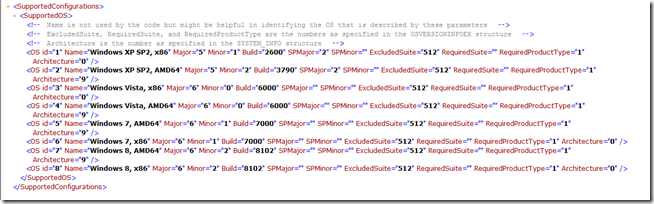
    •     <OS id="1" Name="Windows XP SP2, x86" Major="5" Minor="1" Build="2600" SPMajor="2" SPMinor="" ExcludedSuite="512" RequiredSuite="" RequiredProductType="1" Architecture="0"/>
          <OS id="2" Name="Windows XP SP2, AMD64" Major="5" Minor="2" Build="3790" SPMajor="2" SPMinor="" ExcludedSuite="512" RequiredSuite="" RequiredProductType="1" Architecture="9"/>
          <OS id="3" Name="Windows Vista, x86" Major="6" Minor="0" Build="6000" SPMajor="" SPMinor="" ExcludedSuite="512" RequiredSuite="" RequiredProductType="1" Architecture="0"/>
          <OS id="4" Name="Windows Vista, AMD64" Major="6" Minor="0" Build="6000" SPMajor="" SPMinor="" ExcludedSuite="512" RequiredSuite="" RequiredProductType="1" Architecture="9"/>
          <OS id="5" Name="Windows 7, AMD64" Major="6" Minor="1" Build="7000" SPMajor="" SPMinor="" ExcludedSuite="512" RequiredSuite="" RequiredProductType="1" Architecture="9"/>
          <OS id="6" Name="Windows 7, x86" Major="6" Minor="1" Build="7000" SPMajor="" SPMinor="" ExcludedSuite="512" RequiredSuite="" RequiredProductType="1" Architecture="0"/>
          <OS id="7" Name="Windows 8, AMD64" Major="6" Minor="2" Build="8102" SPMajor="" SPMinor="" ExcludedSuite="512" RequiredSuite="" RequiredProductType="1" Architecture="9"/>
          <OS id="8" Name="Windows 8, x86" Major="6" Minor="2" Build="8102" SPMajor="" SPMinor="" ExcludedSuite="512" RequiredSuite="" RequiredProductType="1" Architecture="0"/>
        </SupportedOS>
      </SupportedConfigurations>
    • image
  11. On the Windows 8 system: Open IE and open the http://connect wizard.
  12. At the _bottom_ of the IE window click the Turn on Intranet settings button.
    • image
  13. Click the Yes button to the “Are you sure . . . ?” prompt.
  14. Click the Start Connect Computer Program link.
    • image
  15. Step through the Connect Wizard.

image

The Windows 8 machine/VM will step through and complete its configuration.

Please use the supportedOS.XML file and the paths TXT file found in the above ZIP archive. The GP.XML file found in the archive is from an SBS 2008 setup so please ignore it for SBS 2011.

RDP and Windows 8

NOTE: We are experiencing a problem connecting to the VM via RDP on Windows SBS 2011 networks even with the firewall exceptions in place. At this point we are not sure if there is a problem using the RDP client in Windows 7/Windows Server 2008 R2 or if there is a bug in the Windows 8 OS RDP setup.

Philip Elder
MPECS Inc.
Microsoft Small Business Specialists
Co-Author: SBS 2008 Blueprint Book

*Our original iMac was stolen (previous blog post). We now have a new MacBook Pro courtesy of Vlad Mazek, owner of OWN.

Windows Live Writer

Friday, 16 September 2011

SBS 2008: Configure SBS Connect Wizard for Windows 8

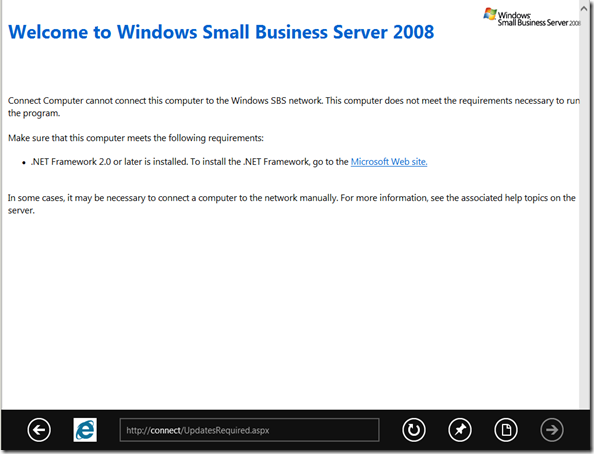
We stood up a desktop OS version of the Windows Developer Review (Win8) yesterday. When we went to run the SBS 2008 Connect Wizard where the VM was located we ran into the following error:
image

It’s asking for .NET 2 or later yet .NET 4 is installed in the Windows 8 desktop OS by default.

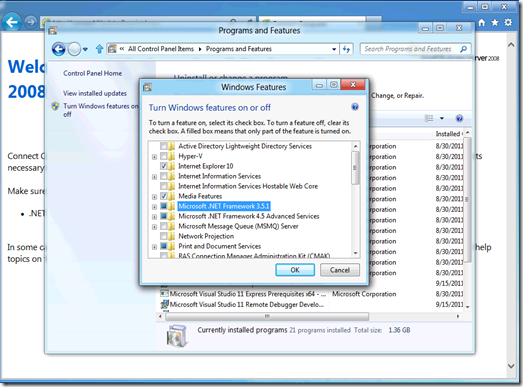
So, we went into the Turn Windows Features On or Off and enabled .NET 3.5.1:
image

The install process jumped onto the Internet and pulled down whatever it needed so there was a good 5 to 10 minute delay while that process went on.

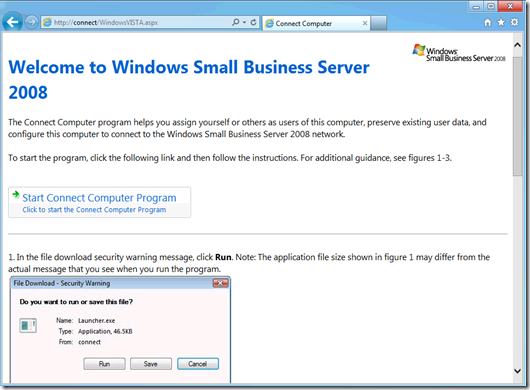
Once the .NET install routine was finished we cleared out the IE cache and started again:
image

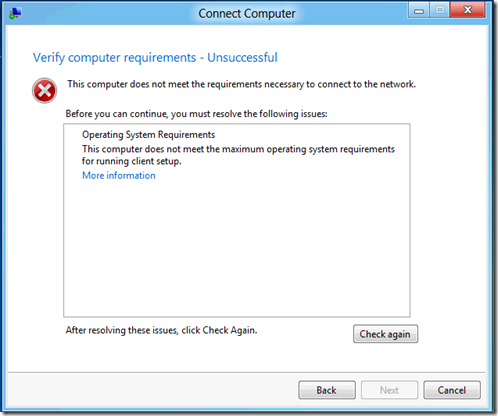
We now had our Connect Wizard start screen. So, we started the wizard and got hit with:
image

Connect Computer: Verifying computer requirements – Unsuccessful

This computer does not meet the requirements necessary to connect to the network.

Since we were messing around with the beta of Windows 7 back when it was not too hard to figure out that we needed to tweak things on SBS 2008 for Windows 8 to be recognized.

The paths needed:

  • \Windows\sysvol\domain\Policies\{YOUR-GUID-HERE}\machine\SBS
  • %programfiles%\Windows Small Business Server\Bin\webapp\ClientDeployment\packageFiles\

Copy and paste the above paths into NotePad on the SBS server.

The supportedOS.xml code is:

<SupportedConfigurations>
  <SupportedOS>
    <!-- Name is not used by the code but might be helpful in identifying the OS that is described by these parameters -->
    <!-- ExcludedSuite, RequiredSuite, and RequiredProductType are the numbers as specified in the OSVERSIONINFOEX structure -->
    <!-- Architecture is the number as specified in the SYSTEM_INFO structure -->

    <OS id="1" Name="Windows XP SP2, x86" Major="5" Minor="1" Build="2600" SPMajor="2" SPMinor="" ExcludedSuite="512" RequiredSuite="" RequiredProductType="1" Architecture="0"/>
    <OS id="2" Name="Windows XP SP2, AMD64" Major="5" Minor="2" Build="3790" SPMajor="2" SPMinor="" ExcludedSuite="512" RequiredSuite="" RequiredProductType="1" Architecture="9"/>
    <OS id="3" Name="Windows Vista, x86" Major="6" Minor="0" Build="6000" SPMajor="" SPMinor="" ExcludedSuite="512" RequiredSuite="" RequiredProductType="1" Architecture="0"/>
    <OS id="4" Name="Windows Vista, AMD64" Major="6" Minor="0" Build="6000" SPMajor="" SPMinor="" ExcludedSuite="512" RequiredSuite="" RequiredProductType="1" Architecture="9"/>
    <OS id="5" Name="Windows 7, AMD64" Major="6" Minor="1" Build="7000" SPMajor="" SPMinor="" ExcludedSuite="512" RequiredSuite="" RequiredProductType="1" Architecture="9"/>
    <OS id="6" Name="Windows 7, x86" Major="6" Minor="1" Build="7000" SPMajor="" SPMinor="" ExcludedSuite="512" RequiredSuite="" RequiredProductType="1" Architecture="0"/>
    <OS id="7" Name="Windows 8, AMD64" Major="6" Minor="2" Build="8102" SPMajor="" SPMinor="" ExcludedSuite="512" RequiredSuite="" RequiredProductType="1" Architecture="9"/>
    <OS id="8" Name="Windows 8, x86" Major="6" Minor="2" Build="8102" SPMajor="" SPMinor="" ExcludedSuite="512" RequiredSuite="" RequiredProductType="1" Architecture="0"/>
  </SupportedOS>
</SupportedConfigurations>

Please note that the above code contains both 32bit and 64bit entries for Windows 8.

The code looks like this in the file:

image

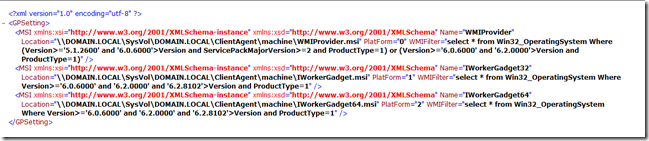
The code for the GP.XML file is:

<?xml version="1.0" encoding="utf-8"?>
<GPSetting>
  <MSI xmlns:xsi="http://www.w3.org/2001/XMLSchema-instance" xmlns:xsd="http://www.w3.org/2001/XMLSchema" Name="WMIProvider" Location="\\DOMAIN.LOCAL\SysVol\DOMAIN.LOCAL\ClientAgent\machine\WMIProvider.msi" PlatForm="0" WMIFilter="select * from Win32_OperatingSystem Where (Version&gt;='5.1.2600' and '6.0.6000'&gt;Version and ServicePackMajorVersion&gt;=2 and ProductType=1) or (Version&gt;='6.0.6000' and '6.2.0000'&gt;Version and ProductType=1)" />
  <MSI xmlns:xsi="http://www.w3.org/2001/XMLSchema-instance" xmlns:xsd="http://www.w3.org/2001/XMLSchema" Name="IWorkerGadget32" Location="\\DOMAIN.LOCAL\SysVol\DOMAIN.LOCAL\ClientAgent\machine\IWorkerGadget.msi" PlatForm="1" WMIFilter="select * from Win32_OperatingSystem Where Version&gt;='6.0.6000' and '6.2.0000' and '6.2.8102'&gt;Version and ProductType=1" />
  <MSI xmlns:xsi="http://www.w3.org/2001/XMLSchema-instance" xmlns:xsd="http://www.w3.org/2001/XMLSchema" Name="IWorkerGadget64" Location="\\DOMAIN.LOCAL\SysVol\DOMAIN.LOCAL\ClientAgent\machine\IWorkerGadget64.msi" PlatForm="2" WMIFilter="select * from Win32_OperatingSystem Where Version&gt;='6.0.6000' and '6.2.0000' and '6.2.8102'&gt;Version and ProductType=1" />
</GPSetting>

Instead of making the changes indicated in the SBS Blog we appended the Windows 8 version in the second two entries: and ‘6.2.8102’

Change DOMAIN.LOCAL (bold emphasis ours) to your own SBS domain in each of the entries as indicated above.

They look like this:

image

How To

  1. Install the Windows 8 OS.
  2. Update Integration Services
  3. Install .NET 3.5.1 into the Windows 8 OS by adding the feature.
  4. At the command prompt in Windows 8: ver [Enter]
    1. Note the version number.
  5. Copy and Paste the paths into NotePad (paths are in a TXT file at the end of this post)
  6. Find the required GUID in GPMC on SBS.
  7. Copy and Paste the GUID (the GUID can be highlighted copied from GPMC) into the path above.
  8. Open the GUID path and copy the GP.XML file out into a safe place.
  9. Open an elevated NotePad session: Start –> NotePad –> Right Click search result and Run As Admin.
  10. File –> Open –> navigate to GP.XML and open (copy and paste the path from NotePad).
  11. Make the necessary edits.
  12. Save.
  13. Open the supportedOS.XML path and copy the supportedOS.XML file out into a safe place.
  14. File –> Open –> navigate to the supportedOS.XML file (copy and paste the path from NotePad)
  15. Make the necessary edits.
  16. Save.
  17. Re-run the Connect Wizard on the Windows 8 VM/machine.

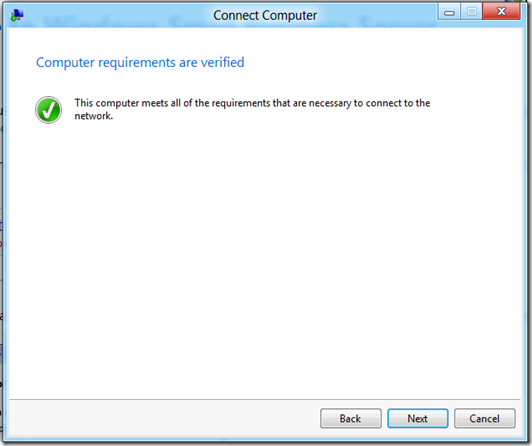
The Windows 8 VM/Machine will now meet the requirements:
image

supportedOS.XML Edit

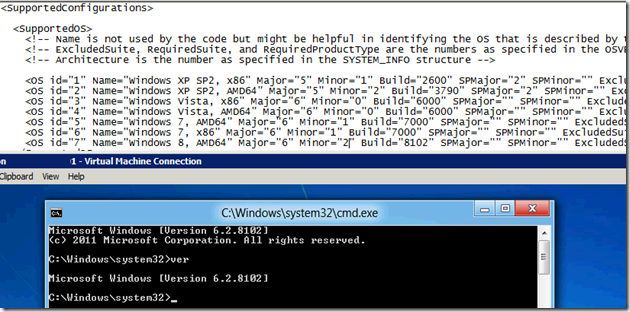
We found the Windows 8 version by running the following command at the command prompt:
image

  • ver [Enter]

We then made sure that our copy and paste of the Windows 7 OS id settings were updated appropriately.

  • The OS id always increments by 1
  • AMD64 is 64bit
  • x86 is 32bit
  • Architecture=”9” is 64bit
  • Architecture=”0” is 32bit

Full Screen Mode

If installing the Windows 8 OS into a VM it is a must to have the console session in Full Screen mode as the Windows key is needed to switch between Metro and the Desktop.

Windows 8 Search

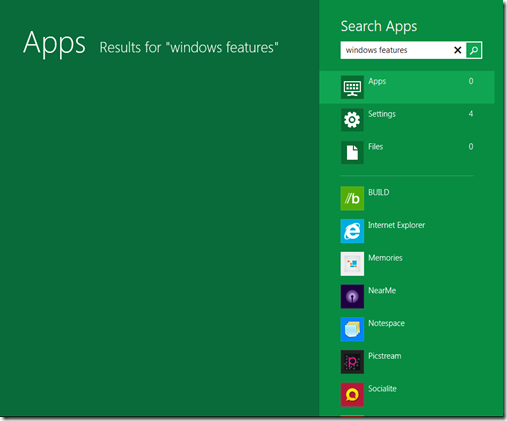
Okay, so where did the Search field go?!?

It turns out that after clicking on the Start button and having the Metro GUI kick in we need only start typing for it to come up with some results:
image

Not having the VM in Full Screen mode means a lot of CTRL+ALT+Delete to get to the Task Manager. :(

There may be a better way, but things are just a tad new for all of us outside of Microsoft.

A copy of the edited GP.XML, supportedOS.XML, and a TXT file with the paths can be found here:

The XML files in IE

GP.XML:
image

supportedOS.XML:

image

Philip Elder
MPECS Inc.
Microsoft Small Business Specialists
Co-Author: SBS 2008 Blueprint Book

*Our original iMac was stolen (previous blog post). We now have a new MacBook Pro courtesy of Vlad Mazek, owner of OWN.

Windows Live Writer

Monday, 10 January 2011

SBS v7 Beta Bits Expiring Today – No Date Reset Either

We managed to get our hands on an NDA copy of the SBS v7 bits a number of months back. We worked our way through the migration from SBS 2003 R2 Premium to our current SBS v7 configuration.

When we logged into the server a couple of days ago we were greeted with a message about the bits expiring.

We typed “WinVer [Enter]” from a command prompt and we saw:

image

The plan was to run the migration into an SBS 2011 RMT based VM over this last weekend but 12” of snow among other things kept us out of the shop and off the computers this last weekend.

It was mentioned that applying the release candidate of Service Pack 1 for Windows Server 2008 R2 may extend the deadline for these particular bits.

So, we ran the RC Service Pack:

image

Note that it looks as though the service pack has bits built in for SBS 2011.

The update took about 25 minutes on the server the bits are currently running on (1U, 8GB, Xeon X33xx, Intel RAID, 300GB 15K SAS x3 in RAID 5).

Once we were done though we were greeted with the following after a WinVer:

image

No change in expiry date.

That has meant a crash SBS v7 to SBS 2011 migration today all the while working on client needs.

We are following the SBS 2008 to SBS 2008 migration documentation for this process as it should be fairly similar though Exchange 2010 may add a few hiccups along the way.

Philip Elder
MPECS Inc.
Microsoft Small Business Specialists
Co-Author: SBS 2008 Blueprint Book

*Our original iMac was stolen (previous blog post). We now have a new MacBook Pro courtesy of Vlad Mazek, owner of OWN.

Windows Live Writer

Tuesday, 17 November 2009

Office 2010 Beta Available For Download For TechNet Subscribers

It’s official, the Office 2010 Beta has arrived . . . at least for TechNet Plus subscribers:

image

We shall soon see if Microsoft has addressed some of the issues that plagued us with the Release Candidate as the Beta has been downloaded and will be trialed on the Asus Eee PC that is here in Calgary with me.

Our main concerns:

  • Remote documents stored in a SharePoint library will open properly.
  • Outlook Search does not keep breaking.
  • Recurring Calendar items do not get deleted when only one in the series is deleted.

Philip Elder
MPECS Inc.
Microsoft Small Business Specialists
Co-Author: SBS 2008 Blueprint Book

*Our original iMac was stolen (previous blog post). We now have a new MacBook Pro courtesy of Vlad Mazek, owner of OWN.

Windows Live Writer

Friday, 26 June 2009

Windows 7 – Remote Desktop Multi-Monitor Goodness

The TS Gateway service allows us direct access to our desktops.

The new RDP version allows us to /mulitmon to use the two monitors we have connected to this workstation on the remote desktop:

image

Here is a list of the new RDP version’s command line switches:

image

Just remember that the TS Gateway service does allow for direct connections to any TS enabled system inside the SBS network. As a result, it would be a good idea to look at AuthAnvil by Scorpion Software to provide another level of authentication protection.

Philip Elder
MPECS Inc.
Microsoft Small Business Specialists
Co-Author: SBS 2008 Blueprint Book

*All Mac on SBS posts will not be written on a Mac until we replace our now missing iMac! (previous blog post)

Windows Live Writer

Monday, 22 June 2009

Windows 7 RC on Tecra S1 Laptop – Memory Upgraded to 1GB = Wow!

We had installed Windows 7 Release Candidate on an older Toshiba Tecra S1 with 512MB of RAM (previous blog post).

We dropped another 512MB of RAM into the laptop this afternoon.

Here is what the Task Manager looks like with the extra leg room:

image

The following applications are open:

  • Outlook 2007 minimized to the Tray.
  • Word 2007 with one document minimized.
  • Internet Explorer 8 with 4 tabs open.
  • Windows Live Messenger
  • Windows Live Writer
  • One RDP session to a client SBS 2008.
  • One Windows Explorer connected to a remote Company SharePoint site.

Here is the memory footprint:

image

That extra 512MB of RAM has impacted the laptop’s performance significantly!

Now that there is virtually no swap file action happening, things move along a lot smoother.

With only 512MB of RAM installed into the laptop, things were grinding away too slowly.

So, a Pentium M laptop of any flavour with 1GB of RAM would work out to be a very good field laptop for our technicians.

Even a power user could use this setup with minimal impact on their performance … depending on what they needed to do of course! ;)

Philip Elder
MPECS Inc.
Microsoft Small Business Specialists
Co-Author: SBS 2008 Blueprint Book

*All Mac on SBS posts will not be written on a Mac until we replace our now missing iMac! (previous blog post)

Windows Live Writer

Monday, 15 June 2009

Windows 7 UAC IS Broken – Video Proves It

We posted about our concerns with the possiblity of the Windows 7 UAC setup being broken: Windows 7 UAC is Broken?

Well, the authors of that blog post have gone on and demonstrated the vulnerability in a video:

After watching that video, there is no real reason for an SBS domain to have the UAC setting in Windows Vista turned off and Windows 7 UAC slider turned down.

Philip Elder
MPECS Inc.
Microsoft Small Business Specialists
Co-Author: SBS 2008 Blueprint Book

*All Mac on SBS posts will not be written on a Mac until we replace our now missing iMac! (previous blog post)

Windows Live Writer

Wednesday, 3 June 2009

Win7RC on Tecra S1 Pentium M 1.7GHz 512MB Update

Now that I have had a chance to work with this laptop on a frequent basis I can give a little more accurate of an assessment of Windows 7 Release Candidate’s performance on it.

The unit is configured as follows:

  • Toshiba Tecra S1
    • Intel Pentium M 1.7GHz single core no HT
    • 512MB RAM
    • 60GB 5400RPM IDE hard disk.
    • 15” high resolution LCD
    • ATI Mobility Radeon 9000 (not WDDM compliant)

The Task Manager looks like this:

image

While this laptop will not run Windows Vista to give one a reasonable workstation type experience, Windows 7 will at least give decent performance for most tasks.

This is what one can expect to see when there is Outlook, IE8 with a couple of tabs, and a couple of other windows open and trying to open a new tab or initiate a search:

image

Outlook almost always complains that it is not responding when it is pulled up from being minimized to the tray and asks whether it should be terminated. Ignore these messages and the requested window will eventually respond and show up on the screen.

In the mean time, the hard drive light is pretty much constantly lit with the swap operations.

So, we need at least 1GB of RAM to provide a more seamless window swap when switching between open applications or opening a new application. 2GB of RAM and this laptop would fly. Not much different than our initial experiences with Windows XP when it was released.

For basic use though, this setup is more than enough for browsing and e-mail. It would also make a great inexpensive college computer for a student living on a tight budget.

Going back to Windows Vista after getting more and more comfortable with the Windows 7 SharePoint integration features and Search is quite painful too.

Philip Elder
MPECS Inc.
Microsoft Small Business Specialists
Co-Author: SBS 2008 Blueprint Book

*All Mac on SBS posts will not be written on a Mac until we replace our now missing iMac! (previous blog post)

Windows Live Writer

Tuesday, 26 May 2009

Windows 7 and QuickBooks – UAC Required

QuickBooks 2008/9 Multi-Currency Edition, which uses the legacy codebase that the non-multicurrency edition does not, elicits a UAC prompt when running on Windows 7.

image

The software will then run, but will not find the previous network mapped drive company file location.

We need to click the Open button which then shows us our company file and click through from there.

This is good news for us as we could not get our QuickBooks to run at all on Windows Vista in our own company domain due to the security policies in place here.

When we migrate to SBS 2008 and the new Group Policy structures available to us we may have had success with QB on Vista, but we will not go there anymore! :)

We did try to work with the Windows 7 Compatibility Mode for XP to see if that would resolve the UAC prompt but it did not.

Again, no complaints because at least it will run!

Once we migrate our domain to SBS 2008, it will be interesting to see how QB and Windows 7 work with the new GP setup.

If we have nothing but grief, there is always XP Mode on Windows 7.

Philip Elder
MPECS Inc.
Microsoft Small Business Specialists
Co-Author: SBS 2008 Blueprint Book

*All Mac on SBS posts will not be written on a Mac until we replace our now missing iMac! (previous blog post)

Windows Live Writer

Saturday, 16 May 2009

Signing Into the SharePoint Site Via the Windows 7 Favorite Link

As we have mentioned in our previous blog post on Windows 7 and SharePoint integration, one of the really kewl new features in Windows 7 is the ability to Favorite a SharePoint library for quick access.

There is a small catch that we need to be aware of when trying to sign into the SharePoint library via the Windows 7 Favorite though:

09-05-16 SharePoint Sign On

Note the backslash just before the username. If that backslash is not there, Windows 7 will send the credentials in Domain\FirstLast format and SharePoint does not seem to like that.

Put .\FirstLast for the credentials and the local machine name will appear on the left of the backslash.

Now that we have figured that out, our access to the SharePoint library is quick and easy.

Note that the first time a document is opened in the library, we may be prompted for credentials too. Those credentials need to be in the same format as above.

Philip Elder
MPECS Inc.
Microsoft Small Business Specialists
Co-Author: SBS 2008 Blueprint Book

*All Mac on SBS posts will not be written on a Mac until we replace our now missing iMac! (previous blog post)

Windows Live Writer

Thursday, 7 May 2009

RSAT for Windows 7 x86 or x64

RSAT for Windows Vista will not work on Windows 7.

There is a version for Windows 7, though we needed to dig around for it:

image

The links on the Microsoft Download site do not work.

But, this site has a direct link to the downloads themselves (x86 and x64) that work as of this writing: Remote Server Administration Tools (RSAT).

After downloading and installing them, note that they need to be enabled in the Windows 7 Programs and Features on or off.

image

Note the lack of a check mark beside the Remote Server Administration Tools feature.

Once in, we have access to the Hyper-V Manager which is what spurred the search on in the first place.

Philip Elder
MPECS Inc.
Microsoft Small Business Specialists
Co-Author: SBS 2008 Blueprint Book

*All Mac on SBS posts will not be written on a Mac until we replace our now missing iMac! (previous blog post)

Windows Live Writer

Wednesday, 6 May 2009

Windows 7 – No Logon Screen Saver – Logon.SCR File?

We have a series of Group Policy settings in place that manage the screen saver settings.

The default screensaver at all client locations with the exception of one, as well as ours is the Logon Screen Saver (Logon.SCR).

It seems that the Release Candidate does not have this file:

image

Note the Not Enabled symbol over the Screen Saver icon.

When we click on it, this is what we see in the screen saver settings window:

image

The settings are greyed out as they are managed by GPO. Note the (None) in the Screen saver field.

Hopefully this gets rectified before RTM, or we can copy in the Windows Vista Logon.SCR file to make up for it.

We shall see…

Philip Elder
MPECS Inc.
Microsoft Small Business Specialists
Co-Author: SBS 2008 Blueprint Book

*All Mac on SBS posts will not be written on a Mac until we replace our now missing iMac! (previous blog post)

Windows Live Writer

Tuesday, 5 May 2009

Windows 7 Torrent Risks Revisited

A while back, we posted about the risks versus the benefits when it comes to downloading software via Torrent or P2P: Windows 7 Torrent Risks.

The folks that are putting out malware and Trojans understand the need to work with as many attack vectors as possible. One of those vectors is the software “freely” available via P2P download.

We see P2P downloading as just too easy of a target. The greater the value of the download, like Windows 7, the greater the value of compromising a good image with some sort of malware. It makes “business” sense.

There have been a few recent articles on the matter too:

With the download now freely available at Microsoft’s site Windows 7 Release Candidate Download, all it takes is some time, bandwidth, and a DVD or two to burn the RC and install from there.

Again, we stand by our original thought on the matter: We choose to evaluate the risks versus the “benefits” of downloading via Torrent or P2P as too risky. Period.

Philip Elder
MPECS Inc.
Microsoft Small Business Specialists
Co-Author: SBS 2008 Blueprint Book

*All Mac on SBS posts will not be written on a Mac until we replace our now missing iMac! (previous blog post)

Windows Live Writer

Monday, 4 May 2009

Windows 7 Search – Can Move Those E-mails and More!

This feature was introduced with the Windows Vista Search.

When it comes to organizing a lot of e-mail that may not fit into the sorting rules that we have, the process can be very time consuming depending on how scattered things are.

The Start –> Search feature in Windows Vista and Windows 7 makes things pretty straight forward:

image

The new search interface is a lot more intuitive in its layout. Features like the Preview Pane are quickly accessible along with the ability to quickly change the view from icons to details depending on the sorting needs of the moment.

The saved search feature has changed quite a bit too. It has been greatly improved:

image

The Windows Vista search saved as a “Search Folder”. It was located in our profile folder. With Windows 7, we get the Search Connector. It is similar in nature to the Vista saved search, but we get to have that Search Connector located in a quickly accessible location near the top left of any Windows Explorer window.

Search Connectors can be created from virtually any type of search. We need only tweak the XML code a bit to work one out. Here is a Live Search for Windows 7 Connectors.

This feature is definitely a time-saver for those folks working on projects that require searching for specific items regularly or for those times where we need to go back to something later on.

Philip Elder
MPECS Inc.
Microsoft Small Business Specialists
Co-Author: SBS 2008 Blueprint Book

*All Mac on SBS posts will not be written on a Mac until we replace our now missing iMac! (previous blog post)

Windows Live Writer

Windows 7 – Create and Mount a VHD

We have a need to insert ShadowProtect image files into a VHD for recovery purposes. To date, we would attached the drive with the images to a server and then share it so that we could get access to it via network.

There are other solutions available for this task, but for now we have not had a lot of need to look any further.

Windows 7 solves this dilemma by allowing us to create and mount a VHD (Virtual Hard Drive) on the Windows 7 system we are working on. This enables us to attach the USB drive and copy the ShadowProtect files right into a VHD which we can then mount in the Virtual Machine that we will run a recovery to.

The process is actually quite simple:

  1. Start –> DiskMgmt.msc [Enter].
  2. Click Action and Create VHD.
  3. The Create and Attach Virtual Hard Disk window comes up:
    image
  4. Set the name and location of the new VHD file, the size of the file in MB or GB, and whether it will be dynamic or fixed in size.
  5. A new disk will appear in the Disk Management Console:image
  6. Right click under the Disk # and Initialize the disk.
  7. Once the disk is initialized, it can be formatted and have a drive letter assigned to it.
  8. AutoPlay will pop up asking what we want to do with the new drive (for the time being as AutoPlay will be disabled soon in Windows)

We do not close the Drive Management console as it is needed to detach the VHD once we are done with it. To detach, right click under Disk # in the list of disks and Detach VHD.

To attach a VHD, in Drive Management we click on the Action menu item and Attach VHD. Once we specify the VHD file we are good to go with our edits, changes, or file insertion.

This is a real time saving feature for us when we need to make quick changes to a VHD file, run a check disk on a seemingly corrupt VHD, or create a VHD and install files such as service packs or install files for VM access.

Very Nice!! :)

Philip Elder
MPECS Inc.
Microsoft Small Business Specialists
Co-Author: SBS 2008 Blueprint Book

*All Mac on SBS posts will not be written on a Mac until we replace our now missing iMac! (previous blog post)

Windows Live Writer

Saturday, 2 May 2009

Windows 7 Release Candidate RDP Supports Multi-Monitors!

Need we say more:

09-05-02 Win7 - RDP Client Supports Multi-Monitors

Use all my monitors for the remote session

What a huge leap ahead.

Most users that we work with have discovered the significant increase in productivity that two or more monitors can provide for them in their offices. Now they can have that same productivity from home.

The multi-monitor feature will make Windows 7 a very valuable upgrade option for those that connect to their in-house/office systems via the Remote Web Workplace and always have at least two monitors connected to the remote workstation.

It will be a great feature for those that manage networks via remote connections too.

Philip Elder
MPECS Inc.
Microsoft Small Business Specialists
Co-Author: SBS 2008 Blueprint Book

*All Mac on SBS posts will not be written on a Mac until we replace our now missing iMac! (previous blog post)

Windows Live Writer

Windows 7 RC on RipCurled SBS 2003 Domain Is Good To Go!

Our home SBS 2003 (soon to be migrated to SBS 2008) server has had Windows Vista systems on it since we had our hands on the RTM bits.

So, we needed to have fun figuring out how to get things working before the official SBS 2003 RipCurl (previous blog post) was released.

So, we ran the http://MySBS/ConnectComputer on the Toshiba Tecra with Windows 7 RC (previous blog post) installed on it.

The SBS 2003 workstation setup wizard ran flawlessly.

image

The above screenshot is after the final reboot and subsequent first user logon to the laptop.

That is pretty sweet … and a huge step ahead of the official Beta! :)

Philip Elder
MPECS Inc.
Microsoft Small Business Specialists
Co-Author: SBS 2008 Blueprint Book

*All Mac on SBS posts will not be written on a Mac until we replace our now missing iMac! (previous blog post)

Windows Live Writer