Showing posts with label SBS 2008 All Editions. Show all posts

Tuesday, 27 August 2013

Exchange Error: Edit E-mail Address Policy – Address List Service Cannot Be Found

We were attempting to update the E-mail Address Policy (EAP) on an Exchange server and hit this error:

image

Edit E-mail Address Policy

The wizard could not complete.

Error:

An Exchange 2007 server on which an address list service is active cannot be found.

This particular SBS 2008 with Exchange 2007 was being tweaked as it is a restore into our lab cluster setup.

A quick search pointed to the Exchange System Attendant service not being online and sure enough it was not.

After starting the server we had a successful EAP change:

image

We could then move on to our next tasks at hand for this project.

Philip Elder
MPECS Inc.
Microsoft Small Business Specialists
Co-Author: SBS 2008 Blueprint Book

Chef de partie in the SMBKitchen
Find out more at
www.thirdtier.net/enterprise-solutions-for-small-business/

Windows Live Writer

Monday, 26 August 2013

Domain Join Error: Cannot Complete This Function

In our newly recovered SBS 2008 environment we have not restored our client's Windows Server 2012 DC.

When attempting to join a freshly installed Windows 7 VM via http://connect we hit the following error:

13-08-26 BIO-Recovery - 02 Cannot complete this function ERROR

Connect Computer Error Details

ERROR: Connecting to the network

Cannot complete this function

Now, we then went and tried to join the VM manually and this is what we hit:

image

Computer Name/Domain Changes

The following error occurred attempting to join the domain "domain.local":

Cannot complete this function.

After verifying that DHCP was only handing out the recovered SBS as the only DNS server we went on to clean out DSSite.msc of the secondary DC and then on to DNS to clean up domain.local and _msdcs.domain.local.

Once we cleaned out the references to the now absent DC we had a successful domain join.

Moral of the story: If a now defunct DC still exists in Active Directory Sites and Services and/or DNS then clean-up including metadata clean-up (KB216498) may be required.

Philip Elder
MPECS Inc.
Microsoft Small Business Specialists
Co-Author: SBS 2008 Blueprint Book

Chef de partie in the SMBKitchen
Find out more at
www.thirdtier.net/enterprise-solutions-for-small-business/

Windows Live Writer

Wednesday, 24 April 2013

SBS 2011 Standard: Install Error 0x80300001 - "Windows cannot be installed to Disk 0 Partition 1" OR "Cannot find a System Partition"

There was one other error that came up depending on if we SHFT+F10 to get to the command prompt and try formatting using DiskPart.

image

Internet searches came up with swapping optical disks between the Windows installer disk and the driver disk but we had everything including the Answer File (this was a migration run attempt in a lab setting) on a bootable USB flash drive.

After fighting with it for an hour we brought in another known good bootable USB flash drive that had the SBS 2011 Standard install files on it and low and behold the process worked!

Meh ... Very frustrating to run through all of that troubleshooting only to find out that the ISO we pulled the files from was bad.

So, the second step in troubleshooting any Windows OS install error in WinPE is to download a new ISO, format a flash drive as bootable using DiskPart, and copy the SBS files over.

Philip Elder
MPECS Inc.
Microsoft Small Business Specialists
Co-Author: SBS 2008 Blueprint Book

Chef de partie in the SMBKitchen
Find out more at
www.thirdtier.net/enterprise-solutions-for-small-business/

Windows Live Writer

Tuesday, 23 April 2013

Move the Symantec SEM5.db file to another partition

We have an SBS 2008 Standard setup that’s getting really tight on the system drive.

We’ve pretty much moved everything and anything we can off of the system partition to keep space as free as possible.

One of the last pieces to be moved is the SEM5.db file that runs around 2GB or more.

To move that file we followed these instructions:

  1. Go to services.msc
  2. Stop the Symantec Endpoint Protection Manager Service
  3. Stop the Symantec Embedded Database Service
  4. Go to \Program Files\Symantec\Symantec Endpoint Protection Manager\db and cut the sem5.db file and paste it to the new drive
  5. Click Start
  6. Click run
  7. Type regedit
  8. Go to HKey_Local_Machine\system\CurrentControlSet\Services\ASANYs\Parameters\ click on the Parameters option in the right hand side column and change the path of the sem5.db database file to the new location as New Drive:\Folder name
    • Our folder: image
  9. Restart the Symantec Embedded Database Service from services.msc
    • NOTE: We were able to log on to the SEP Management Console once we had both services started at this point.
  10. Go to Administrative Tools
  11. Click on Data Sources (ODBC)
  12. Click on System DSN tab
  13. Click on Configure button
  14. Highlight the database tab and replace the path for the sem5.db file and ensure connectivity by clicking on Test Connection
  15. Go to Management Server configuration Wizard and perform the server reconfiguration

That freed up over 2GB of storage space which at this point for this particular SBS is _a lot_ of space to be had! :)

Philip Elder
MPECS Inc.
Microsoft Small Business Specialists
Co-Author: SBS 2008 Blueprint Book

Chef de partie in the SMBKitchen
Find out more at
www.thirdtier.net/enterprise-solutions-for-small-business/

Windows Live Writer

Monday, 11 March 2013

SBS Standard’s Gift to SMB IT Going Forward

Another comment made on Susan’s blog post here: A social question about the future of SMB servers

SBS fit the bill for SMB IT infrastructure and did so beautifully. It provided an awesome Enterprise oriented platform for our SMB clients. Many of us have seen jealousy in the eyes of our fellow Enterprise IT Pros since SBS 2003 and the RWW were first released.

Many of us have probably been through the flame wars that *NIX folks would toss our way, even Enterprise IT Pros too, about having everything on one box and EXPOSING it to the Internet?!?!?

One big plus that has become one of the guiding lights for me through all of the pain and angst of figuring out where we (MPECS, Monique my wife and co-owner, and our contractors) fit in to the new Cloudy picture is that SBS has given us a blueprint (no pun intended on the book) to move on with.

What is that blueprint?

  • AD/GPO structure
  • Exchange and its configuration out of the box (lots to learn here)
  • File Resources and management (reports, quotas, etc.)
  • WSUS and patch management
  • Reporting (we know we need something right?)
  • RDS (RDGateway, RemoteApps, and RDS to users) ***
  • SharePoint

SBS gives us a clear vision into how Microsoft would and does configure the individual components built into the SBS Suite of products.

There is a learning curve involved here. No doubt about it.

But, we have the tools today that can get us to the point of virtually automating the install and configuration of most of the above bits today in PowerShell and to some extent the new Server Manager and Exchange Admin Console.

In the end, the message here is a hopeful one. On-Premises will be around and we plan to be there to integrate the solution set in a Microsoft Best Practices manner. SBS gives us a very important glimpse into those “Best Practices”. :)

Philip Elder
MPECS Inc.
Microsoft Small Business Specialists
Co-Author: SBS 2008 Blueprint Book

Chef de partie in the SMBKitchen
Find out more at
www.thirdtier.net/enterprise-solutions-for-small-business/

Windows Live Writer

Thursday, 28 February 2013

How to test the Autodiscover._tcp SRV record for Exchange

We needed to test a domain's autodiscover setup that we had them configure since we are not confident in the hoster's abilities anymore.

  1. Open an elevated command prompt.
  2. NSLookup [Enter]
  3. set type=srv [Enter]
  4. _autodiscover._tcp.mpecsinc.ca [Enter]
    • image

And, the test for the hosting provider shows that they did indeed make a mess of it. Back to the drawing board. :(

The How-To for formatting the Autodiscover SRV record is in the TechNet article below. That method works for our own SBS 2011 Standard integrated Exchange and our client's setups as well.

We now use this SRV record for all of our client's Internet DNS setup.

Hat tip: Unify and Conquer: Quick Tip: Testing DNS SRV Records with NSLookup

Philip Elder
MPECS Inc.
Microsoft Small Business Specialists
Co-Author: SBS 2008 Blueprint Book

Chef de partie in the SMBKitchen
Find out more at
www.thirdtier.net/enterprise-solutions-for-small-business/

Windows Live Writer

Friday, 22 February 2013

WSUS for Windows 8/Server 2012 and Fixing the 800B0001 Windows Update Error

We need to apply the following update to our WSUS servers to allow Windows 8 and Server 2012 to be updated via WSUS.

And, since we a fair way down the road since both products were RTM we need to read the following caveat:

From the blog post:

If you have Windows 8 or Windows Server 2012 clients that synchronized with WSUS 3SP2 before you applied this update, wait for the update to be applied to the WSUS servers, and then follow these steps:

  1. On the affected client, open cmd.exe in elevated mode.
  2. Type the following commands. Make sure that you press Enter after you type each command:

Net stop wuauserv
rd /s %windir%\softwaredistribution\
Net start wuauserv

This is what we are seeing in Windows 8 and Windows Server 2012:

image

  • Windows could not search for new updates
    • There was a problem checking for updates. Error(s) found: Code 80096002

We ran the above update on our SBS 2011 Standard server.

image

And:

image

And then the waiting game began:

image

The server came up with everything in order.

image

And, on the Windows 8 clients:

image

NOTE: We recommend rebooting both Windows 8 and Windows Server 2012 _as soon as the updates are applied_ and not leaving either OS in a half-patched state!

And, on to the next WSUS snag:

This fix corrects the 800B0001 error clients may see where the client machine has had its Update Services backend updated but the WSUS server has not been updated for the changes Microsoft has made to the Update Services structure.

image

For this particular update we will need to wait as our own WSUS infrastructure has not had this issue. But, we have seen a number of clients that have.

Philip Elder
MPECS Inc.
Microsoft Small Business Specialists
Co-Author: SBS 2008 Blueprint Book

Chef de partie in the SMBKitchen
Find out more at
www.thirdtier.net/enterprise-solutions-for-small-business/

Windows Live Writer

Wednesday, 13 February 2013

SBS 2008: SharePoint Configuration Log File Huge

We have a client setup that is getting a bit constrained on storage:

image

One of the culprits was the above SharePoint Configuration log file.

The following KB has the fix for us:

We need to copy and paste the following into NotePad on the affected SBS:

declare @ConfigDB varchar(255);
declare @ConfigDBLog varchar(255);
declare @ConfigDBCmd varchar(255);
select @ConfigDB = name from sys.databases where name like 'SharePoint_Config_%';
set @ConfigDBCmd = 'BACKUP database [' + RTRIM(@ConfigDB) + '] to disk=''C:\windows\temp\before.bkf''';
execute(@ConfigDBCmd);
set @ConfigDBCmd = 'use [' + RTRIM(@COnfigDB) + ']';
execute(@ConfigDBCmd);
set @ConfigDBCmd = 'BACKUP LOG [' + RTRIM(@ConfigDB) + '] WITH TRUNCATE_ONLY';
execute(@ConfigDBCmd);
set @ConfigDBCmd = 'use [' + RTRIM(@COnfigDB) + ']';
execute(@ConfigDBCmd);
select @ConfigDBLog = name from sys.database_files where name like 'SharePoint_Config%_log';
set @ConfigDBCmd = 'use [' + RTRIM(@ConfigDB) + '] DBCC SHRINKFILE([' + RTRIM(@ConfigDB) + '_log],1)';
execute(@ConfigDBCmd);
set @ConfigDBCmd = 'BACKUP database [' + RTRIM(@ConfigDB) + '] to disk=''C:\windows\temp\after.bkf''';
execute(@ConfigDBCmd);
go

We then need to save the file as "LogShrink.sql" in a Temp folder on the server. In our case we saved it to C:\Temp

image

We encapsulate the full name of the file in quotes to force the .SQL extension on the file name.

Open an elevated command prompt and:

sqlcmd -S \\.\pipe\mssql$microsoft##ssee\sql\query -E -i c:\temp\logshrink.sql [Enter]

Once completed our log file was a paltry 1MB in size:

image

Philip Elder
MPECS Inc.
Microsoft Small Business Specialists
Co-Author: SBS 2008 Blueprint Book

Chef de partie in the SMBKitchen
Find out more at
www.thirdtier.net/enterprise-solutions-for-small-business/

Windows Live Writer

Thursday, 4 October 2012

#IAmMEC - The Hands-On-Labs are still online!

There was just so much awesome content throughout the Microsoft Exchange Conference that I only had a few visits to the Hands-On-Labs room(s).

Well, the HOLs are still available on the MyMEC Site.

image

The conference was _really_ worth it.

We now have a great view of Exchange 2013 and its requirements as well as the migration story from Exchange 2010 or Exchange 2007.

NOTE: There is no migration story for Exchange 2003!

For those SBS 2003 sites we will need to migrate their mailboxes to Exchange 2010 and then on to Exchange 2013 if and when the time comes.

Philip Elder
MPECS Inc.
Microsoft Small Business Specialists
Co-Author: SBS 2008 Blueprint Book

Windows Live Writer

Friday, 21 September 2012

SBS 2008/2011 and Sage 50 (Simply Accounting 2013)

It seems that Simply 2013 (Sage 50) is going to want to install .NET 4.0 on SBS 2008:

image

Once the routine had finished it then requested a reboot prior to going further into the Sage 50 – Simply Accounting 2013 Accountant’s Edition install.

After the reboot the Setup.exe started up automatically and:

image

Once the above install completed we were finally greeted with:

image

We then had our new Database Manager installed and were able to disable the 2012 version in Services.msc.

Note that the firewall exceptions that we make for the MySQL and accompanying services are still good so we did not need to make any changes to the SBS 2008 Standard/Premium firewall setup.

It was a curious thing that an Internet Explorer security block came up for Google Analytics when the Sage post Setup Configuration Help page popped up. ;)

Also, the service set itself up to the start-up type “Automatic (Delayed Start)” on SBS 2011 Standard but “Automatic” on SBS 2008. We flipped the service over to Delayed Start on SBS 2008 too as we have had some issues with the Database Connection Manager not starting on its own in the past.

image

Philip Elder
MPECS Inc.
Microsoft Small Business Specialists
Co-Author: SBS 2008 Blueprint Book

Windows Live Writer

Saturday, 19 May 2012

How to run ISInteg on SBS 2008 or Exchange 2007 Store

We ran into a bit of a syntax problem trying to get the ISInteg utility to run on the Windows Server 2008 server hosing Exchange 2007 SP3.

The proper syntax to get the command to work is as follows:

  • isinteg –s SERVERNAME –test ALLTESTS –fix –t “X:\TempFileDestination.edb”

This was the last step before we mounted the database and were greeted with content in every folder within each user’s mailbox.

Just goes to show: Make sure the UPS attached to the server is tested for battery life and that the software that is supposed to shut the server down gracefully is receiving correct signals from the UPS!

Have an awesome long weekend! :)

Hat Tip: emalf-pc blog: Running ISINTEG on Microsoft Exchange 2007

Philip Elder
MPECS Inc.
Microsoft Small Business Specialists
Co-Author: SBS 2008 Blueprint Book

*Our original iMac was stolen (previous blog post). We now have a new MacBook Pro courtesy of Vlad Mazek, owner of OWN.

Windows Live Writer

Wednesday, 16 May 2012

SBS 2008: CAPI2 Event ID 11: Failed extract of third-party root list from auto update cab at . . . /authrootstl.cab

We have a few of these showing up:

image

Event Properties – Event 11, CAPI2

Failed extract of third-party root list from auto update cab at: <http://www.download.windowsupdate.com/msdownload/update/v3/static/trustedr/en/authrootstl.cab> with error: A required certificate is not within its validity period when verifying against the current system clock or the timestamp in the signed file.

Source: CAPI2
Event ID: 11

The fix is found in the following KB:

From an elevated command prompt we run:

  • certutil –urlcache * delete
    • image

We then need to clean out a series of folders.

  1. LocalService:
    %windir%\ServiceProfiles\LocalService\AppData\LocalLow\Microsoft\CryptnetUrlCache\Content
    %windir%\ServiceProfiles\LocalService\AppData\LocalLow\Microsoft\CryptnetUrlCache\MetaData

  2. NetworkService:
    %windir%\ServiceProfiles\NetworkService\AppData\LocalLow\Microsoft\CryptnetUrlCache\Content
    %windir%\ServiceProfiles\NetworkService\AppData\LocalLow\Microsoft\CryptnetUrlCache\MetaData

  3. LocalSystem:
    %windir%\System32\config\systemprofile\AppData\LocalLow\Microsoft\CryptnetUrlCache\Content
    %windir%\System32\config\systemprofile\AppData\LocalLow\Microsoft\CryptnetUrlCache\MetaData

Once done the CAPI2 errors should be gone.

Philip Elder
MPECS Inc.
Microsoft Small Business Specialists
Co-Author: SBS 2008 Blueprint Book

*Our original iMac was stolen (previous blog post). We now have a new MacBook Pro courtesy of Vlad Mazek, owner of OWN.

Windows Live Writer

Monday, 14 November 2011

SBS 2008 and SharePoint Errors 3760 and 27745

We have spent the better part of the day troubleshooting an SBS 2008 Companyweb that went offline this morning without any real indication of _why_ that happened.

The server has been up for about 30 days with no SharePoint updates applied for at least a couple of update cycles.

  • Error 1: 3760 (A few of these just before things went offline)
    • SQL Database ‘ShareWebDb’ on SQL server instance ‘…’ not found.
  • Error 2: 27745 (happens every second or more)

      Log Name:      Application
      Source:        Windows SharePoint Services 3
      Date:          09/06/2011 12:02:30
      Event ID:      27745
      Task Category: General
      Level:         Error
      Keywords:      Classic
      User:          N/A
      Computer:      xxxxxxxx.local
      Description:
      The description for Event ID 27745 from source Windows SharePoint Services 3 cannot be found. Either the component that raises this event is not installed on your local computer or the installation is corrupted. You can install or repair the component on the local computer.

      #50071: Unable to connect to the database SharePoint_Config_xxx-xxx-xxxx-xxxx-xxxxxxxxxxxx on xxxxxx\Microsoft##SSEE.  Check the database connection information and make sure that the database server is running.

We went through a very long process of trying to figure out the source of the problem.

Both Companyweb and the SharePoint Administration sites were offline.

Ultimately, the steps we took are to be found in this Experts Exchange Question:

About two thirds of the way down is a transcript of the process Microsoft Product Support Services took to figure out what the problem was. The lines below are the ones relevant to our own situation with the lines starting with an asterisk (*) being steps we did on our own.

  • Tried to browse companyweb, came up with error:  HTTP 404   The webpage cannot be found
  • Tried to browse Sharepoint central Administration, get the error: HTTP 404   The webpage cannot be found
  • Ran the PSconfig and gave the error: Unhandled exception has occurred in your application
  • Checked if the database were attached in SQL and found them there.
  • Ran PSconfig and failed again.
  • We checked CLICONFG and found that TCP/IP was listed on enabled protocols.
  • On a working machine, it was (sic) a disabled protocol.
  • image
  • Left = Bad | Right = Good
  • We moved it to disabled protocol.
  • * We restarted the Microsoft##SSEE service and SP Timer service.
  • Ran psconfig and this time it was successful.
  • Browsed to Sharepoint central admin and it was working.
  • * Ran the Credential Management step in SP Operations.
  • image
  • * Restarted IIS: IISReset /Noforce
  • NOTE: We had to manually shut IIS down and restart as it hung at “Stopping”.
  • * Refreshed SP Admin site and all was good.
  • Browsed companyweb and that was successful.

It is very important to note that an out-of-band management module such as the iDRAC Enterprise, HP iLO Advanced, Intel RMM, or other KVM over IP should be used.

The RD Gateway service consistently stopped and stayed down during our troubleshooting processes. An IP restricted direct to SBS RDP rule in the firewall would be a good second option though not perfect if the OS stops in its tracks!

While we tried to outline every step we took troubleshooting this process, there may be a few steps that we missed documenting in the process.

As always, have a backup of that server before making any changes!

Philip Elder
MPECS Inc.
Microsoft Small Business Specialists
Co-Author: SBS 2008 Blueprint Book

*Our original iMac was stolen (previous blog post). We now have a new MacBook Pro courtesy of Vlad Mazek, owner of OWN.

Thursday, 20 October 2011

Cause for Pause: My SBS Backups Are Gone?!?

We were asked to recover a folder set for a client from the beginning of this year.

When we went to the backup destination media that should have that backup set on it we were greeted with the following shock:

image

In this particular circumstance the SBS in question was deployed just about a year ago. The backup destination happened to be the first disk in their three drive rotation (we rotate every two weeks and test their backups for this client).

We were fortunate that the folders needed were found on Disk 2 in the rotation. But, anything beyond that would have been useless to us as the files that were changed beyond the Drive 2 date set were still needed.

What does this mean for us?

Well, for starters any client with less than three drives in their rotations will be bumped up to at least 3.

We will be implementing a grandfather clause into the backup structure to allow for one drive to have file and folder access for the last year.

In this particular case we pulled Drive 2 out of the rotation immediately so as to use as an archive just in case.

We will be digging into this server’s logs around the time of the backup drive being blanked to see if there are any indicator log entries that we can use to flag and e-mail us. There may be cases where we would want to pull that drive right out and leave it alone for 6 to 12 months.

Philip Elder
MPECS Inc.
Microsoft Small Business Specialists
Co-Author: SBS 2008 Blueprint Book

*Our original iMac was stolen (previous blog post). We now have a new MacBook Pro courtesy of Vlad Mazek, owner of OWN.

Windows Live Writer

Thursday, 13 October 2011

Patching SBS 2008 and SBS 2011

We are noticing that some of the recent updates are requiring several auto reboots of the server along with a seemingly long hang at a blank or green screen.

In our Setup Guide at step 24 as of this writing we outline how we go about patching our SBS servers:

    • Update to the latest SBS Update Rollup first.
    • Run updates according to the following product groups:
    • Windows Server 2008 Standard R2
      • Run OS Updates at around 10-15 per reboot cycle.
      • Run OS Security Updates at around 5-10 per reboot cycle.
    • Exchange SP1/2/3 or Exchange Rollup RU1/2/3/etc 
    • .NET
      • If .NET v1 is present update first.
      • Do .NET v2 and v2.x updates one at a time.
      • Do .NET v3 and v3.x updates one at a time.
      • Do .NET v4 and v4.x updates one at a time.
      • Reboot between each cycle as requested.
    • SQL
      • Start with 2005 versions.
      • Next to 2008 versions.
      • Next to 2008 R2 versions.
    • SharePoint Foundation, WSUS, and others.

One of the things to be mindful of is which updates are selected when opening the Windows Update console for the first time. We are seeing that while most updates are selected by default some _are not_.

Why are they not selected?

To hazard a guess probably because there are patches that need to be in place prior to their being applied.

So, take note of any patches not selected and run them last.

We follow the above patching guideline religiously. For a server that may have 20, 30, or more patches waiting our method could mean tacking on an extra hour or more of time to get that server up to date.

We balance the risk versus the reward. Would we prefer to spend some extra time running updates on the server or take even more time restoring the server from backup because something blew up?

And, in this case out of all the update runs we have done over the years we have only had one bad patching victim on SBS 2008. SharePoint service pack 1 killed the Companyweb on a newly installed server.

From what we understand .NET updates somehow compile themselves on the fly. This is one of the causes of a long update cycle. Note that we update .NET patches in family first and only two or three at a time!

On SBS 2011 note that there is an extra manual step for SharePoint Foundation updates!

image

Make sure to run that command afterwards.

The command:

  • PSConfig.exe -cmd upgrade -inplace b2b -force -cmd applicationcontent -install -cmd installfeatures

Remember to run a backup of the server before starting any updates (yes, in between too!) and be prepared to restore that server!

Philip Elder
MPECS Inc.
Microsoft Small Business Specialists
Co-Author: SBS 2008 Blueprint Book

*Our original iMac was stolen (previous blog post). We now have a new MacBook Pro courtesy of Vlad Mazek, owner of OWN.

Windows Live Writer

Friday, 16 September 2011

SBS 2008: Configure SBS Connect Wizard for Windows 8

We stood up a desktop OS version of the Windows Developer Review (Win8) yesterday. When we went to run the SBS 2008 Connect Wizard where the VM was located we ran into the following error:
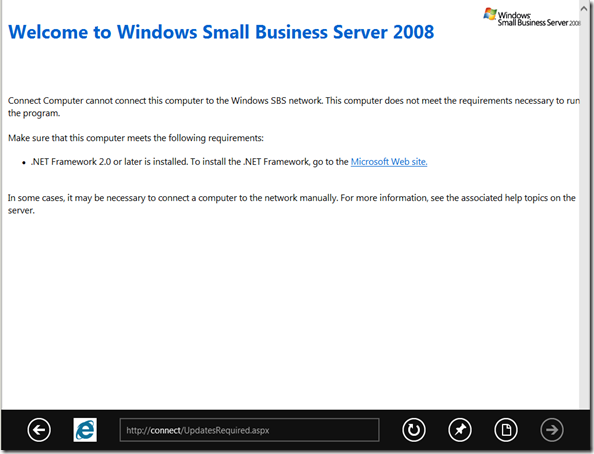
image

It’s asking for .NET 2 or later yet .NET 4 is installed in the Windows 8 desktop OS by default.

So, we went into the Turn Windows Features On or Off and enabled .NET 3.5.1:
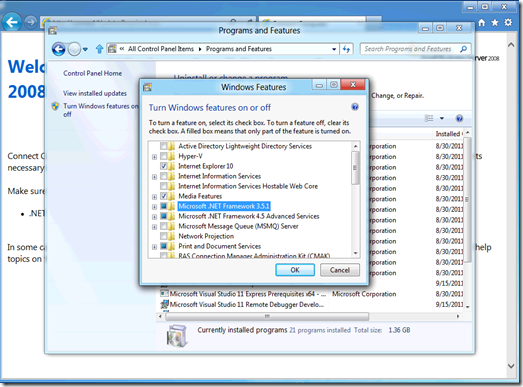
image

The install process jumped onto the Internet and pulled down whatever it needed so there was a good 5 to 10 minute delay while that process went on.

Once the .NET install routine was finished we cleared out the IE cache and started again:
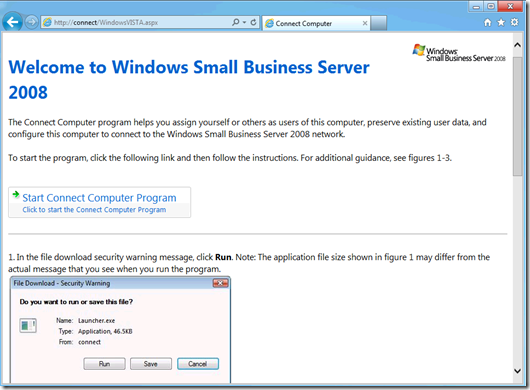
image

We now had our Connect Wizard start screen. So, we started the wizard and got hit with:
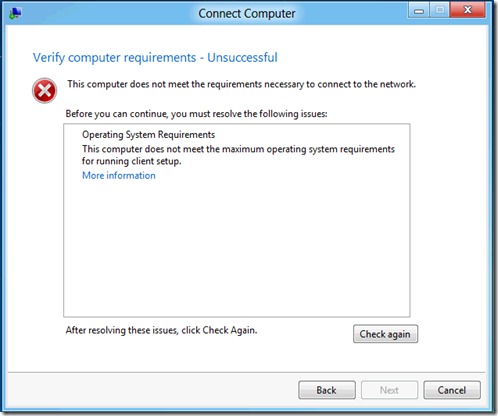
image

Connect Computer: Verifying computer requirements – Unsuccessful

This computer does not meet the requirements necessary to connect to the network.

Since we were messing around with the beta of Windows 7 back when it was not too hard to figure out that we needed to tweak things on SBS 2008 for Windows 8 to be recognized.

The paths needed:

  • \Windows\sysvol\domain\Policies\{YOUR-GUID-HERE}\machine\SBS
  • %programfiles%\Windows Small Business Server\Bin\webapp\ClientDeployment\packageFiles\

Copy and paste the above paths into NotePad on the SBS server.

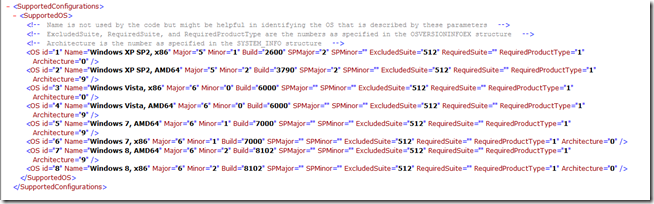
The supportedOS.xml code is:

<SupportedConfigurations>
  <SupportedOS>
    <!-- Name is not used by the code but might be helpful in identifying the OS that is described by these parameters -->
    <!-- ExcludedSuite, RequiredSuite, and RequiredProductType are the numbers as specified in the OSVERSIONINFOEX structure -->
    <!-- Architecture is the number as specified in the SYSTEM_INFO structure -->

    <OS id="1" Name="Windows XP SP2, x86" Major="5" Minor="1" Build="2600" SPMajor="2" SPMinor="" ExcludedSuite="512" RequiredSuite="" RequiredProductType="1" Architecture="0"/>
    <OS id="2" Name="Windows XP SP2, AMD64" Major="5" Minor="2" Build="3790" SPMajor="2" SPMinor="" ExcludedSuite="512" RequiredSuite="" RequiredProductType="1" Architecture="9"/>
    <OS id="3" Name="Windows Vista, x86" Major="6" Minor="0" Build="6000" SPMajor="" SPMinor="" ExcludedSuite="512" RequiredSuite="" RequiredProductType="1" Architecture="0"/>
    <OS id="4" Name="Windows Vista, AMD64" Major="6" Minor="0" Build="6000" SPMajor="" SPMinor="" ExcludedSuite="512" RequiredSuite="" RequiredProductType="1" Architecture="9"/>
    <OS id="5" Name="Windows 7, AMD64" Major="6" Minor="1" Build="7000" SPMajor="" SPMinor="" ExcludedSuite="512" RequiredSuite="" RequiredProductType="1" Architecture="9"/>
    <OS id="6" Name="Windows 7, x86" Major="6" Minor="1" Build="7000" SPMajor="" SPMinor="" ExcludedSuite="512" RequiredSuite="" RequiredProductType="1" Architecture="0"/>
    <OS id="7" Name="Windows 8, AMD64" Major="6" Minor="2" Build="8102" SPMajor="" SPMinor="" ExcludedSuite="512" RequiredSuite="" RequiredProductType="1" Architecture="9"/>
    <OS id="8" Name="Windows 8, x86" Major="6" Minor="2" Build="8102" SPMajor="" SPMinor="" ExcludedSuite="512" RequiredSuite="" RequiredProductType="1" Architecture="0"/>
  </SupportedOS>
</SupportedConfigurations>

Please note that the above code contains both 32bit and 64bit entries for Windows 8.

The code looks like this in the file:

image

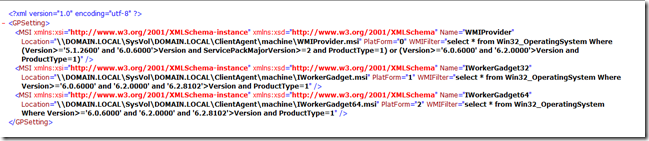
The code for the GP.XML file is:

<?xml version="1.0" encoding="utf-8"?>
<GPSetting>
  <MSI xmlns:xsi="http://www.w3.org/2001/XMLSchema-instance" xmlns:xsd="http://www.w3.org/2001/XMLSchema" Name="WMIProvider" Location="\\DOMAIN.LOCAL\SysVol\DOMAIN.LOCAL\ClientAgent\machine\WMIProvider.msi" PlatForm="0" WMIFilter="select * from Win32_OperatingSystem Where (Version&gt;='5.1.2600' and '6.0.6000'&gt;Version and ServicePackMajorVersion&gt;=2 and ProductType=1) or (Version&gt;='6.0.6000' and '6.2.0000'&gt;Version and ProductType=1)" />
  <MSI xmlns:xsi="http://www.w3.org/2001/XMLSchema-instance" xmlns:xsd="http://www.w3.org/2001/XMLSchema" Name="IWorkerGadget32" Location="\\DOMAIN.LOCAL\SysVol\DOMAIN.LOCAL\ClientAgent\machine\IWorkerGadget.msi" PlatForm="1" WMIFilter="select * from Win32_OperatingSystem Where Version&gt;='6.0.6000' and '6.2.0000' and '6.2.8102'&gt;Version and ProductType=1" />
  <MSI xmlns:xsi="http://www.w3.org/2001/XMLSchema-instance" xmlns:xsd="http://www.w3.org/2001/XMLSchema" Name="IWorkerGadget64" Location="\\DOMAIN.LOCAL\SysVol\DOMAIN.LOCAL\ClientAgent\machine\IWorkerGadget64.msi" PlatForm="2" WMIFilter="select * from Win32_OperatingSystem Where Version&gt;='6.0.6000' and '6.2.0000' and '6.2.8102'&gt;Version and ProductType=1" />
</GPSetting>

Instead of making the changes indicated in the SBS Blog we appended the Windows 8 version in the second two entries: and ‘6.2.8102’

Change DOMAIN.LOCAL (bold emphasis ours) to your own SBS domain in each of the entries as indicated above.

They look like this:

image

How To

  1. Install the Windows 8 OS.
  2. Update Integration Services
  3. Install .NET 3.5.1 into the Windows 8 OS by adding the feature.
  4. At the command prompt in Windows 8: ver [Enter]
    1. Note the version number.
  5. Copy and Paste the paths into NotePad (paths are in a TXT file at the end of this post)
  6. Find the required GUID in GPMC on SBS.
  7. Copy and Paste the GUID (the GUID can be highlighted copied from GPMC) into the path above.
  8. Open the GUID path and copy the GP.XML file out into a safe place.
  9. Open an elevated NotePad session: Start –> NotePad –> Right Click search result and Run As Admin.
  10. File –> Open –> navigate to GP.XML and open (copy and paste the path from NotePad).
  11. Make the necessary edits.
  12. Save.
  13. Open the supportedOS.XML path and copy the supportedOS.XML file out into a safe place.
  14. File –> Open –> navigate to the supportedOS.XML file (copy and paste the path from NotePad)
  15. Make the necessary edits.
  16. Save.
  17. Re-run the Connect Wizard on the Windows 8 VM/machine.

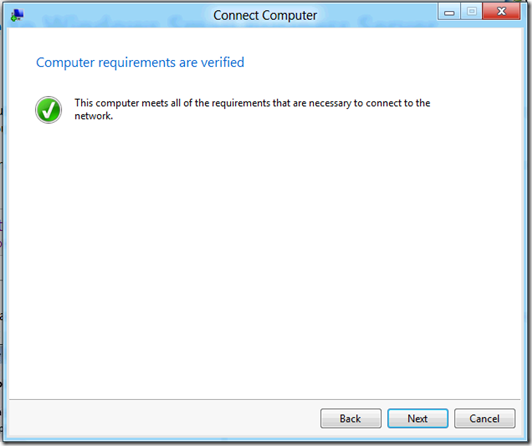
The Windows 8 VM/Machine will now meet the requirements:
image

supportedOS.XML Edit

We found the Windows 8 version by running the following command at the command prompt:
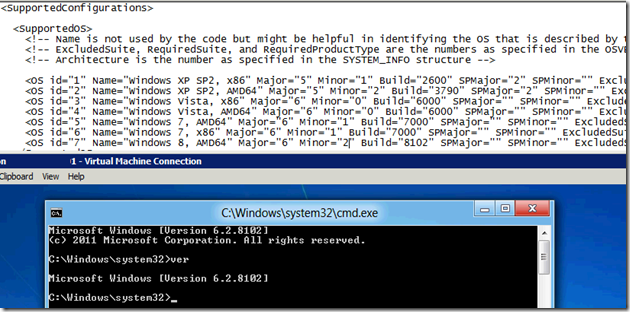
image

  • ver [Enter]

We then made sure that our copy and paste of the Windows 7 OS id settings were updated appropriately.

  • The OS id always increments by 1
  • AMD64 is 64bit
  • x86 is 32bit
  • Architecture=”9” is 64bit
  • Architecture=”0” is 32bit

Full Screen Mode

If installing the Windows 8 OS into a VM it is a must to have the console session in Full Screen mode as the Windows key is needed to switch between Metro and the Desktop.

Windows 8 Search

Okay, so where did the Search field go?!?

It turns out that after clicking on the Start button and having the Metro GUI kick in we need only start typing for it to come up with some results:
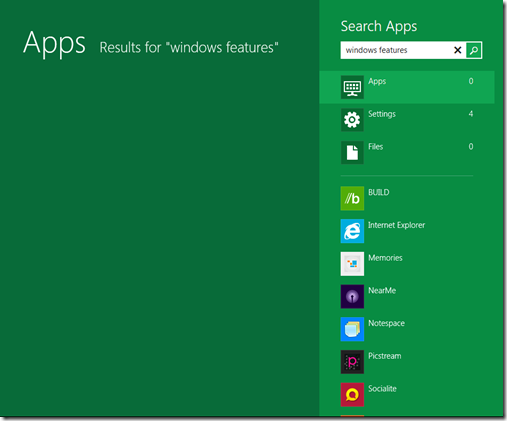
image

Not having the VM in Full Screen mode means a lot of CTRL+ALT+Delete to get to the Task Manager. :(

There may be a better way, but things are just a tad new for all of us outside of Microsoft.

A copy of the edited GP.XML, supportedOS.XML, and a TXT file with the paths can be found here:

The XML files in IE

GP.XML:
image

supportedOS.XML:

image

Philip Elder
MPECS Inc.
Microsoft Small Business Specialists
Co-Author: SBS 2008 Blueprint Book

*Our original iMac was stolen (previous blog post). We now have a new MacBook Pro courtesy of Vlad Mazek, owner of OWN.

Windows Live Writer

Friday, 8 July 2011

SBS and RDS – Big Picture How To Set Up RDS On An SBS Network

Original posted to the SBS2K Yahoo Group. This list has been tweaked and updated a bit. :)

A quick overview of how to set up Remote Desktop Services and RD RemoteApps on an SBS network:

  1. Win2K8 R2 SP1 OS install
  2. Server drivers
  3. Updates
    1. Windows Server Updates (we group 6-10 at a time).
    2. Windows Server Security Updates (again 6-10 at a time).
    3. Others.
  4. Manufacturer’s Server Management.
    • Configure management settings.
  5. Enable the RDS Role (RDS + Licensing).
    • Leave mode for later.
  6. Install Office 2010 with SP1 integrated.
  7. RemoteApp deploy needed apps including Office, QB 2011, etc.
  8. Create RDP Files in RemoteApp Manager
    • We create an internal RDP file set to deploy to local user’s desktops.
    • We also create an external RDP file set that includes RD Gateway setting.
      • We customize each file name once created.
  9. Create folder under SBS RWW/RWA called RDPs.
    • C:\Program Files\Windows Small Business Server\Bin\WebApp\RemoteAccess\RDPs
  10. Copy RDG enabled RDP files into this folder.
    • Must be done from Windows Explorer on SBS.
  11. Make MIME changes for .RDP (Charlie's SBS 08 book has this)
  12. Edit RWW/RWA Links in SBS Console

When users connect to RDS or RemoteApp they will get a certificate warning. Coach them to tick the "Don't bug me again" box near the bottom left of the window.

Done.

Philip Elder
MPECS Inc.
Microsoft Small Business Specialists
Co-Author: SBS 2008 Blueprint Book

*Our original iMac was stolen (previous blog post). We now have a new MacBook Pro courtesy of Vlad Mazek, owner of OWN.

Windows Live Writer

Thursday, 7 July 2011

Transitioning From SBS At the 75 User/Device Limit How-To

The link came via the SBS2K Yahoo List.

Chris Puckett of Microsoft provides an excellent big picture view of how one would go about removing SBS from the picture once a client has grown past the 75 user/device limit.

The post by Chris:

SBS 2011 Standard still has a 75 user limit, so if you're already approaching 75 it might make more sense to go to Windows Server.  You can migrate away from SBS 2008 by adding new server(s) running Windows Server 2008 R2 as domain controllers to the domain.  Then add Exchange Server 2007/2010 server to migrate your mail to and a Sharepoint Server for that data.

There is no single document for this scenario, but you can treat SBS 2008 as Windows 2008 DC and Exchange/IIS server. The steps would not be much different. The only caveat is once you move the FSMO roles you have 21 days to complete the rest of the migration process and you would have to take care of licensing requirements
A basic outline would be

  1. ADprep SBS 2008 with the 08 R2 schema.
  2. Join WS08R2 DC as a secondary domain controller in the SBS 2008 Domain
  3. Install Exchange 2k7/2k10 on same server or different server.
  4. Move mailboxes/public folders, address book generation etc to the new server.. (there should be a guide on migrating exchange 2007 to 2010 on technet)
  5. Migrate any IIS websites they wish to keep
  6. Migrate any data they wish to keep to the new server (Sharepoint)
  7. If folder redirection/roaming profiles configured move that stuff over to the new server by updating the user account/group policy settings.
  8. Move FSMO roles and GC to WS08R2 (Might want to wait a few days to make sure everything is remaining operational as you have 21 days from this point).
  9. Uninstall Exchange 2007 from SBS 2008
  10. DCPromo down SBS 2008
  11. Remove the SBS 2008 server from the network

We have not run into this situation with any of our clients yet, but there are a few that are growing at a rate that may place them in this situation in the next year or two.

The above gives us an idea of how to go about keeping the core SBS features, but there are a few others that need to be considered when transitioning away from SBS:

  1. Replacing the TS Gateway services setup to maintain remote connectivity to internal desktops and RDS services.
  2. Replacing the Remote Web Workplace/Access portal with the Win2K8 R2 RDWeb application along with customizing it to meet a similar functionality to RWW/RWA.
  3. Utilizing an MMC structure much like the SBS Native Tools to start with but possibly looking to System Center for an SBS Console like management experience.

Philip Elder
MPECS Inc.
Microsoft Small Business Specialists
Co-Author: SBS 2008 Blueprint Book

*Our original iMac was stolen (previous blog post). We now have a new MacBook Pro courtesy of Vlad Mazek, owner of OWN.

Windows Live Writer

Thursday, 10 February 2011

SBS 2008 – Exchange 2007 Service Pack 3 Error–TSGateway failed to start

Once the whole service pack process completed we ended up with one failure:

image

Error: Service ‘TSGateway’ failed to start. Check the event log for possible reasons for the service start failure.

We checked Services.msc on SBS to see what services were stalled besides the TS Gateway one. The Information Store service was also stopped. So, we rebooted the server to make sure everything took.

Once the server came up with the logon screen we tried to remote into a system via the TS Gateway service. The connection failed:

image

Remote Desktop connection

Your computer can’t connect to the remote computer because the Remote Desktop Gateway server’s certificate has expired or has been revoked. Contact your network administrator for assistance.

The certificate shown in the above error message was the wrong one. This particular client had a wildcard certificate *.domain.com installed but what we see is a self-issued certificate.

So, we re-ran the Third Party Trusted Certificate after making the necessary registry change to install a wildcard certificate on SBS 2008 (applies to SBS 2011 too).

image

PublicFQDNPrefix: *

Once we had a successful TSGateway based RDP connection into the network we also logged onto OWA to verify that everything was running okay which it was.

We ran this particular update via a direct console session even though we were remotely connected. If our only way into the network was via TSGateway we would have been in trouble. Intel’s RMM or Dell’s DRAC are a good thing to have for those just-in-case moments like this one.

Philip Elder
MPECS Inc.
Microsoft Small Business Specialists
Co-Author: SBS 2008 Blueprint Book

*Our original iMac was stolen (previous blog post). We now have a new MacBook Pro courtesy of Vlad Mazek, owner of OWN.

Windows Live Writer

Wednesday, 9 February 2011

SBS 2008 – Exchange SP3 Error DataCollectorSvc process has open files

We are applying Exchange 2007 Service Pack 3 on an SBS 2008 server and received the following error:

image

Exchange Server 2007 SP3 Setup

Error: Setup cannot continue with the upgrade because the ‘DataCollectorSvc' () process (ID: 1564) has open files. Close the process and restart Setup.

So, we brought up the Task Manager and opened Processes tab:

image

After right clicking on the DataCollectorSvc.exe and clicking on End Process we clicked the Retry button in the Exchange SP3 Setup.

image

We are good to go!

Philip Elder
MPECS Inc.
Microsoft Small Business Specialists
Co-Author: SBS 2008 Blueprint Book

*Our original iMac was stolen (previous blog post). We now have a new MacBook Pro courtesy of Vlad Mazek, owner of OWN.

Windows Live Writer