Showing posts with label SharePoint. Show all posts

Thursday, 2 May 2019

SharePoint Online: Setting up a WebDav File/Windows Explorer Favourite and/or Mapped Drive

We’re working on setting up a project collaboration site in Office 365 SharePoint Online.

One of the simplest things to do to streamline document access is to set up a Favourite/Quick Access link in user’s File/Windows Explorer.

To do so:

  1. Open the SharePoint Site in Internet Explorer
  2. In Internet Options –> Trusted Sites set the slider to Low
  3. Add the site to the Trusted Sites list and Apply & OK
  4. Click on the Documents link
  5. Click the Return to classic SharePoint link bottom left of the browser
  6. Click the LIBRARY tab
  7. Click the Open with Explorer button under Connect & Export
    1. A credentials prompt may happen here
  8. Drag the folder in the Address Bar to Favourites/Quick Access
  9. Right click on the new shortcut and click on Properties
  10. On the General tab:
    1. Click and hold at the left of the Location: UNC path
    2. Drag the mouse to the right to highlight the entire path and release the mouse button
    3. Right click on the highlight and Copy
    4. UNC path will look like: \\YOURDOMAINURI.sharepoint.com@SSL\DavWWWRoot\

That UNC path can be used to map a drive via Group Policy Preferences so that all users will have access via File/Windows Explorer.

Philip Elder
Microsoft High Availability MVP
MPECS Inc.
Co-Author: SBS 2008 Blueprint Book
www.s2d.rocks !
Our Web Site
Our Cloud Service

Monday, 15 September 2014

Our SBS (Small Business Solution) Options with Standalone and Cluster Hardware Considerations

We’ve received a number of questions about the “How” we present our SBS to prospective and existing clients.

Our primary focus is on what we have provided with Small Business Server starting with SBS 2003 Standard.

  • Active Directory permissions based security
  • Remote Web Access (RWA/RWW) Portal
  • Remote Desktop access via RD Gateway (since SBS 2008 Standard)
  • RemoteApp access via RD Gateway for LoBs (since SBS 2008 Standard)
  • E-mail services access via Outlook, Outlook Anywhere, Exchange ActiveSync, and Outlook Web Access
  • Remote Folders and Files access
  • SharePoint based document management system
  • SQL backend for LoB, SharePoint, and other needs

We focus on the services the prospect would require while our existing clients are already used to them.

Once we have an understanding of the prospect’s needs, since we already know our client’s business really well, we move forward with a proposal that would be geared towards their business size and sensitivity to downtime.

On the services front where we are installing into a standalone host we would have two options:

  1. Base
    1. Requires two Windows Server OS Licenses
    2. DC, Exchange, RDS, and LoB (WSUS and LoBs)
  2. Premium Add-On
    1. Requires one Windows Server OS License
    2. SQL and SharePoint

Obviously the server and CALs would also be needed for the various components that will be installed into the guest OS.

If we are setting up a cluster then one needs to consider the number of VMs running on one or more of the nodes in the event of a node failure.

On the hardware side we would have a number of options:

  1. Entry-Level Single
    1. E3-1270v3, 32GB ECC, Hardware RAID, 8x 2.5” 10K SAS
  2. Mid-Level Single
    1. Single Socket 1U R1208JP4OC, E5-2600 series, 128GB ECC, Hardware RAID, 8x 2.5” 10K SAS
  3. High-Level Single
    1. Dual Socket 2U R2208GZ4GC, E5-2600 pair, 128GB-256GB ECC, Hardware RAID, 8x 2.5” 10K SAS or 16x 2.5” 10K SAS
  4. Entry-Level Asymmetric Cluster
    1. Pair of 1U R1208JP4OC or 2U R2208GZ4GC and an Intel JBOD2224S2DP
  5. Mid-Level Cluster
    1. Four 2U R2208GZ4GC and an Intel JBOD2224S2DP
      • Two Scale-Out File Server cluster nodes
      • Two Hyper-V cluster nodes
  6. High-End Cluster
    1. Six 2U R2208GZ4GC and three Intel JBOD2224S2DP units
      • Three Scale-Out File server cluster nodes
      • Three Intel JBODS with Two-Way or Three-Way Mirror and Enclosure Resilience
      • Three Hyper-V server cluster nodes

Within the above hardware configurations we would have a lot of flexibility that allows us to customize to the specific needs of the prospective client or our clients.

We work with a number of different firms that are prime candidates for at least an asymmetric cluster setup to minimize the possibility of downtime. The cost associated with these entry-level clusters versus a single larger server for the host platform makes them very attractive.

The basic VM configuration would involve fixed VHDX files unless the files are installed on dedicated partitions/LUNs. Note that we would use a shared set of partitions/LUNs if there are around 10 or more VMs as things get to be a bit of a bear to manage otherwise.

Our base VM configurations would be as follows:

  • DC: 4GB, 95GB OS VHDX, and 1TB Data VHDX
  • Exchange: 8GB, 95GB OS VHDX, and 250GB + 20GB/Mailbox Data VHDX
  • RDS: 4GB+, 95GB OS VHDX, and 100GB + 20GB/User Profile Disk
  • LoB: 8GB, 95GB OS VHDX, and 1TB Data VHDX Minimum
  • SQL: 16GB, 95GB OS VHDX, and 250GB+ Data VHDX
  • SharePoint: 16GB, 95GB OS VHDX, 200GB Data VHDX

We have a set of PowerShell steps and scripts that we use to configure these environments. PowerShell helps to greatly reduce the amount of time required to set things up. It also gives us consistency across all of our client deployments which is vital to troubleshooting if the need arises.

Shameless Plug: We’ve spent some time on the above in our SMBKitchen ASP Author Chats. If you are looking for more information the Author Chat is one of the best ways to do so.

Philip Elder
Microsoft Cluster MVP
MPECS Inc.
Co-Author: SBS 2008 Blueprint Book
Chef de partie in the SMBKitchen ASP Project
Find out more at
Third Tier: Enterprise Solutions for Small Business

Thursday, 5 September 2013

SharePoint: Enable Check-In and Check-Out plus Major and Minor Versions

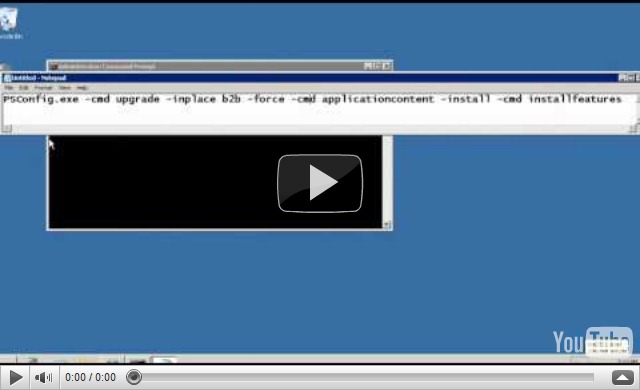
We posted a little video on how to enable the check-in/check-out system and version tracking for SharePoint Libraries on our YouTube Channel.

Enabling Check-In/Check-Out and Versioning in a SharePoint Library

Note that one needs to be signed in as site owner/admin in order to make these changes.

Philip Elder
MPECS Inc.
Microsoft Small Business Specialists
Co-Author: SBS 2008 Blueprint Book

Chef de partie in the SMBKitchen
Find out more at
www.thirdtier.net/enterprise-solutions-for-small-business/

Windows Live Writer

Wednesday, 13 February 2013

SBS 2008: SharePoint Configuration Log File Huge

We have a client setup that is getting a bit constrained on storage:

image

One of the culprits was the above SharePoint Configuration log file.

The following KB has the fix for us:

We need to copy and paste the following into NotePad on the affected SBS:

declare @ConfigDB varchar(255);
declare @ConfigDBLog varchar(255);
declare @ConfigDBCmd varchar(255);
select @ConfigDB = name from sys.databases where name like 'SharePoint_Config_%';
set @ConfigDBCmd = 'BACKUP database [' + RTRIM(@ConfigDB) + '] to disk=''C:\windows\temp\before.bkf''';
execute(@ConfigDBCmd);
set @ConfigDBCmd = 'use [' + RTRIM(@COnfigDB) + ']';
execute(@ConfigDBCmd);
set @ConfigDBCmd = 'BACKUP LOG [' + RTRIM(@ConfigDB) + '] WITH TRUNCATE_ONLY';
execute(@ConfigDBCmd);
set @ConfigDBCmd = 'use [' + RTRIM(@COnfigDB) + ']';
execute(@ConfigDBCmd);
select @ConfigDBLog = name from sys.database_files where name like 'SharePoint_Config%_log';
set @ConfigDBCmd = 'use [' + RTRIM(@ConfigDB) + '] DBCC SHRINKFILE([' + RTRIM(@ConfigDB) + '_log],1)';
execute(@ConfigDBCmd);
set @ConfigDBCmd = 'BACKUP database [' + RTRIM(@ConfigDB) + '] to disk=''C:\windows\temp\after.bkf''';
execute(@ConfigDBCmd);
go

We then need to save the file as "LogShrink.sql" in a Temp folder on the server. In our case we saved it to C:\Temp

image

We encapsulate the full name of the file in quotes to force the .SQL extension on the file name.

Open an elevated command prompt and:

sqlcmd -S \\.\pipe\mssql$microsoft##ssee\sql\query -E -i c:\temp\logshrink.sql [Enter]

Once completed our log file was a paltry 1MB in size:

image

Philip Elder
MPECS Inc.
Microsoft Small Business Specialists
Co-Author: SBS 2008 Blueprint Book

Chef de partie in the SMBKitchen
Find out more at
www.thirdtier.net/enterprise-solutions-for-small-business/

Windows Live Writer

Monday, 23 July 2012

SBS SharePoint Foundation Error: E-mail Sits In Mailroot Drop Folder

We know Exchange is doing its job since e-mail is routed to the drop folder but for some reason after running through the SBS Blog steps to configure e-mail in SharePoint we are ending up with:

image

Following the instructions in the link below we went here:

  • Go to the SharePoint Central Administration > Application Management > Configure quotas and locks:

image

Then we set a limit:

image

After a moment or two the Drop folder was empty:

image

And our files were where they belong:

image

Site fix steps:

Philip Elder
MPECS Inc.
Microsoft Small Business Specialists
Co-Author: SBS 2008 Blueprint Book

*Our original iMac was stolen (previous blog post). We now have a new MacBook Pro courtesy of Vlad Mazek, owner of OWN.

Windows Live Writer

Tuesday, 21 February 2012

Fujitsu ScanSnap N1800: User Log On Error Via Active Directory

We are in the process of setting up a new ScanSnap N1800 network scanner.

There were a few things that we needed to take note of when we were setting up the unit to scan on an SBS network.

Active Directory

Out of the box the unit starts with a series of questions including a username and password to log onto Active Directory. But, the questions do not ask for an LDAP server setting.

We ended up with a logon failure with nowhere to go but restart the machine on the unit’s control panel.

However, once we had the ScanSnap IP address set with a DHCP Reservation and the unit had the IP we were able to get to the admin page.

Once logged in we then had to download and install the Network Scanner Admin Tool.
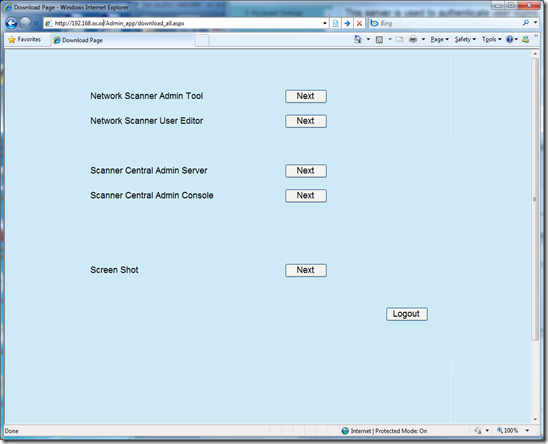
image

Once installed we were able to configure the correct settings.

image

Note the above Search Base setting. We tried to limit things to the SBSUsers OU but all connection tests failed if we did so. So, we needed to stick to the DC=DOMAIN,DC=LOCAL setting.

When we clicked the Connect button we received:
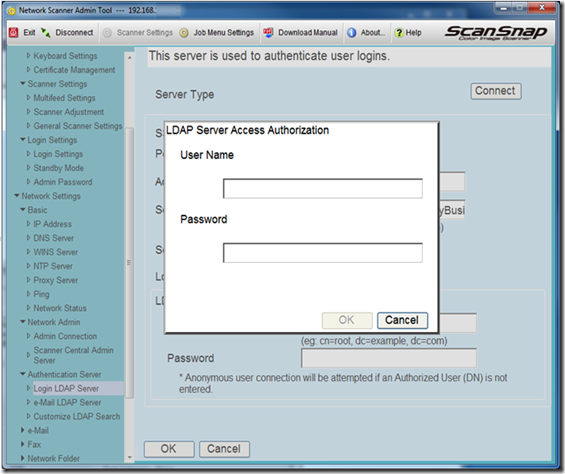
image

We set up a username and password in AD and:
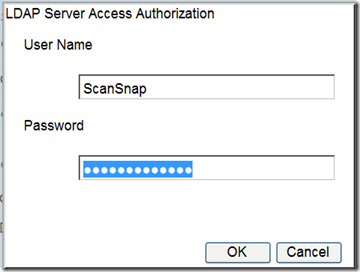
image

We then had success with the LDAP connection.

SharePoint Companyweb

Once we had our successful LDAP connection we then went to set up the scanner for a Companyweb Scans Library destination.

Now, since we used the Standard User – Restricted (blog post on setting up SBS 2011 ~ Step 26) User Role to create the ScanSnap AD user account we needed to add the user account to the base Companyweb site with Contribute permissions.

Before doing so we would receive an Access Denied message when trying to connect to the Companyweb site in the ScanSnap Network Scanner Admin Tool.
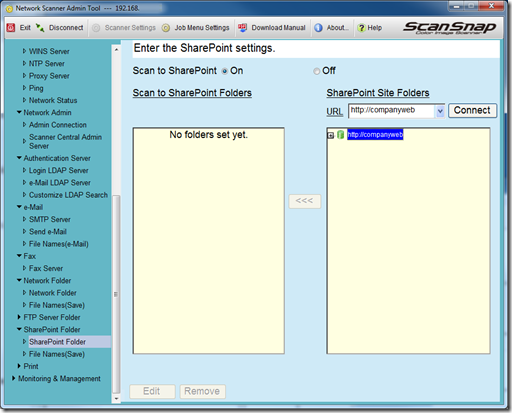
image

Note the URL is for the base site at: http://companyweb.
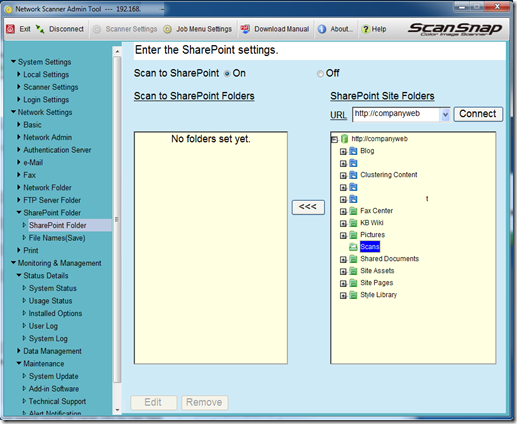
image

We added the requisite folders for all of SharePoint sites and libraries as required.

Network Print

From there we went on to try and connect to all of the required network printers with no success. Now, this is Windows XP Embedded so we all know how much fun it is to get a 32-bit client to connect to Windows Server 2008 R2.

We called into support after we could not get anywhere with it and they suggested updating the unit to the most current version.

We chose the N1800 from the drop down list and:

image

We downloaded the software update, extracted it by running the EXE, and uploaded it using the Admin Tool:
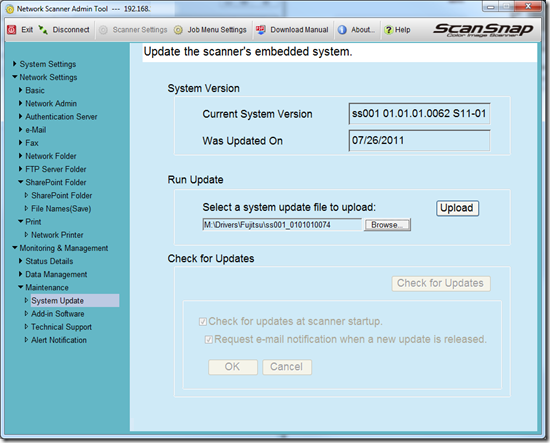
image

  • Time update started: 1300Hrs
    • image
    • image
  • Update progress at 1313Hrs:
    • image
    • image
  • The device rebooted at 1327Hrs
  • We were able to log back into the device at 1338Hrs

Once the update was complete we were able to log back into the scanner’s Admin Tool. The update did not resolve our problem with being able to print however. This is more than likely to do with our inability to get the 32-bit NTPrint.INF to install correctly when setting up 32-bit drivers in SBS 2011’s Print Management.

For now, scan to print is not a critical feature, so we will leave it until we can work on the NTPrint.INF install on SBS 2011.

Conclusion

What we do have now is the ability to create live text PDFs that can be fully indexed by the SharePoint site that the scanner will be sending the output files to.

And so far, the scanner has done its job precisely as expected.

For anyone looking to archive all pieces of paper used throughout their business this scanner is an excellent product to have around. No third party products are required beyond the scanner itself for OCR to PDF capabilities.

The scanner does full duplex scans in a single pass so there is no need to muck about with the paper jams that can be common on scanners that pull the piece of paper back into the ADF for that second side.

Philip Elder
MPECS Inc.
Microsoft Small Business Specialists
Co-Author: SBS 2008 Blueprint Book

*Our original iMac was stolen (previous blog post). We now have a new MacBook Pro courtesy of Vlad Mazek, owner of OWN.

Windows Live Writer

Monday, 14 November 2011

SBS 2008 and SharePoint Errors 3760 and 27745

We have spent the better part of the day troubleshooting an SBS 2008 Companyweb that went offline this morning without any real indication of _why_ that happened.

The server has been up for about 30 days with no SharePoint updates applied for at least a couple of update cycles.

  • Error 1: 3760 (A few of these just before things went offline)
    • SQL Database ‘ShareWebDb’ on SQL server instance ‘…’ not found.
  • Error 2: 27745 (happens every second or more)

      Log Name:      Application
      Source:        Windows SharePoint Services 3
      Date:          09/06/2011 12:02:30
      Event ID:      27745
      Task Category: General
      Level:         Error
      Keywords:      Classic
      User:          N/A
      Computer:      xxxxxxxx.local
      Description:
      The description for Event ID 27745 from source Windows SharePoint Services 3 cannot be found. Either the component that raises this event is not installed on your local computer or the installation is corrupted. You can install or repair the component on the local computer.

      #50071: Unable to connect to the database SharePoint_Config_xxx-xxx-xxxx-xxxx-xxxxxxxxxxxx on xxxxxx\Microsoft##SSEE.  Check the database connection information and make sure that the database server is running.

We went through a very long process of trying to figure out the source of the problem.

Both Companyweb and the SharePoint Administration sites were offline.

Ultimately, the steps we took are to be found in this Experts Exchange Question:

About two thirds of the way down is a transcript of the process Microsoft Product Support Services took to figure out what the problem was. The lines below are the ones relevant to our own situation with the lines starting with an asterisk (*) being steps we did on our own.

  • Tried to browse companyweb, came up with error:  HTTP 404   The webpage cannot be found
  • Tried to browse Sharepoint central Administration, get the error: HTTP 404   The webpage cannot be found
  • Ran the PSconfig and gave the error: Unhandled exception has occurred in your application
  • Checked if the database were attached in SQL and found them there.
  • Ran PSconfig and failed again.
  • We checked CLICONFG and found that TCP/IP was listed on enabled protocols.
  • On a working machine, it was (sic) a disabled protocol.
  • image
  • Left = Bad | Right = Good
  • We moved it to disabled protocol.
  • * We restarted the Microsoft##SSEE service and SP Timer service.
  • Ran psconfig and this time it was successful.
  • Browsed to Sharepoint central admin and it was working.
  • * Ran the Credential Management step in SP Operations.
  • image
  • * Restarted IIS: IISReset /Noforce
  • NOTE: We had to manually shut IIS down and restart as it hung at “Stopping”.
  • * Refreshed SP Admin site and all was good.
  • Browsed companyweb and that was successful.

It is very important to note that an out-of-band management module such as the iDRAC Enterprise, HP iLO Advanced, Intel RMM, or other KVM over IP should be used.

The RD Gateway service consistently stopped and stayed down during our troubleshooting processes. An IP restricted direct to SBS RDP rule in the firewall would be a good second option though not perfect if the OS stops in its tracks!

While we tried to outline every step we took troubleshooting this process, there may be a few steps that we missed documenting in the process.

As always, have a backup of that server before making any changes!

Philip Elder
MPECS Inc.
Microsoft Small Business Specialists
Co-Author: SBS 2008 Blueprint Book

*Our original iMac was stolen (previous blog post). We now have a new MacBook Pro courtesy of Vlad Mazek, owner of OWN.

Tuesday, 5 July 2011

Installing SharePoint Foundation Service Pack 1 How-To

Robert Crane has a couple of great how-to posts, one with video, on installing SharePoint Foundation Service Pack 1.

Robert has a specific How-To video here:

Robert Crane of CIA Runs through SharePoint Foundation SP1 on SBS 2011

It seems that the PSConfig command needs to be run after any SharePoint Foundation service pack unlike previous generation SharePoint updates that ran the command as part of the process.

Hat Tip: Susan Bradley

Philip Elder
MPECS Inc.
Microsoft Small Business Specialists
Co-Author: SBS 2008 Blueprint Book

*Our original iMac was stolen (previous blog post). We now have a new MacBook Pro courtesy of Vlad Mazek, owner of OWN.

Windows Live Writer

Wednesday, 29 June 2011

Office 2010 Service Pack 1 Is Released

The Microsoft Office Blog post:

The post has a nice grid with links to all of the various Office 2010 SP1 downloads:

image

Some helpful links:

Note that the Office 2010 SP1 download weighs in at 361MB.

Once we have the download we will extract its contents:

We then place the extracted files into the Updates folder of our Office 2010 Group Policy based distribution points. Any new installation would be up to date.

Note that we will not be distributing the service pack files to clients as of yet. We will test the service pack prior to releasing it for general use.

Hat Tip: Susan Bradley

Philip Elder
MPECS Inc.
Microsoft Small Business Specialists
Co-Author: SBS 2008 Blueprint Book

*Our original iMac was stolen (previous blog post). We now have a new MacBook Pro courtesy of Vlad Mazek, owner of OWN.

Windows Live Writer

Wednesday, 1 June 2011

Robert Crane – How-To Set Up PDF Indexing In The SBS 2011 SharePoint Foundation Companyweb Site

Robert Crane has an amazing skillset when it comes to all things SharePoint.

He has published a How-To to enable SharePoint to index any PDFs that have live text in them here:

image

What does this mean?

It means that folks can search for and find almost anything _within_ a PDF document that is hosted on the SharePoint Companyweb site.

Philip Elder
MPECS Inc.
Microsoft Small Business Specialists
Co-Author: SBS 2008 Blueprint Book

*Our original iMac was stolen (previous blog post). We now have a new MacBook Pro courtesy of Vlad Mazek, owner of OWN.

Windows Live Writer

Wednesday, 9 March 2011

Windows Phone 7 Killer Feature – SharePoint Integration with Office 2010

We had a few calls this morning with clients having problems with their machines due to Windows 7 Service Pack 1.

While working from a client location we sometimes need access to the audit notes that we keep on all of our clients. Those notes reside in a secure SharePoint Foundation site. It can take time to fire up the Tega v2 or the Tecra laptop to get into our SharePoint libraries.

Two feature discoveries were made this morning that made the payback on the HTC HD7’s purchase readily apparent.

  1. SharePoint integration is seamless with the ability to pin the site to the Start Menu.
    1. Quick access is really important when working on something critical.
  2. Microsoft Office documents have quick access features like Outline View.
    1. Tap the Outlook View button in Word after opening the document and navigate to the needed information quickly.

This is a screenshot of the Word 2010 Navigation Bar:

image

When the document is opened on the HD7 the Outline view looks just like that. We can then tap on the required heading and be brought to that point in the document just as we do within Word 2010.

This one feature set, that is the ability to quickly access a SharePoint site, open a Word document, and navigate to the needed information is going to save us a lot of time over the life of the phone. Payback on a risk is sweet! :)

Philip Elder
MPECS Inc.
Microsoft Small Business Specialists
Co-Author: SBS 2008 Blueprint Book

*Our original iMac was stolen (previous blog post). We now have a new MacBook Pro courtesy of Vlad Mazek, owner of OWN.

Windows Live Writer

Thursday, 10 February 2011

Windows 7 – Slow Web Based Office File Access

We are hearing of some folks dealing with really slow file access when the files are stored somewhere on the network.

When that happens, it turns out that the WebClient service within Windows may be stopped:

clip_image002

Note that the service’s Startup Type is set to manual in the above screenshot and it is started.

For folks that have the service stopped and are experiencing the problem make sure the service is started and that it is set to Automatic for the Startup Type.

Hat Tip: Les Connor – SBS MVP (Bing Search)

Philip Elder
MPECS Inc.
Microsoft Small Business Specialists
Co-Author: SBS 2008 Blueprint Book

*Our original iMac was stolen (previous blog post). We now have a new MacBook Pro courtesy of Vlad Mazek, owner of OWN.

Windows Live Writer

Tuesday, 14 September 2010

Microsoft Office 2010 And SharePoint – Add Server Button To Quick Access

When working with Microsoft Office documents located on a local or remote SharePoint library we are discovering that we need to know the Check In/Out status of the document either being opened or worked on.

To do that click on the arrow that points down just to the right of the Quick Access Toolbar (Customize Quick Access Toolbar).

image

The command we are after is not to be found in any of the button groups after clicking More Commands…

Change the Choose commands from: list to All Commands.

image

Click on the first item in the commands list and hit the “S” key on the keyboard to drop down to the commands that start with that letter.

After finding Server click the Add button to get the command into the Quick Access Toolbar.

image

Once the Server command is on the Quick Access Toolbar we will have easy access to the needed SharePoint related information.

image

The problem that we were running into had to do with a document being saved and closed but for some reason not being checked back in. If the document is checked out, and someone attempts to open that document and edit it, even the same user editing it from another location, the user will run into Read Only and “Notify when available” messages.

Philip Elder
MPECS Inc.
Microsoft Small Business Specialists
Co-Author: SBS 2008 Blueprint Book

*Our original iMac was stolen (previous blog post). We now have a new MacBook Pro courtesy of Vlad Mazek, owner of OWN.

Windows Live Writer

Thursday, 8 July 2010

A Glimpse At Exchange 2010 OWA And SharePoint Foundation

OWN has had their hosted Exchange and SharePoint systems on Exchange 2010 and SharePoint Foundation 2010 for a while now.

We just finished provisioning a client’s e-mail infrastructure and collaboration around OWN’s 2010 hosted Exchange and SharePoint products.

Since we have been so busy with other tasks, this is the first time we have had the time to take a bit of a dive into the new Microsoft offerings.

Outlook Web Access

Exchange 2010’s Outlook Web App (OWA):

image

Microsoft’s continued development of Outlook Web Access on Exchange has certainly been excellent. With each successive version we have seen vast improvements with each new release.

The changes from 2007 to 2010 however, are not quite as dramatic.

Outlook Web Access on Exchange 2007 Service Pack 2:

image

OWA 2010 does have a few key features out of the box that OWA 2007 did not though.

  1. Mail: Inclusion of the Favorites section which is identical to the Office Outlook client.
  2. Mail: Search Folders actually has the Unread Mail folder set up by default.
  3. Mail: Recover Deleted Items is now a right click option in 2010 as opposed to digging through Options in 2007.

From there, the OWA Options management page is a lot more intuitive to use on 2010 than it was on 2007. Users will be able to find the items they want to use with a bit more ease.

SharePoint Foundation 2010

Once the services are provisioned by OWN, we need to log on as the SharePoint site admin to set a template.

When the template has been set up, we then need to create our contributor group and add our client’s users to that group. Any needed Sites and/or special permissions groups would be created from there.

This is the new SharePoint Foundation 2010 site:

image

The changes between Windows SharePoint Services v3 and SharePoint Foundation 2010 are quite substantial.

Note the layout and navigation changes. There are a lot of changes made in the SharePoint product. As a result, be prepared to either contract someone like Robert Crane who can customize the site quite quickly and efficiently or delve into the bits and bolts to figure it out.

Own Web Now and the Cloud

We have mentioned this before, but it bears mentioning again since developing alternate revenue streams for our business is absolutely critical to our growth and longevity.

  1. We partner with OWN for our hosted Exchange/SharePoint needs because _we_ are the face of the hosted products to our client.
    • We set the value and pricing for each OWN service we resell.
    • We invoice our clients for those services ahead of time the same way our cell phone provider invoices us for next month’s services plus last month’s overages.
    • Once the services are set up, we have that monthly residual that totally _kills_ any residuals we might get through other Cloud services vendors.
  2. We partner with OWN because we get to work with _real_ and _knowledgeable_ people if we need support.
    • Benjamin and Matt have been our primary support contacts and they have always come through for us.
    • The OWN support team when called upon have been second to none.

While the Cloud and its impact have certainly been on the top of our minds lately, picking the right Cloud vendors is absolutely critical to the life of our business.

Even with the mainframe style of Cloud services, the client/customer will _always_ be in need of experts to facilitate their IT solutions and infrastructure. That’s another reason why we always need to be growing our expertise.

Those Cloud Solutions Experts need to be _US_! :)

Philip Elder
MPECS Inc.
Microsoft Small Business Specialists
Co-Author: SBS 2008 Blueprint Book

*Our original iMac was stolen (previous blog post). We now have a new MacBook Pro courtesy of Vlad Mazek, owner of OWN.

Windows Live Writer

Friday, 7 May 2010

SharePoint Designer 2010 x64 and x86 Downloads Are Available

The free SharePoint Designer 2010 RTM downloads for both CPU architectures are available on Microsoft’s download site:

As we have noted in a previous post, SharePoint Designer 2010 will only work with the current SharePoint 2010 versions (previous blog post).

We need to have SharePoint Designer 2007 installed in order to work with Windows SharePoint Services v3 or Microsoft Office SharePoint Server 2007.

Philip Elder
MPECS Inc.
Microsoft Small Business Specialists
Co-Author: SBS 2008 Blueprint Book

*Our original iMac was stolen (previous blog post). We now have a new MacBook Pro courtesy of Vlad Mazek, owner of OWN.

Windows Live Writer