Showing posts with label SQL Server. Show all posts

Thursday, 4 December 2014

Microsoft Ups Support Ticket to $499 – We Have a Great Alternative: Third Tier!

It seems that this may, or may not, depending on one’s thoughts of how Microsoft sees IT Pros in today’s “Cloud First Mobile First” be another shot at IT Pros that provide much of the front line support to SMB/SME clients.

I’ve been helping out with Third Tier for well over a year and a half now. I’ve been privileged to work on a team of amazing folks as well as work with a great group of IT Pros.

I believe that we at Third Tier offer a viable alternative to Microsoft’s $499 ticket (though I’m not sure what that will work out to in Canada as we pay substantially more than the US equivalent) for spot support or even ongoing support needs.

Given the experience our team has the Third Tier rate of $175/Hour is very reasonable. Active Directory, Exchange, Remote Desktop Services, Hyper-V, VMware, Cluster, and very soon a number of key vertical products and services to help our IT Pros get the job done right the first time!

Third Tier offers a Micro Staffing program where we can be a part of your IT Pro team for ongoing support challenges or staffing challenges. We can be a part of your team for a very reasonable cost.

I’m also excited about some of the things we’ve been working on at Third Tier to provide our IT Pros with a one-stop solution for their data centre that will allow them to provide IaaS and even our SBS (Small Business Solution) at a very reasonable cost per seat! More to come on that soon.

One final thought. If one is caught in a bind with a server down situation then the Microsoft ticket may be the best way. With Action Pack we still get BizCrit (Business Critical) support though via a call back model.

Our response model tends towards scheduled time for tickets as opposed to crash responses. So, please keep that in mind.

Here are some of the areas we can help you with:

  • Disaster Recovery Planning and Practice
  • Infrastructure planning, migration, support, and recovery
  • Active Directory and Group Policy planning, support, and recovery
  • Remote Desktop Services planning, support, and recovery
  • Exchange planning, migration, support, and recovery
  • SQL planning, migration, support, and recovery
  • Hyper-V planning, support, and recovery
  • Virtualization Solution Performance planning and support
  • Specialized Bookkeeping Support and Services
  • IT Business Models, Plans, Direction, Vision, and More

Whatever the task, we have a team member that can help. Not only that, one can expect the task to be done in short order and in a professional manner.

If you have not checked us out before please do now.

Philip Elder
Microsoft Cluster MVP
MPECS Inc.
Co-Author: SBS 2008 Blueprint Book

Chef de partie in the SMBKitchen ASP Project
Find out more at
Third Tier: Enterprise Solutions for Small Business

Monday, 21 April 2014

A Microsoft Cluster Troubleshooting Guide

Here are some of the tools we can use when troubleshooting a cluster, Scale-Out File Server, Hyper-V, and other cluster issues:

Failover Cluster Manager 

The FCM gives us the ability to dig into the various Windows Logs and delimit them by time, node, and log type.

  • FCM --> Cluster Name --> Cluster Events --> Query

image

We set up a few different queries out of the box. One with everything Cluster, Failover Clustering, and Hyper-V related. We then create a subset of queries. The various queries get saved to a local folder on the management DC/RSAT system.

Get-ClusterLog

The Get-ClusterLog PowerShell commandlet allows us to pull the full log set from one or all nodes. Note that the default output folder is \\NODE\C$\Windows\Cluster\Cluster.LOG (C:\Windows\Cluster\Cluster.LOG) unless specified in the command.

This log can be very busy and a bit of a challenge to work through. If one has a good idea of what to look for then the log can be quite informative.

  • Get-ClusterLog -Destination .
    • Places the log in the local directory (we create C:\Temp on all nodes for this kind of thing)
  • (get-cluster).ClusterLogLevel=5
    • There are five levels with 5 being the most verbose. Default level is 3 and best left there unless absolutely needed. Level 5 file can be large.

EDIT: The Default cluster log location is C:\Windows\Cluster\Reports\Cluster.log

Microsoft Message Analyzer

This is an in-depth tool. There is no way around it. Thus, a learning curve is required.

However, there is an amazing amount of information that we can then have at our fingertips and not only that colour coded!

image

image

One can use a series of filters under the log file settings to delimit by time period among others.

image

We can set up our columns:

image

Once we have our Cluster column, for example when looking for a problematic cluster component, we can set up a filter:

image

And that is just the tip of the iceberg. One will need to spend some time with this tool to really get into its abilities such as colour coding source node, information levels, and so much more!

Please check the Message Analyzer Blog for more information.

Note that an absence of System Centre and its components is deliberate. We find, at least at this time, that Failover Cluster Manager provides a far superior cluster management experience.

Philip Elder
Microsoft Cluster MVP
MPECS Inc.
Co-Author: SBS 2008 Blueprint Book

Chef de partie in the SMBKitchen ASP Project
Find out more at
Third Tier: Enterprise Solutions for Small Business

Friday, 20 September 2013

System Uptime on an SQL Server

We are in the process of running some maintenance on a series of servers we rarely get to touch.

image

We have the LoBs offline or in limited usage at the moment:

image

This particular physical server’s sole purpose in life is to host SQL database instances.

So, while it is has been a good run for the server we are about to terminate the close to two year run. :)

For obvious reasons it is our preference to keep things up to date in the server operating system and the server services running on top of that OS. However, sometimes business dictates that we do not touch unless there is a very good reason to.

We do have a number of such situations. In this case, the LoBs provided us with the opportunity to reboot, run some updates, reboot, and then service pack the various SQL instances.

We now have a fairly happy SQL server that will probably keep running for another year or so until we move this particular client over to a Hyper-V failover cluster.

Have a great weekend everyone and thanks for reading. :)

Philip Elder
MPECS Inc.
Microsoft Small Business Specialists
Co-Author: SBS 2008 Blueprint Book

Chef de partie in the SMBKitchen
Find out more at
www.thirdtier.net/enterprise-solutions-for-small-business/

Windows Live Writer

Wednesday, 13 February 2013

SBS 2008: SharePoint Configuration Log File Huge

We have a client setup that is getting a bit constrained on storage:

image

One of the culprits was the above SharePoint Configuration log file.

The following KB has the fix for us:

We need to copy and paste the following into NotePad on the affected SBS:

declare @ConfigDB varchar(255);
declare @ConfigDBLog varchar(255);
declare @ConfigDBCmd varchar(255);
select @ConfigDB = name from sys.databases where name like 'SharePoint_Config_%';
set @ConfigDBCmd = 'BACKUP database [' + RTRIM(@ConfigDB) + '] to disk=''C:\windows\temp\before.bkf''';
execute(@ConfigDBCmd);
set @ConfigDBCmd = 'use [' + RTRIM(@COnfigDB) + ']';
execute(@ConfigDBCmd);
set @ConfigDBCmd = 'BACKUP LOG [' + RTRIM(@ConfigDB) + '] WITH TRUNCATE_ONLY';
execute(@ConfigDBCmd);
set @ConfigDBCmd = 'use [' + RTRIM(@COnfigDB) + ']';
execute(@ConfigDBCmd);
select @ConfigDBLog = name from sys.database_files where name like 'SharePoint_Config%_log';
set @ConfigDBCmd = 'use [' + RTRIM(@ConfigDB) + '] DBCC SHRINKFILE([' + RTRIM(@ConfigDB) + '_log],1)';
execute(@ConfigDBCmd);
set @ConfigDBCmd = 'BACKUP database [' + RTRIM(@ConfigDB) + '] to disk=''C:\windows\temp\after.bkf''';
execute(@ConfigDBCmd);
go

We then need to save the file as "LogShrink.sql" in a Temp folder on the server. In our case we saved it to C:\Temp

image

We encapsulate the full name of the file in quotes to force the .SQL extension on the file name.

Open an elevated command prompt and:

sqlcmd -S \\.\pipe\mssql$microsoft##ssee\sql\query -E -i c:\temp\logshrink.sql [Enter]

Once completed our log file was a paltry 1MB in size:

image

Philip Elder
MPECS Inc.
Microsoft Small Business Specialists
Co-Author: SBS 2008 Blueprint Book

Chef de partie in the SMBKitchen
Find out more at
www.thirdtier.net/enterprise-solutions-for-small-business/

Windows Live Writer

Monday, 5 November 2012

An Absolutely Awesome SSD Explanation – TechNet Video on Using SQL with SSDs

This video is phenomenal:

image

While the video is an hour and a bit long, there are download links to be had. This is one video that belongs on the ZuneHD or Windows Phone or any other player for listening while driving (though don’t concentrate too hard to the point of losing focus on the task at hand!).

The presenter is Karel Coenye. His Twitter handle is @Ryazame.

He gives such an awesome session on SSDs, what they are, what the can do, what they cannot do, and their strengths and weaknesses. This video is well worth the time for anyone considering SSD in a server setting or for those that have already deployed SSDs in a server setting.

Hat Tip: Henry Craven via the SBS2K Yahoo Group.

Philip Elder
MPECS Inc.
Microsoft Small Business Specialists
Co-Author: SBS 2008 Blueprint Book

Windows Live Writer

Monday, 9 July 2012

SQL Database Restore Error: Restore failed for Server 'Name'. (Microsoft.SqlServer.Smo) - Exclusive access could not be obtained because the database is in use.

We are in the process of troubleshooting a database corruption issue that happened due to a RAID 1 array failure on an older SBS 2003 R2 server configured with a pair of software RAID 1 arrays.

When we went to restore the database from the most recent .BAK file we always ended up with the following error:

image

Microsoft SQL Server Management Studio

Restore failed for Server 'Name'. (Microsoft.SqlServer.Smo)

Additional Information:
System.Data.SqlClient.SqlError: Exclusive access could not be obtained because the database is in use. (Microsoft.SqlServer.Smo)

It took a number of searches to finally come up with the answer:

Following the steps listed by pogo69:

  1. Right-click on the database name
  2. Click on Properties context menu item
  3. Click on Options menu item on the left
  4. In the grid, scroll down to the bottom
  5. Change 'Restrict Access' to SINGLE_USER

Once we ran the above steps we were able to restore the database successfully.

image

Microsoft SQL Server Management Studio

The restore of database 'NAME' completed successfully.

We were then back into our client's LoB.

Philip Elder
MPECS Inc.
Microsoft Small Business Specialists
Co-Author: SBS 2008 Blueprint Book

*Our original iMac was stolen (previous blog post). We now have a new MacBook Pro courtesy of Vlad Mazek, owner of OWN.

Windows Live Writer

Friday, 6 July 2012

Some Thoughts on the Demise of SBS And A Suggested License Structure For An SBS-Like Stack

We always recommend Open Value Agreement licensing with Software Assurance for our clients. It offers a three year spread payment option giving them the chance to ease the cost of licensing over the three year period.

Once the original agreement with its licenses goes into years 4 through 6 we move to a Software Assurance only mode on those licenses which means a significant drop in the annual payment costs.

So, looking at the 10 year picture for a client's business they see the value of OVL over the long term as OEM no longer makes sense given the amount of flexibility SA gives for their business moving forward.

Agility

Agility is what gives SMB/SME businesses the edge over their Enterprise counterparts. There is an ability to drive new technology adoption at the business level to improve their user's overall efficiency.

Most folks don't care about what goes on in the back end. They just want to turn the machine on, log on, and do their work throughout the day.

However, show them a few new features that improve their ability to do their job and they are all over that.

Crossroads

So, here we are at a crossroads for the Small Business Server product line. Only the road we are on ends in a T intersection.

What does that mean for us?

It means that we need to develop some new skill sets. It means that we need to develop some new policies and procedures to create consistency in our solution set that will be based on the Microsoft Stack of products going forward.

Will that mean that there is room for other vendor's products to fill some of the void? Most certainly.

Current Stack SKU Set

Since we do not have the full picture on the SKUs for the new product stack yet we are going to start by posting the SKU stack as it stands today.

All SKUs and costs were obtained from the Microsoft License Advisor

Note that the SKUs are Open Value Agreement with the Spread Payment Option and that the option is somewhat hidden below Organization-Wide in the Advisor:

image

Our first options will be for a server with either a single socket or dual socket setup.

  1. Host OS: Windows Server Standard 1+1 with E-mail
    • VM1: DC + File Services
    • VM2: Exchange
  2. Host OS: Windows Server Enterprise 1+4 with RDS
    1. VM1: DC + File Services
    2. VM2: Exchange
    3. VM3: WSUS and SharePoint Foundation
    4. VM4: RDS
  3. Host OS: Windows Server Enterprise 1+4 with SQL
    1. VM1: DC + File Services
    2. VM2: Exchange
    3. VM3: SQL, WSUS and SP Foundation
    4. VM4: RDS

To license the above in order for a firm with 35 users:

  1. Host OS: Windows Server Standard 1+1 with E-mail
    1. P73-01420: $1,136 Windows Server Standard ($568 each)
    2. R18-01855: $805 Windows Server CAL ($23 each)
    3. 312-03037: $554 Exchange Server Standard
    4. 381-02257: $1,855 Exchange Server Standard CAL ($53 each)
      1. TOTAL: $4,350.00/Year
        1. $10.35/User/Month
  2. Host OS: Windows Server Enterprise 1+4 with RDS
    1. P72-01277: $1,845 Windows Server Enterprise
    2. R18-01855: $805 Windows Server CAL ($23 each)
    3. 312-03037: $554 Exchange Server Standard
    4. 381-02257: $1,855 Exchange Server Standard CAL ($53 each)
    5. 6VC-00701: $2,310 Remote Desktop Services CAL ($66 each)
      1. TOTAL: $7,369.00/Year
        1. $17.55/User/Month
  3. Host OS: Windows Server Enterprise 1+4 with SQL
    1. P72-01277: $1,845 Windows Server Enterprise
    2. R18-01855: $805 Windows Server CAL ($23 each)
    3. 312-03037: $554 Exchange Server Standard
    4. 381-02257: $1,855 Exchange Server Standard CAL ($53 each)
    5. 6VC-00701: $2,310 Remote Desktop Services CAL ($66 each)
    6. 228-04738: $702 SQL Standard
    7. 359-01471: $5,740 SQL Standard User CAL ($164 each)
      1. TOTAL: $13,811/Year
        1. $32.88/User/Month

As a comparison for option 1 the following is what the current version of Small Business Server 2011 Standard and the Premium Add-On would cost to implement for the same size firm:

  1. Host OS: Windows Server Standard 1+1 via PAO
    1. T72-00882: $745 SBS 2011 STD c/w 5 CALs
    2. 6UA-00908: $984 SBS STD 20 CAL Pack
    3. 6UA-01804: $492 SBS STD 5 CAL Pack x2 ($246 each)
    4. 2XG-00206: $1,090 SBS PAO c/w 5 CALs
    5. 2YG-01596: $1,245 SBS PAO 20 CAL Pack
    6. 2YG-01039: $624 SBS PAO 5 CAL Pack ($312 each)
      1. TOTAL: $5,198/Year
        1. $12.38/User/Month

We can then mix and match the various SKUs to come up with the right combination of products for our client's solution set as well as an SBS based dollar amount equivalent to the above options 2 and 3.

Another option for us is Microsoft's CAL Suites:

image

The cost for the above CAL Suites again on Open Value with the Spread Payment option:

  • W06-00649: $172 each Microsoft Core CAL ($6,020 for a 35 user firm)
    • Versus $75 for both Server and Exchange CALs.
  • 76A-00616: $343 each Microsoft Enterprise CAL ($12,005 for 35 user firm)

With either of the above Microsoft CAL Suites we inherit the ability to license CALs for products we may not be deploying today but may be down the road.

Conclusion

We have lots of options going forward. Once the new SKU line-up have been released we will revisit this blog post with an up to date version to see where the costs went relative to the above.

The big job will be getting our configuration processes in line with the various server product group's best practices and having a detailed setup guide similar to our SBS Guide.

Possibilities . . . we have lots of them going forward.

Time to think outside of the SBS Box we have been so comfortably in for the last 10 or so years. :)

Philip Elder
MPECS Inc.
Microsoft Small Business Specialists
Co-Author: SBS 2008 Blueprint Book

*Our original iMac was stolen (previous blog post). We now have a new MacBook Pro courtesy of Vlad Mazek, owner of OWN.

Windows Live Writer

Saturday, 2 July 2011

SBS 2011 – WSUS SQL Memory Usage Is Very High – How To Reduce It

Our destination SBS 2011 has an SQL (S-Q-L) process that was taking up a whopping 5GB of RAM:

image

Since this was a relatively fresh install of SBS 2011 we needed to find out what SQL setup was using so much memory.

  1. Open Task Manager –> Processes tab.
  2. View –> Choose Columns –> PID, Memory, etc. (Our SBS 2011 Setup Guide has the customizations)
  3. Start –> CMD –> Right click and Run As Admin.
  4. tasklist /svc [Enter]
  5. Scroll through the resulting list looking for the PID.
    •  image
  6. Start –> All Programs –> Microsoft SQL Server 2008 R2 –> Right click and Run as Admin on SQL Server Management Studio.
    • Server type: Database Engine.
    • Server name: \\.\pipe\mssql$microsoft##ssee\sql\query
      • Copy and paste the above.
    • Authentication: Windows Authentication.
  7. Click Connect.
    1. image
  8. Right click the root node (\\.\pipe\mssql$microsoft##ssee\sql\query) and left click on Properties.
  9. Click Memory.
  10. Change the amount of memory that WSUS can use. On this particular SBS 2011 VM we have 16GB of RAM allocated. So, we will set the amount of RAM to 1GB.
    1. Before:
      • image
    2. After:
      • image

Our WSUS SQL memory usage was now a lot more reasonable:

image

image

UPDATE 2011-07-16: Tweaked the steps for a typo as per Arcon’s comment.

Philip Elder
MPECS Inc.
Microsoft Small Business Specialists
Co-Author: SBS 2008 Blueprint Book

*Our original iMac was stolen (previous blog post). We now have a new MacBook Pro courtesy of Vlad Mazek, owner of OWN.

Windows Live Writer

Saturday, 18 June 2011

HP P2V – Make Sure to Stop and Disable HP Services

The SBS and SQL servers we restored to our newly created 2 node Hyper-V cluster were originally installed on HP hardware.

Once the P2V process using the native Windows Server Backup to restore to Hyper-V completed the restore process automatically rebooted the VMs.

One of the first things we noticed was that that vCPUs were running at a constant 100%. The Task Manager Processes tab showed a series of HP/CPQ services causing the problem.

image

So, we went in and disabled all of the services then shut them down.

Once we rebooted the VMs the HP services were no longer an issue.

Philip Elder
MPECS Inc.
Microsoft Small Business Specialists
Co-Author: SBS 2008 Blueprint Book

*Our original iMac was stolen (previous blog post). We now have a new MacBook Pro courtesy of Vlad Mazek, owner of OWN.

Windows Live Writer

Tuesday, 3 May 2011

SBS 2011 Error–SQL Server Management Studio Hangs On Combined Help Collection

We are in the process of troubleshooting some issues with e-mailed reports from our own SBS 2011. While working our way through the SBSMonitoring database SQL Server Management Studio hung.

Eventually we saw a message with a Switch To button, a Cancel Operation button, and a Continue button that was all but useless. We had to figure out how to kill SSME.

When we did we got the following message:

image

SQL Server 2008 R2 Combined Help Collection – Microsoft Document Ex…

SQL Server 2008 R2 Combined Help Collection – Microsoft Document Explorer cannot shut down because a modal dialog is active. Close the active dialog and try again.

Well, the only dialog box we kept getting every once in a while was the one with the three buttons with either two or three of them active. The Cancel Operation button did not work.

We tried to get to the Task Manager via CTRL+ALT+DLTE to no avail. Right clicking on the Task Bar produced the same results . . . nothing.

We ended up needing to copy ProcessExplorer onto the SBS 2011 desktop, opening it, and killing SSMS from there:

image

Once SSMS was terminated we still could not get into the Task Manager so we needed to reboot the server. Once the server came back up things were working as expected.

Philip Elder
MPECS Inc.
Microsoft Small Business Specialists
Co-Author: SBS 2008 Blueprint Book

*Our original iMac was stolen (previous blog post). We now have a new MacBook Pro courtesy of Vlad Mazek, owner of OWN.

Windows Live Writer

Friday, 21 January 2011

SBS 2011 SharePoint Foundation Default Job Definitions Settings

We are in the process of migrating our existing SharePoint Foundation database that is running on SQL 2008 R2 Standard for Small Business from our SBS v7 Companyweb site to the SBS 2011 Companyweb site.

For reference purposes, here are the out of the box settings for SharePoint Foundation running on SBS 2011 without any changes:

image

Note that the red arrows point to services that are disabled by default.

A PDF document can be had from our Web site’s blog downloads section.

image

These settings may be needed for reference if connecting to a content database that is resident on a dedicated SQL server.

We used the following for reference when bumping out the default SBS 2011 Companyweb content database for our already existing content database on SQL 2008 R2.

Philip Elder
MPECS Inc.
Microsoft Small Business Specialists
Co-Author: SBS 2008 Blueprint Book

*Our original iMac was stolen (previous blog post). We now have a new MacBook Pro courtesy of Vlad Mazek, owner of OWN.

Windows Live Writer

Thursday, 12 August 2010

SQL Server Install Error: Rule “Restart Computer” failed.

So, we get this error when we go to install a new instance of SQL 2008 on a dedicated Windows Server 2008 Standard x64 box:

image

Rule Check Result

Rule “Restart computer” failed.

A computer restart is required. You must restart this computer before installing SQL Server.

But, we _just_ restarted it because of that error?!?

A quick search turned up the following:

The Forum post suggest that we look at the following registry key:

  • HKEY_LOCAL_MACHINE\SYSTEM\CurrentControlSet\Control\Session Manager\PendingFileRenameOperations

Sure enough, when we look into the registry, we find the culprit:

image

We deleted the content in that key since whatever the HP driver was trying to do it was failing at it miserably.

image

Of course, we Exported the Session Manager key _before_ deleting the content!

When we click the Re-run button in the SQL Server 2008 Setup window we were greeted with:

image

Restart Computer: Passed

We were good to go on installing that needed instance.

Philip Elder
MPECS Inc.
Microsoft Small Business Specialists
Co-Author: SBS 2008 Blueprint Book

*Our original iMac was stolen (previous blog post). We now have a new MacBook Pro courtesy of Vlad Mazek, owner of OWN.

Windows Live Writer

Wednesday, 31 March 2010

Moving The AutoDesk Vault Out of SQL 2005 Express On Windows XP Pro And Into SQL 2008 Standard

We have been having a bit of an adventure taking a client’s maxed SQL 2005 Express based AutoDesk Vault 2008 database content into a full SQL 2008 Standard database structure and then tying it into AutoDesk Vault 2009 and AutoDesk DMS 2009.

Note that an overview of the actual steps to get things going happen at the bottom of the post. What follows is the ongoing odyssey that we have had trying to follow the various AutoDesk instructions and posts online that we pulled up for the various errors we encountered.

It is important to have the Advanced Configuration Guide at hand for this process. Note that the link below is a search for it since any links on the AutoDesk forums seem to be broken:

The SQL instance upgrade  process required is as follows:

  1. Install SQL 2008 Express and Upgrade the AutoDeskVault instance.
    • image
  2. Upgrade the SQL 2008 Express instance using the SQL 2008 Standard install routine in maintenance mode.
    • image
    • Note the version difference between the two screenshots.

Now, in this case the Vault and its respective database are running on top of Windows XP Professional. So, we end up with the following when running SQL 2008 Standard in maintenance mode to upgrade the instance:

image As a result, we took the safe route and did the following:

  1. Installed SQL 2008 Express x64 on the soon to be SQL 2008 Standard server
  2. Detached the databases from the workstation SQL 2008 Express AutoDeskVault instance
  3. Copied them over to the SQL 2008 server
  4. Install SQL 2008 Express Edition:
    1. image
    2. image 
    3. image
    4. image
    5. image
    6. image   
  5. Attach the AutoDesk Vault and other databases to SQL 2008 Express now installed on the server.
  6. Run the maintenance mode install routine from the SQL 2008 Standard DVD to upgrade the AutoDeskVault instance.
  7. Reset the SA password to the AutoDesk defaults just in case.

Make sure that if SQL 2005 Management Express is installed that it is removed before installing the SQL 2008 Management Express tools.

There are also some key steps that need to happen on the SQL 2008 Standard instance such as disabling the password security features and more.

As always, it is a good idea to make sure to read through the documentation carefully and then work them to the particular circumstances we happen to be in! ;)

***

This post has been sitting open since we started this whole process this yesterday!

It turns out that we were bitten by the SQL 2008 Standard _For Small Business_ bug. How is that?

Well, we went to do the Edition Upgrade via the SQL Server Installation Center:

image

We keyed in our product key and ran through _all_ of the steps until we hit a roadblock that said we were unable to install the current SQL edition on the OS we were installing it on.

That really took us for a loop as we had already gone through and installed this particular SQL 2008 Standard (now for Small Business) on its own with no problems.

So, we ended up detaching the Vault databases from the SQL 2008 Express that we had installed on the server (we were following the AutoDesk instructions to the letter), moving the databases into a safe place, uninstalling SQL 2008 Express, installing SQL 2008 Standard for Small Business, and reattaching the databases.

From there, we installed the AutoDesk Data Management Server. Note that disk swaps are a part of the install process!

Or so we thought …

image

There is some cleanup that needs to happen before we can move forward.

So, we deleted:

image

Click the Re-test button and:

image

When we checked the SQL DATA folder to make sure it was empty we found nothing, so the second part of the error must be the one.

And so it was:

image

Now, we are talking about _25GB_ of file storage here. So, we will rename the \ProgramData\Autodesk root folder to Autodesk – Old and retry.

image

TIP: We always label the OS partition after the server name, that is why the label in the above screenshot is greyed out. This gives us an at-a-glance “which server am I on?” look which comes in handy when managing large numbers of servers throughout the day.

We are now good to go:

image

And subsequently:

image

And, finally we are greeted with a successful ADMS 2009 install:

image

When we fired up the ADMS 2009 console we received:

image

Pre-existing Database(s) Detected 

Once the process completed we had a fresh ADMS 2009 install using fresh databases.

To get the Vault data in, we needed to detach the fresh Vault and the fresh KnowledgeVaultMaster databases in ADMS.

First, the fresh Vault:

image

Vault “Vault” was successfully detached.

The view from within the SQL Management Studio for the AUTODESKVAULT instance:
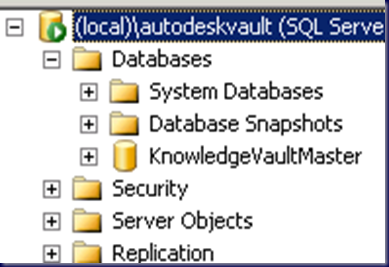
image

So, the ADMS detach actually removes the database from the instance.

From there:

image

Vault “KnowledgVaultMaster” was successfully detached.

And again from within the SQL Management Studio:

image

So, before we go and attach the original databases, we moved the needed databases into the SQL DATA folder, and then the VaultServer\FileStore content into the new location.

Once the FileStore move has completed, we go to Attach Master Vault _in_ ADMS:

image

And the actual database and log files before being attached in Windows Explorer:

image

In ADMS we receive an error:image

Error

Cannot attach database ‘KnowledgeVaultMaster’ since it is of the wrong database type.

Ouch. So, off to the SQL Management Studio we go to attach the database manually.

After manually attaching the Db via SQL Management Studio and reopening ADMS 2009 we received:

image

Your Vault Master database appears to be out of date. You need to migrate before continuing. Would you like to migrate now? Choosing ‘No’ will exit the server console.

Okay, so we need to figure out how to get the setup to recognize that the server name has been changed!

We ended up with another error!

image

Error

If server ‘<servername>’ is intended to be a member of a replicated environment, please install Autodesk Productstream Replicator. If this computer has been recently renamed, please update the site via the server console command line options.

The command line was a bit of a task to find since we could not get into the ADMS 2009 console on our SQL server and our virtualized ADMS 2008 PC we are using as a reference does not bring anything relevant up in the help topics?!?

Here we find the proper syntax:

  We ran the command line to get things going and it did not work:

image

Autodesk Data Management Server Console 2009

The database must be the same version as this Autodesk data management server, but the migration process failed to update the database to the same level as the server.

This indicates a serious problem with your server installation – the server console will now exit.

So, after all of this, here we sit with nothing in hand but an installed instance of SQL 2008 Standard for Small Business named AUTODESKVAULT, and an ADMS 2009 console that refuses to work with any database and Vault File Content configuration we throw at it.

It _will_ open if no databases are attached to the AUTODESEKVAULT instance though. And, therein lies the clue to what we needed to do.

The Solution

While all of this was going on, we were able to finally clean up the original machine running as a VM on one of our Hyper-V servers here in the shop to get a successful ADMS backup! This, after updating the VM’s SQL 2005 Express with SQL 2008 Express too.

So, we transported that backup back to the client and ran the restore into ADMS 2009. We needed to make sure that the SQL DATA directory was empty as well as the FileStore location before running the restore.

After two to three hours we received:

image

Autodesk Data Management Server Console 2009

The restore operation has been successfully finished.

Wow! We were finally somewhere close to bringing this setup back online!

And we did . . . finally!

An overview of the path from start to an actual finish for the process we needed to use:

  1. ShadowProtect backup the workstation AI and ADMS are installed on.
  2. Restore that SP image to VM.
  3. Run ADMS backup to USB or network location.
  4. Install SQL 2008 Express and upgrade the AUTODESKVAULT instance to SQL 2008.
  5. Run ADMS backup to USB or network location
    • Yes, we will have two backups! One before being touched and one after.
  6. Install standalone server OS and update.
  7. Install SQL 2008 Standard for Small Business AUTODESKVAULT instance.
    1. Install in Windows/SQL Authentication Mixed Mode
    2. Set the SA password to the required AutoDesk default.
  8. Install the latest SQL 2008 service pack and updates.
  9. Install ADMS 2009 (2010 may work the same way).
    1. It will discover the SQL instance and use it.
  10. In ADMS detach the new Vault.
  11. In ADMS detach the new KnowledgeVaultMaster.
  12. In ADMS, right click on the root folder and click on Restore.
  13. Navigate to the backup folder created earlier and choose it.
    • image
  14. Once complete, a message will indicate that the restore was either successful or had failed.
    1. If successful, the needed databases will now be found in the SQL DATA folder on the server and in SQL Management Studio Express.
    2. Database user permissions will be restructured according to the new server setup.
  15. Update the AutoDesk products on the workstations.
  16. Once complete, open the Vault Explorer on the workstation.
  17. Set the logon to Auto Logon.
  18. Right click on the root folder in the Vault and Get Entire Folder.
    • image
  19. Done.

The most significant roadblock we ran into in this process had to do with the break in following the AutoDesk instructions to the letter. Because of the SQL version we had, which any SBS 2008 Premium site will have BTW, we were unable to complete the Edition Upgrade step.

This is one place where running the scenario virtually first would have saved us a lot of time when it came time to run the changes on the production network.

Philip Elder
MPECS Inc.
Microsoft Small Business Specialists
Co-Author: SBS 2008 Blueprint Book

*Our original iMac was stolen (previous blog post). We now have a new MacBook Pro courtesy of Vlad Mazek, owner of OWN.

Windows Live Writer