Showing posts with label SharePoint V3. Show all posts

Thursday, 3 February 2011

Resource – Migrating SBS 2003 v2 SharePoint to SBS 2011 SharePoint Foundation

Robert Crane has an excellent guide on the process of migrating the v2 SharePoint instance found in SBS 2003 to the SharePoint Foundation instance found in SBS 2011

We have added the description to the titles:

Robert is an excellent resource for SharePoint related issues. The above steps assume a fairly mundane SBS 2003 SharePoint v2 setup. For highly customized SharePoint sites, please e-mail Robert to arrange for him to consult or provide technical migration services.

Philip Elder
MPECS Inc.
Microsoft Small Business Specialists
Co-Author: SBS 2008 Blueprint Book

*Our original iMac was stolen (previous blog post). We now have a new MacBook Pro courtesy of Vlad Mazek, owner of OWN.

Windows Live Writer

Monday, 20 September 2010

Our WWW Is Migrating To SharePoint Foundation 2010

Our Web site is in the process of being migrated to SharePoint Foundation 2010 on OWN’s servers as of this writing.

While the DNS A record change winds its way through the various DNS servers out there our original SharePoint v3 site or the new site may show up.

Please note that any Outlook connected SharePoint features from our site will be broken and need to be reconnected once we set up the new SharePoint Foundation 2010 site!

Our original site will still be available and anyone with a logon and password will still have access to our exclusive content:

Philip Elder
MPECS Inc.
Microsoft Small Business Specialists
Co-Author: SBS 2008 Blueprint Book

*Our original iMac was stolen (previous blog post). We now have a new MacBook Pro courtesy of Vlad Mazek, owner of OWN.

Windows Live Writer

Friday, 7 May 2010

SharePoint Designer 2010 x64 and x86 Downloads Are Available

The free SharePoint Designer 2010 RTM downloads for both CPU architectures are available on Microsoft’s download site:

As we have noted in a previous post, SharePoint Designer 2010 will only work with the current SharePoint 2010 versions (previous blog post).

We need to have SharePoint Designer 2007 installed in order to work with Windows SharePoint Services v3 or Microsoft Office SharePoint Server 2007.

Philip Elder
MPECS Inc.
Microsoft Small Business Specialists
Co-Author: SBS 2008 Blueprint Book

*Our original iMac was stolen (previous blog post). We now have a new MacBook Pro courtesy of Vlad Mazek, owner of OWN.

Windows Live Writer

Tuesday, 12 January 2010

SharePoint Designer 2010 Beta Error – Cannot Work On Sites Prior to SharePoint Server 2010.

After downloading the beta to check it out, we received the following when opening our SharePoint based Web site:

image

Microsoft SharePoint Designer

Microsoft SharePoint Designer cannot be used to edit web sites on servers prior to Microsoft SharePoint Server 2010. To edit these sites, you need to use SharePoint Designer 2007.

Well, we can get it here: SharePoint Designer 2007 Download.

SharePoint Designer 2007 is now a free download.

Philip Elder
MPECS Inc.
Microsoft Small Business Specialists
Co-Author: SBS 2008 Blueprint Book

*Our original iMac was stolen (previous blog post). We now have a new MacBook Pro courtesy of Vlad Mazek, owner of OWN.

Windows Live Writer

Monday, 23 November 2009

Two Service Packs NOT To Install At This Time

Currently, we are abstaining from installing the Windows SharePoint v3 Service Pack 2.

The second service pack we are holding off on installing is Exchange 2007 Service Pack 2 on our SBS 2008 installs.

While the KB article contains some content addressing things that break when Exchange 2007 SP2 gets installed on SBS 2008, there is no real need at this point to install the Service Pack.

Also, there will be an SBS 2008 specific Exchange Service Pack 2 package released at some point that will allow us to install the Service Pack without it breaking things.

Philip Elder
MPECS Inc.
Microsoft Small Business Specialists
Co-Author: SBS 2008 Blueprint Book

*All Mac on SBS posts will not be written on a Mac until we replace our now missing iMac! (previous blog post)

Windows Live Writer

Tuesday, 17 November 2009

Office 2010 Beta – A Step In The Right Direction

Indeed, the Dev Team has fixed one of the most critical problems with the Release Candidate!

image

The above screenshot is of our own audit notes opened from a remote SharePoint library.

Since we use SharePoint a lot for our document collaboration, having the ability to open SharePoint documents remotely is absolutely critical to the way we do business. That bug put a quick end to the use of Office 2010 Release Candidate in our company.

It looks as though that will change as of tonight!

Philip Elder
MPECS Inc.
Microsoft Small Business Specialists
Co-Author: SBS 2008 Blueprint Book

*Our original iMac was stolen (previous blog post). We now have a new MacBook Pro courtesy of Vlad Mazek, owner of OWN.

Windows Live Writer

Monday, 21 September 2009

Office 2010 TP – Remote Document In SharePoint Fails To Open

A while back, we posted about the ability to Favourite a SharePoint library in Windows 7 and how that virtually eliminates the need for a VPN for most user needs.

So, we have our General Documents library in our Companyweb (SBS 2003 WSS v2):

image

Once we click on the RWW – GD favourite we will be prompted for our network credentials:

image

Once our Windows Explorer window opens we will see the following in the address bar:

image

Double click on a Word or Excel document in the library and another prompt will come up identical to the one above. Once authenticated, we would expect the document to open. But instead, this is what we see:

image

A blank document. No amount of coaxing will get the remotely located document to open in Word. It needs to be copied to the local desktop to be worked on then copied back into the library.

We had installed Office 2010 TP on both the shop laptop and the Netbook as well as one of the shop PCs. But, for now this is a show stopper for the laptop and the Netbook.

Office 2010 will remain installed only on machines that are accessing documents on the local network.

Philip Elder
MPECS Inc.
Microsoft Small Business Specialists
Co-Author: SBS 2008 Blueprint Book

*All Mac on SBS posts will not be written on a Mac until we replace our now missing iMac! (previous blog post)

Windows Live Writer

Saturday, 5 September 2009

SBS 2008 – MFP/Copier To Scan To E-mail Destined To A Companyweb SharePoint Library How To

One of our clients picked up a new Konica Minolta copier (previous blog post).

One of the requirements for the new copier was to have it scan documents and e-mail them to various users on the network. Another requirement was to have the copier scan documents to a folder.

Well, the folder idea was a bit of a pain due to the password rotation policies in place. We would end up either requiring that a restricted user be created with a pass phrase that never changes, or look for another method.

Since the copier was able to scan to e-mail, the simplest solution seemed to be to have it e-mail the attached PDF or other file to a Companyweb SharePoint Library.

The process was much easier said than done, though we managed to get things ironed out this afternoon with a lot of patience on the part of our client contact.

So, here are the steps we took in the order we took them along with a couple of errors we made during the whole process. Because of that, please read the entire post before heading out to make these configuration changes.

Configure the E-mail Enabled SharePoint Library

The first step in this process is to create the new document library that will be the destination for our copier e-mailed attachments.

We need to be logged into a workstation as either the domain admin or with a user account that has admin rights to the Companyweb site.

We click on the Site Actions button near the top right of the site and we create our new library:

image

Add a description if need be and click the Create button. Make sure to pay very careful attention to the information inputted in these fields.

Once the library is created, click on the Scans link now below the Fax Center in our own situation to bring it up:
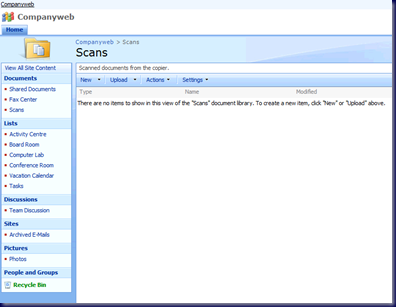
image

Create a New Receive Connector

Our next step is done on the SBS 2008 server itself.

In the Exchange Management Console, here we are using Windows SBS Native Tools Management, we need to get to the Hub Transport role under the Server Configuration Node:

image

Right click anywhere under the Receive Connectors list and click on New Receive Connector:

image 

We name the Receive Connector. In our case we called it Copier Send to E-mail.

After clicking next, we will leave the default local SMTP receive settings alone when it comes to the local IP addresses.

image

Take note however, that the FQDN setting needs to be filled out with the SBS server’s Fully Qualified Domain Name: MY-SBS.MySBSDomain.Local.

Next we have the From IPs. This is where we input the copier’s IP address. We added both copiers if they decided they wanted the other one e-mail enabled,

image

Once we click Next we are given a summary of the changes about to be made. We then clicked the New button to make it happen.

Receive Connector Properties

Once the Receive Connector has been created, we need to tweak it a bit to allow for anonymous SMTP connections from our two copier IP addresses.

Right click on the Copier Send To E-mail connector and click on Properties.

Click on the Authentication tab and make sure none of the check boxes are checked:

image

Then click on the Permissions Groups tab and put a check mark beside the Anonymous users setting:

image 

Our last step with regards to our Receive Connector is to run an Exchange Management Shell command to set the anonymous permissions into play:

  • Get-ReceiveConnector "Copier Send To E-mail" | Add-ADPermission -User "NT AUTHORITY\ANONYMOUS LOGON" -ExtendedRights "ms-Exch-SMTP-Accept-Any-Recipient"

Open the Exchange Management Shell by right clicking on it and then clicking on Run As Administrator.

Copy and paste the above command into the Management Shell. Note that the name of the Receive Connector in our example needs to be changed to whatever you have named the Receive Connector in order for things to work as expected.

This is what a successful command will look like:

image

We now have our SBS Exchange set up to allow the copiers to relay e-mail containing any scanned items through it.

Create An E-mail Enabled Contact

Our last step in this process is to create an e-mail enabled contact.

The e-mail address we created for the library was: Scans@companyweb. Companyweb is not a known or enabled e-mail domain anywhere in our SBS setup other than the SharePoint library and Exchange.

There may be a need for users to e-mail content into the library via their Outlook client, so we create the new contact.

Coming back to our open Windows SBS Native Tools Management console with the Exchange Management Console opened, we need to click on the Recipient Configuration node.

In the right hand Actions column click on New Mail Contact.

Fill out the Contact Information taking care to note that the Alias should be the same value as the e-mail address prefix (_____@MySBSDomain.Local):
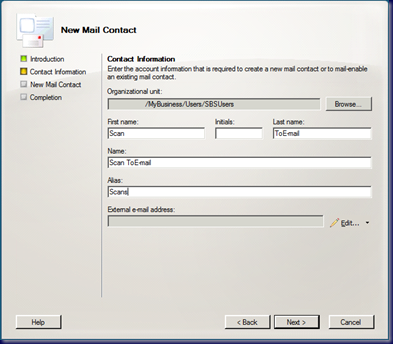
image

Click the Edit button next to the pencil to get:

image

Now for clarification’s sake, have a look at what was typed into the E-mail address field in this pop-up and head back up to the SharePoint library e-mail address. Notice any difference?

When everything was put together we could not get an e-mail to the SharePoint library but we could to the users when a scan was initiated at the copier. Somehow, through the whole process the e-mail address was seemingly case sensitive in Exchange and/or in the SharePoint library. The other possibility was that the address in the copier was different and the copier was case sensitive for e-mail.

Either way:

  • Make sure the e-mail address used is consistent case sensitivity wise throughout the set up process.

With that in mind, our input should have been: Scans@companyweb as it was in the SharePoint library.

Here is the filled out Contact Information step:
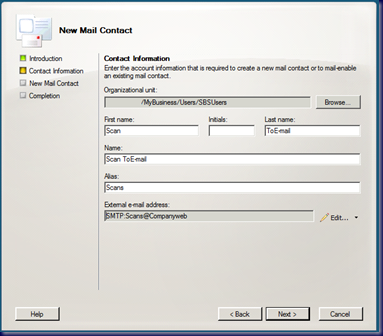
image

After clicking Next we are presented with a summary of the settings. Click the New button and we will now have an e-mail contact that will show up in the GAL thus allowing

Restart the Microsoft Exchange Transport Service

Once we have all of our configuration changes in place, as an extra precaution we restarted the Transport Service:

image

Test Scans

So, once we have the configuration in place everything should work as expected right?

Well . . . no.

The photocopier folks had their training person in to work with our client’s users on learning the copier and its features.

We did not have the scan to e-mail enabled before they arrived. When things did not work as expected, they made some changes on the copier according to our client contact.

Now, the copier needs to send e-mail to that library. The library uses what is essentially an Internet non-existent e-mail domain.

Here is the setting change that was made:

image

Notice the problem setting?

Our local Shaw SMTP server setting was put in the place of our client’s SBS IP address.

E-mail would flow to the users but not to the library.

Once we corrected that, we still could not get e-mail to flow.

We fired up the Exchange E-mail tracking to find out if the copier was even connecting to the server:

image

It was, but the e-mail was not reaching the library.

This is when we figured out that the only anomaly that we could see in the entire chain of events was the case in the e-mail address.

Once we had the e-mail address case settings the same in the:

  • Copier address list.
  • Exchange e-mail enabled contact.
  • SharePoint document library

We had the following result:

image

Our first PDF scan hits the library!

One of the neat things about this setup is the Alerts feature in SharePoint libraries. If there are one or two folks responsible for keeping the library tidy then anytime an e-mail attachment hits the library they can put the bug in someone’s ear to take care of it.

Overview steps:

  1. Configure the E-mail Enabled SharePoint Library.
  2. Create a New Receive Connector.
  3. Modify the Receive Connector's Properties.
  4. Create an E-mail Enabled Contact.
  5. Restart the Microsoft Exchange Transport Service.
  6. Test Scans and Troubleshooting.

Links

The above was brought about via a combination of resources:

Philip Elder
MPECS Inc.
Microsoft Small Business Specialists
Co-Author: SBS 2008 Blueprint Book

*All Mac on SBS posts will not be written on a Mac until we replace our now missing iMac! (previous blog post)

Windows Live Writer

Wednesday, 2 September 2009

SBS 2008 Disk 2 – WSS Repair No Go

Okay, so we are not getting anywhere with repairing our Companyweb site that was toasted by the SharePoint Service Pack 2 (previous blog post) update.

We ran the gamut, including the SBS Blog’s SharePoint SP2 Failed Install post and even trying out David Moisan’s PowerShell steps:

So far, nothing has worked.

So, in goes SBS 2008 Disk 2 with the component repair routines:

image

We start up the SharePoint setup:

 image

image 

The verdict?

image

Okay, so the install routine says it worked. But, what about the Companyweb site?

We need to reboot first! :|

image

No joy:

image

Susan Bradley has pointed us into the direction we are going to head into next:

We need to backup the Windows Internal databases, rip it out, uninstall WSS, reinstall WSS in stand-alone mode, restore the databases, and finally reattach them.

We are two for two WSS SP2 install failures now.

More to come … ;)

Philip Elder
MPECS Inc.
Microsoft Small Business Specialists
Co-Author: SBS 2008 Blueprint Book

*All Mac on SBS posts will not be written on a Mac until we replace our now missing iMac! (previous blog post)

Windows Live Writer

Tuesday, 1 September 2009

SBS 2008 – SharePoint Services Service Pack 2 Choke

We have mentioned in the past to hold off on installing that service pack:

We happened to have one of our SBS 2008 hosting servers come free today, so we took a chance on installing SharePoint v3 Service Pack two and sure enough things went sideways.

The default fix from the SBS Blog does not work for us either:

Another aspect to this situation: The Service Pack kills the TS Gateway service and thus kills any possibility of gaining remote access to the box via RWW or RDP.

If VPN is not configured on the box, which is the case in many of our client locations, then we would be in a real pickle.

Updating Rule #1: Always have an out-of-band management access on servers being updated.

Some of them are:

Otherwise we are asking someone to go to the console to log on and either get the services back up and running, reboot the server, or help with the troubleshooting process. All are not very viable options.

So, now we are in the process of troubleshooting the hosed SharePoint install. Fortunately we have out-of-band access.

Philip Elder
MPECS Inc.
Microsoft Small Business Specialists
Co-Author: SBS 2008 Blueprint Book

*All Mac on SBS posts will not be written on a Mac until we replace our now missing iMac! (previous blog post)

Windows Live Writer

Thursday, 20 August 2009

SBS 2008 – Companyweb Shared Documents Content and Buttons Missing?

A user in Explorer View managed to twist things up a bit, at least we are inclined to believe that since it was the user that called indicating that things had disappeared after they deleted something.

Shared Documents on this Companyweb site is huge. They use it for everything, so not a few hearts were momentarily stalled when the following was seen:

image

Note the absence of pretty much any folders, documents, or control buttons!

When we opened the Fax Center on a workstation while logged in as the domain admin, we could open Explorer View there and navigate our way back to Shared Documents. In Explorer View we were able to see the folders and content therein, so we knew that at least the content was there. This was good because the Recycle Bins were relatively empty.

We ended up needing to do the following to get our content listed again:

  1. Log onto a workstation as domain admin.
  2. Open Companyweb.
  3. Navigate to Shared Documents.
  4. Click Site Actions.
  5. Click Edit Page.
  6. Click Add a Web Part.
  7. Check the Shared Documents library.
  8. Click the Add button.

Now, once we have our content listed again, the toolbar may or may not show the New, Upload, Actions, and Settings buttons along with the View drop down.

If the toolbar is seemingly empty, then we need to click the edit drop down to the right of Shared Documents:

image

Click on the Modify Shared Web Part link.

Change the Toolbar Type to Full Toolbar:

image

Once the above steps have been completed, the seemingly once gone document library will be back as it was and there will be some real happiness going on in Userland! :)

Philip Elder
MPECS Inc.
Microsoft Small Business Specialists
Co-Author: SBS 2008 Blueprint Book

*All Mac on SBS posts will not be written on a Mac until we replace our now missing iMac! (previous blog post)

Windows Live Writer

Tuesday, 4 August 2009

SBS BPA: Reduce The Size of The SharePoint Configuration Databases

We have seen some mention made of the SharePoint configuration databases getting quite large.

To date, we did not see any simple way to reduce the size of those databases.

Microsoft Support has released a Knowledgebase article with a simple SQL based script to trim the database size:

Make sure to run a full backup just before running the script. This will enable a quick recovery of the server if things go sideways.

Philip Elder
MPECS Inc.
Microsoft Small Business Specialists
Co-Author: SBS 2008 Blueprint Book

*All Mac on SBS posts will not be written on a Mac until we replace our now missing iMac! (previous blog post)

Windows Live Writer

Monday, 1 June 2009

SharePoint Document Library Explorer View Disappears After SBS 2008 UR2

Pretty much all of our SBS 2008 boxes have Update Rollup 2 installed on them.

What we have been seeing is the following in a document library after UR2 has been installed:

image

Notice anything missing?

For avid users of SharePoint, where there is a need to transfer files between the Companyweb site and file shares on SBS, the Explorer View capability is critical. This applies whether we are in the office or working remotely.

It is even more critical for those of us that have gotten use to Windows 7’s ability to tie SharePoint document libraries into the Libraries Feature (previous blog post).

This is what the View dropdown menu should look like:

image

Thanks to Susan Bradley, a pointer to the SBS 2008 UR2 was made and the necessary fix which is to be found on the Official SBS Blog:

We need to Enable Client Integration under the Authentication Providers section in  SharePoint Application Management:

image

image

Once we clicked the Yes radio button and then the Save button, the document library menu would show the Explorer View option.

We did not experience the Read Only problem, just the missing Explorer View menu item so far.

Philip Elder
MPECS Inc.
Microsoft Small Business Specialists
Co-Author: SBS 2008 Blueprint Book

*All Mac on SBS posts will not be written on a Mac until we replace our now missing iMac! (previous blog post)

Windows Live Writer

Saturday, 16 May 2009

Signing Into the SharePoint Site Via the Windows 7 Favorite Link

As we have mentioned in our previous blog post on Windows 7 and SharePoint integration, one of the really kewl new features in Windows 7 is the ability to Favorite a SharePoint library for quick access.

There is a small catch that we need to be aware of when trying to sign into the SharePoint library via the Windows 7 Favorite though:

09-05-16 SharePoint Sign On

Note the backslash just before the username. If that backslash is not there, Windows 7 will send the credentials in Domain\FirstLast format and SharePoint does not seem to like that.

Put .\FirstLast for the credentials and the local machine name will appear on the left of the backslash.

Now that we have figured that out, our access to the SharePoint library is quick and easy.

Note that the first time a document is opened in the library, we may be prompted for credentials too. Those credentials need to be in the same format as above.

Philip Elder
MPECS Inc.
Microsoft Small Business Specialists
Co-Author: SBS 2008 Blueprint Book

*All Mac on SBS posts will not be written on a Mac until we replace our now missing iMac! (previous blog post)

Windows Live Writer

Thursday, 14 May 2009

With Windows 7 and SharePoint, Who Needs A VPN? And … It Network Drive Maps!

This is a pretty neat new feature available to us:

image

After logging onto a remote SharePoint site, open a SharePoint library and change the view to Explorer View. In this case, the above screenshot is showing the Shared Documents folder on our SBS 2008 Advanced Blueprint SharePoint site.

Catch what is happening yet?

The screenshot above was taken after opening the remote SharePoint library in Explorer Mode and on a whim, clicking in the address bar and pulling the folder icon over to the Favorites after the full path was shown.

Voila! We have our shortcut to the SharePoint library!

Now, what happens when we have logged off and back on again?

When we log on, click on the Libraries icon on the Task Bar, we can click on the Shared Documents favorite. When we do, we are presented with the standard SharePoint credentials request. Once we have authenticated, we are in!

Talk about an absolutely huge time saver. There is literally no more need for a VPN connection!

There is already a list of clients in my head that this feature alone will justify the upgrade to SBS 2008 with SharePoint v3 and Windows 7 as soon as it arrives.

The sweet spot: No more VPN bandwidth overhead. Everything is riding inside of an HTTPS tunnel!

The above screenshot’s site URL:

  • \\remote.mysbsdomain.ca@SSL@987\DavWWWRoot\sites\SBS2008AB\Shared Documents

And, the cat’s meow:

  • net use r: “\\remote.mysbsdomain.ca@SSL@987\DavWWWRoot\sites\SBS2008AB\Shared Documents”

The net use command will call for credentials. But, it works! :D

UPDATE: Okay, the CMD window that was used to make the initial R: connection allowed us to browse the folders, but the R: drive did not show up properly in Windows Explorer.

Philip Elder
MPECS Inc.
Microsoft Small Business Specialists
Co-Author: SBS 2008 Blueprint Book

*All Mac on SBS posts will not be written on a Mac until we replace our now missing iMac! (previous blog post)

Windows Live Writer

Tuesday, 12 May 2009

SBS 2008 – Hang On Before Installing WSS SP2

We have just had our freshly installed SBS 2008 Companyweb get toasted by the Windows SharePoint Services Service Pack 2 update.

One of the lessons we have learned, whether we are talking about SBS 2003 or SBS 2008, is to make sure we backup the server before running each product group updates (previous blog post).

In this case, WSS v3 SP2 was the second last update to be run along with an SBS 2008 specific update.

So, we are fortunate that this particular server has not gone into production yet.

To save time, we are restoring the entire box from backup, which is the last optional step on our checklist anyway, and then running with the SBS 2008 update only.

While this is our first Companyweb SharePoint site toasted by WSS v3 SP2, it is not the first we have heard of the Companyweb site getting toasted.

The Official SBS Blog:

The troubleshooting steps did not work for us. Given the speed of this particular box, a restore is only going to take about 15-25 minutes. That will be a lot quicker and safer than:

Philip Elder
MPECS Inc.
Microsoft Small Business Specialists
Co-Author: SBS 2008 Blueprint Book

*All Mac on SBS posts will not be written on a Mac until we replace our now missing iMac! (previous blog post)

Windows Live Writer

Wednesday, 8 April 2009

SharePoint Designer 2007 – Free for Download

SharePoint Designer 2007, the product used to customize SharePoint v3 and Microsoft Office SharePoint Server, is now a free download. Note that registration will be required to gain access to it.

While we are by no means experts in SharePoint here at MPECS Inc. having SharePoint Designer available for use in our SBS installations has been very beneficial.

A good book that can be helpful with getting to know the ins and outs of working with SharePoint technologies via SharePoint Designer 2007 is the:

This is, in our opinion, a good move on Microsoft’s part. Though we hope that making the product free does not spell its demise.

Philip Elder
MPECS Inc.
Microsoft Small Business Specialists
Co-Author: SBS 2008 Blueprint Book

*All Mac on SBS posts will not be written on a Mac until we replace our now missing iMac! (previous blog post)

Windows Live Writer

Tuesday, 3 March 2009

SBS 2008 – Companyweb - NT Authority\Network Service Login Failed

We have seen this error after applying some of the most recent SQL updates. As of yet, we have not managed to pinpoint the source of the breakage yet, but we know it is happening elsewhere:

We found out about it when we went to move the Windows SharePoint Services databases on a new SBS 2008 installation that had already received the updates.

The move process choked with a message indicating that the process will need to be finished manually.

From there, we received a “Cannot connect to configuration database” for both the SharePoint Admin and Companyweb sites.

Up to now, the amount of time we have put into this situation has been way beyond what we should have put into it. We are cutting our losses and restoring SBS to the night before the updates when everything was known to be working. Fortunately we are working with one of our lab SBS 2008 boxes and a relatively fresh install.

From there, we will see if we can determine just what broke what, or even if the NT Authority\Network Service Login Failed error existed at that point. If so, perhaps we will be able to get to the bottom of it prior to attempting the move since the error was the catalyst in SharePoint’s failing altogether.

As an afterthought, make sure to verify that Microsoft##SSEE is happy in the SBS 2008 Application Log before running the SharePoint Move Data Wizard. This way things do not go any further than trying to troubleshoot the Network Service login failure.

Philip Elder
MPECS Inc.
Microsoft Small Business Specialists

*All Mac on SBS posts will not be written on a Mac until we replace our now missing iMac!

Windows Live Writer

Friday, 27 February 2009

SBS 2008 – Companyweb and SharePoint Internet Collaboration a Big Plus

On SBS 2003, giving external users access to other SharePoint sites within the SBS SharePoint v2 framework was difficult to do. Especially if the external users were not to have access to the root Companyweb SharePoint site.

In SBS 2008, this is no longer the case. When we go to create a new site collection dedicated to a collaborative task, we can set the permissions on that site respective of any other SharePoint site on the SBS 2008 box.

For example, we have a new project collaboration need for our upcoming SBS 2008 Advanced Blueprint book. So, we would create a new site collection on one of our SBS 2008 server and give it the following URL:

09-02-25 SBS 2008 - SharePoint V3 External Collaboration

Create Site Collection: SBS 2008 Advanced Blueprint

Now, we need at least 4 user CALs for this particular project dedicated to this task as we are going to give the collaborators a username and password that have been set up for this collaborative task.

Those usernames would be set up with permissions on the new site collection along with any of our internal SBS users, such as mine, and we are good to go. None of the default SBS 2008 SharePoint user groups will be given access to the new site collection. The external users would not be in the default SBS 2008 SharePoint groups either, so no access to the root Companyweb.

Anyone with no need to access the collaborative site will not have access to it. The same is true with the search and any search results for a particular user that does not have permissions to a particular site collection.

Creating a collaborative environment within SharePoint on SBS 2003 was probably one of the more troubling requests we could receive for a single server client site scenario for those that wanted to keep things in-house.

UPDATE: As per Nathan’s comment, the :987/ was missed in the original Internet facing URL. Fixed. Thanks!

Philip Elder
MPECS Inc.
Microsoft Small Business Specialists

*All Mac on SBS posts will not be written on a Mac until we replace our now missing iMac!

Windows Live Writer

Monday, 23 February 2009

SBS 2008 SharePoint 987 and ISA 2006 Non-Standard SSL Ports

If there comes a time to work with a Web site that uses a nonstandard SSL port for its setup, then ISA will not allow the Web browser on through to the site.

For those of us running ISA 2006 SP1 to protect our now migrated domains to SBS 2008, or to manage our client’s SBS 2008 domains where the Companyweb SharePoint site now uses port 987 for its SSL connections from within our ISA protected network, there will be a need to allow that port through ISA 2006 SP1.

The same need applies for those that need to connect to remote SBS 2008 Companyweb sites via SBS 2003 SP1 and R2 Premium networks protected by ISA 2004 SP3.

To correct this, a utility is needed to modify the allowed SSL ports list in ISA. We use the ISA Tunnel Port Editor (ISAtrpe) utility that can be had from the ISATools.org site: ISATools.org ISA 2004 downloads. The download is about 2/3 of the way down the list.

09-02-23 SBS 2008 and ISA 2006 - SSL Port configuration

ISA Tunnel Port Editor

In the above screenshot, we are looking at a vanilla ISA 2006 SP1 install on Windows Server 2003 R2 Standard.

So, we would do the following to get things happening:

  1. LowPort: 987
  2. HighPort: 987
  3. TunnelPortName: SBSSharePoint
  4. Click the Add Tunnel Range button.
  5. Wait a minute or two.
  6. An “Added SBSSharePoint successful!” message will appear when done. Click the OK button.
  7. The newly added port should be listed in the ports list as shown below.

Note that if the port addition is done via an RDP session, the RDP session may be broken. It should be reestablished close to the end of the procedure.

09-02-23 SBS 2008 and ISA 2006 - SSL Port configuration with SharePoint

ISA Tunnel Port Editor with Port 987 Added

Once the procedure has completed, close the Tunnel Editor.

Direct access, or access via the Remote Web Workplace, to any remote Companyweb SharePoint site will work after this.

Philip Elder
MPECS Inc.
Microsoft Small Business Specialists

*All Mac on SBS posts will not be written on a Mac until we replace our now missing iMac!

Windows Live Writer