Showing posts with label Windows 8. Show all posts

Tuesday, 15 April 2014

Windows 8.1 and Windows Server 2012 R2 Update 1 Caveats

Whenever we hear about updates for any device firmware, application software, or operating system software it is _always_ a good idea to read the Release Notes (we probably all know the acronym that comes to mind here ;) ), README.TXT, _and_ do a search for the update to see if anyone is complaining about it. Unfortunately, this major update for Windows 8.1 and Windows Server 2012 R2 has its issues some of which are full-stop problems. The first place to start for this update is here:
There is a lot of information there.
  1. Update 1 is the new baseline for all updates going forward.
    • Meaning, no more updates to that OS if the bits are earlier than 8.1 U1 or 2012 R2 U1.
  2. Update 1 breaks SSL communications between endpoints and WSUS
This last one is a deal breaker for many enterprises, medium enterprises, and especially in our own SMB/SME environments where WSUS is virtually everywhere for patch management.
We just stood up a new cluster on 2012 R2. After our Cluster-Aware Update run:
image
Our cluster nodes now have the update. Since this cluster setup is Greenfield with WSUS ultimately ending up _on_ the cluster the nodes were updated via Microsoft Update.
The workaround for this situation is to enable TLS 1.2 as instructed in the above blog post. Since we are deploying Windows Server 2012 R2 into client sites we will have no choice but to make this change.
Then, when Microsoft releases an update to the update to hopefully fix the problem we will need to test that update extensively _especially_ in a cluster setting!
Yo Microsoft! There is a huge pool of folks willing to test and break this stuff for you! Please get us involved in the early bits for operating systems, applications, and updates again. This ongoing situation of releasing patches and updates to the public without testing them on disparate systems is a _bad_ thing. :(
EDIT: Updated the Gladiator link since between Live Writer and Blogger it got mangled.
Philip Elder
Microsoft Cluster MVP
MPECS Inc.
Co-Author: SBS 2008 Blueprint Book
Chef de partie in the SMBKitchen ASP Project
Find out more at
Third Tier: Enterprise Solutions for Small Business


Monday, 14 April 2014

A Small Chunk of Bandwidth for Windows Server 2012 R2 and Windows 8.1 Pro/Enterprise with Update 1

Okay, so here we go updating our ISO library:

image

image

And:

image

image

And finally:

image

image

Note that all Windows 8.1/Server 2012 R2 operating systems in the field _must_ be updated to Update 1 or they will not receive any further starting with Patch Tuesday this coming May!

That does not give us a lot of time to test the patch setup. But test we must! :(

By the way, is there any need to download the 32-bit version of a desktop OS anymore? We've not had to use one in ages!

Philip Elder
Microsoft Cluster MVP
MPECS Inc.
Co-Author: SBS 2008 Blueprint Book

Chef de partie in the SMBKitchen ASP Project
Find out more at
Third Tier: Enterprise Solutions for Small Business

Friday, 7 March 2014

Installing Windows 8.1 on a Toshiba Tecra Z50 with Secure Boot and uEFI

There seems to be a bit of a caveat installing Windows 8.1 onto a Tecra Z50 when Secure Boot and uEFI are enabled.

We cannot use an enclosure that mounts an ISO and presents it as a bootable optical drive or a USB flash drive formatted with NTFS. Whatever method we tried we ended up with various errors that lead nowhere.

Once we formatted a 4GB stick with FAT32, set it to active, and copied the Windows 8.1 content over to the flash drive we were able to install the OS as expected.

Thanks to Chris G. of Toshiba Canada for helping us to work through getting a new Tecra Z50-A set up.

Oh, and for now we need to get the required drivers from the Toshiba US site as the Canadian site is not hosting any yet.

Philip Elder
Microsoft Cluster MVP
MPECS Inc.
Co-Author: SBS 2008 Blueprint Book

Chef de partie in the SMBKitchen
Find out more at
Third Tier: Enterprise Solutions for Small Business

Tuesday, 21 January 2014

Somedays . . . IE11 Just Plain Stinks :(

There are times where IE 11's behaviours both in Windows 8 RTM and Windows 8.1 make no sense at all.

Bitly.com is a site we use _a lot_ to manage our links throughout our communications.

Here is what the site looks like in IE 11 on Windows 8 RTM today:

image

Now top that off with the Compatibility option having completely disappeared from any menu option and we have one frustrated user.

Oh, wait, no, the option has disappeared under the Gear but hit the ALT on the keyboard and:

image

There it is.

No Joy:

image

Okay, one last step before throwing the browser right out the window. Add the site to the Trusted Sites list.

Voila:

image

Jiminy Cricket, this process was frustrating enough for us, imagine what it must be like for users that may not know about Trusted Sites and Compatibility Mode.

What a complete waste of time and productivity to business users that need to jump through these hopes just to go about their daily business.

Yes, Firefox and Chrome (we won't run with Google product. Period.) are "options" but the business world runs on Microsoft products. Once would hope to believe that somehow things could be done in such a way that users are not impacted in such a way as to lose their productivity to this kind of thing. :(

Philip Elder
Microsoft Cluster MVP
MPECS Inc.
Co-Author: SBS 2008 Blueprint Book

Chef de partie in the SMBKitchen
Find out more at
Third Tier: Enterprise Solutions for Small Business

Monday, 6 January 2014

Some Thoughts On ARM and Intel Windows 8 Devices and the Windows 8 OS

This is a post to the SBS2K Yahoo List.

OP: Windows and ARM are essentially dead.

My thoughts . . .

I don’t think ARM is dead. Cost wise Intel can’t meet them especially with the new FABs they have built and their ongoing yield issues. There needs to be a cost tier in tech.
 
The ARM/RT/Surface 2 experience is aimed at the iDevice user. Folks that are used to a locked in experience where they need to purchase apps outside of the device to get what they need to be productive. The advantage goes to Surface 2 as it has everything one needs to be fully productive short of Enterprise features like DirectAccess _out of the box_. InTune takes care of the management side of things to some degree to give corporate IT some control over the devices.
 
I like my Surface 2. It’s flaky for sure. It reminds me of the day when we started to see motherboards with the “new” 32-bit PCI slots on them and the industry extolling “Plug and Play” as the new end to IRQs and Jumpers. We called it “Plug and Pray” for _years_ before the tech settled down and started doing what it was supposed to.
 
I believe that the Windows ARM line will, and already is, put a lot of pressure on iDevices and Android devices since users see a device that has their Windows experience out of the box.
 
Kill Microsoft with words over the new Metro/Modern UI and its app environment but Microsoft knows what they are doing. They _know_ user pain moving between different platforms and the cost in lost productivity due to the “where’s my cheese” between them.
 
I can’t count the number of times I’ve been approached with a “my Android device updated and now my stuff is gone or changed how do I get it back” question. That’s one area that Google has totally wrong. It’s not about the devs and their toys it’s about the end-user and their need to stay productive. Windows Phone solves this pain point big time as does iOS as they don’t butcher the user experience between versions.
 
And that is the clincher: As the general public becomes more aware that their PC, tablet, and phone can host the exact same environment in a stable and ongoing fashion, especially through device changes, the Windows platform will grow. The Windows 8/RT platform is relatively stable, provides a methodology to move to new devices and inherit everything, and provides a seamless and similar user experience across ALL devices. That’s Microsoft’s long-term vision IMNSHO.
 
An example: I killed the screen on my Nokia 920. It pancaked on the floor. Box tape is holding the glass together and it still works just fine but seeing through the cracks is painful. So, I bought a new Nokia 1020. It took about an hour after signing in with my Microsoft ID to have EVERYTHING as it was on my 920. The device backup and restore process pulls everything back even my text message threads! I don’t have to plug my phone into a computer or WiFi sync it like the iPhone does (not sure if messaging threads come back with a restore to a new iPhone?).
 
I set up a new Windows 8.1 machine for home based on the Intel NUC. I signed in with my Microsoft ID, set up my app passwords, and pulled down my regular apps from the Store’s “What you purchased” list and I was fully productive. All I needed from there was Office, RD Manager, and Camtasia. Everything else I use is in Metro/Modern UI.
 
If you have not experienced the seamless setup between Windows 8+ systems then you are truly missing out again IMNSHO. I NEED to have every second available to me to stay on top of things. Windows 8 has saved gobs of time over the previous days when I was working on setting up new machines for myself. In fact, after signing into my Microsoft ID (it is 2FA protected so I always need my phone for this step) and setting my passwords into the Mail app (the new PC has all of my Exchange mailboxes ready for a password and to start syncing immediately) I can be productive immediately communication wise.
 
Maybe I’ve drunk the Kool-Aid. Maybe not. But I can tell you the benefits of Windows 8+ far outweigh the cons. Oh, and the Start Button in Windows 8.1 rocks. I did not realize just how much I missed it for managing servers via a windowed RDP/iDRAC/iLO/RMM session. :P
 
One more neat bit: Hit the Start button after setting key mail folders on the Start Menu and the Live Tiles give me an at-a-glance view of all communications. I like that.

Philip Elder
Microsoft Cluster MVP
MPECS Inc.
Co-Author: SBS 2008 Blueprint Book

Chef de partie in the SMBKitchen
Find out more at
Third Tier: Enterprise Solutions for Small Business

Thursday, 5 September 2013

BitLocker Encrypted Drive: Unable to Unlock

We have a number of external BitLocker encrypted drives that we use to tote around our business data with.

After plugging one of the drives into our newly stood up system with Windows Server 2012 RTM being slowly configured as a desktop we hit this:

image

Normally, a BitLocker encrypted drive gets plugged into any Windows Vista and above operating system and a prompt happens to unlock it for full access.

Double clicking on the drive in Explorer did nothing. Nada. Zippo.

In the end we had missed installing the BitLocker components on the machine:

image

Note that a restart would be required once the installer routine completed.

Sure enough, after the reboot we were prompted for the pass phrase after double clicking on the drive’s icon:

image

With BitLocker now included in Windows 8 Pro there is no reason why organizations that do move their desktop operating system platforms over to Windows 8 should not use BitLocker to encrypt every system and external storage device by default.

In fact, for any organization that has sensitive data housed on their systems the only thing stopping the migration to Windows 8 Professional would be Line of Business applications ... maybe. One could work around that with application virtualization or RemoteApps depending on the LoB.

The tools for BitLocker management are also available in Windows Server as well as a part of the Desktop OS Software Assurance and MDOP offering.

And one more thing: With the horsepower that today’s systems offer whole disk encryption as opposed to encrypting only contents is always the best option. BitLocker Content Only Encryption is a new feature in Windows 8.

Philip Elder
MPECS Inc.
Microsoft Small Business Specialists
Co-Author: SBS 2008 Blueprint Book

Chef de partie in the SMBKitchen
Find out more at
www.thirdtier.net/enterprise-solutions-for-small-business/

Windows Live Writer

Monday, 26 August 2013

Xbox Music Error: Can’t Play 0xc00d11cd (0x80004002)

This is pretty strange.

One of our workbench systems is tied into our Xbox Music Pass and happily sends tunes into the shop while working.

Wanting to start some tunes while remotely connected from the front office via RDP produced the following error:

image

Can’t play.

Please try again. If the problem continues, visit www.xbox.com/support to check for guidance.

0xc00d11cd (0x80004002)

Okay, tunes were working just fine yesterday evening while working in the shop so what gives?

We logged into the physical machine and attempted to play the tunes again. Sure enough, after logging in and hitting play on one of our playlists we heard tunes.

image

We now have 500 watts of THX certified sound happening! :D

Have finicky ears? Then check out the Logitech Speaker System Z906 THX certified speakers. They sound absolutely phenomenal.

The moral of the story? Xbox Music will _not_ work when connected via RDP session.

Philip Elder
MPECS Inc.
Microsoft Small Business Specialists
Co-Author: SBS 2008 Blueprint Book

Chef de partie in the SMBKitchen
Find out more at
www.thirdtier.net/enterprise-solutions-for-small-business/

Windows Live Writer

Friday, 19 April 2013

SMBKitchen: Installing Hyper-V on Windows 8, Configuring Networking, and VM Setup Video Posted

I’m happy to announce that my first How-To video has been posted to our SMBKitchen Project knowledgebase.

image

I demonstrate the following process:

  1. Setting up the partition configuration.
  2. Setting up Intel NIC Teaming for a dual NIC motherboard.
    • Windows Client does not have NIC teaming built-in as does Server.
  3. Installing the Hyper-V Windows Feature.
  4. Configuring Hyper-V networking with a private and public virtual switch set.
  5. Configuring Hyper-V configuration and VHD file storage locations.
  6. Setting up a Hyper-V based lab environment.
    1. VM: Set up Windows Server 2008 R2 SP1 as a router
      1. Private and Public vSwitches bound.
      2. RRAS configured in NAT mode.
    2. VM: Set up Windows Server 2012 Standard as a DC.
      1. Proper network setup for DNS, DHCP, AD, and more.
      2. Forward Lookup Zones for the Domain and Active Directory zones.
      3. Reverse Lookup Zone settings for AD.

There are a significant number of helpful pointers throughout the video that will give you a _very_ good idea of how we set up and deploy Hyper-V but also do a greenfield Windows Server Stack deployment for a new client.

image

The video is about 43 minutes in length.

Please do check it out! SMBKitchen Project

The small subscription fee helps to justify the time to do these types of How-To efforts. :)

Philip Elder
MPECS Inc.
Microsoft Small Business Specialists
Co-Author: SBS 2008 Blueprint Book

Chef de partie in the SMBKitchen
Find out more at
www.thirdtier.net/enterprise-solutions-for-small-business/

Windows Live Writer

Tuesday, 19 March 2013

The Verdict: 2 Months in and Xplornet Does Indeed Trump Hotlink Wireless Service

Here we are two months later after posting this:

We signed up for the 10Gbit plan and have been more than happy with the service.

One thing that is readily apparent for us, or will become so for those making the transition, is that Windows 8 is bandwidth hungry.

Wherever there are two or more Win8 profiles hooked into a Microsoft ID any changes made on one, depending on the services, will be replicated to the others.

Well, I download a lot of music on my Windows Phone 8 device and thus that gets replicated to all Win8 machines I sign into with my Microsoft ID or domain account that has that ID integrated.

Our network at home that Xplornet services is our primary video, television (we do not subscribe to cable/satellite), movie, and entertainment via Zune/Xbox Music Pass and Netflix.

Other than the occasional stutter on the standard definition movies we have streamed in via Zune/Music Pass (which look _way_ better than Netflix) we don’t see much.

The shaping becomes apparent when downloading content like updates, large PDFs, and other files. We can get several downloads going at around 125KB/Second despite our connection being 10Gbit. One would expect one download, like Exchange 2010 Service Pack 3 would come down at 800KB to 900KB per second. Nope.

We can however have several downloads going at the 125KB/Second rate.

So, we leave the large downloads for our office connection. :)

In the end our decision to change our ISP provider from Hotlink has been a very positive one. The step up in the monthly fee has been more than worth the ability to have five to eight stable RDP sessions to our client sites at any one time.

Plus Internet streaming content comes down at a reasonable rate with very little interruption.

Our recommendation: Choose Xplornet WiMax if there is an option between Hotlink and Xplornet.

Philip Elder
MPECS Inc.
Microsoft Small Business Specialists
Co-Author: SBS 2008 Blueprint Book

Chef de partie in the SMBKitchen
Find out more at
www.thirdtier.net/enterprise-solutions-for-small-business/

Windows Live Writer

Wednesday, 27 February 2013

RDP Client in Windows 8 and Server 2012 Neat Features

While working from a Windows 8 Enterprise system here in the shop we connected remotely to a Windows Server 2012 Hyper-V environment that we are in the process of setting up for a new client.

A couple of neat new features in the MSTSC (Click Start (WINKey+R) –> Run –> mstsc [Enter]), that is the Microsoft Remote Desktop Connection Client (MicroSoft Terminal Services Client) are the following:

image

There is a little drop down menu available on the far left of the RDP status bar at the top of the session that gives us access to Windows 8/Server 2012 specific features.

The other thing we noticed was the “wireless” status bars to the right of the Pin.

Click on that and we see the following:

image

The drop down menu will certainly be handy for windowed RDP sessions since that is how we run most of our remote management sessions.

The connection status bars not so much. It is pretty obvious when we are having connection issues.

Have a great day and thanks for reading! :)

Philip Elder
MPECS Inc.
Microsoft Small Business Specialists
Co-Author: SBS 2008 Blueprint Book

Chef de partie in the SMBKitchen
Find out more at
www.thirdtier.net/enterprise-solutions-for-small-business/

Windows Live Writer

Wednesday, 6 February 2013

Server 2012/Windows 8: A Couple of Quick Logoff and Reboot Tips

We have a quick way to log off a Windows 2012 server or Windows 8 machine:

  1. Hit Start –> type: Logoff
  2. Right click on Logoff and Pin To Start
    • image
    • Above snip is _after_ pinning.
  3. ESC
  4. Start
  5. Move the Logoff tile to the Top Left of the Start menu.
    • image

Once the above process is complete to log off a server or desktop set up as above we hit Start then [Enter] and we are logged off.

To reboot or shut down the system we do the following:

  1. WIN+R
    1. shutdown –r –t 0 –f
      1. Reboot, time is 0 seconds, and force the reboot.
    2. shutdown –s –t 0 –f
      1. Shut down, time is 0 seconds, and force the reboot.

The Run command can otherwise be pinned to the Start menu using the above methodology.

Philip Elder
MPECS Inc.
Microsoft Small Business Specialists
Co-Author: SBS 2008 Blueprint Book

Windows Live Writer

Monday, 21 January 2013

Windows 8: Share Desktop Backgrounds Across PCs/Laptops

We have a number of systems with one sign-on that is tied into our Microsoft ID (Live ID).

Besides the ability to keep our Metro UI experience relatively seamless across those systems we can also share the desktop backgrounds across them.

The path for the pictures is:

  • C:\Users\%Username%\AppData\Local\Microsoft\Windows\Themes\RoamedThemeFiles\DesktopBackground\
  1. First, right click on the desktop and click Personalize.
  2. Make sure Synced Theme is chosen.
    • image
  3. Click on Desktop Background.
    • image
  4. Open Windows Explorer
  5. Open the picture’s location.
  6. One can either copy and paste from here or open a second Windows Explorer window.
  7. Copy and paste the above path into the Address Bar and hit [Enter].
  8. Copy picture content into the DesktopBackground folder.

Our preference is to set the images to Fit instead of stretch.

Once this process has been completed the desktop backgrounds on all Windows 8 machines tied in with that Microsoft ID will show the same.

NOTE: Once this process has completed Windows 8 under Personalization may show “Unsaved Theme” as being selected. Change the setting back to Synced Theme.

Philip Elder
MPECS Inc.
Microsoft Small Business Specialists
Co-Author: SBS 2008 Blueprint Book

Windows Live Writer

Friday, 11 January 2013

Hyper-V: Creating a Fixed VHDX on 8x RAID 6 10K SAS Spindle Set: 130GB

Our previous blog posts on this subject:

For today’s test we are running the following setup:

  • Intel Server System R2208GZ4GC
    • Dual Xeon E5-2630
    • 128GB (16x 8GB) Kingston ECC
    • Intel Integrated RAID RMS25CB080 with BBU
    • 8x 600GB Seagate 10K SAS drives at 2.5”

The operating system is a freshly installed Windows Server 2012 Standard.

The RAID 6 array setup in the RAID controller’s BIOS is as follows:

  • Logical/Virtual Disk 0: 120GB
  • Logical/Virtual Disk 1: 3.1TB

We start the New Virtual Hard Disk Wizard in Hyper-V Manager and run through to create a fixed VHDX with a 130GB size.

image

Our test results are:

  • Start time: 13:29
  • End time: 13:31
    • image
  • Result: 2 Minutes

Yup. 2 Minutes.

As a just-in-case we ran this test again this time while watching the Performance Monitor:

image

  • Start: 13:37
  • Finish: 13:39
  • Disk Queue Length:
    • image
  • Disk Throughput:
    • image
  • All three measures:
    • imageimageimage
  • Result #2: 2 Minutes

Check out that throughput at 1GB/Second! And, Disk Queue Length hovering around 5 for the working virtual/logical disk.

This test demonstrates that a properly configured disk subsystem will perform as good or better than expected.

Now on to the SSD tests! :)

Philip Elder
MPECS Inc.
Microsoft Small Business Specialists
Co-Author: SBS 2008 Blueprint Book

Windows Live Writer

Tuesday, 8 January 2013

Hyper-V: Creating a Fixed VHDX on 8x RAID 6 SATA Spindle Set: 130GB

In our last post Hyper-V: Creating a Fixed VHDX on SSD: 40GB Time we saw that a single SSD setup was capable of creating a 40GB fixed VHDX in about 5 minutes.

We have a server setup on the bench that we were running troubleshooting steps on and some component replacements.

  • Intel Server Board S5000PSLSATAR
  • Dual Intel Xeon E5440 CPUs
  • 16GB (8x 2GB) Kingston ECC RAM
  • Intel RAID Controller SRCSASRB
  • Intel SC5400LX Server Chassis with 10 hot swap bays
  • 8x 500GB Seagate ES series 7200RPM SATA drives in RAID 6
  • Windows Server 2012 Datacenter RTM with Hyper-V only

First off, there is no battery backup on this unit so performance is not that great. It is a stop-gap situation for our client.

We started the run at 16:55:

image

We started the process to let it run after we closed up shop.

The file’s final write time was at 19:33:

image

So, in this case with a decent RAID array configuration, though missing the battery backup for the RAID controller’s cache, we saw a 140GB fixed VHDX file created in 2.5 hours or thereabouts.

Next up, we have an Intel Server System R2208GZ4GC with eight 600GB 10K SAS spindles that will be running in RAID 6 with battery backup.

We may just run this experiment on this box twice. Once with RAID 6 and once with RAID 10 to see just how different, if there is any difference, the file creation process will be. And, again with the battery backup removed.

We also have a bunch of Intel X25-M 80GB SSDs here in the shop that we may plug into the above unit to test. Hopefully we will have the time to do all of this!

Philip Elder
MPECS Inc.
Microsoft Small Business Specialists
Co-Author: SBS 2008 Blueprint Book

Windows Live Writer

Monday, 7 January 2013

Hyper-V: Creating a Fixed VHDX on SSD: 40GB Time

We are running a test to see how long Hyper-V in Windows 8 (should be similar in Server 2012) takes to create a 40GB fixed VHDX.

We started the process at 12:05:

image

The system setup where this test is being run:

  • Intel Desktop Board DH67
  • Intel Core i7-2600K
  • 32GB Kingston RAM
  • 300GB Intel 320 Series SSD
    • Single partition for the OS.

The process took about 5 minutes to complete:

image

The next step will be to try the experiment on a spindle based setup. The best way this is going to happen for us will be to use a USB 3 SuperSpeed dock and run the test as USB 3 will assure us we are getting the maximum throughput the 7200 RPM spindle can offer us.

Unfortunately, the Renesas USB 3 chipset on the DH67 board is not very stable in Windows 8.

So, we will run this test on a newly set up Windows 8 machine that will be based on the Intel Desktop Board DX79SR as soon as we have it available.

Philip Elder
MPECS Inc.
Microsoft Small Business Specialists
Co-Author: SBS 2008 Blueprint Book

Windows Live Writer

Wednesday, 2 January 2013

Surface RT: Wireless/WiFi Can’t Connect – Workaround

We have been having WiFi connectivity issues with both Surface RT units since the December updates.

Prior to that we were connecting flawlessly no matter where we were with them.

A workaround for now is to do the following:

  1. Open RegEdit
  2. Navigate to Computer\HKey_Local_Machine\System\CurrentControlSet\Control\Class
    • image
  3. Search for AutoUse40MHz
    • Change from “1” to “0”
  4. Change Band from “6” to “4”.
  5. Reboot.

When the Surface RT finishes its reboot it will be forced to B/G only:

image

Considering file copies to USB run around 5MB/Second or thereabouts running at 54Mbps on the WiFi is not a really big hit in “performance” on the Surface RT.

To date, once we made these two changes the units have not had a WiFi problem.

Philip Elder
MPECS Inc.
Microsoft Small Business Specialists
Co-Author: SBS 2008 Blueprint Book

Windows Live Writer

Monday, 31 December 2012

Microsoft Surface RT: WiFi Connection Error/Won’t Connect

Both of our home based Microsoft Surface RT units recently became unable to connect to any wireless connection.

It seems that the recent December updates that were supposed to _fix_ WiFi connectivity issues on the Surface RT actually broke ours that had nary a problem before.

Our home wireless setup is three Cisco WAP4410N APs set up with the same SSID and three separate channels. All APs have WPA2-Personal AES encrypted keys and all three radio bands B/G/N enabled.

All three APs are connected to a power supply (not using PoE).

After some searching and questions out and about in the forums we participate in the following seems to be true:

  • Wireless N is the problem.
  • Surface RT will connect on B and/or G.
  • Surface RT WiFi connector forced into G will connect.
  • WAPs switched to B/G Only will allow Surface RT to connect.

On one Surface RT uninstalling, rebooting, and then re-installing the MARVELL WiFi device seemed to get things straight.

On the other though nothing worked. We tried all manner of getting the unit to connect with no success.

So, we logged into all three AP Web consoles and switched the APs over to B/G Mode and tried to connect the Surface RT. Sure enough, the unit connected almost instantaneously.

We then switched the APs back to B/G/N Mode and rebooted the troublesome Surface RT.

To date it has stayed connected to the wireless network.

For now, we at least know what to do to get the units to cooperate again.

Hopefully whatever was broken with the last round of updates will be fixed in the next round! :P

Philip Elder
MPECS Inc.
Microsoft Small Business Specialists
Co-Author: SBS 2008 Blueprint Book

Windows Live Writer

Tuesday, 11 December 2012

Skype and Live IM on Windows 8 Not Playing Nice Together

We have both Skype and MSN (Messenger on Win8) going with messages showing on one and sometimes in the other.

image

The above snip is from Skype on Windows 8. Messages sent via IM Messaging in Windows 8 appear on other system’s IM and Skype but for some reason Skype messages sent via Skype on this Windows 8 system do not.

If we are to drop MSN Messenger/Live Messenger altogether one would hope that the system’s bugs will be worked out.

For now, we will continue to run both service clients on this system and others until messages sent via either client show up 100% on the other.

Philip Elder
MPECS Inc.
Microsoft Small Business Specialists
Co-Author: SBS 2008 Blueprint Book

Windows Live Writer

Tuesday, 20 November 2012

Whoever Said Microsoft Burned the OEMs with Surface Was Wrong ...

We have the following product here in the shop:

WP_000887

The above shot is of the Microsoft Surface sitting on top of a Toshiba Satellite U920t Ultrabook convertible.

Fernando of Toshiba Canada popped by yesterday to drop off the U920t to let us play with it for a couple of days.

Now, first off, this is an _engineering sample_ that is pre-production quality.

Let’s just say that again: The U920t is pre-production.

Let’s have a look:
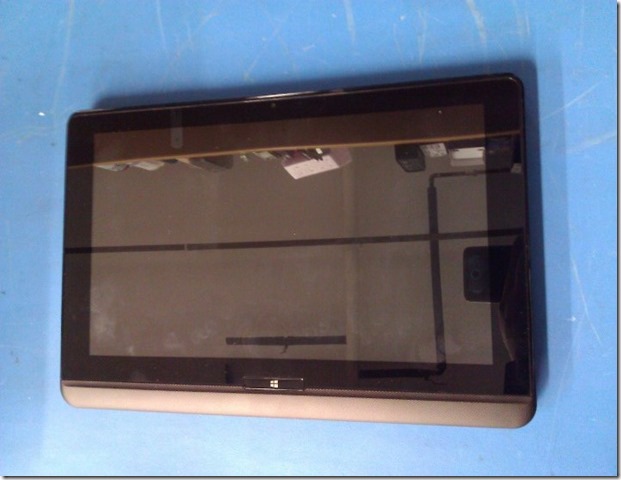
WP_000882

And now the killer feature:

WP_000883

The screen slides upwards to reveal a keyboard and touch pad.

WP_000884

Now, we keep tilting the screen and:

WP_000886

We can bring that screen almost to 90 degrees perpendicular to the keyboard.

One of the principle gripes about the Surface is its one-size-fits-all stand that causes a cramp in taller folk’s neck or limits where the product can be placed for usage.

The Toshiba gives the user the freedom to tilt that display to whatever angle will be required for the given placement circumstances.

User Reaction

We have two Microsoft Surface 64GB units. One for Monique and one for myself. They have been put to good use since their purchase.

Monique’s initial reaction to the U920t was “Meh” it’s bigger and heavier.

However, as soon as the display was sliding up to reveal the keyboard her eyes absolutely lit up. The unit went over to her and we can all guess what happened next. :D

Needless to say Fernando indicated to us that the unit cannot be purchased on the spot!

They should hit Canadian distribution sometime in the next few weeks or so.

Microsoft And OEMs

IMNSHO, anyone claiming that Microsoft one-upped their OEMs was _way_ off base with those comments.

Why?

Because this _engineering sample_ once it was in our hands made it absolutely crystal clear that the Microsoft Surface is a v1 product.

The refinement and all-around integrity in the Toshiba product was and is vastly superior to the Surface in its current form.

In my mind, via my having roots in the auto industry, the Surface reminds me of the Hyundai Pony made by the then fledgling automaker. It accomplished its task but not without a lot of bugs and being technologically far behind other budget minded autos of the time.

Surface and Satellite Specs

Now, one thing to make clear.

The U920t is larger than the Surface and thus heavier. To have that keyboard tucked in as it does means more weight for the mechanism to keep things together.

Plus, we are talking about a mobile i5 processor next to the ARM in the Surface so battery weight will be greater in the U920t.

However, the Core i5 gives the U920t more grunt to work with those full Windows compatible applications.

In a way we are talking apples to oranges here in that the Surface does meet a very specific need for a light weight and ultra-portable device with a built-in keyboard. It also does almost everything that it’s PC/Laptop cousins do with a little help from a 3G/LTE hotspot.

However, despite the extra weight the size of the U920t makes it much more attractive as a laptop/portable replacement.

Oh, and the U920t solves the finger poking the screen thing that has been happening on the Portege Z830 since Windows 8 Enterprise x64 was installed on it. :)

Conclusion

We will probably have at least one Surface 64GB unit with Furry Keyboard Cover (that’s the first thought that came into my head when I saw the default keyboard – it looks furry) for sale once the U920t hits the market.

The point of this post is the following: Many took the whole Surface ecosystem as being a hit against the OEM Vendors. After seeing and working with the Toshiba Satellite U920t nothing can be further from the truth.

While in Las Colinas Texas last week for training at the Microsoft Campus for Windows Server 2012 Essentials and Multi-Point Server Lenovo did a vendor blitz in the Microsoft dining room one lunch hour. The Windows 8 convertibles and touch enabled laptops were flat out amazing to see, touch, and work with.

Again we were stymied when we wanted to purchase one on the spot! The touch enabled laptop was just _that good_.

While our thoughts on this subject may be based on a few samples of OEM Vendor’s Windows 8 products one conclusion can be drawn here: Microsoft has a _huge_ gap to make up to come even remotely close to the all-around product engineering, manufacturing, quality, and end-user experience that the current OEMs provide in their products.

The Windows 8 OS the product does not make.

One requires an attractive and solid hardware platform around the OS that provides the end-user with a platform that performs and remains relatively stable across its lifetime.

Prediction

Apple’s stock will be under a lot of pressure in the next year or two due to the loss of iDevice sales into schools and businesses as the Windows 8 portable RT and PRO platforms mature. Never mind their rumbling about dropping the Intel platform (Huh? Who the Chicken thought up that idea?!?)

While the phone side of things is still up in the air there is no doubt that Apple has a clear winner in their iOS platform across devices. The catch is that their platform is getting stale.

Microsoft and their OEM Vendor partners are only just beginning to bring about what we believe will be a revolution in personal computing like we have not seen in years.

Having the Windows 8 experience across device platforms is going to change things for WinTel and now WinARM ... big time!

Apple has gifted the industry with the freedom to produce products that no longer fit into the black or silver box mode. We believe we are now just beginning to see that happening in the PC industry across devices of all statures and abilities.

One word: Neat!

Philip Elder
MPECS Inc.
Microsoft Small Business Specialists
Co-Author: SBS 2008 Blueprint Book

Windows Live Writer

Thursday, 8 November 2012

Windows 8 x64 Enterprise Install on Portege Z830 Was Great

We tried to get the Release Candidate of Windows 8 installed on a Toshiba Portege Z830 with not very positive results.

This go around with the RTM bits was about 96% successful. We ended up needing the Bluetooth driver and the Fingerprint Reader driver from Toshiba's site.

After verifying the versions of the software we downloaded the versions attached to the Z930-007 for Windows 7 since they were newer.

In addition to those two drivers the Toshiba Service Station should be installed to keep the machine's drivers and BIOS up to date. Also, to get the special function keys to work and the ability to toggle the Touch Pad on and off requires the Toshiba Value Added Package.

In the RC we were not able to get our 14" Toshiba USB external monitor to initialize at all. The DisplayLink drivers were non-existent in the OS and the Windows 7 drivers refused to install at all. We are happy to report that the DisplayLink driver is built into RTM Windows 8.

So, we are able to run the external display via USB 2. Besides the ability to Extend the primary display for two distinct desktops we are able to Duplicate the primary display on the external display for small one or two person presentations.

A pico projector would be another option but a power supply is required. The Toshiba USB monitor is powered by the USB connection as well so no additional cables or power requirements are to be had.

There is one very noticeable addition in computing behaviour now that we have Windows 8 on the Surface, multi-monitor systems in the shop, and now the Portege Z830 with single or dual display: The tendency to reach over and touch the monitor. This tendency emerged after acquiring the Surface.  :)

Philip Elder
MPECS Inc.
Microsoft Small Business Specialists
Co-Author: SBS 2008 Blueprint Book

Windows Live Writer