Showing posts with label Windows XP Mode. Show all posts

Friday, 27 May 2011

Windows XP Mode–Printing From A DOS Application

Some of our clients have Line of Business Applications that go way back. This is especially true for accounting firms where folks will come to them to fill out tax reports for years gone by.

Some of those LoBs were DOS with no other option to run them.

So, we get the app set up in XP Mode on the Windows 7 system, from there we need to run the following command in the command line shell:

  • net use lpt1 \\pserver\laser1 /persistent:yes

Since 99.9% of our clients don’t even have a parallel port on their computer anymore, it is probably quite safe to use LPT1. For those rare cases use LPT2.

One can either point that command to a server share or share the locally attached USB printer making sure that the firewall allows the connection.

Note that in our experience both HP and Lexmark printers seem to work okay for this process. The actual printout may not be what is expected, but it works. If using any other printer vendor’s products this may or may not work due to driver or PCL language issues.

Philip Elder
MPECS Inc.
Microsoft Small Business Specialists
Co-Author: SBS 2008 Blueprint Book

*Our original iMac was stolen (previous blog post). We now have a new MacBook Pro courtesy of Vlad Mazek, owner of OWN.

Windows Live Writer

Monday, 20 December 2010

Legacy Taxprep T1, T2, and T3 Apps on Windows XP Mode

Now that many of our accounting firm clients are moving over to Windows 7 as the primary desktop operating system we have run into a roadblock of sorts with the legacy versions of Taxprep’s accounting applications.

That roadblock has to do with running any legacy version of Taxprep on a Windows 7 machine whether we install it locally or try and run it via a network install. The older the version of Taxprep the less likely we can shoehorn it into Windows 7 and it will fail to run.

So, to mitigate this we created a folder that we keep in the network install location:

image

In that folder is a set of shortcuts to the network versions of the Taxprep applications:

image

We drop a copy of that folder of shortcuts into the following location in the Windows XP Mode VM:

image

Once Windows 7 has picked up on the new folder we place a shortcut to it on the user’s Windows 7 desktop.

They can then run whatever Taxprep version they need to via XP Mode.

Another option may be Microsoft’s App-V though some of our accounting firm clients do not have the required licensing in place yet.

In the rare case where a partner wants to have access to those legacy programs while outside of the main office we will install the legacy versions directly into the Windows XP Mode VM and place the shortcuts into a folder on their desktop.

Philip Elder
MPECS Inc.
Microsoft Small Business Specialists
Co-Author: SBS 2008 Blueprint Book

*Our original iMac was stolen (previous blog post). We now have a new MacBook Pro courtesy of Vlad Mazek, owner of OWN.

Windows Live Writer

Windows XP Mode – Boot From An ISO Instead Of XP

We set up a user’s Windows XP Mode a while back, ran updates and left it until it was needed.

One thing we neglected to do was to keep a record of the XPMUser local admin account.

Now, the setup process for Windows XP Mode takes a fair amount of time, so we dropped an ISO of ERD Commander onto the machine (our clients have MDOP) and hooked it into the Windows XP Mode VM.

One catch however was this: How do we boot from that ISO?

The answer was found after some searching here:

Essentially, we disable the Integration Features in the VM’s settings, reboot, and hit the DEL key until we get into the VM’s vBIOS. We can then change the boot order for the task at hand, make the password change, and set things back once into the OS.

image

Total time spent was about 5-10 minutes.

Philip Elder
MPECS Inc.
Microsoft Small Business Specialists
Co-Author: SBS 2008 Blueprint Book

*Our original iMac was stolen (previous blog post). We now have a new MacBook Pro courtesy of Vlad Mazek, owner of OWN.

Windows Live Writer

Friday, 26 November 2010

Toshiba Tecra S11 Core i7-620M 160GB X25-M WinSAT Score

We have just completed configuring a number of new Toshiba Tecra S11 laptops with 160GB X25-M Intel SSDs.

Our own Tecra S10 WinSAT scores can be found here:

The Tecra S10’s scores were:

  • Disk  Sequential 64.0 Read              203.74 MB/s        7.3
  • Disk  Random 16.0 Read                    39.33 MB/s        6.3
  • Disk  Sequential 64.0 Write              88.15 MB/s          6.3
  • Total Run Time 00:01:25.32

The Tecra S11’s scores were as follows:

  • Disk  Sequential 64.0 Read                   240.75 MB/s          7.5
  • Disk  Random 16.0 Read                       215.20 MB/s          7.8
  • Disk  Sequential 64.0 Write                  103.40 MB/s          6.6
  • Total Run Time 00:01:10.07

The second stat in the S10’s numbers must have been an anomaly. We will revisit the WinSAT test on that unit to see how the performance has stood up over time.

There is a tangible performance difference on the Core i7-620M based Tecra S11 versus the Core 2 Duo T9600. The system is a lot more responsive in so many ways.

So, it is not surprising to see that the SSD performance on the new S11 takes a step up versus the previous generation.

In the end, the cost of the SSD is more than made up by our client’s users increased productivity.

While one of the drivers for having the SSD installed has been Windows XP Mode on Windows 7, most of our client’s line of business applications have come up to date and are Windows 7 compatible. There are still a few hold outs, but for the most part XP Mode is slowly being deprecated.

Philip Elder
MPECS Inc.
Microsoft Small Business Specialists
Co-Author: SBS 2008 Blueprint Book

*Our original iMac was stolen (previous blog post). We now have a new MacBook Pro courtesy of Vlad Mazek, owner of OWN.

Windows Live Writer

Monday, 8 March 2010

CCH Scan – XP Pro Only

We are installing the CCH Scan (|Product Info Site) product on a workstation we have just installed at one of our local accounting clients.

An important consideration for installing the product is the fact that it cannot be installed on Windows Vista or Windows 7.

The product install routine configures a number of services to run constantly in the background.

Now, when a scanner, in this case the recommended Kodak i1220 Plus, deposits a bunch of scanned documents as TIF files into the Import folder, the CCH Scan services automatically start picking them up and running through an OCR routine on each TIF file.

Given the CPU intense operations required for the OCR portion of the process, there is no real way to drop CCH Scan into a Windows XP Mode VM.

So, we have an Intel based Core 2 Duo E8500 series CPU on an Intel DQ45EK motherboard with 4GB of RAM. Once CCH Scan is installed and configured, we will be good to go . . . though we are nowhere near that yet.

We are currently on hold waiting for the CCH tech to pick up so that we can run through the setup we have put in place following the documentation. We are calling tech support because the service does not seem to want to automatically OCR any TIF files deposited in the Import folder.

Later . . . much later.

So far, the general implication is that since the CCH Scan services run as a local service, the workstation itself needs FULL rights on the share and at the NTFS level. But, that does not seem to fix the access problem . . . at least not initially.

After uninstalling and reinstalling the entire product group we finally managed to get everything working. But, we needed to delete all Folder Groups and recreate them then restart the CCH Scan services on the workstation.

We could then successfully process any TIF files deposited by the scanner into the Import folder on the network.

Note that to get the XP Professional OS to install on the new hardware, AHCI either needs to be disabled in the BIOS, or a floppy with the AHCI driver on it will be required for an F6 OS setup.

Philip Elder
MPECS Inc.
Microsoft Small Business Specialists
Co-Author: SBS 2008 Blueprint Book

*Our original iMac was stolen (previous blog post). We now have a new MacBook Pro courtesy of Vlad Mazek, owner of OWN.

Windows Live Writer

Friday, 12 February 2010

Windows XP Mode Error – Cannot start virtual application – The application is blocked from running as a virtual application

After a series of automatic updates to the XP Mode VM, the user came in this morning to get the following error after double clicking on the application’s shortcut on their desktop:

image

Windows XP Mode – Windows Virtual PC

In this case, the IE7 icon had become disassociated with the VM’s IE7. This seems to be a consistent experience where the user creates a shortcut on their desktop to an app hosted in XP Mode.

To “fix” the issue, delete the desktop shortcut and put a new one in place from the XP Mode Applications list on the Start Menu.

On rare occasions, we have needed to log onto the XP Mode VM itself and reseat the updated application’s shortcut icon in the All Users Programs folder with a copy and paste over the original.

Once the XP Mode Applications folder on the Windows 7 machine refreshed itself, we were able to recreate the shortcut on the desktop and the user was good to go.

Philip Elder
MPECS Inc.
Microsoft Small Business Specialists
Co-Author: SBS 2008 Blueprint Book

*Our original iMac was stolen (previous blog post). We now have a new MacBook Pro courtesy of Vlad Mazek, owner of OWN.

Windows Live Writer

Saturday, 30 January 2010

CCH Taxprep Windows 7 Patch for Prior Non-Compatible Versions

CCH has released a patch that must be run on any version of Taxprep that is not supported on Windows 7 to enable that prior version to run on Windows 7.

Up to now, we have been running all non-compatible versions in Windows XP Mode.

Philip Elder
MPECS Inc.
Microsoft Small Business Specialists
Co-Author: SBS 2008 Blueprint Book

*Our original iMac was stolen (previous blog post). We now have a new MacBook Pro courtesy of Vlad Mazek, owner of OWN.

Windows Live Writer

Tuesday, 22 December 2009

Domain Joined Windows XP Mode VMs And Redirected Folders

We are domain joining close to 100% of our Windows XP Mode installs on Windows 7.

We do that because we can better manage the XP Mode’s security settings and user experience via Group Policy.

Note that the first time the domain user account logs into the XP Mode VM and they have a large redirected folder set, that the first couple of logons may take some time while the redirected content gets cached in the VM:

image

Now, if there is no need for the user to gain access to their redirected folders in the XP Mode VM then a simple Group Policy setting change to disable Offline Files for the VMs will do the trick.

We place all XP Mode VMs into their own OU, so any custom settings will go into a Group Policy Object that we create and link to that OU.

image

Philip Elder
MPECS Inc.
Microsoft Small Business Specialists
Co-Author: SBS 2008 Blueprint Book

*Our original iMac was stolen (previous blog post). We now have a new MacBook Pro courtesy of Vlad Mazek, owner of OWN.

Windows Live Writer

Tuesday, 27 October 2009

Windows 7 XP Mode – Those VHDs Are Portable!

We just rebuilt a client’s Lenovo T500 that we had installed Windows 7 RTM and XP Mode RC onto.

Besides the need to start fresh with an RTM version of XP Mode, our client also had us install a 160GB Intel second generation Solid-State Drive.

So, we decided to start with a fresh install of the Windows 7 Enterprise x64 OS and XP Mode.

The main thing to keep in mind when it comes to working with RTM versions of XP Mode and users changing out their hardware is the ability to take that XP Mode VM with them to the new system.

Another reason to keep this in mind is that the previous drive in this case was encrypted with BitLocker. We may have been able to gain access to it if we had a similar T500 series around the shop and the original BitLocker backup key . . . maybe.

Thus, a new consideration when it comes to migrating a user’s profile to a new workstation (workstation setup checklist post) is to get those VHDs.

Philip Elder
MPECS Inc.
Microsoft Small Business Specialists
Co-Author: SBS 2008 Blueprint Book

*Our original iMac was stolen (previous blog post). We now have a new MacBook Pro courtesy of Vlad Mazek, owner of OWN.

Windows Live Writer

Monday, 26 October 2009

Windows 7 - Need XP Mode IE7 Available In Win7 Host. How?

One of the advantages of XP Mode on Windows 7 is the ability to limit the browser version in the XP Mode VM to IE7. Out of the box, the VM actually has IE6 installed, so for some developers that still see a good chunk of IE6 browsers to their site, can make sure to deny any version upgrades to Internet Explorer to keep IE6 available to them.

Okay, so we have our XP Mode VM set up and configured to access the Internet. We have IE7 installed and ready to go. But, there is no Blue E in the list of available XP Mode Applications. In fact, there are no XP Mode applications listed at all!

So, we want that Blue E to appear to our Windows 7 host.

Now, one of the catches to needing that shortcut to appear is the need to manipulate the Start Menu folders. Our user that needs access to IE7 does not need any further access to the XP Mode VM, so we are not allowing them to reside in the Local Administrators group.

The only group they will be in will be the Remote Desktop Users group as they will not be allowed into the VM otherwise. Don't forget, the application virtualization is actually a Terminal Services session! So, if the user needing access to applications in the XP Mode VM is not in at least the Remote Desktop Users group they will not have any access to the VM and its virtualized applications at all.

Now, to get the Blue E to appear as an available XP Mode Application, we need to drag the IE shortcut into the following location:

  • C:\Documents and Settings\All Users\Start Menu\Programs\


Once the shortcut is under the Programs folders it will appear in the Windows XP Mode Applications folder:
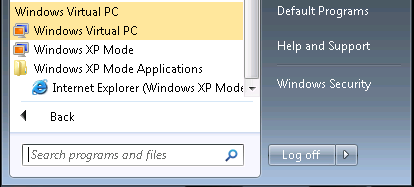
09-10-24 XP Mode IE Shortcut.png

Right click and hold on the IE shortcut and drag it up to the desktop and the user is good to go.

Since we do not want the XP Mode VM to catch the update to IE8 via WSUS we are running the following script on the XP Mode VM to make sure we gain access to all of the available updates:


  • wuauclt /resetauthorization /detectnow


We will also download the IE8 Blocker utility and run it on the XP Mode VM to make sure that IE8 does not automatically get installed via WSUS.

Yes, in this case the XP Mode VM is domain joined. It, and the other XP Mode VM that will be used for this purpose as well are in a unique OU under SBSComputers and will have a very specific Group Policy Object settings structure in place to keep them as buttoned up as we can.

The reason for this setup in this particular client's case is due to an online Web facing database they use where the developer has insisted that no IE8 browsers access the application until IE8 has been fully tested. Unfortunately, that will not be until next year due to the lack of funds on their part (non-profit).

The Windows 7 host user will be the user account to be found in the Remote Desktop Users group. They will not have local admin rights on the XP Mode VM with the only task being accomplished being accessing the online Web application via IE7.

Philip Elder

MPECS Inc.

Microsoft Small Business Specialists

Co-Author: SBS 2008 Blueprint Book


*Our original iMac was stolen (previous blog post). We now have a new MacBook Pro courtesy of Vlad Mazek, owner of OWN.

Thursday, 22 October 2009

Windows 7 - Windows XP Mode Direct Download Link

For some strange reason we cannot seem to get the download started for the RTM version of Windows 7’s Windows XP Mode.

Here are the direct download links:

The download page is here:

While Windows XP Mode will certainly deal with the issue of needing to run legacy applications on or under Windows 7, it is far from the best answer.

We have had a need to implement XP Mode for our accounting firm clients due to the need to run a lot of applications that are just not coded for the Windows Vista/7 platform.

As a result, we have some first-hand experience. We will leave those experiences for another post. Suffice it to say that XP Mode will work, but it may not be a very satisfactory solution in the long run.

Philip Elder
MPECS Inc.
Microsoft Small Business Specialists
Co-Author: SBS 2008 Blueprint Book

*Our original iMac was stolen (previous blog post). We now have a new MacBook Pro courtesy of Vlad Mazek, owner of OWN.

Windows Live Writer