Showing posts with label Storage Spaces. Show all posts

Wednesday, 15 August 2018

PowerShell Paradise: Installing and Configuring Visual Studio Code (VS Code) and Git

It was Ben Thomas that gave me the prodding to look into Visual Studio Code (VS Code) for PowerShell coding and troubleshooting. I had an error in a PowerShell step that puzzled me. It turned out to be the auto-replaced hyphens that got introduced into that PowerShell step somewhere along the lines since I keep (kept) everything in OneNote.

There are several reasons why coding in any form are difficult for me, suffice it to say it took a few days to get over the, "Oh no, yet something else to learn" initial reaction to that prodding.

With a little downtime late last week, the opportunity presented itself to at least do a cursory search and skim of info on VS Code and PowerShell.

What I saw amazed me so much so that the time to learn became a non-starter.

First, download VS Code but don't install it right away.

Next, download GIT for Windows (there's other versions).

Now, there's a bit of a Catch-22 in this process as Git looks for VS Code and VS Code looks for Git.

Install VS Code and Git

Install order to make things simple:

  1. Install VS Code
    • image
  2. Run VS Code and ignore the Git prompt
    • image
  3. Install Git and choose VS Code
    • image
    • This is where things can get weird. If VS Code does not get started first, the Next button will not light up!
    • If not, leave this window, start VS Code, ignore the prompt, and close it.
    • Hit the Back button and then the Next button again and the Next button on this window should now be lit up.
  4. We chose Use Git from the Windows Command Prompt
    • image
  5. On the next window Use the OpenSSL Library
  6. Checkout Windows-style, commit Unix-style line endings
    • image
  7. Use MinTTY (the default terminal of MSYS2)
    • image
  8. We left the defaults for Configuring extra options
    • Enable file system caching
    • Enable Git Credential Manager

Once Git has been installed the next thing to do is to start VS Code and it should find Git:

image

Initialize the Git Repository

A few more steps and we'll be ready to code a new PowerShell script, or transfer in from whatever method we've been using prior.

  1. Create a new folder to store everything in
    • We're using OneDrive Consumer as a location for ours to make it easily accessible
  2. CTRL+SHFT+E --> Open Folder --> Folder created above
    • VS Code will reload when the folder has been chosen
  3. CTRL+SHFT+G --> Click the Initialize Repository button
    • image
  4. Click the Initialize Repository button with the folder we opened being the default location
  5. Git should be happy
    • image

Now, we're almost there!

VS Code Extension Installation

The last steps are to get the PowerShell Extension installed and tweak the setup to use it.

  1. CTRL+SHFT+X
  2. Type PowerShell in the Marketplace search
  3. Click the little green Install button then after the install the little blue Reload button
    • image
  4. Additional VS Code Extensions we install by default
    1. Better Comments
      • Allows for colour coded # ! PowerShell Comments
    2. Git History
      • Allows us to look at what's happening in Git
    3. VSCode-Icons
      • Custom icons in VS Code

VS Code Quick Navigation

Once done, the following key strokes are the first few needed to get around and then there's one more step:

  • Source Control: Git: CTRL+SHFT+G
  • Extensions: CTRL+SHFT+X
  • Folder/File Explorer: CTRL+SHFT+E
  • User/Workspace Settings: CTRL+,

Create the Workspace

And finally, the last step is to:

  1. File
  2. Save Workspace As
  3. Navigate to the above created folder
  4. Name the Workspace accordingly
  5. Click the Save button

Then, it's Ready, Set, Code! :)

Note that the PowerShell .PS1 files should be saved in the Workspace folder and/or subfolders to work with them.

To start all new files in the PowerShell language by default add the following to User Settings

  1. CTRL+,
  2.     "files.defaultLanguage": "powershell"

One of the beauties of this setup is the ability to look at various versions of the files, much like we can with SharePoint and Office files, to compare the changes made over the history of the PowerShell Code.

Another is the ability to see in glorious colour!

image

Thanks to Ben Thomas' challenge PowerShell is already so much easier to work with!

2018-08-15 EDIT: Oops, missed one important step.

  1. Open Git GUI
  2. Click Open Existing Repository
  3. Navigate to the Workspace folder with the .git hidden folder
  4. Open
  5. Set the User's name and E-mail address for both settings
    • image
  6. Click Save

Git should be happy to Commit after that! :)

Philip Elder
Microsoft High Availability MVP
MPECS Inc.
Co-Author: SBS 2008 Blueprint Book
www.s2d.rocks !
Our Web Site
Our Cloud Service

Monday, 6 August 2018

Cloud Hosting Architecture: Tenant Isolation

Cloud Vendors Compromised

Given the number of backchannels we are a part of we get to hear horror stories where Cloud Vendors are compromised in some way or get hit by an encryption event that takes their client/customer facing systems out.

When we architect a hosting system for a hosting company looking to deploy our solutions in their hosting setup, or to set up an entirely new hosting project, there are some very important elements to our configuration that would help to prevent the above from happening.

A lot of what we have put into our design is very much a result of our experiences on the frontlines with SMB and SME clients.

One blog post that provides some insight: Protecting a Backup Repository from Malware and Ransomware.

It is absolutely critical to isolate and off-site any and all backups. We've also seen a number of news items of late where a company is completely hosed as a result of an encryption event or other failure only to find out the backups were either wiped by the perps or no good in the first place.

Blog Post: Backups Should Be Bare Metal and/or Virtually Test Restored Right?

The full bare metal or virtual restore is virtually impossible at hyper-scale. Though, we've seen that the backups being done in some hyper-scale cloud vendor's environments have proven to be able to be restored while in others a complete failure!

However, that does not excuse the cloud customer or their cloud consultancy from making sure that any and all cloud based services are backed up _off the cloud_ and air-gapped as a just-in-case.

Now, to the specific point of this blog post.

Tenant Isolation Technique

When we set up a hosting solution we aim to provide maximum security for the tenant. That's the aim as they are the ones that are paying the bills.

To do that, the hosting company needs to provide a series of layered protections for tenant environments.

  1. Hosting Company Network
    • Hosting company AD
    • All hosting company day-to-day operations
    • All hosting company on-premises workloads specific to company operations and business
    • Dedicated hosting company edges (SonicWALL ETC)
  2. Tenant Infrastructure Network
    • Jump Point for managing via dedicated Tenant Infrastructure AD
    • High Availability (HA) throughout the solution stack
    • Dedicated Tenant Infrastructure HA edges
      • Risk versus Reward: Could use the above edges but …
    • Clusters, servers, and services providing the tenant environment
    • Dedicated infrastructure switches and edges
    • As mentioned, backups set up and isolated from all three!
  3. Tenant Environment
    • Shared Tenant AD is completely autonomous
    • Shared Tenant Resources such as Exchange, SQL, and more are appropriately isolated
    • Dedicated Tenant AD is completely autonomous
    • Dedicated Tenant Resources such as Exchange, SQL, and more are completely isolated to the tenant
    • Offer a built-in off-the-cloud backup solution

With the solution architected in this manner we protect the boundaries between the Hosting Company Network and the Tenant Environment. This makes it extremely difficult for a compromise/encryption event to make the boundary traversal without some sort of Zero Day involved.

Conclusion

We've seen a few encryption events in our own cloud services tenants. None of them have traversed the dedicated tenant environments they were a part of. None. Nada. Zippo.

Containment is key. It's not "if" but "when" an encryption event happens.

Thus, architecting a hosting solution with the various environment boundaries in mind is key to surviving an encryption event and looking like a hero when the tenant's data gets restored post clean-up.

Thanks for reading!

Philip Elder
Microsoft High Availability MVP
MPECS Inc.
Co-Author: SBS 2008 Blueprint Book
www.commodityclusters.com
Our Web Site
Our Cloud Service

Tuesday, 1 May 2018

PowerShell Guide Series: Storage Spaces Direct PowerShell Node Published

Apologies for the double post, one of the bulleted links was broken. :(

One of the difficult things about putting our setup guides on our blog was the fact that when we changed them, which was frequent, it became a bit of a bear to manage.
So, we're going to be keeping a set up guides on our site to keep things simple.

The first of the series has been published here:

This guide is a walkthrough to set up a 2-Node Storage Spaces Direct (S2D) cluster node from scratch. There are also steps in there for configuring RoCE to allow for more than two nodes if there is a need.
We will be updating the existing guides on a regular basis but also publishing new ones as we go along.

Thanks for reading!

Philip Elder
Microsoft High Availability MVP
MPECS Inc.
Co-Author: SBS 2008 Blueprint Book
Our Web Site
Our Cloud Service

PowerShell Guide Series: Storage Spaces Direct PowerShell Node Published

One of the difficult things about putting our setup guides on our blog was the fact that when we changed them, which was frequent, it became a bit of a bear to manage.
So, we're going to be keeping a set up guides on our site to keep things simple.
The first of the series has been published here:
This guide is a walkthrough to set up a 2-Node Storage Spaces Direct (S2D) cluster node from scratch. There are also steps in there for configuring RoCE to allow for more than two nodes if there is a need.
We will be updating the existing guides on a regular basis but also publishing new ones as we go along.
Thanks for reading!
Philip Elder
Microsoft High Availability MVP
MPECS Inc.
Co-Author: SBS 2008 Blueprint Book
Our Web Site
Our Cloud Service

Thursday, 9 November 2017

Intel Server System R2224WFTZS Integration & Server Building Thoughts

We have a brand new Intel Server System R2224WFTZS that is the foundation for a mid to high performance virtualization platform.

image

Intel Server System R2224WFTZS 2U

Below it sits one of our older lab Intel Server System SR2625URLX 2U. Note the difference in the drive caddy.

That change is welcome as the caddy no longer requires a screwdriver to set the drive in place:

image

Intel 2.5" Tooless Drive Caddy

What that means is the time required to get 24 drives installed in the caddies went from half an hour or more to five or ten minutes. That, in our opinion, is a great leap ahead!

The processors for this setup are Intel Xeon Gold 6134s with 8 cores running at 3.2GHz with a peak of 3.7GHz. We chose the Gold 6134 as a starting place as most of the other CPUs have more than eight cores thus pushing up the cost of licensing Microsoft Windows Server Standard or Datacenter.

image

Intel Xeon Gold 6134, Socket, Heatsink, and Canadian Loonie $1 Coin

The new processors are huge!

The scale difference between the E3-1200 series, E5-2600 series is orders of magnitude larger. The jump in size reminds me of the Pentium Pro's girth next to the lesser desktop/server processors of the day.

image

Intel Xeon Processor E3-1270 sits on the Intel Xeon Gold 6134

The server is nearly complete.

image

Intel Server System R2224WFTZS Build Complete

Bill of Materials

In this setup the server's Bill of Materials (BoM) is as follows:

  • (2) Intel Xeon Gold 6134
  • 384GB via 12x 32GB Crucial DDR4 LRDIMM
  • Intel Integrated RAID Module RMSP3CD080F with 7 Series Flash Cache Backup
  • Intel 12Gbps RAID Expander Module RES3TV360
  • (2) 150GB Intel DC S3520 M.2 SSDs for OS
  • (5) 1.9TB Intel DC S4600 SATA SSDs for high IOPS tier
  • (19) 1.8TB Seagate 10K SAS for low to mid IOPS tier
  • Second Power Supply, TPM v2, and RMM4 Module

It's important to note that when setting up a RAID controller instead of a Host Bus Adapter (HBA) that does JBOD only we require the flash cache backup module. In this particular unit one needs to order the mounting bracket: AWTAUXBBUBKT

I'm not sure why we missed that, but we've updated our build guides to reflect the need for it going forward.

One other point of order is the rear 2.5" hot swap drive bay kit (A2UREARHSDK2) does not come installed from the factory in the R2224WFTZS as it did in the R2224WTTYS. I'm still not sold on M.2 for the host operating system as they are not hot swap capable. That means, if one dies we have to down a node in order to change it. With the rear hot swap bay we can do just that, swap out the 2.5" SATA SSD that's being used for the host OS.

For the second set of two 10GbE ports we used an Intel X540-T2 PCIe add-in card as the I/O modules are not in the distribution channel as of this writing.

NOTE: One requires a T30 hex screwdriver for the heatsinks! After installing the processor please make sure to start all four nuts prior to tightening. As a suggestion, from there snug each one up gradually starting with the two middle nuts then the outer nuts similar to the process for installing a head on an engine block. This process provides an even amount of pressure from the middle of the heatsink outwards.

Firmware Notes

Finally, make sure to update the firmware on all components before installing an operating system. There are some key fixes in the motherboard firmware updates as of this writing (BIOS 00.01.0009 ReadMe). Please make sure to read through to verify any caveats associated with the update process or the updates themselves.

Next up on our build process will be to update all firmware in the system, install the host operating system and drivers, and finally run a burn-in process. From there, we'll run some tests to get a feel for the IOPS and throughput we can expect from the two RAID arrays.

Why Build Servers?

That's got to be the burning question on some minds. Why?

The long and the short of it is because we've been doing so for so many years it's a hard habit to kick. ;)

Actually, the reality is much more mundane. We continue to be actively involved in building out our own server solutions for a number of reasons:

  • We can fine tune our solutions to specific customer needs
    • Need more IOPS we can do that
    • Need more throughput we can do that
    • Need a blend of the two as is the case here, then we can do that too.
  • Direct contact with firmware issues, interoperability, and stability
    • Making the various firmware bits play nice together can be a challenge
  • Driver issues, interoperability, and stability
    • Drivers can be quite finicky about what's in the box with them
  • Hardware interoperability
    • Our parts bin is chalk full of parts that refused to work with one another
    • On the other hand our solution sets are known good configurations
  • Cost
    • Our server systems are a fraction of the cost of Tier 1
  • Overall system configuration
    • As Designed Stability out of the box
  • He said She said
    • Since we test our systems extensively prior to deploying we know them well
    • Software Vendors that point the finger have no leg to stand on as we have plenty of charts and graphs
    • Performance issues are easier to pinpoint in software vendor's products
    • We remove the guesswork around an already configured Tier 1 box

Business Case

The business case is fairly simple: There are _a lot_ of folks out there that do not want to cloud their business. We help customers with a highly available solution set and our business cloud to give them all of the cloud goodness but keep their data on-premises.

We also help I.T. Professional Shops who may not have the skill-set on board that have customers with a need for High Availability and a cloud like experience but want the solution deployed on-premises.

For those customers that do want to cloud their business we have a solution set for the Small to Medium I.T. Shops that want to provide multi-tenant solutions in their own data centres. We provide the solution and backend support at a very reasonable cost while they spend their time selling their cloud.

All in all, we've found ourselves a number of different great little niches for our highly available solutions (clusters) over the last few years.

Thanks for reading! :)

Philip Elder
Microsoft High Availability MVP
MPECS Inc.
Co-Author: SBS 2008 Blueprint Book
Our Web Site
Our Cloud Service
Twitter: @MPECSInc

Friday, 3 November 2017

A Little Plug for Mellanox and RoCE RDMA

RoCE (RDMA over Converged Ethernet) via Mellanox NICs and switches is our primary fabric choice for Storage Spaces Direct (S2D) and Scale-Out File Server (SOFS) to Hyper-V compute cluster fabric.

With the Mellanox MSX1012X 10GbE switch we can deploy a pair of them along with a pair of ConnectX-4 Lx dual port NICs per node for about the same cost as a pair of NETGEAR XS716T 10GbE switches and a pair of Intel X540/X550-T2 10GbE RJ45 based NICs per node.

We have a great business relationship with Mellanox. They are great folks to work with and their product support is second to none.

I was honoured to be asked to use a portion of my presentation for MVPDays to create the following video that is resident on Mellanox's YouTube channel.

Hopefully the video comes out okay as embedding it was a bit of a chore.

Thanks for reading and have a great weekend!

Philip Elder
Microsoft High Availability MVP
MPECS Inc.
Co-Author: SBS 2008 Blueprint Book
Our Cloud Service
Twitter: @MPECSInc

Tuesday, 24 October 2017

Some thoughts on Windows Server 1709 and Where to Find It

We were looking for the new Software Assurance benefit based download of Windows Server 1709 in Microsoft's Volume Licensing Service Center.

It took a bit to realize that the download was not tied into "Windows Server 2016" and it's available downloads.

The following two items show up in search for "Windows Server":

image

image

When we click through and try to download either one they both point to the same download:image

Keep in mind that 1709 is a Server Core only option and receives updates every six months. Plus, the service life of each release is 18 months.

That means that adopting the Semi-Annual Channel (SAC) release of Windows Server would require a significant investment in both testing prior to deployment and in deploying the OS on a regular basis.

Keep in mind that Software Assurance is required for access to SAC.

Is it of value? For those businesses that are looking to adopt newer/better features via quicker cadence then yes, there is value in it.

For those that are looking for long-term stability in their deployments then the Long Term Service Branch/Channel (LTSB/C) is the way to go.

For us, we are in a "Wait and see" mode as our focus is currently Storage Spaces and Hyper-V along with Storage Spaces Direct clusters.

As far as SAC being a Server Core option only we don't have a problem with that now do we? ;)

Realistically though, there may be a lot of really neat features and abilities that may only appear in the SAC branch of Windows Server as we go along. That has yet to be seen, but given Microsoft's push to add value to Software Assurance over the last number of years one can comfortably wager that there will be extra value in that branch of the OS.

Philip Elder
Microsoft High Availability MVP
MPECS Inc.
Co-Author: SBS 2008 Blueprint Book
Our Cloud Service
Twitter: @MPECSInc

Friday, 16 June 2017

S2D: Mellanox Prep for RoCE RDMA

We are in the process of setting up a pair of Mellanox SX1012B (40GbE) switches and CX354A ConnectX-3 Pro NICs (CX3) for a Storage Spaces Direct (S2D) four node cluster.

Setup:

  • (2) MSX1012B Switches
  • (2) NETGEAR 10GbE Switches
  • Intel Server System R2224WTTYS
    • (2) CX354A NICs per Node
    • (2) Intel X540-T2 10GbE NICs

The Mellanox gear will provide the East-West path between nodes while the NETGEAR/Intel 10GbE will provide for node access and the virtual switch setup.

Out of the box, the first thing to look at is … the Release Notes for the MLNX-OS version v3.6.3508 that is current as of this writing.

As we can see, the firmware level we need to have on our CX3 NICs:

image
The most current version of the CX3 firmware is 2.4.7000 which we had downloaded prior to reading the release notes. ;)
We will make sure to install 2.40.5030 once we are ready to do so:

image
Now, as far as the Mellanox switch OS goes (MLNX-OS), there may be a bit of a process needed depending on how old the current OS is on them!

imageimage2.5Upgrade From Previous Releases
Older versions of MLNX-OS may require upgrading to one or more intermediate versions prior to upgrading to the latest. Missing an intermediate step may lead to errors. Please refer to Table 2and Table 3 to identify the correct upgrade order.
Note that there are two types of switch operating systems depending on the underlying hardware. In our case, it is PPC as opposed to x86.

In our case, the current OS version is 3.4.0012, so our process will be:

  1. 3.4.0012 –> 3.4.2008
  2. 3.4.2008 --> 3.5.1016
  3. 3.5.1016 –> 3.6.2002
  4. 3.6.2002 –> 3.6.3004
  5. 3.6.3004 –> 3.6.3508

Fortunately, the Mellanox download site makes picking and choosing the various downloads a simple process.

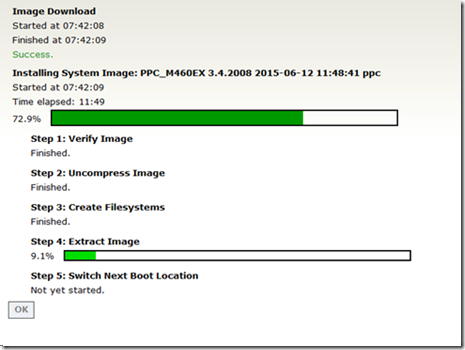
This is what the update process looks like:

image

image

One can expect to budget between 30-90 minutes per upgrade session.

NOTE: When both switch management consoles were opened in separate IE tabs one would fail out on the upload after a minute or so. Once we opened a separate Firefox browser session for one of the switches the upgrade moved seamlessly.

Once complete, we will move on to our preliminary settings scope for this project.

Philip Elder
Microsoft High Availability MVP
MPECS Inc.
Co-Author: SBS 2008 Blueprint Book
Our Cloud Service
Twitter: @MPECSInc

Saturday, 4 February 2017

Hyper-V Compute, Storage Spaces Storage, and S2D Hyper-Converged Solutions

Lately, we here at MPECS Inc. have been designing, implementing, servicing, and supporting highly available solutions for hyper-converged, Hyper-V compute, Storage Spaces storage, and lab environments along with standalone Hyper-V server solutions.

Here are some of the things we have been working on recently or have deployed within the last year.

Cluster Solutions

As has been posted here on our blog previously, we have invested heavily in the Windows Server 2016 story especially in Storage Spaces Direct (S2D) (S2D blog posts):

image

Proof-of-Concept (PoC) Storage Spaces Direct (S2D) Hyper-Converged or S2D SOFS cluster solution

The above Storage Spaces Direct PoC, based on the Intel Server System R2224WTTYSR, provides us with the necessary experience to deliver the hundreds of thousands of real every-day IOPS that our client solutions require. We can tailor our solution for a graphics firm to allow for multiple 10GbE data reads to their user’s systems or an engineering and architectural firm that requires high performance storage for their rendering farms.

Another Storage Spaces Direct PoC we are working on is the Kepler-47 (TechNet Blog Post):

image

Proof-of-Concept Storage Spaces Direct 2-Node for under $8K with storage!

Our goal for Kepler-47 is to deploy this solution into all clients that were normally deploying a single or dual Hyper-V server setup with Hyper-V Replica. Our recipe includes Intel 3700, 3600, and 3500 series SSDs, SuperMicro Mini-ITX Intel Xeon Processor E5-1200v5 series board, the 8-bay chassis, and Mellanox ConnectX-3 for direct connected RDMA East-West traffic. Cost for the 2-node cluster is about the same as one bigger Intel Server System that would run a client’s entire virtualization stack.

image

2016: Deployed 2 Node SOFS via Quanta JB4602 with ~400TB Storage Spaces Parity

In the late summer of 2016 we deployed the above SOFS cluster with the ultimate aim of adding three more JBODs for over 1.6PB (Petabytes) of very cost efficient Storage Spaces Parity storage for our client’s video and image files archive. The solution utilizes four 10GbE paths per node and SMB Multichannel to provide robust access to the files on the cluster. Six HGST SAS SSDs provide the needed high-speed cache for writes to the cluster.

Our smallest cluster client is a 15 seat accounting firm with a 2 node clustered Storage Spaces and Hyper-V cluster (our blog post). Some of our largest clients are SME hosting companies with hundreds of tenants and VMs running on SOFS storage and Hyper-V compute clusters.

We can deploy highly available solutions for $6K in hardware and up rendering standalone Hyper-V or VMware solutions moot!

Server and Storage Hardware

We primarily utilize Intel Server Systems and Storage as Intel’s support is second to none and our solution price points become way more than competitive to equivalent Tier 1 solutions. When required, we utilize Dell Server Systems and Storage for solutions that require a 4-hour on-site warranty over 3 to 5 years or more.

Our primary go-to for disaggregated SOFS cluster storage (Storage Nodes + Direct Attached Storage JBOD(s)) are Quanta QCT JBODs and DataON Storage JBODs. We’ve had great success with both company’s storage products.

For drives we deploy Intel NVMe PCIe and 2.5”, Intel SATA SSDs, and HGST SAS SSDs. We advise being very aware of each JBOD vendor’s Hardware Compatibility List (HCL) before jumping on just any SAS SSD listed in the Windows Server Catalog Storage Spaces Approved list (Microsoft Windows Server Catalog Site for Storage Spaces).

Important: Utilizing just any vendor’s drive in a Storage Spaces or Storage Spaces Direct setting can be a _costly_ error! One needs to do a lot of homework before deploying any solution into production. BTDT (Been There Done That)

The spinning media we use depends on the hyper-converged or storage solution we are deploying and the results of our thorough testing.

Network Fabrics

In a Storage Spaces Direct (S2D) setting our East-West (node to node) fabric is 10Gb to 100Gb Mellanox with RDMA via RoCEv1 and RoCEv2 (RDMA over Converged Ethernet) (our blog post) depending on the Mellanox NIC ConnectX version. We also turn to RoCE for North-South (Compute to Storage) for our disaggregated cluster solutions.

For 10GbE starter solutions for both storage and compute network the NETGEAR XS716T is the go-to switch. We always deploy either the storage to compute or the workload Hyper-V virtual switch in pairs to provide network resilience. Their switches are very well priced for the entry-level to mid-level solutions we deploy.

Cluster Lab

It’s no secret that we invest a lot in our client solution labs and network shadow solutions (our blog post). It is a point of principle that we make sure our solutions work as promised _before_ we would even consider selling them to our clients.

One does not need to look far for five figure, six figure, seven figure, or more solution failures. Recent catastrophic failures at the Australian Tax Office (Bing search) or 123-reg (Bing search) come to mind. It’s not difficult to find stories of very expensive solutions failing to deliver on their big promises with a big price tag.

The onus is on us to make sure we can under promise and over deliver on every solution!

Our Solutions

We can deliver a wide variety of solutions with the following being a partial list.

  • Storage Spaces Direct (S2D)
    • 2 nodes to 16 Nodes
    • Hyper-Converged running both compute and storage
    • SOFS mode to provide high IOPS storage
    • Hardware agnostic solution sets
    • Host UPDs in Azure, on VMware, or our solutions
  • Scale-Out File Server Clusters (2 nodes to 5 1 JBOD or more) 
    • IOPS tuned for intended workload performance
    • Large Volume backup and archival storage
    • Multiple Enclosure Resilience for additional redundancy
  • Hyper-V Compute Clusters (2 nodes to 64)
    • Tuned to workload type
    • Tuned for workload density
  • Clustered Storage Spaces (2 nodes + 1 JBOD)
    • Our entry-level go-to for small to medium business
    • Kepler-47 fits in this space too
  • RDMA RoCE via Mellanox Ethernet Fabrics for Storage <—> Compute
    • We can deploy 10Gb to 100Gb of RDMA fabric
    • High-Performance storage to compute
    • Hyper-converged East-West fabrics
  • Shadow Lab for production environments
    • Test those patches or application updates on a shadow lab
  • Learning Lab
    • Our lab solutions are very inexpensive
    • Four node S2D cluster that fits into a carry-on
    • Can include an hour or more for direct one-on-one or small-group learning
      • Save _lots_ of time sifting through all the chaff to build that first cluster
  • Standalone Hyper-V Servers
    • We can tailor and deliver standalone Hyper-V servers
    • Hyper-V Replica setups to provide some resilience
    • Ready to greenfield deploy, migrate from existing, or side-by-side migrate

Our solutions arrive at our client’s door ready to deploy production or lab workloads. Just ask us!

Or, if you need help with an existing setup we’re here. Please feel free to reach out.

Philip Elder
Microsoft High Availability MVP
MPECS Inc.
Co-Author: SBS 2008 Blueprint Book

Monday, 24 October 2016

Windows Server 2016 Feature Comparison Summary

This is a direct snip of the differences between Windows Server Standard and Datacenter from this PDF: image
image
image
image

Game Changing

A _lot_ of folks use the words “game changing” to somehow set their productions and/or service apart from others. Most of the time when we hear those words the products and/or services are “ho-hum” with little to no real impact on a company’s or user’s day-to-day work/personal life.
We’ve heard those words in our industry _a lot_ over the last number of years. The reality has been somewhat different for most of us.
We believe, based on our experience deploying inexpensive storage (clustered Scale-Out File Server/Storage Spaces) and compute (clustered Hyper-V) high availability solutions that Windows Server 2016 is indeed _game changing_ on three fronts:
  1. Compute
  2. Storage
  3. Networking
The Software Defined Data Centre (SDDC) story in Windows Server 2016 has traditional cluster, storage, and networking vendors concerned. In our opinion, deeply concerned. Just watch key vendor’s stocks, as we’ve been doing these last four or five years, to see just how much of an impact the Server 2016 SDDC story will have over the next two to five years. Some stocks have already reflected the inroads Hyper-V and recently (2 years) Storage Spaces have made into their markets. We’re a part of that story! :)
Using true commodity hardware we are able to set up an entire SDDC for a fraction of the cost of traditional data centre solutions. Not only that, with the Hyper-Converged Storage Spaces Direct platform we can provide lots of IOPS and compute in a small footprint without all of the added complexity and expense in traditional data centre solutions.

First Server 2016 Deployment

We’ve already deployed our first Windows Server 2016 Clustered Storage Spaces cluster on the General Availability (GA) bits while in Las Vegas two weeks ago:
image
That’s two Intel Server Systems R1208JP4OC 1U servers and a Quanta QCT JB4602 JBOD outfitted with (6) 200GB HGST SAS SSDs and (54) 8GB 8TB Seagate NearLine SAS drives. We are setting up for a Parity space to provide maximum storage availability as this client produces lots of 4K video. (EDIT NOTE: Updated the drive size)
Cost of the highly available storage solution is a fraction of the cost we’d see from Tier 1 storage or hardware vendors.

Going Forward

It’s no secret that we are excited about the Server 2016 story. We plan on posting a lot more about why we believe Windows Server 2016 is a game changer with the specifics around the above mentioned three areas. We may even mention some of the vendor’s stock tickers to add to your watch list too! ;)

Who is MPECS Inc.?

A bit of a shameless plug.
We’ve been building SDDC setups for small to medium hosting companies along with SMB/SME consultants and clients that are concerned about “Cloud being their data on someone else’s computer” since 2008/2009.
Our high availability solutions are designed with SMB (think sub $12K for a 2-node cluster) and SME (think sub $35K cluster) in mind along with SMB/SME focused hosting providers (think sub $50K to start). Our solutions are flexible and can be designed with the 3 year and 5 year stories, or more, in mind.
We run our Cloud on-premises, hybrid, or in _our_ Cloud that runs on _our_ highly available solutions.
Curious how we can help you? Then, please feel free to ask!
Have a great day and thanks for reading.
Philip Elder
Microsoft High Availability MVP
MPECS Inc.
Co-Author: SBS 2008 Blueprint Book
Our Cloud Service

Tuesday, 18 October 2016

Some Thoughts on the New Windows Server Per Core Licensing Model

This is a post sent to the SBS2K Yahoo Group.

***

Let’s take things from this perspective: Nothing has changed at our level.

How’s that?

We deploy four, six, and eight core single socket and dual socket servers.

We have not seen the need for four socket servers since one can set things up today with eight processors in one 2U space (4 nodes) without too much finagling and end up with way more performance.

Until Intel has conquered the GHz to core count ratio we will be deploying high GHz low core count CPUs for the time being. Not that eight cores is a “low” count in our world. ;)

Most of us will never see the need to set up a dual socket server with more than 12 cores with 16 being not as common a setup for us.

Our sweet spot right now in dual socket server cluster nodes is the E5-2643v4 at 6 cores and 3.4 GHz. For higher intensity workloads we run with the E5-2667v4 at 8 cores and 3.2 GHz. Price wise, these are the best bang for the buck relative to core count versus GHz.

With the introduction of the two node configuration for Storage Spaces Direct (S2D) we have an option to provide high availability (HA) in our smaller clients using two single socket 1U servers (R1208SPOSHOR or Dell R330) for a very reasonable cost. A Datacenter license is required for each node. Folks may balk at that, but keep this in mind:

clip_image001

What does that mean? It means that we can SPLA the Datacenter license whether the client leases the equipment, which was standard fair back in the day, or they own it but we SaaS the Windows Server licenses. Up here in Canada those licenses are about $175 per 16 cores. That’s $350/Month for a HA setup. We see a _huge_ market for this setup in SMB and SME. Oh, and keep in mind that we can then be very flexible about our VM layout. ;)

The licensing change reminds me of VMware’s changes a number of years back where they received so much backpressure that the “Core Tax” changes got reverted. So far, there’s not been a lot of backpressure that we’ve seen about this change. But then, the bulk of the on-premises SMB/SME world, where we spend most of our time, don’t deploy servers with more than 16 cores.

In the end, as I stated at the beginning, nothing has changed for us.

We’re still deploying “two” Server Standard licenses, now in this case with 16 cores per server, for our single box solutions with four VMs. And, we’re deploying “four” Server Standard licenses four our two node Clustered Storage Spaces and Hyper-V via shared storage that also yields four VMs in that setting.

If, and when, we broach into the higher density core counts for our cluster setups, or even standalone boxes, we will cross that bridge when we come to it.

Have a great day everyone and thanks for reading. :)

Philip Elder
Microsoft High Availability MVP
MPECS Inc.
Co-Author: SBS 2008 Blueprint Book
Our Cloud Service

Tuesday, 20 September 2016

Windows Server 2016: Storage Spaces Direct (S2D) and VMware Virtual SAN IOPS?

We’re not VMware experts here. Let’s make that very clear. 

However, we do have the ear of many a VMware expert so we are able to ask: Is the Windows Server 2016 hyper-converged Storage Spaces Direct (S2D) setup similar to the VMware Virtual SAN platform? Apples to Apples if you will?

The resounding answer has been, “Yes!”

That leads us to the following articles that are about Intel NVMe all-flash hyper-converged setups:

  1. Record Performance of All Flash NVMe Configuration – Windows Server 2016 and Storage Spaces Direct - IT Peer Network
    • An Intel based four node S2D setup
  2. VMware Virtual SAN 6.2 Sets New Record - IT Peer Network
    • A VMware based 8 node Virtual SAN 6.2 setup

What’s interesting to note is the following:

  1. Intel/S2D setup at 4 nodes
    • 3.2M IOPS at 4K Read
      • 930K IOPS at 70/30 Read/Write
  2. VMware setup at 8 nodes
    1. 1.2M IOPS @ Capacity Mode
      • 500K IOPS at 70/30 Read/Write
    2. ~830K IOPS @ Balance Mode
      • 800K IOPS at 70/30 Read/Write

What is starting to become apparent, at least to us, is that the folks over at the newly minted Dell EMC _really_ need to pay attention to Microsoft’s feature depth in Windows Server 2016. In fact, that goes without saying for all vendors into virtualization, high performance computing (HPC), storage, and data centre products.

We’re pretty excited about the hyper-converged S2D feature set in Windows Server 2016. So much so, we have invested quite heavily in our Proof-of-Concept (PoC).

image

The bill of materials (BoM) for the setup so far:

  • S2D Nodes (4)
    • Intel Server Systems R2224WTTYS with dual E5-2640, 256GB ECC, Intel JBOD HBA, Intel X540-T2 10GbE, Mellanox 56GbE NICs, Intel PCIe 750 NVMe, Intel SATA SSDs, and Seagate 10K SAS spindles
  • Hyper-V Nodes (2)
    • Intel Server Systems R2208GZ4GC with dual E5-2650, 128GB ECC, Intel X540-T2 10GbE, and Mellanox 56GbE NICs
  • Lab DC
    • An Intel Server setup including S1200BT series board and Intel Xeon E3 processor.

Our testing includes using the S2D setup as a hyper-converged platform but also as a Scale-Out File Server (SOFS) cluster destination for a Hyper-V cluster on the two Hyper-V nodes. Then, some testing of various configurations beyond.

We believe Windows Server 2016 is looking to be one of the best server operating systems Microsoft has ever released. Hopefully we won’t be seeing any major bugs in the production version!

Philip Elder
Microsoft High Availability MVP
MPECS Inc.
Our SMB/SME HA Solution
Our Cloud Service

Thursday, 12 May 2016

RDMA via RoCE 101 for Storage Spaces Direct (S2D)

We’ve decided to run with RoCE (RDMA over Converged Ethernet) for our Storage Spaces Direct (S2D) proof of concept (PoC).

image

  • (4) Intel Server Systems R2224WTTYS
    • Dual Intel Xeon Processors, 256GB ECC, Dual Mellanox ConnectX-3, and x540-T2
    • Storage is a mix of 10K SAS and Intel SATA SSDs to start
  • (2) Mellanox MSX1012 56Gbps Switches
  • (2) NETGEAR XS712T 10GbE Switches
  • (2) Cisco SG500x-48 Gigabit Switches
  • APC 1200mm 42U Enclosure
  • APC 6KV 220v UPS with extended runtime batteries

The following is a list of resources we’ve gathered together as of this writing:

This is, by far, not the most comprehensive of lists. The best place to start in our opinion is with Didier’s video and the PDF of the slides in that video. Then move on to the Mellanox resources.

We’ll update this blog post as we come across more materials and eventually get a process guide in place.

Philip Elder
Microsoft High Availability MVP
MPECS Inc.
Co-Author: SBS 2008 Blueprint Book
Our Cloud Service

Thursday, 28 January 2016

Cluster: A Simple Cluster Storage Setup Guide

In a cluster setting we have a set way to configure our shared storage whether it resides on a SOFS (Scale-Out File Server) cluster or some sort of network based storage.

First, the process to set up the storage itself:

  1. Configure the LUN
    • LUN ID must be identical for all Hyper-V nodes for SAN/NAS
  2. Connect all nodes to the storage
    • iSCSI Target for SAN/NAS
  3. Format NTFS and set OFFLINE on Node01
  4. Node2 and up ignore Initialize in Disk Management and set OFFLINE
    • This step is optional depending on the setup

When it comes to the storage we configure the following LUNs for all of our cluster setups;

  1. 1.5GB LUN
    • Set up for the Witness Disk
    • Add to Cluster Storage but NOT CSV
  2. ???GB LUN
    • Sum of all physical RAM on the nodes plus 150GB
    • Add to Cluster Shared Volumes
    • All Hyper-V nodes set to deliver VM settings files to this location
    • Don’t forget that Hyper-V writes a file that is equivalent in size for _all_ VMs running on the cluster or standalone host!
  3. Minimum 50% Storage LUN x2
    • Divide the remaining storage into two or more LUNs depending on workload and storage requirements
    • A minimum of 2 LUNs allows for storage load to be shared across the SAN’s two storage controllers, the two iSCSI networks, and the two or more Hyper-V nodes

In a SOFS setting we set up a File Share Witness for our Hyper-V compute clusters and deliver the HA shares via SMB Multichannel and a minimum of 10GbE for the VHDX files.

PowerShell

The PowerShell steps for any of the above are here to avoid copy and paste issues.

Set Default Paths:

Set-VMHost -VirtualHardDiskPath “C:\ClusterStorage” –VirtualMachinePath “C:\ClusterStorage\Volume1”

We point the VHDX setting to the CSV root just in case. Our PowerShell scripts for setting up VMs put the VHDX files into the right storage location.

Set Quorum Up:

Set-ClusterQuorum -NodeAndDiskMajority "Cluster Virtual Disk (Witness Disk)"

Philip Elder
Microsoft High Availability MVP
MPECS Inc.
Co-Author: SBS 2008 Blueprint Book

Tuesday, 29 September 2015

A 2 Node Hyper-V Cluster with Clustered Storage Spaces

We are in the process of finishing up a client’s migration from clustered SBS 2011 Standard to our SBS (Small Business Solution) stack solution and the following cluster configuration: image The above setup is as follows in order of appearance top to bottom:
  • 1U Intel Xeon E3 series server running as PDCe, ISO storage, and other non-essential roles
  • 1U single socket Intel Xeon E5 series Hyper-V node
    • On-Board i350T4 plus add-in i350T4
    • Dual 6Gbps Intel/LSI SAS HBAs
  • 1U single socket Intel Xeon E5 series Hyper-V node
    • On-Board i350T4 plus add-in i350T4
    • Dual 6Gbps Intel /LSI SAS HBAs
  • 2U DataON DNS-1640d JBOD
    • Connected via dual 6Gbps SAS cables per node
Operating systems across the board for all physical and virtual servers is Windows Server 2012 R2.
Storage sharing and arbitration is handled by clustered Storage Spaces. The above setup has 1.2TB 10K HGST SAS drives (DataON HCL approved) set up in a Storage Spaces 3-way mirror with the standard Space having 2 columns.
The client we deployed this cluster into had a cluster already in place based on Windows Server 2008 R2. They are all of 15-18 seats and value the uptime insurance a cluster gives them as downtime for them is expensive.
Note that the cost of this particular setup based on Intel Server Systems and the DataON JBOD is very reasonable.
Philip Elder
Microsoft Cluster MVP
MPECS Inc.
Co-Author: SBS 2008 Blueprint Book


Thursday, 16 July 2015

A Brief on Storage Spaces

This is a repost of a comment made on an Experts Exchange question.
***
Storage Spaces (SS) is pretty unique. It's driven by Microsoft's need to run data centres full of storage but not foot the bill for huge SAN arrays.
There is a Windows Server Catalogue page of approved hardware for a SS solution.
Our preference is for Quanta and DataON for non-Tier 1 solutions. We've done a lot of testing, and have deployed to on-premises and data centre based clients, prior to being confident in our solution set. That get's expensive _fast_ as we do not deploy anything we've not tested first.
As can be seen, Dell has their products on the SS list and Microsoft chose them for their Cloud Platform System.
A lot of planning and foresight has gone into SS especially with the upcoming Windows Server 2016 feature set (should they all make it into RTM). There are a lot of big storage vendor aimed features that will allow us to deploy SS solutions sets at a fraction of the $/GB cost of the big box vendors.
As an FYI we have a solution set for IaaS vendors that has been in production for close to two years now that works flawlessly. Backend is 10GbE to start with 40Gb SMB Direct (RDMA) and 56Gb SMB Direct (RDMA) over InfiniBand as options.
The solution can scale from 60 drives (4TB, 6TB, or 8GB NearLine SAS) in one 60-bay JBOD to three JBODs, four, or more. With three or more we get enclosure resilience. A full enclosure of drives can fail and SS keeps moving along until that enclosure is brought back up or replaced.
Storage Spaces' cost per IOP, cost per GB/Second (throughput), and cost per GB can't be compared.
Check out Storage Spaces Direct (S2D). Our v2 data centre product will be based on S2D with an all flash option providing _millions_ of IOPS to tenants. Storage fabric via RoCE while storage to compute would be RDMA via InfiniBand.
***
Further Reading:
There is a very strong economic motivation to get Storage Spaces right for Microsoft and for us. We’ve staked our company direction on Microsoft’s direction with storage while Microsoft’s driver is reducing the overall cost of storage in their Azure data centres.
We believe our Cloud Services Provider data centre backend products are some of the best available and Storage Spaces is a critical piece of the puzzle.
Philip Elder
Microsoft Cluster MVP
MPECS Inc.
Co-Author: SBS 2008 Blueprint Book

Friday, 12 September 2014

MANDATORY: Intel JBOD2224S2DP Firmware Update for Same Enclosure ID Storage Spaces Problem

Intel has released a new firmware for the Intel JBOD2224S2DP storage enclosure that deals with the enclosure delivering the same Enclosure ID to Windows Server 2012 R2 Storage Spaces.

Why is this firmware mandatory?

Because up until now when two or more Intel JBOD2224S2DP units were connected to Scale-Out File Server nodes and one ran the Get-StorageEnclosure PowerShell command one would get the same ID back for every one.

The firmware problem killed Storage Spaces enclosure resilience. What is that you ask?

In Storage Spaces, with a Two-Way or Three-Way mirror one can have three enclosures set up to allow one to drop out completely and things keep going.

If one has configured five enclosures with a Three-Way Mirror then the Storage Spaces setup can tolerate two enclosures dropping out.

If the Intel JBOD unit is already in a production setting with plans to add more enclosures at a later date then it is important to note that this firmware update would be required prior to adding the new units.

For new setups, this firmware update should be a part of the preparation steps for the JBOD prior to implementation or baseline testing.

Philip Elder
Microsoft Cluster MVP
MPECS Inc.
Co-Author: SBS 2008 Blueprint Book
Chef de partie in the SMBKitchen ASP Project
Find out more at
Third Tier: Enterprise Solutions for Small Business

Thursday, 26 June 2014

CRITICAL: Seagate 1200 SSD Firmware Update Required for 2012 R2 Storage Spaces

We got hit with this today:

image

  • Get-PhysicalDisk

Since this was our second run at standing up this Scale-Out File Server cluster with things not working as expected we began to dig in.

During a Space creation process the symptom of the Volume Format phase hitting an error happened. We jumped into PowerShell to poll the disks right then and saw the above.

The Disks:

image

  • Get-PhysicalDisk | where MediaType -eq SSD | ft Model,FirmwareVersion -AutoSize

The PowerShell to get the above information along with the serial numbers:

  • Get-PhysicalDisk | where MediaType -eq SSD | ft Model,FirmwareVersion,SerialNumber -AutoSize

Go to Seagate's Support site and choose the Download Finder.

image

Enter the serial number, just the first set of digits before the four 0000 pattern as the number was repeated twice for us, your country, and then under Certificate click on the Click here link and _not_ the Email Me link.

image

The highlighted link downloads the actual firmware ZIP file.

A copy of Seagate's SeaTools is required to update the drive's firmware.

If the SSDs are in a cluster setting, as they are here, make sure to properly drain the nodes and shut down the cluster (TechNet). Then shut down all nodes but one.

Run the firmware update and reboot that node. Bring the Cluster back online and fire up the other nodes one by one.

NOTE: We have _not_ tested this firmware yet.

A Microsoft Forum post brought us into the right direction: Clustered Storage space degraded and SSD disks "starting".

Remember how it has been mentioned ad nauseam on this blog about how we are very careful about testing our deployments? Well, in this case we were a part of the planning phases for this cluster but did not have access to these particular SSDs prior to deploying in a Michigan Data Centre.

This situation sure brings home the point that we _always_ need to test our setups before deploying them at client sites or on behalf of our clients.

EDIT: Brain was five steps ahead of fingers so the "Firmware Update" in the title never made it into the original post! :)

Philip Elder
Microsoft Cluster MVP
MPECS Inc.
Co-Author: SBS 2008 Blueprint Book
Chef de partie in the SMBKitchen ASP Project
Find out more at
Third Tier: Enterprise Solutions for Small Business

Monday, 9 June 2014

Storage Configuration: Know Your Workloads for IOPS or Throughput

Here we have a practical example of how devastating a poorly configured disk subsystem can be.
image
The above was one of the first Iometer test runs we did on our Storage Spaces setup. The above 45K IOPS was running on 17, yes seventeen, 100GB SSD400S.a HGST SAS SSDs.
Obviously the configuration was just whacked. :(
Imagine the surprise and disappointment one would have supplying a $100K SAN and ending up with the above results after the unit was put into production and the client was complaining that things were not happening anywhere near as fast as expected.
What we are discovering is that tuning a storage subsystem is an art.
There are so many factors that one needs to keep in mind as far as the types of workloads that will be running on the disk subsystem right through to the hardware driving it all.
After running a large number of tests using Iometer, and with some significant input from fellow MVP Tim Barrett, we are beginning to gain some insight into how to configure things for the given workload.
This is a snip taken of a Simple Storage Space utilizing _just two_ 100GB HGST SSD400S.a SAS SSDs (same disks as above):
image
Note how we are now running at 56K IOPS. :)
Microsoft has an awesome, in-depth, document on setting things up for Storage Spaces performance here:
We suggest firing the above article into OneNote for later reference as it will prove invaluable in figuring out the basics for configuring a Storage Spaces disk subsystem. It can actually provide a good frame of reference for storage performance in general.
Our goal for our Proof-of-Concept testing that we are doing was around 1M IOPS.
Given what we are seeing so far we will hopefully end up running at about 650K to 750K IOPS! That's not too shabby for our "commodity hardware" setup. :)
Philip Elder
Microsoft Cluster MVP
MPECS Inc.
Co-Author: SBS 2008 Blueprint Book
Chef de partie in the SMBKitchen ASP Project
Find out more at
Third Tier: Enterprise Solutions for Small Business

Thursday, 5 June 2014

Cluster Starter Labs: Hyper-V, Storage Spaces, and Scale-Out File Server

The following are a few ways to go about setting up a lab environment to test out various Hyper-V and Scale-Out File Server Clusters that utilize Storage Spaces to tie in the storage.

Asymmetric Hyper-V Cluster

  • (2) Hyper-V Nodes with single SAS HBA
  • (1) Dual Port SAS JBOD (must support SES-3)
In the above configuration we set up the node OS Roles and then enable Cluster. Once cluster is enabled we can import our not initialized shared storage into Cluster Disks and them move them over to Cluster Shared Volumes.
In this scenario one should split the storage up three ways.
  1. 1GB-2GB for Witness Disk
  2. 49.9% CSV 0
  3. 49.9% CSV 1
Once the virtual disks have been set up in Storage Spaces we run the quorum configuration wizard to set the witness disk up.
We use two CSVs in this setup so as to assign 50% of the available storage to each node. This shares the I/O load. Keep this in mind when looking to deploy this type of cluster into a client setting as well as the need to make sure all paths between the nodes and the disks are redundant (dual SAS HBAs and a dual expander/controller JBOD).

Symmetric Hyper-V Cluster with Scale-Out File Services

  • (2) Scale-Out File Server Nodes with single SAS HBA
  • (1) Dual Port SAS JBOD
  • (2) Hyper-V Nodes
For this particular set up we configure our two storage nodes in a SOFS cluster and utilize Storage Spaces to deliver our shares for Hyper-V to access. We will have a witness share for the Hyper-V cluster and then at least one file share for our VHDX files depending on how our storage is set up.

Lab Hardware

The HP MicroServer would be one option for server nodes. Dell C1100 1U off-lease servers can be found on eBay for a song. Intel RS25GB008 or LSI 6Gb SAS Host Bus Adapters (HBAs) are also easily found.
For the JBOD one needs to make sure the unit supports the full compliment of SAS commands being passed through to the disks. To run with cluster two SAS ports that access all of the storage installed in the drive bays is mandatory.
The Intel JBOD2224S2DP (WSC SS Site) is an excellent unit to work with that compares feature wise with DataON, Quanta, and the Dell JBODs now on the Windows Server Catalogue Storage Spaces List.
Some HGST UltraStar 100GB and 200GB SAS SSDs (SSD400 A and B Series) can be had via eBay every once in a while for SSD Tier and SSD Cache testing in Storage Spaces. We are running with the HGST product because it is a collaborative effort between Intel and HGST.

Storage Testing

For storage in the lab it is preferred to have at least 6 of the drives one would be using in production. With six drives we can run the following tests:
  • Single Drive IOPS and Throughput tests
    • Storage Spaces Simple
  • Dual Drive IOPS and Throughput tests
    • Storage Spaces Simple and Two-Way Mirror
  • Three Drive IOPS and Throughput tests
    • Storage Spaces Simple, Two-Way Mirror, and Three-Way Mirror
  • ETC to 6 drives+
There are a number of factors involved in storage testing. The main thing is to establish a baseline performance metric based on a single drive of each type.
A really good, and in-depth, read on Storage Spaces performance:
And, the Microsoft Word document outlining the setup and the Iometer settings Microsoft used to achieve their impressive 1M IOPS Storage Spaces performance:
Our previous blog post on a lab setup with a few suggested hardware pieces:
Philip Elder
Microsoft Cluster MVP
MPECS Inc.
Co-Author: SBS 2008 Blueprint Book
Chef de partie in the SMBKitchen ASP Project
Find out more at
Third Tier: Enterprise Solutions for Small Business