Showing posts with label Cisco. Show all posts

Wednesday, 20 February 2013

Cisco SA520 and SA540 Small Business Pro Line EOL

And EOL with a full dead stop!

Service and support comes to a full stop on April 30th, 2014.

image

Cisco is recommending the ISA500 Series Integrated Security Appliances.

Now, as a rule our preference it so utilize ExchangeDefender to sanitize all e-mail prior to it getting remotely close to the production network.

We then have the ability to allow the ExchangeDefender server’s subnets inbound for SMTP traffic thus avoiding SMTP authorization attempts.

And, because we tend to have only one MX record registered we don’t have to worry about spammers pumping spam into secondary MX servers which in some cases will not have any or very little spam protection.

Our primary goal is to filter all inbound and all outbound WAN based traffic. That is, we set up whitelists for Internet bound and server services bound Internet traffic.

Besides filtering inbound SMTP traffic we set an outbound SMTP rule to be allowed only from the on-premises Exchange server as well as other server(s) on the network. If a user gets compromised by something that tries to spew e-mail via SMTP it stops there and we get a call for a machine that’s dragging its feet. :)

We have applied for an ISA550 demo unit from our Cisco rep at D&H Canada. Once we receive it we will post our experience with it as well as a configuration guide.

Philip Elder
MPECS Inc.
Microsoft Small Business Specialists
Co-Author: SBS 2008 Blueprint Book

Chef de partie in the SMBKitchen
Find out more at
www.thirdtier.net/enterprise-solutions-for-small-business/

Windows Live Writer

Friday, 2 November 2012

Cisco Product End-of-Life and End-of-Sale Notices

As part of the previous post we are looking for an 8 port Cisco Gigabit switch that does Power-over-Ethernet.

Before clicking the CheckOut button in that supplier’s online console it’s a good idea to know which products are sitting at the end of their life.

Otherwise, for the Cisco Partner there may be no post-sales support for the product beyond warranty needs.

The same goes for any other vendor’s products. After working with them over time it becomes a little easier to know when a particular product we have been supplying is on its way out.

Philip Elder
MPECS Inc.
Microsoft Small Business Specialists
Co-Author: SBS 2008 Blueprint Book

Windows Live Writer

Cisco Small Business WAP321 and Power

There is something to say about the acronym RTFM.

While the meaning is NSFW (don’t we all just love acronyms?) we have all BTDT.

We ordered a number of the new Cisco WAP321 access points. They are the replacement for the WAP4410N that we have been using for the last few years.

Well, here we are on deployment day and opening the boxes to get them set up prior to deploying them at our client’s site.

Guess what?

They don’t include power adapters.

Meh ... Shoulda read that manual right at the heading “Items in the Box” instead of leaving the boxes on the shelf until today.

Fortunately the existing wireless setup is online and we are running a multi-day process. So, we can order in the adapters and get things going early next week.

We all know what assumptions do right?

Happy Friday everyone and thanks for reading. :)

Philip Elder
MPECS Inc.
Microsoft Small Business Specialists
Co-Author: SBS 2008 Blueprint Book

Windows Live Writer

Friday, 20 July 2012

Cisco QuickVPN Client Error: Server's certificate doesn't exist on your local computer. Do you want to quit this connection?

If the above error happens run the following command from an elevated command prompt:

  1. Navigate to: C:\Program Files (x86)\Cisco Small Business\QuickVPN Client>
  2. openssl.exe s_client -showcerts -connect 99.99.99.99:443 >c:\temp\cert.pem
    • Where 99.99.99.99 is your WAN IP.
    • Make sure that there is a Temp folder under C:\
  3. Copy the cert.pem file from C:\Temp to the QuickVPN Client folder.
  4. Click Yes and through the UAC prompts if required.
  5. Close and re-open the QuickVPN Client
  6. Connect.

Original instructions here with a slight modification by us for Vista/Windows 7/8:

Philip Elder
MPECS Inc.
Microsoft Small Business Specialists
Co-Author: SBS 2008 Blueprint Book

*Our original iMac was stolen (previous blog post). We now have a new MacBook Pro courtesy of Vlad Mazek, owner of OWN.

Windows Live Writer

Thursday, 29 December 2011

Cisco Small Business and Setting Up A Home For Wireless Using PoE

We have a need to set up client’s home with a wireless setup.

Given that everything is finished in the basement with the ceiling all covered in drywall we had a bit of a dilemma on our hands as far as where to drop the access points in.

We decided on the following components:

Given the layout of the house we will be placing one AP in the front of the house hidden in a closet. We will pilot a hole for a cable run through the floor as it sits above the furnace room where the ceiling is open to the joists. This AP will be powered via Ethernet. It will be hooked into the primary AP via WDS.

The second AP will be set up in the basement office which sits approximately half way between the front and back ends of the house. This AP will be the primary unit with access to A/C power.

The third AP will be resident near the back of the house in the master bedroom. A cable will be run to that room via the cold air duct work. We are not 100% sure whether we will be able to get into the duct work via one of the master bedroom’s closets. If yes, then the AP will reside on a small shelf in the closet. If not, we will probably leave the AP in the cold air duct intake near the door to the room. Power to this unit will be provided by PoE. It will be hooked into the primary AP via WDS.

This particular setup is required because there are a lot of competing wireless networks in the neighbourhood. As a result the sole AP/Router that sits in the furnace room at the front of the house cannot compete so coverage at the back of the house is slim to none.

Once we are done the set up we hope to see a nice even Wireless N coverage in the house.

This is our first foray back into setting up a wireless system using WDS since wireless-G was a standard since no draft-N APs had WDS capabilities in them. These new APs by Cisco do and are quite reasonable cost wise.

Philip Elder
MPECS Inc.
Microsoft Small Business Specialists
Co-Author: SBS 2008 Blueprint Book

*Our original iMac was stolen (previous blog post). We now have a new MacBook Pro courtesy of Vlad Mazek, owner of OWN.

Monday, 16 August 2010

Remote Desktop Services Web Access on Windows Server 2008 R2

In an e-mail list conversation a while back, my fellow MVP Dana Epp of Scorpion Software made mention of a new ability in Windows Server 2008 R2 that would give the SBS Remote Web Workplace a run for its money.

That new feature is called Remote Desktop Web Access.

This is what the logon page looks like:

image

Once logged in, we will see a list of applications that have been published via RDS RemoteApps:

image

The above applications are installed on our Windows Server 2008 R2 Remote Desktop Services server and are served to the Internet via our SBS v7 TS Gateway.

A neat aspect to this setup is that the page can be customized much like the Remote Web Workplace can . . . though with a little coding involved. So, besides the above applications, we can have links that connect users to their own office computers, or other internally based resources . . . not unlike the way we can customize the Remote Web Workplace on SBS 2008 and now SBS v7.

RD Web Access Publishing

First, we would need to create a new DNS A record for remotewebapps.mpecsinc.ca (example URI), and then purchase an SSL certificate using the IIS CSR on the RDS Web Access site.

Then, with our new Cisco SA 520 Security Appliance gateway we would bind (alias) an additional ISP IP to the WAN interface and create an HTTPS publishing rule to redirect HTTPS traffic on that IP to our RD Web Access server.

It would be pretty close to that simple.

Remote Web Workplace Links

Here are the hyperlinks to the RDP files we have configured for application access via the Remote Web Workplace:

image

RDP File Links

We used the RemoteApp Manager on the Remote Desktop Services server to first publish the applications.

image

Once the applications were published, we could then right click on each one and generate an RDP file. From there, we would copy the RDP file into a subfolder under the /Remote application folder on the SBS v7 server (can be done on SBS 2008 too).

Users can then click on the Outlook link, authenticate, and use the Outlook application on their remote system. All the while, Outlook is actually running on the Remote Desktop Services server.

Or, users can right click on the link and save the RDP file to their Desktop for later quick application access.

Note that we need to add the RDP extension to the MIME Types setting in IIS for the link to fire up the application as expected. Charlie Russel covers this in his book on SBS 2008:

AuthAnvil (AuthAnvil demo video), Scorpion Software’s two-factor authentication product, is an excellent way to provide additional security for both the Remote Web Workplace and RD Web Access.

Philip Elder
MPECS Inc.
Microsoft Small Business Specialists
Co-Author: SBS 2008 Blueprint Book

*Our original iMac was stolen (previous blog post). We now have a new MacBook Pro courtesy of Vlad Mazek, owner of OWN.

Windows Live Writer

Wednesday, 11 August 2010

Cisco Small Business Pro SA 520 Start to Finish Configuration Time – 30-45 Minutes

Suffice it to say that we are very impressed with the Cisco SA 520 security appliance.

The start to finish configuration of the SA 520 was about 30-45 minutes including the firmware update process.

We set the box to Deny all outbound IPv4 packets by default with IPv6 being disabled for now.

image

We then built in a standard rule set for server based services and client Web access. That rule set was based on the ISA rule set in SBS 2003 as well as Eriq Neale’s and SmallBizServer.net’s articles on setting up an ISA 2006 server to work with SBS 2008.

Before we could create the inbound and outbound rule set, we needed to create a few custom services ports to cover our SBS needs:

image

  • NTP-(UDP) 123
    • Server uses to connect to pool.ntp.org to keep time sync.
  • SBS2K3-4125 TCP 4125
    • Outbound using this port for connecting to the SBS 2003 RDP proxy port.
  • RDP TCP 3389
    • RDP outbound only.
  • SBS_SharePoint-987 TCP 987
    • For publishing our internal Companyweb SharePoint site.
  • SBS2K3_SharePoint-444 TCP 444
    • Access to client’s SBS 2003 Companyweb SharePoint sites.

Once all of our rules are configured we end up with the following outbound and inbound set:

image

Note that the SBS services publishing rules are on the bottom with the ExchangeDefender services server’s subnets (ED Deployment Guide) being the only SMTP sources allowed to travel in to our SBS v7 setup.

BTW, we have slowly stopped paying attention to the SMTP inbound protocol in our previous ISA logging because the longer we have had our e-mail domains on the ExchangeDefender service, the less spammers have tried to connect directly to what was once our public SMTP IP.

And, also take note that the rules that have 192.168.Subnet – 192.168.Subnet are actually filters that only allow an internal IP subset to send those protocols out to the Internet. That subset contains the IP addresses of our internal servers.

This setup virtually eliminates any possible rogue SMTP traffic from a system that receives its IP via the SBS v7 DHCP service.

We had the SA 520 sitting on the bench with a laptop connected to it. We brought the firmware update over via USB flash drive using the URL set on the firmware update page to get to it fairly quickly.

Philip Elder
MPECS Inc.
Microsoft Small Business Specialists
Co-Author: SBS 2008 Blueprint Book

*Our original iMac was stolen (previous blog post). We now have a new MacBook Pro courtesy of Vlad Mazek, owner of OWN.

Windows Live Writer

Cisco Small Business Pro Security Appliance SA520-K9 Arrived

Our ailing ISA 2006 standalone server has been a source of pain once we started our migration from SBS 2003 R2 Premium to SBS v7.

We faithfully followed the following sources for setting ISA 2006 SP1 up for SBS 2008:

As much as we tried to get things working, we always seemed to run into some really strange roadblocks.

Since we are working with pre-release software, it was tough to troubleshoot problems if there is a third party product, in this case ISA, causing hiccups as well.

For example, the Outlook Address Book would download and update on all Outlook Anywhere connected Outlook clients. None of the internal network clients would update. It turned out that removing the proxy setting in IE, thus bypassing ISA, would allow the OAB to download. The catch though is that e-mail based images and Web content would no longer display within Outlook.

Now, there may very well be a reason for the issues, such as a configuration problem on our part (ID10T or PEBKEC), but after struggling with ISA related issues without discovering a solution for the problem, we threw in the towel on ISA working with SBS v7.

So, we ordered a couple Cisco Small Business Pro SA520-K9 security appliances. One will be for internal use and one is going to a small IT shop that has been sending us some significant collaboration based business over the last six months or so.

Out of the box, the SA520 has an IP address of 192.168.75.1 and its DHCP server service is on.

image

The default username and password:

  • Username: cisco
  • Password: cisco

Once we log onto the unit we are greeted with the following “Basic” interface:

image

Having worked with a number of different vendor’s security appliance/Internet gateway devices, the basic interface as show above is quite refreshing. It is simple and straight forward in its layout and configuration.

Clicking on the Advanced view brings up the following:

image

Again, a fairly straight forward navigation setup that is easy to follow and easy to use.

Change the Default IP Subnet

One of the first things we do with a new gateway appliance after it is first fired up is to change the internal subnet to the destination network’s subnet _before_ disabling the internal DHCP server service.

This way we can release and renew on the machine physically connected to the security appliance and not have to mess around with static IP settings on the laptop NIC.

image

After clicking Apply:

image

Once the appliance rebooted, which did not take very long at all, we released and renewed our IP address on the connected laptop.

When we connected to the SA520 after that we were greeted with:

image

An Active Session already exists for the User ‘cisco’.

If you want to close the other session, please click on the ‘Continue’ button.

Click ‘Cancel’ button to logout.

SA520 Firmware Update

Once we have the correct subnet set, we then need to check for the most current firmware for the device:

image

The above link requires a Cisco.com username and password. In our case we used our Cisco Partner ID which gave us access to the software updates folder after clicking through a few path links.

As of this writing, the most current firmware available for the device is:

  • Cisco SA520 Series Firmware: 1.1.42

image

Note that once we clicked through a couple more links to download the software we were presented with a Terms & Conditions page that required a “signature” before the download presented itself.

Then, we were required to accept another agreement, then we needed to click through a few more Download Now buttons to finally get the download moving.

image

Final Download Page

Ack! There may be a bit of work there to improve access to the firmware download as there had to be at least 20 or more clicks before it even started! :|

There is a feedback page after the download completed, so we made sure to mention that things may be a bit simpler to work with.

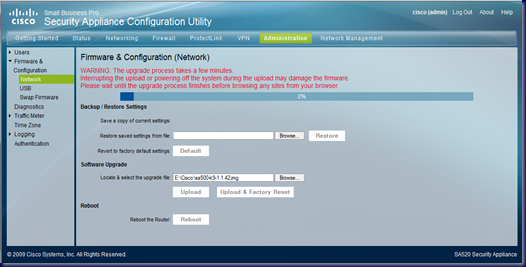
The firmware update process itself is straight forward:

image

After clicking OK:

image

Once the upload process completed, we saw a countdown timer:

image

The Diag LED on the front of the SA520 stayed lit yellow for a good portion of the countdown timer. With about 10 seconds left on the timer the Diag LED went out.

Firmware Update Caveat

Note that since we were updating the firmware on a newly powered up SA520, we did not take the time to save the settings using the Backup/Restore Settings process shown on the firmware update page.

When that countdown timer finished, we were no longer able to get into the SA520.

An IP release/renew showed why:

image

The settings changes we made for IP subnet and the SA520’s name were gone.

Make sure to backup the settings for the device _before_ running a firmware update or all of the customized inbound and outbound settings _will be lost_!

Note that this caveat is indicated in the firmware release notes to be found via the link below.

Firmware 1.1.42 Release Notes

Recommended Upgrade Steps

When upgrading from version 1.0.15, 1.0.17, or 1.0.39, the firmware will reset the router to its factory default and you will need to back up the configuration. When upgrading from 1.1.21, these steps are not required.

Of course, the firmware release notes were on the way down _after_ the firmware update download since there was no direct link to them on the actual download page. ;)

Once logged in after the update was applied, we checked the firmware page and saw:

image

We now had the ability to drop our Cisco username and password into the update page so that updates can be downloaded and installed automatically.

For those of us that work in SMB with SBS and other server hardware and software products, this setting is unlikely to be used. ;)

UPnP Status

With most consumer grade gateways, the UPnP feature comes enabled by default.

image

On the Cisco, we can see that UPnP is disabled by default. Since UPnP is a significant weakness in the overall security of a network, it should be disabled by default.

Conclusion

Now that we have the basics figured out, we are moving on to configuring the SA520 for our multiple ISP provided IP setup that includes a number of different services published to the Internet across those IPs.

We will be ordering in another unit to use as a tester that we can tear apart and work with without breaking our own connections soon!

Philip Elder
MPECS Inc.
Microsoft Small Business Specialists
Co-Author: SBS 2008 Blueprint Book

*Our original iMac was stolen (previous blog post). We now have a new MacBook Pro courtesy of Vlad Mazek, owner of OWN.

Windows Live Writer

Wednesday, 28 July 2010

Cisco Small Business Pro SA 500 Series Security Appliances

We have been looking around for a security appliance to replace our SBS 2003 Premium ISA installs for a while now.

We have looked at a number of different vendors with none really standing out as the right product for our client’s needs.

Cisco however, has a relatively new product line in the Cisco Small Business Pro series. This series was born out of an initiative created when Linksys was brought on board with them.

image

When it comes to features needed with regards to replacing ISA we are looking for the ability to assign multiple static IPs to the WAN port on the appliance.

Having multiple public IPs on the WAN port allows us to publish multiple server or backend systems that the client may have that requires a dedicated SSL HTTPS connection.

We found out today that the Cisco 500 Series Security Appliances (Cisco product comparison page) have the ability to bind multiple public static IPs to the WAN port that allows us to set up rules to publish any needed internal services.

As a result, we are in the process of acquiring an SA520-K9 security appliance from one of our suppliers. Once it arrives we will evaluate the product to see if it really can meet our client’s and our needs.

If it does, our search for a reasonably priced and fully featured gateway appliance product has ended.

The bonus in all of this is that the Cisco name sells itself.

Philip Elder
MPECS Inc.
Microsoft Small Business Specialists
Co-Author: SBS 2008 Blueprint Book

*Our original iMac was stolen (previous blog post). We now have a new MacBook Pro courtesy of Vlad Mazek, owner of OWN.

Windows Live Writer

Tuesday, 6 July 2010

New to IT? Some Certification Advice Offered

I have been having a conversation with a fellow that is currently interning with an IT company.

Here is my reply to him on the question of what to study and how to go about it.

Vi’s Question: For someone who is pursuing in the IT field, I have looking for advices (sic) to know what to look out for and what not to look out for. I also have my interest perk at the knowledge of CCIE. Do you have your CCIE? Would you recommend it worth pursuing that title?

Philip’s Answer:

I am pretty specialized into a niche that incorporates SBS 2008 and SMB based IT solutions.

The two most important indicators to clients and their confidence level in me and my company were the following:

  • Microsoft Certified Technical Specialist on SBS 2008 (relevant product to their business).
  • MPECS Inc. is a Microsoft Small Business Specialist designated company due to my MCTS as well as passing an online exam in the Microsoft Partner Portal.

What I am trying to tell you is that the efforts you put in should be twofold:

  1. Apply for and test on products that fit into a particular market niche.
    1. Don’t over certify on a lot of different products. Focus on a few that are relevant to a particular IT solution set or service set.
    2. See above for example as far as what I have done.
    3. CCIE will give you a foothold into the Enterprise but experience will play a vital part of landing a job or starting a business.
  2. Make sure you invest in some hardware that is relevant to the industry certification that you will pursue.

So, see about getting yourself a Dell pedestal or 2U server with an X3300 series Xeon and at least 16GB of RAM. Augment that with at least 4 15K SAS drives (probably 146GB) to set up in RAID 10. Then you can install the free Hyper-V Server 2008 R2 and virtualize any needed SBS, Windows Server 2008/R2, Exchange, etc. server products and configure them according to best practices.

I suggest staying away from any previous generation NetBurst CPU based servers as they may be 64bit capable, but they are inefficient in their power consumption relative to the processing power of the CPU by a large margin compared to the newer Xeon E5100+ or X3200+ CPU based servers.

It is not too difficult to gain access to Cisco equipment via government auctions and the like around here. The same may be true for area code ### if that is where you are located.

Have a look around job boards and specialty Cisco forums to see what the prospects are for obtaining a job or for information on fine tuning your training to better fit a placement after your internship finishes. The company you are interning at should have some good advice on the what/where/how to gain training, certification, and experience beyond your internship.

One thing that is not mentioned in this note to Vi, but comes to mind now, is the fact that our industry is always changing.

From new products coming down the pipe that will support in-house, in-house and Cloud blends, to pure Cloud based IT solutions we need to be on top of the changes so that we can provide the best solution for our clients.

This constant change is one of the things that I personally love about our industry. I never get tired of learning new things, and burning serious brain power on digging into a new solution or technology challenge.

Given the way things are changing in our industry all the time, we should _always_ be investing in our knowledge by training on new products, working with vendors and their hardware solutions, and of course getting to know our Cloud vendors and their products.

The changes coming down the pipe are game changers indeed. So much so that we need to make sure we have an understanding of what products and technologies to invest our training time into for the particular IT market niche we happen to reside in.

Otherwise we will be left behind in the dust. See Vlad for more info.

Philip Elder
MPECS Inc.
Microsoft Small Business Specialists
Co-Author: SBS 2008 Blueprint Book

*Our original iMac was stolen (previous blog post). We now have a new MacBook Pro courtesy of Vlad Mazek, owner of OWN.

Windows Live Writer

Thursday, 22 October 2009

Yes, Cisco Now Has SMB Focused Products!

How many of us have had to compete with other providers quoting with Cisco products in the SMB space?

Probably not a lot.

That will change as Cisco had their engineers team up with Linksys engineers to collaborate on an entirely new GUI driving line of products priced to sell into the SMB market.

image

In a conversation with a prospective client where we were talking about a Small Business Server 2008 solution, they had some information on a few different firewall products.

When we mentioned that Cisco had some new SMB focused and priced products they really perked up.

Now, what business owner or manager has not heard of Cisco and their products?

Once through the initial Cisco Partner registration process, click into the Profile Manager then the Addition Access link:

image

Click on the Cisco Channel Partner or Authorized Reseller link to begin the process of registering the company in the Cisco Partner program itself.

  • Note that it will helpful to have the company DUNS number ahead of time:
  • image

The process itself is a bit cumbersome, but once through it, we will have our Cisco Partner ID that will unlock access to Cisco products at the distribution level (Canadian Distribution Shown):

image

The Distributor Locator will give results for specific geographic locations.

Our interest in Cisco started when a Cisco representative at the SMB Nation Fall Conference sat at our table to lunch with us. Kim M. Dunlay did an awesome job of talking to us about Cisco’s new SMB line of products.

Every one of us at that table, and there were 8-10, pretty much bypassed the Cisco booth because of our assumptions about Cisco’s products and price points being out of reach for the typical SMB.

After our discussions, and Kim referring one of the Cisco engineers to chat with me about some specifics for the new SMB product lines, it became pretty clear that we needed to examine their new SMB products very closely.

The principle reason why?

The Cisco name sells itself. It will take very little convincing on our part to provide a Cisco SMB focused firewall appliance that has the necessary features our clients need at a competitive cost.

Philip Elder
MPECS Inc.
Microsoft Small Business Specialists
Co-Author: SBS 2008 Blueprint Book

*Our original iMac was stolen (previous blog post). We now have a new MacBook Pro courtesy of Vlad Mazek, owner of OWN.

Windows Live Writer