Showing posts with label Internet Connectivity. Show all posts

Monday, 24 February 2014

Netflix to Pay Comcast to Shape in Their Favour

The following link is a Bing New Search:

image

We don't shape. We've heard that statement time and time again from ISPs during the "discussions" around Net Neutrality on both sides of the border.

For those of us that work in technology supporting clients in various regions around the world the reality is quite different.

How many of us have been stuck where a client is unable to reach a resource via point-to-point because a hop in between the two sites happened to belong to a competing Internet infrastructure provider that just happened to be in the middle of a spat with the provider at both ends?

How many of us have experienced quality degradation in services we access on the Internet that reside outside our ISP's borders and the ISP just happened to provide a similar _paid_ service?

Unfortunately for us the Internet and its infrastructure is not treated in the same way as our public road systems.

That means that the IPSs have the upper hand. They control what packets go where. They control how fast those packets get from point to point. And, it all remains hidden.

They can 401 their own service's packets (the 401 is a high speed high-volume highway here in Canada) while they restrict packets destined for YouTube, Netflix, and others to 80KM/H or sideline them on a two lane low speed highway.

We here pay quite high prices for our "high speed" access. Our connections are shaped and have quotas assigned to them. We've grown accustomed to this practice however we still have fairly open access to most sites.

The Sad Direction We Are Going In

At some point our regulators need to have ISPs clarify their shaping policies like ingredients in food.

Or, our ISPs could offer "streaming" plans and the like that more than likely will be a lot more expensive but allow the end user to be free to view whatever content they choose with little to no shaping.

Whether either happens will be left to be seen. In the end we lose out.

ISPs have been crying for a piece of the pie for years, now they will get it and more as they hold keys to the kingdom.

Philip Elder
Microsoft Cluster MVP
MPECS Inc.
Co-Author: SBS 2008 Blueprint Book

Chef de partie in the SMBKitchen
Find out more at
Third Tier: Enterprise Solutions for Small Business

Tuesday, 19 March 2013

The Verdict: 2 Months in and Xplornet Does Indeed Trump Hotlink Wireless Service

Here we are two months later after posting this:

We signed up for the 10Gbit plan and have been more than happy with the service.

One thing that is readily apparent for us, or will become so for those making the transition, is that Windows 8 is bandwidth hungry.

Wherever there are two or more Win8 profiles hooked into a Microsoft ID any changes made on one, depending on the services, will be replicated to the others.

Well, I download a lot of music on my Windows Phone 8 device and thus that gets replicated to all Win8 machines I sign into with my Microsoft ID or domain account that has that ID integrated.

Our network at home that Xplornet services is our primary video, television (we do not subscribe to cable/satellite), movie, and entertainment via Zune/Xbox Music Pass and Netflix.

Other than the occasional stutter on the standard definition movies we have streamed in via Zune/Music Pass (which look _way_ better than Netflix) we don’t see much.

The shaping becomes apparent when downloading content like updates, large PDFs, and other files. We can get several downloads going at around 125KB/Second despite our connection being 10Gbit. One would expect one download, like Exchange 2010 Service Pack 3 would come down at 800KB to 900KB per second. Nope.

We can however have several downloads going at the 125KB/Second rate.

So, we leave the large downloads for our office connection. :)

In the end our decision to change our ISP provider from Hotlink has been a very positive one. The step up in the monthly fee has been more than worth the ability to have five to eight stable RDP sessions to our client sites at any one time.

Plus Internet streaming content comes down at a reasonable rate with very little interruption.

Our recommendation: Choose Xplornet WiMax if there is an option between Hotlink and Xplornet.

Philip Elder
MPECS Inc.
Microsoft Small Business Specialists
Co-Author: SBS 2008 Blueprint Book

Chef de partie in the SMBKitchen
Find out more at
www.thirdtier.net/enterprise-solutions-for-small-business/

Windows Live Writer

Thursday, 28 February 2013

How to test the Autodiscover._tcp SRV record for Exchange

We needed to test a domain's autodiscover setup that we had them configure since we are not confident in the hoster's abilities anymore.

  1. Open an elevated command prompt.
  2. NSLookup [Enter]
  3. set type=srv [Enter]
  4. _autodiscover._tcp.mpecsinc.ca [Enter]
    • image

And, the test for the hosting provider shows that they did indeed make a mess of it. Back to the drawing board. :(

The How-To for formatting the Autodiscover SRV record is in the TechNet article below. That method works for our own SBS 2011 Standard integrated Exchange and our client's setups as well.

We now use this SRV record for all of our client's Internet DNS setup.

Hat tip: Unify and Conquer: Quick Tip: Testing DNS SRV Records with NSLookup

Philip Elder
MPECS Inc.
Microsoft Small Business Specialists
Co-Author: SBS 2008 Blueprint Book

Chef de partie in the SMBKitchen
Find out more at
www.thirdtier.net/enterprise-solutions-for-small-business/

Windows Live Writer

Wednesday, 20 February 2013

Cisco SA520 and SA540 Small Business Pro Line EOL

And EOL with a full dead stop!

Service and support comes to a full stop on April 30th, 2014.

image

Cisco is recommending the ISA500 Series Integrated Security Appliances.

Now, as a rule our preference it so utilize ExchangeDefender to sanitize all e-mail prior to it getting remotely close to the production network.

We then have the ability to allow the ExchangeDefender server’s subnets inbound for SMTP traffic thus avoiding SMTP authorization attempts.

And, because we tend to have only one MX record registered we don’t have to worry about spammers pumping spam into secondary MX servers which in some cases will not have any or very little spam protection.

Our primary goal is to filter all inbound and all outbound WAN based traffic. That is, we set up whitelists for Internet bound and server services bound Internet traffic.

Besides filtering inbound SMTP traffic we set an outbound SMTP rule to be allowed only from the on-premises Exchange server as well as other server(s) on the network. If a user gets compromised by something that tries to spew e-mail via SMTP it stops there and we get a call for a machine that’s dragging its feet. :)

We have applied for an ISA550 demo unit from our Cisco rep at D&H Canada. Once we receive it we will post our experience with it as well as a configuration guide.

Philip Elder
MPECS Inc.
Microsoft Small Business Specialists
Co-Author: SBS 2008 Blueprint Book

Chef de partie in the SMBKitchen
Find out more at
www.thirdtier.net/enterprise-solutions-for-small-business/

Windows Live Writer

Friday, 18 January 2013

Rural Wireless ISP Review – Hotlink Wireless Versus Xplornet WiMax

When we first moved out to our acreage we went with the same ISP that the previous owners had: Hotlink Wireless.

When we signed up we were assured that at some point our 3Mbit connection would be updated to 6Gbit. So, we signed up for the SOHO package that stated we would automatically receive the upgrade when made available.

Now, the communication that we received from Hotlink, the installer, and subsequent support folks was confusing at best.

Ultimately, we ended up with a low bandwidth high latency connection that just did not work for the type of Internet based work I do from home!

After asking various Hotlink folks we finally hit upon the reason for our speed/latency issue: We were on the wrong side of the tower (line of sight ~.5KM away)! South of us are a bunch of subdivisions. Thus, the South side of the tower has all of the high bandwidth equipment installed.

On the North side of the tower not so much. And, that happens to be where we were located. Bummer. :(

The Xplornet installer finished up about an hour ago and we now have a high bandwidth low latency connection to the Internet!

image

We will continue to monitor the speeds we get especially when the rest of the world gets home from work as it is mid-afternoon here right now.

A caveat with Xplornet:

  • Default IP out of the box with the service is on a private subnet.
    • IP: 192.168.207.23

Since we are running Windows Small Business Server 2011 Essentials at home we preferred to have a public IP to allow Remote Web Access to the home setup.

We called into Xplornet's support number and had a fellow explain to us that the only way to get a publically routable IP was to have a static IP assigned for an additional fee ($9.99) per month.

After affirming the static IP charge it took him about 10 minutes to provision the IP and update our newly installed radio's firmware to allow for the new setup.

Once we plugged the new IP settings into our router and Xplornet's DNS server IPs into our Forwarders tab in SBSE's DNS Server service we were up and running.

And wow! The difference is amazing.

Typing remotely via RDP no longer has a pause before the letters appear or a pause while Web browsing and having something come up after clicking on it.

When given a choice between service providers we now know that Xplornet would have been the better way to go originally.

Some factors that need to influence choice:

  • What are our speed/latency requirements?
    • Netflix and other media streaming did _not_ work well with the Hotlink connection. Even when SD movies were chosen no other machine could access the Internet while the movie was streaming or the movie would start pausing.
  • Where are the towers relative to our location?
    • No fluff response by the provider's sales person on this question. Make sure to hammer down where the tower is. Distance and line of sight may be important depending on the technology the radio uses.
    • A tower and/or high mount may be required depending on the tower location.
  • Real world bandwidth/latency test results?
    • Ask for some real world test results/referrals if possible.
  • For the installer:
    • Have a proper shielded cable installed.
      • Cable must be grounded properly on both ends.
    • Surge suppression is a must and grounded outside the house is a must.
    • Xplornet did both of the above while Hotlink did not.

We certainly took our Shaw high speed Internet connection for granted back in town (St. Albert). 50Mbit down and 5Mbit up was our rated speeds with downloads easily hitting 2.5MB/Second to 3.5MB/Second depending on what and where.

Happily Xplornet does not block 443 inbound:

image

Have a great weekend everyone and thanks for reading! :)

Philip Elder
MPECS Inc.
Microsoft Small Business Specialists
Co-Author: SBS 2008 Blueprint Book

Windows Live Writer

Friday, 14 October 2011

It’s Cloudy On the Internets!

We are on a deadline.

And we always know what happens when we are on a deadline right?

image

As hard as we try to be prepared ahead of time for any project we are working on there are times where something happens and we are dependent on someone else or some other service to get our jobs done.

As we can see, the service we require is not available. The Intel download site has been temperamental at best this morning when the above finally happened.

Our clients with BlackBerry devices had their fare share of issues this week as well. BlackBerry’s outages are something we are all very aware of as far as their impact worldwide for _days_ at a time.

Risk Analysis

As with any IT Solution we always need to weigh the risks versus the benefits. This is a must-have discussion with business owners.

One of the biggest risks with the Cloud is service outages or local Internet connection outages.

With the number of service interruptions that Microsoft’s online services have experienced along with others we can’t help but draw a comparison to _all_ of the in-house solutions we have deployed over the many years we have been in this business.

The one telling detail in that experience is that in 99.9% of those solutions _NO_ downtime was experienced at all. None. Nada. Zippo. Zilch . . . you get the picture. :)

We are willing to wager that this has been the experience of most any client of an IT Solution Provider that has a properly configured SBS/SMB/SME IT Solution deployed _and managed_ in-house.

Philip Elder
MPECS Inc.
Microsoft Small Business Specialists
Co-Author: SBS 2008 Blueprint Book

*Our original iMac was stolen (previous blog post). We now have a new MacBook Pro courtesy of Vlad Mazek, owner of OWN.

Windows Live Writer

Wednesday, 23 March 2011

Huawei E5836 Mobile Wi-Fi (MiFi) on TELUS

While out and about whether travelling to or between clients, or working at a client site we always use a cellular modem to connect to the Internet.

There are times when there is a need for more than one Internet connection that is provided by a USB cellular based modem.

In the US, and perhaps other locations, folks have access to a small wireless device called a MiFi (Wikipedia) or mobile Wi-Fi. Up to recently we here in Canada have not had such a device available by our mobile carriers.

Since our switch to Bell Mobility to gain access to the HTC HD7 for a new phone we called a number of different Bell stores in the Greater Edmonton Area to purchase a Novatel MiFi unit that is listed on their Web site. All of the stores indicated that they had no stock and are no longer carrying them. Bell’s customer service rep that we spoke to indicated that they were having too many issues with the MiFi unit so it was pulled.

So, we headed down to our local TELUS store and picked up a Huawei E5836 Mobile Wi-Fi device.

Once we fired it up we were able to connect to it using the default WPA code that is on a sticker on the back of the unit.

We then opened a Web browser and navigated to http://e5.home.

image

  • Huawei E5836 default admin password: admin

We logged into the admin console:

image

We side-stepped the Quick Setup wizard and went about configuring our desired subnet, SSID, WPA2 key, and other settings.

Once we were finished we saw the following in our available Wi-Fi list:

image

  • Huawei E5836 SSID: MPECS_MiFi

The unit was really easy to set up and use.

One feature with regards to the screen that is appreciated is its ability to indicate the number of clients connected to the unit.

We anticipate having a laptop or three, the Tega, and perhaps the Zune HD connected simultaneously.

This post was published using the cellular data connection provided by the E5836.

Philip Elder
MPECS Inc.
Microsoft Small Business Specialists
Co-Author: SBS 2008 Blueprint Book

*Our original iMac was stolen (previous blog post). We now have a new MacBook Pro courtesy of Vlad Mazek, owner of OWN.

Windows Live Writer

Friday, 10 December 2010

Thank You For Choosing Shaw – 15Mbit Extreme

A number of years ago, well before MPECS Inc. was conceived, we had an ISP connection that was cable based and was extremely fast for the day. Then along came Shaw.

Since things went sour back then Shaw has come _a long way_ to bringing both their services and their customer service levels up. Since we have a few clients that are fortunate enough to have cable access in their businesses we have had our fair share of working with Shaw over the years. Thus we were able to see the improvement in their services and customer service firsthand.

So, as of today we switched out our home 3Mbit DSL connection for a Shaw Extreme 15Mbit connection and boy oh boy is there a tangible difference in the way our Internet runs here:

image

That is 1.29MB/Second with the rate bouncing up and down between 1.56MB/Sec and 1.24MB/Sec. The download is a test download of Windows XP Mode from Microsoft.

This is a Call of Duty: United Offensive demo game download from Activision.com:

image

This one bounced around between 2.30MB/Sec down through 1.84MB/Sec with it settling in at close to the 2MB/Sec mark.

Now, this is all fine and dandy since the time here is just around when kids will be coming home from school. Since cable Internet is a shared pipe, the real test of the new setup will be to run the above download tests during “peak” usage times to see if we still have those speeds.

With speeds like this, ADSL service seems almost stone age at 6Mbit . . . though one of our local DSL providers has just started offering 15Mbit speeds.

And one more thing, with a Windows Home Server sitting on our network beside our old SBS 2003 R2 box there are no issues with Shaw’s dynamic IP as our homeserver.com DNS has already changed to the new IP address.

Our home network is a prime candidate for Microsoft’s new SBS 2011 Essentials “Aurora” product when it RTMs. This is because our local Outlook clients here connect to our company’s Exchange servers instead of the local SBS 2003 R2 Exchange 2003 to keep things simple. Monique and I share calendars, task lists, contacts, and more via Outlook and Public Folders.

We will probably end up running SBS 2011 Essentials on one of HP’s new MicrosServers or maybe building a small box to run the OS. We have not had any time to test the product in its beta form yet.

UPDATE: I managed to finger fumble publish the post in WLW.

Philip Elder
MPECS Inc.
Microsoft Small Business Specialists
Co-Author: SBS 2008 Blueprint Book

*Our original iMac was stolen (previous blog post). We now have a new MacBook Pro courtesy of Vlad Mazek, owner of OWN.

Windows Live Writer

Wednesday, 11 August 2010

Cisco Small Business Pro SA 520 Start to Finish Configuration Time – 30-45 Minutes

Suffice it to say that we are very impressed with the Cisco SA 520 security appliance.

The start to finish configuration of the SA 520 was about 30-45 minutes including the firmware update process.

We set the box to Deny all outbound IPv4 packets by default with IPv6 being disabled for now.

image

We then built in a standard rule set for server based services and client Web access. That rule set was based on the ISA rule set in SBS 2003 as well as Eriq Neale’s and SmallBizServer.net’s articles on setting up an ISA 2006 server to work with SBS 2008.

Before we could create the inbound and outbound rule set, we needed to create a few custom services ports to cover our SBS needs:

image

  • NTP-(UDP) 123
    • Server uses to connect to pool.ntp.org to keep time sync.
  • SBS2K3-4125 TCP 4125
    • Outbound using this port for connecting to the SBS 2003 RDP proxy port.
  • RDP TCP 3389
    • RDP outbound only.
  • SBS_SharePoint-987 TCP 987
    • For publishing our internal Companyweb SharePoint site.
  • SBS2K3_SharePoint-444 TCP 444
    • Access to client’s SBS 2003 Companyweb SharePoint sites.

Once all of our rules are configured we end up with the following outbound and inbound set:

image

Note that the SBS services publishing rules are on the bottom with the ExchangeDefender services server’s subnets (ED Deployment Guide) being the only SMTP sources allowed to travel in to our SBS v7 setup.

BTW, we have slowly stopped paying attention to the SMTP inbound protocol in our previous ISA logging because the longer we have had our e-mail domains on the ExchangeDefender service, the less spammers have tried to connect directly to what was once our public SMTP IP.

And, also take note that the rules that have 192.168.Subnet – 192.168.Subnet are actually filters that only allow an internal IP subset to send those protocols out to the Internet. That subset contains the IP addresses of our internal servers.

This setup virtually eliminates any possible rogue SMTP traffic from a system that receives its IP via the SBS v7 DHCP service.

We had the SA 520 sitting on the bench with a laptop connected to it. We brought the firmware update over via USB flash drive using the URL set on the firmware update page to get to it fairly quickly.

Philip Elder
MPECS Inc.
Microsoft Small Business Specialists
Co-Author: SBS 2008 Blueprint Book

*Our original iMac was stolen (previous blog post). We now have a new MacBook Pro courtesy of Vlad Mazek, owner of OWN.

Windows Live Writer

Cisco Small Business Pro Security Appliance SA520-K9 Arrived

Our ailing ISA 2006 standalone server has been a source of pain once we started our migration from SBS 2003 R2 Premium to SBS v7.

We faithfully followed the following sources for setting ISA 2006 SP1 up for SBS 2008:

As much as we tried to get things working, we always seemed to run into some really strange roadblocks.

Since we are working with pre-release software, it was tough to troubleshoot problems if there is a third party product, in this case ISA, causing hiccups as well.

For example, the Outlook Address Book would download and update on all Outlook Anywhere connected Outlook clients. None of the internal network clients would update. It turned out that removing the proxy setting in IE, thus bypassing ISA, would allow the OAB to download. The catch though is that e-mail based images and Web content would no longer display within Outlook.

Now, there may very well be a reason for the issues, such as a configuration problem on our part (ID10T or PEBKEC), but after struggling with ISA related issues without discovering a solution for the problem, we threw in the towel on ISA working with SBS v7.

So, we ordered a couple Cisco Small Business Pro SA520-K9 security appliances. One will be for internal use and one is going to a small IT shop that has been sending us some significant collaboration based business over the last six months or so.

Out of the box, the SA520 has an IP address of 192.168.75.1 and its DHCP server service is on.

image

The default username and password:

  • Username: cisco
  • Password: cisco

Once we log onto the unit we are greeted with the following “Basic” interface:

image

Having worked with a number of different vendor’s security appliance/Internet gateway devices, the basic interface as show above is quite refreshing. It is simple and straight forward in its layout and configuration.

Clicking on the Advanced view brings up the following:

image

Again, a fairly straight forward navigation setup that is easy to follow and easy to use.

Change the Default IP Subnet

One of the first things we do with a new gateway appliance after it is first fired up is to change the internal subnet to the destination network’s subnet _before_ disabling the internal DHCP server service.

This way we can release and renew on the machine physically connected to the security appliance and not have to mess around with static IP settings on the laptop NIC.

image

After clicking Apply:

image

Once the appliance rebooted, which did not take very long at all, we released and renewed our IP address on the connected laptop.

When we connected to the SA520 after that we were greeted with:

image

An Active Session already exists for the User ‘cisco’.

If you want to close the other session, please click on the ‘Continue’ button.

Click ‘Cancel’ button to logout.

SA520 Firmware Update

Once we have the correct subnet set, we then need to check for the most current firmware for the device:

image

The above link requires a Cisco.com username and password. In our case we used our Cisco Partner ID which gave us access to the software updates folder after clicking through a few path links.

As of this writing, the most current firmware available for the device is:

  • Cisco SA520 Series Firmware: 1.1.42

image

Note that once we clicked through a couple more links to download the software we were presented with a Terms & Conditions page that required a “signature” before the download presented itself.

Then, we were required to accept another agreement, then we needed to click through a few more Download Now buttons to finally get the download moving.

image

Final Download Page

Ack! There may be a bit of work there to improve access to the firmware download as there had to be at least 20 or more clicks before it even started! :|

There is a feedback page after the download completed, so we made sure to mention that things may be a bit simpler to work with.

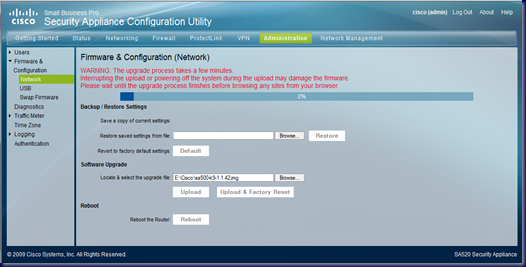
The firmware update process itself is straight forward:

image

After clicking OK:

image

Once the upload process completed, we saw a countdown timer:

image

The Diag LED on the front of the SA520 stayed lit yellow for a good portion of the countdown timer. With about 10 seconds left on the timer the Diag LED went out.

Firmware Update Caveat

Note that since we were updating the firmware on a newly powered up SA520, we did not take the time to save the settings using the Backup/Restore Settings process shown on the firmware update page.

When that countdown timer finished, we were no longer able to get into the SA520.

An IP release/renew showed why:

image

The settings changes we made for IP subnet and the SA520’s name were gone.

Make sure to backup the settings for the device _before_ running a firmware update or all of the customized inbound and outbound settings _will be lost_!

Note that this caveat is indicated in the firmware release notes to be found via the link below.

Firmware 1.1.42 Release Notes

Recommended Upgrade Steps

When upgrading from version 1.0.15, 1.0.17, or 1.0.39, the firmware will reset the router to its factory default and you will need to back up the configuration. When upgrading from 1.1.21, these steps are not required.

Of course, the firmware release notes were on the way down _after_ the firmware update download since there was no direct link to them on the actual download page. ;)

Once logged in after the update was applied, we checked the firmware page and saw:

image

We now had the ability to drop our Cisco username and password into the update page so that updates can be downloaded and installed automatically.

For those of us that work in SMB with SBS and other server hardware and software products, this setting is unlikely to be used. ;)

UPnP Status

With most consumer grade gateways, the UPnP feature comes enabled by default.

image

On the Cisco, we can see that UPnP is disabled by default. Since UPnP is a significant weakness in the overall security of a network, it should be disabled by default.

Conclusion

Now that we have the basics figured out, we are moving on to configuring the SA520 for our multiple ISP provided IP setup that includes a number of different services published to the Internet across those IPs.

We will be ordering in another unit to use as a tester that we can tear apart and work with without breaking our own connections soon!

Philip Elder
MPECS Inc.
Microsoft Small Business Specialists
Co-Author: SBS 2008 Blueprint Book

*Our original iMac was stolen (previous blog post). We now have a new MacBook Pro courtesy of Vlad Mazek, owner of OWN.

Windows Live Writer

Wednesday, 28 July 2010

Cisco Small Business Pro SA 500 Series Security Appliances

We have been looking around for a security appliance to replace our SBS 2003 Premium ISA installs for a while now.

We have looked at a number of different vendors with none really standing out as the right product for our client’s needs.

Cisco however, has a relatively new product line in the Cisco Small Business Pro series. This series was born out of an initiative created when Linksys was brought on board with them.

image

When it comes to features needed with regards to replacing ISA we are looking for the ability to assign multiple static IPs to the WAN port on the appliance.

Having multiple public IPs on the WAN port allows us to publish multiple server or backend systems that the client may have that requires a dedicated SSL HTTPS connection.

We found out today that the Cisco 500 Series Security Appliances (Cisco product comparison page) have the ability to bind multiple public static IPs to the WAN port that allows us to set up rules to publish any needed internal services.

As a result, we are in the process of acquiring an SA520-K9 security appliance from one of our suppliers. Once it arrives we will evaluate the product to see if it really can meet our client’s and our needs.

If it does, our search for a reasonably priced and fully featured gateway appliance product has ended.

The bonus in all of this is that the Cisco name sells itself.

Philip Elder
MPECS Inc.
Microsoft Small Business Specialists
Co-Author: SBS 2008 Blueprint Book

*Our original iMac was stolen (previous blog post). We now have a new MacBook Pro courtesy of Vlad Mazek, owner of OWN.

Windows Live Writer

Thursday, 25 February 2010

Olympic Video Streaming Bandwidth Impact?

Wow …

image

The above screenshot Snip was in a support session where the bank that their client deals with has tweaked something so that IE7 and IE8 can no longer connect.

So, the download of Firefox is on its way, but look at that speed! Our client’s site has a 3Mb ADSL connection.

We have downloaded drivers from ATI and nVidia as well as from Intel’s site and we are seeing a huge impact on bandwidth here at the shop.

Our pipe is a 6Mb ADSL connection with the CO being less than 300m away so we typically see 675-725KB/Sec download speeds.

This is what one download looks like from Intel’s site:

image

Perhaps the problem is localized to the Greater Edmonton Area (our client’s site is on the South Side) as the Canadian Women’s Curling team is currently playing and they just happen to be from Alberta!

Here is what the Internet Traffic Report site is reporting:

image

Hopefully this condition disappears at some point since the Women’s Hockey gold match between Team USA and Team Canada is later this afternoon and there will be no doubt that most of Canada will either be streaming the game or sitting in front of the HD TV!

We are hoping for the latter as we plan to close up shop early today!

Go Canada Go! :)

Philip Elder
MPECS Inc.
Microsoft Small Business Specialists
Co-Author: SBS 2008 Blueprint Book

*Our original iMac was stolen (previous blog post). We now have a new MacBook Pro courtesy of Vlad Mazek, owner of OWN.

Windows Live Writer

Monday, 23 November 2009

Moving From 3G CDMA to 3G+ HSPA In Canada

We just picked up a Sierra Wireless 306 USB HSPA (SW 306) 3G+ cellular modem that runs on the CDMA carrier’s networks here in Canada.

Now, with the Sierra Wireless 598 3G modem, there was no real worry about hitting the 1GB data plan’s soft limit as the modem rarely gave us over 20KB/sec despite the 3Mb connection claim it made when it connected to the Internet.

This is definitely _not_ the case when it comes to the SW 306. While no speed claims are made when the connection to the Internet completes, we have already seen the need to do some downloading of drivers and other software packages using the new modem.

Thus, we have a very practical view of just how fast this thing is . . . and it is _really_ fast!

One Microsoft download came down at close to 1MB/Sec.

This morning, as a test, we downloaded IE8 for Windows XP:

09-11-23 3G  Download

In the above screenshot the SW 306 3G+ cellular modem is on par with our close to the Central Office ADSL 6Mb connection that runs closer to 7.5Mb.

So, what does that mean for us? It means that we need to be aware of our RDP settings when connecting to remote systems for the day. 32bit colour depth is not necessary, nor is full screen on a larger high definition laptop screen.

We will need to keep an eye on our usage via our provider’s online portal that allows us to do so.

It also means that our Canadian cellular data providers will be needing to restructure their data plans that span 500MB to 5GB per month. Obviously, even the 5GB soft limit will not be enough for bandwidth intensive users.

Though, with little competition between the providers up here, there is really not a lot of incentive to do that.

We have clients that have one of the provider’s early unlimited data plans. The provider has a policy of taking away great plans and replacing them with whatever is current, and more restrictive, than the previous plan. So, we are going to encourage our clients to hold onto that plan and their current SW 598 modems as long as possible.

And one more thing. We are required to pay an extra $5/Mth per device that requires any form of PPTP/L2TP VPN access. VPN connections are not allowed out of the box.

Philip Elder
MPECS Inc.
Microsoft Small Business Specialists
Co-Author: SBS 2008 Blueprint Book

*All Mac on SBS posts will not be written on a Mac until we replace our now missing iMac! (previous blog post)

Windows Live Writer