Showing posts with label SBS 2K3 Premium. Show all posts

Monday, 14 April 2008

SBS + SQL 2005 + SharePoint = SQLVDI Error: Mutex not owned by caller.

On the last number of SBS 2K3 R2 Premium setups we have done, we are seeing the following error:

Critical Errors in Application Log

SQLVDI Event ID: 1
SQLVDI: Loc=DVDSCleanup. Desc=Release(ClientAliveMutex). ErrorCode=(288)Attempt to release mutex not owned by caller. .Process=7364. Thread=6900. Client. Instance=SHAREPOINT. VD=.
The SQL 2005 version on the SBS boxes: 9.00.3054.00. They are currently up to date on their service pack levels.

A quick search turned up the following Microsoft KB article: KB934396 FIX: Error messages and an event may be logged when you use the Virtual Device Interface in SQL Server 2005 or in SQL Server 2000.

We needed to call into Product Support Services for this one:

Microsoft Product Support Services Phone Numbers for North America

All SQL instances must be at Service Pack 2 level before applying this hotfix. If you need to determine what service pack level the SQL install is: MS KB321185: How to identify your SQL Server version and edition.

Please note that there are two versions for the hotfix: x86 and x64. And, deep in mind that the hotfix covers a lot:

Hotfix 934396 x86 File for SQL 2005

Because it is a one size fits all, the x86 download is around 100MB and the x64 download is 139MB. We always request both versions if they exist for any hotfix we are calling in for. Doing this has saved us a further call into PSS for the alternate version on many occasions.

Once the files have been extracted, they definitely need to be placed on the Technician's Thumb Drive for later access.

And, if this is a problem that we see on a regular basis on all of our new SBS 2K3 R2 Premium boxes, then we will be adding this blog post as a To Do item on our SBS Setup Checklist.

Philip Elder
MPECS Inc.
Microsoft Small Business Specialists

*All Mac on SBS posts are posted on our in-house iMac via the Safari Web browser.

Wednesday, 20 June 2007

SBS 2K3 - Group Policy computer settings not applied

In the continuing saga of merging two FAT32 partitions on a set of TravelMate 8210 laptops we just delivered, we ran into a strange problem.

We have a set of GPOs set at the domain level for the various security needs of this particular firm.

We kept getting the following error when the policies from those GPOs were trying to be set:


Event ID 1202 - SceCli: Security policies were propagated with warning: 0x4b8: An extended error has occur ed.
Clicking on the link in the error brings up the Help & Support Center pointing to KB 324383: Troubleshooting SCECLI 1202 Events.

Scroll down to the 0x4b8 section and they ask you to change a registry setting to enable debug logging. Run a gpupdate /force instead of secedit BTW.

That didn't work for us, so, off to the next search that landed us on: KB 260715: Event ID 1000 and 1202 After Configuring Policies. Again, no help or at least the article couldn't help us, but it did bring up the following error when we went to check the local policy settings for the administrator:


Security Templates: The Group Policy security settings that apply to this machine could not be determined.
The error returned when trying to retrieve these settings from the local security policy database (%windir%\security\database\secedit.sdb) was: The parameter is incorrect.

All local security settings will be displayed, but no indication will be given as to whether or not a given security setting is defined by Group Policy.
Any local security setting modified through this User Interface may subsequently be overidden by domain-level policies.
Someone didn't have their spellcheck enabled on that last line - overridden! ;)

To check the local GP:
  1. Start-->Run
  2. gpedit.msc
  3. [Enter]
Therein we find the key! The local security database is somehow toast.

A quick search for the first line in the error error turned up the process we use to fix the database. Run the following command from the command line:

esentutl /p %windir%\security\database\secedit.sdb

And you will see the results will below:


Once that process finishes, run the following line from the same command line:

gpupdate /force

The system should ask to be rebooted once the domain GPOs have been processed. A successful SceCli should also now be in the App log.

Sure enough, once the system rebooted, all security policies were in place.

Buried about half way down (could have missed it) is the above command line fix: MCSE.MS: Re: Group Policy Security setting could not be determined.

Thanks to Doug Knox for sharing that fix!

Philip Elder
MPECS Inc.
Microsoft Small Business Specialists

Tuesday, 19 June 2007

SBS 2K3 Premium - ISP changes the static IP, now what?

As was mentioned earlier, our clients affected by the extended Internet outage had their static IP changed during the upgrade to DSL 2.0.

With SBS 2K3 Standard, all one needs to do is change the IP, Subnet, and Gateway on the second adapter (if installed). Or, the same changes would need to be made on the Router/Gateway box protecting the SBS network. Obviously this would have to be done on-site by someone with admin access, or via a service call by us.

The second thing common to both versions is to update the client Internet domain name's DNS settings for e-mail if the client has their domain e-mail coming to the SBS box via SMTP. This involves updating the IP associated with the MX and A record pointing to the old IP:

  • MX 10 mail.mydomain.com
  • A mail.mydomain.com 24.62.26.42 (old IP)
Updated to:

  • A mail.mydomain.com 62.24.42.26 (new IP)
If any updates in WSUS were approved just before the connection went down and hadn't yet had a chance to synchronize and download, they will have errors beside them (shown by a red x in the WSUS Web console). One will need to approve them again in order to get them to download and install properly. In this case we were dealing with WSUS 2.0. Once should verify the WSUS 3.0 updates status as well.

Once the above steps have been completed, then on the Premium boxes, we need to make some changes to ISA as well.

  1. On the second NIC (WAN=ISA), the IP, Subnet, and Gateway need to be changed to the new settings. Note that DNS on this adapter always points to the SBS IP!
  2. ISA Services need to be rebooted:
    • Click on Restart the service
    • Click on "Yes" to the "Restart Other Services" warning dialogue:


  3. Verify the settings in ISA:
    1. Open the ISA Manager
    2. Click on Firewall Policy
    3. Double click any one of the SBS Rules: SharePoint, OWA, etc
    4. Click the Listener tab
    5. Click the Properties button
    6. Click on the Networks tab
    7. Double Click the "External " (or click the Address button)
    8. Note that the correct IP is now present: 62.24.42.26


  4. The server should be rebooted after hours.
The server reboot is a precaution. This is especially true for one of our client's servers since it was quite plugged up after not being connected to the Internet for 5 whole days.

One can log on later to reboot the server via remote connection, or one can schedule a reboot (previous blog post how-to).

As always, let your client know that the reboot will be happening later on in the evening, and check RRAS to verify that no clients are connected via VPN so that no files may be corrupted:


As a rule, if anyone was connected to their desktop via RWW/RDP at the time of the server reboot, they will be able to reconnect to their session after the server reboots. In the event that they are not able to, their workstation should remain locked with their work there for them in the morning. The exception to this rule is a workstation reboot forced by the overnight updates.

Thus the request for the server reboot in the first place! :D

Philip Elder
MPECS Inc.
Microsoft Small Business Specialists

Monday, 11 June 2007

SBS 2K3 Premium - Setup a DB on SQL 2000 & test it

We received a request to setup a database on the default SQL 2000 instance and verify connectivity.

We went through the following steps (change italics to your own names):

  1. Server Management Console
  2. Advanced Management
  3. Computer Management
  4. Services and Applications
  5. Microsoft SQL Servers (local) (Windows NT)
  6. Databases
  7. Right click: New Database
  8. Name: mynewdb
    • Leave the defaults
  9. Down to: Security
  10. Logins
  11. Right click: New Login
  12. Name: newdbuser
  13. SQL Server Authentication with password: dbpassword01
  14. Database: mynewdb
  15. No Server Roles
  16. Database Access Tab: check mynewdb
  17. Check: db_owner
  18. OK
Your database should now be setup and ready to role. Or at least it should.

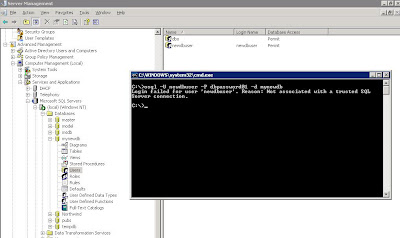
Next step, at the SBS server from the command line we test connectivity to the database:

osql -U newdbuser -P dbpassword01 -d mynewdb

Here is the result of that osql command:


Login failed for user 'newdbuser'. Reason: Not associated with a trusted SQL Server connection.
A search of the Microsoft KB turned up the following articles:

Microsoft KB 889615: You may receive a "Not associated with a trusted SQL Server connection" error message when you try to connect to SQL Server 2000 or SQL Server 2005.

and

Microsoft KB 555332: Login failed for user 'username'. The user is not associated with a trusted SQL Server connection. (Microsoft SQL Server, Error: 18452).

The second article contains the solution:

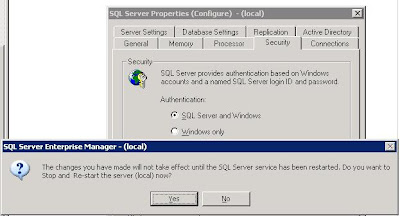
Switch the authentication mode to SQL Server and Windows:


Note that the change requires a restart of the SQL Server services. If there are any client databases online at the time, either everyone needs to shutdown their access, or we need to wait until later on when no connections to any databases on the server are happening.

Also note that we did not receive any indication as to why the database was not accepting connections via the SQL Enterprise Manager on another workstation. It just refused to connect which is why we went to the osql commands directly on the server.

Some links:

When looking for the commands we needed on the command line, it was a bit of a trial at first. We finally came up with: MSDN Forums - Command Line connect to SQL Server Database.

That in turn led us to:

The osql Utility and its commands on MSDN.

Lots of database fun on this one! :D

Philip Elder
MPECS Inc.
Microsoft Small Business Specialists

Friday, 25 May 2007

SBS 2K3 Premium - Get SP1 Now ... Last Chance...

Between now and December 31, 2007 you have the ability to order your SBS SP1 CD 3 (ISA 2004) to update SBS RTM to SP1.

Those CDs are not available anywhere else. They were not available via Microsoft's site for the last while either.

Perhaps this was a wake-up call?

With SBS Cougar around the corner, SP1 should be the minimum install on our SBS boxes.

ISA 2004 is a lot easier to manage and work with than ISA 2000. The network perspective that ISA 2004 uses is different than ISA 2000 but the live logging feature is worth it alone. We can see in real time what is passing through our SBS box NICs. Rule creation and management are relatively easy too.

SBS SP 1 Web Page.

SBS 2K3 Standard SP1 component downloads. There is no longer a CD 1 or CD 2, so we need to download the components via the site.

SBS 2K3 Premium RTM must order the SP1 CD:
North America SBS SP1 CD 3.
Europe, Middle East, Africa SBS SP1 CD 3 (Both link to the same page?!?).

Courtesy of the Official SBS Blog and Susan Bradley.

Philip Elder
MPECS Inc.
Microsoft Small Business Specialists