Did you know that there was an update to Photoshop on both Mac and Windows platforms for improved multi-processor support?
The update improves Photoshop's utilization of the new multi-core CPUs.
Update: Multiprocessor Support for Adobe Photoshop CS2 for Windows.
Update: Adobe Photoshop CS MultiProcessor Support update (Mac).
There are also similar updates for earlier versions of Photoshop.
Philip Elder
MPECS Inc.
Microsoft Small Business Specialists
*All Mac on SBS posts are posted on our in-house iMac via the Safari Web browser.
Tuesday, 17 July 2007
Monday, 16 July 2007
Windows XP - .NET Update & Install/Uninstall Errors
This was a tough one to work through as there is not a whole heck of a lot of information out there on these errors.
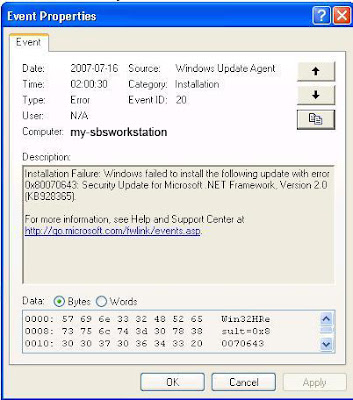
Here is the one we are dealing with today:
Add/Remove did not work as we got this when we tried to reinstall, repair, or uninstall it:

So, on to the next steps:
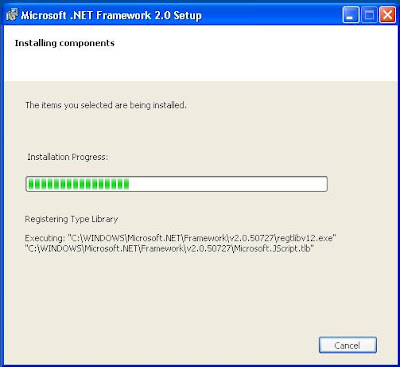
Once the install was finished, a reboot later, and the .NET 2.0 updates took okay. This process will need to be repeated for .NET 1.1 too as there are update errors for it.
Links:
Aaron Stebner's WebLog: .NET Framework SP Setup Issues was very helpful.
The above checklist was mostly based on Charity Downham's post on EggHeadCafe.com with some blending of suggestions from Aaron's blog post. EggHeadCafe.com: Error when installing .net framework 1.1.
Philip Elder
MPECS Inc.
Microsoft Small Business Specialists
*All Mac on SBS posts are posted on our in-house iMac via the Safari Web browser.
Here is the one we are dealing with today:

Windows Update Agent: Event ID 20, Installation Failure: Windows failed to install the following update with error 0x80070643: Security Update for Microsoft .NET Framework, Version 2.0 (KB928365)It turns out that a combination of the suggestions we came across worked for us on this particular error.
Add/Remove did not work as we got this when we tried to reinstall, repair, or uninstall it:

The following error occurred during setup:Okay, the instructions on Aaron's site to extract the .msi package didn't work to get .NET to repair or uninstall.
Patch package could not be opened. Verify that the patch package exists and that you can access it, or contact the application vendor to verify that this is a valid Windows Installer Patch.
So, on to the next steps:
- Download KB 290301: Windows Installer CleanUp Utility.
- Install the utility.
- Run the utility and remove the .NET version causing the problem.
- Start-->Run-->Installer [Enter]
- Click View-->Details, then Right Click the Date Modified header and select Comments.
- Sort by the Comments by clicking on that header item.
- Find the file commented with .NET Framework # and Right Click then Uninstall it. Note that if the relevant file is not found move on to the next step.
- Start-->Run-->System32 [Enter].
- Delete the folder URTTemp and rename the file mscoree.dll to something like mscoree.dll.bak.
- Start-->Run-->Microsoft.NET [Enter].
- Rename the .NET version you are after if it cannot be deleted.
- Clear out the %windir%\temp folder.
- Clear out the user profile temp directory: C:\Documents and Settings\username\Local Settings\Temp.
- Reboot the System
- Run a fresh install of .NET 2.0 for x86 in this case (link to the download page).

Once the install was finished, a reboot later, and the .NET 2.0 updates took okay. This process will need to be repeated for .NET 1.1 too as there are update errors for it.
Links:
Aaron Stebner's WebLog: .NET Framework SP Setup Issues was very helpful.
The above checklist was mostly based on Charity Downham's post on EggHeadCafe.com with some blending of suggestions from Aaron's blog post. EggHeadCafe.com: Error when installing .net framework 1.1.
Philip Elder
MPECS Inc.
Microsoft Small Business Specialists
*All Mac on SBS posts are posted on our in-house iMac via the Safari Web browser.
Labels:
.NET,
Error,
Error Fix,
Windows XP


SBS - Vista Based Group Policy Management Reminder
We are in the process of fine tuning some GP setups for Remote Desktops based on Windows Vista Business.
We set the GP setting for remote shutdowns to only be allowed by Domain Admins. This setting was placed in a domain level linked GPO we create for the non-SBS specific security settings called: Default Domain Security Policy.
But, when a non-domain admin remote user hits the "Windows Security" Vista based Start Menu option, they are presented with:

See that little red button on the bottom right hand side? They should not be seeing that. By clicking on it, they can shutdown the VM, the actual Remote Desktop server if it is a 1U dedicated box, or their local workstation. Windows XP does not show a shutdown option at all.
Not a good thing for the next person who needs access is it? 8*O
So, since we have a Vista dedicated policy on SBS now, and any machine based on Windows Vista should not be able to be shut down remotely, we will enable that setting.
When working on GP settings that are specific to Windows Vista, most changes must be done from a Vista based workstation. One must logon to the workstation as domain admin, open GPMC.msc from the search bar or Run command, and navigate through to the settings that need to be changed.
GPMC from via Windows Vista:

The first time one clicks on a GPO, the following notice will come up:

And now, we run into a bit of a problem.

Run GPEdit.msc on the local Visa machine, and there it is! The setting is implemented to not allow anyone to shut the system down remotely. But, the little red button is still there and the user can still run the shutdown command from within the command prompt.
There is an explanation, whether we are missing a Vista specific GP setting elsewhere, or it is an actual GP related bug in Vista. The Windows XP machines and VMs picked up the settings with no problems.
The puzzling thing is that we can move the user out of the local admin group into the RD Users group and they can still shut the system down! That is a real predicament as they no longer have admin rights!
We are turning to the Partner based News Groups for the next step. As soon as we know, you will! ;)
Philip Elder
MPECS Inc.
Microsoft Small Business Specialists
*All Mac on SBS posts are posted on our in-house iMac via the Safari Web browser.
We set the GP setting for remote shutdowns to only be allowed by Domain Admins. This setting was placed in a domain level linked GPO we create for the non-SBS specific security settings called: Default Domain Security Policy.
But, when a non-domain admin remote user hits the "Windows Security" Vista based Start Menu option, they are presented with:

See that little red button on the bottom right hand side? They should not be seeing that. By clicking on it, they can shutdown the VM, the actual Remote Desktop server if it is a 1U dedicated box, or their local workstation. Windows XP does not show a shutdown option at all.
Not a good thing for the next person who needs access is it? 8*O
So, since we have a Vista dedicated policy on SBS now, and any machine based on Windows Vista should not be able to be shut down remotely, we will enable that setting.
When working on GP settings that are specific to Windows Vista, most changes must be done from a Vista based workstation. One must logon to the workstation as domain admin, open GPMC.msc from the search bar or Run command, and navigate through to the settings that need to be changed.
GPMC from via Windows Vista:

The first time one clicks on a GPO, the following notice will come up:

You have selected a link to a Group Policy Object (GPO). Except for changes to link properties, changes you make here are global to the GPO, and will impact all other locations where this GPO is linked.In other words, any changes made to the GPO will be implemented at the Domain level.
And now, we run into a bit of a problem.

Run GPEdit.msc on the local Visa machine, and there it is! The setting is implemented to not allow anyone to shut the system down remotely. But, the little red button is still there and the user can still run the shutdown command from within the command prompt.
There is an explanation, whether we are missing a Vista specific GP setting elsewhere, or it is an actual GP related bug in Vista. The Windows XP machines and VMs picked up the settings with no problems.
The puzzling thing is that we can move the user out of the local admin group into the RD Users group and they can still shut the system down! That is a real predicament as they no longer have admin rights!
We are turning to the Partner based News Groups for the next step. As soon as we know, you will! ;)
Philip Elder
MPECS Inc.
Microsoft Small Business Specialists
*All Mac on SBS posts are posted on our in-house iMac via the Safari Web browser.
Buyer Beware: Credit Card Receivables?
We are getting phone nagged by a company that offers to fund us via our credit card receivables.
Having checked into their site: merchantcashdirect.com and trying to find out particulars, there doesn't seem to be any.
The representative was deliberately vague when questioned about how the system works. Other than they measure 4 months of credit card volume then front us up to 130% and don't charge an interest fee I couldn't get anything else out of the representative.
By the way, they charge a "Factoring Rate" on the amount they would give us. Using that terminology tells me that they are avoiding the Canadian Law mandated interest rate structures.
So, we would get our credit card receivables less the card provider's cut every night on close. So, I don't understand what exactly it is that they are selling?
Other than perhaps using our credit card receivables as collateral for what is really a loan.
When pressed on the Factoring Rate and repayment terms, the representative would only tell me that an associate would get back to me with that info.
Um, no thanks.
Folks, all sorts of alarm bells - as in the spidey sense - are ringing here.
Be very, very careful with any kind of offer of cash up front that seemingly looks too good to be true. In all respects, 99.999% of the time the "deal" turns out to be a really shiny but rotten to the core apple.
Philip Elder
MPECS Inc.
Microsoft Small Business Specialists
*All Mac on SBS posts are posted on our in-house iMac via the Safari Web browser.
Having checked into their site: merchantcashdirect.com and trying to find out particulars, there doesn't seem to be any.
The representative was deliberately vague when questioned about how the system works. Other than they measure 4 months of credit card volume then front us up to 130% and don't charge an interest fee I couldn't get anything else out of the representative.
By the way, they charge a "Factoring Rate" on the amount they would give us. Using that terminology tells me that they are avoiding the Canadian Law mandated interest rate structures.
So, we would get our credit card receivables less the card provider's cut every night on close. So, I don't understand what exactly it is that they are selling?
Other than perhaps using our credit card receivables as collateral for what is really a loan.
When pressed on the Factoring Rate and repayment terms, the representative would only tell me that an associate would get back to me with that info.
Um, no thanks.
Folks, all sorts of alarm bells - as in the spidey sense - are ringing here.
Be very, very careful with any kind of offer of cash up front that seemingly looks too good to be true. In all respects, 99.999% of the time the "deal" turns out to be a really shiny but rotten to the core apple.
Philip Elder
MPECS Inc.
Microsoft Small Business Specialists
*All Mac on SBS posts are posted on our in-house iMac via the Safari Web browser.
Labels:
Business Principles,
Buyer Beware
Saturday, 14 July 2007
Adobe Design Center - Video Tutorials
We build all of our client publications, Technical Assessment books, as well as our own in-house publication needs on the Adobe Creative Suite Premium. We are currently on version CS2 and are looking to upgrade to CS3 shortly.
In the process of investigating the differences between the CS versions, we stumbled on a great Adobe tutorial resource for their products: Adobe Create Suite 3 Video Workshop.
Not only is this a great marketing ploy, it truly provides good product feature information to those who are investigating the products, and it helps those who already use the products to augment their skills.
An important spin-off to providing these tutorials is to generate a genuine interest in those viewing them to look into in-person classroom or in-house training.
Excellent! :D
Philip Elder
MPECS Inc.
Microsoft Small Business Specialists
*All Mac on SBS posts are posted on our in-house iMac via the Safari Web browser.
In the process of investigating the differences between the CS versions, we stumbled on a great Adobe tutorial resource for their products: Adobe Create Suite 3 Video Workshop.
Not only is this a great marketing ploy, it truly provides good product feature information to those who are investigating the products, and it helps those who already use the products to augment their skills.
An important spin-off to providing these tutorials is to generate a genuine interest in those viewing them to look into in-person classroom or in-house training.
Excellent! :D
Philip Elder
MPECS Inc.
Microsoft Small Business Specialists
*All Mac on SBS posts are posted on our in-house iMac via the Safari Web browser.
Labels:
Adobe,
Business Principles,
Cost of Doing Business,
Marketing
A back door to Microsoft PSS so to speak...
We have a number of clients where their servers are buried in a large closet or back room area with no phone access and a dead cell signal.
When we need to talk to Product Support Services, this can be a real problem as the nearest office with a phone can sometimes be further down the hall than the bathroom!
So, in some cases we bring our own 5.8 GHz wireless phone with us. Never bring a 2.4 GHz wireless phone with you. Why? Because the base station is powerful enough to disrupt your client's wireless B/G which is also running at 2.4 GHz. That means dropped network sessions for the client, and scratchy signals for the support person you are trying to talk to.
During a client's peak season, this may not be possible as they won't want their fax service interrupted.
So, what to do?
When Windows Server 2003 was introduced, Microsoft introduced a neat web service called the Windows Server 2003 Online Concierge.
The service was intended to help those upgrading to Windows Server 2003 as mentioned in the Web site's description.
During one of those times in the closet where we had no means of communicating with Microsoft, we took a chance on the Concierge service. We needed a hotfix to fix a troublesome server situation.
After connecting, the situation was explained to the attendant - a real person by the way - and they got us to hang on a minute. When they came back, they had the Knowledge Base entry before them, and they made sure that we were both on the same page so to speak.
The concierge then e-mailed a set of links to download the hotfix and made sure that we could get access to the hotfix and unlock it. Sometimes the PSS e-mail may get caught in the spam filters, so it is important to watch for it in the Junk Mail folder.
All in all, this extra door into Product Support Services can be a huge help. Keep it in mind if you are in a location where there is no phone or cell coverage and are in need of a hotfix.
Link: Windows Server 2003 Online Concierge.
We suggest bookmarking it, and getting to know the title so that it can be accessed by a one click search.
The IEEE 802.11 wireless specification on Wikipedia.
UPDATE 2007-07-21: We needed the hotfix for the post W2K3 SP2 install on SBS for the broken Help and Support. PSS via phone was a holder's nightmare.
So, off to the Concierge and within 10 minutes the hotfix was in my Inbox!
It works! :D
Philip Elder
MPECS Inc.
Microsoft Small Business Specialists
*All Mac on SBS posts are posted on our in-house iMac via the Safari Web browser.
When we need to talk to Product Support Services, this can be a real problem as the nearest office with a phone can sometimes be further down the hall than the bathroom!
So, in some cases we bring our own 5.8 GHz wireless phone with us. Never bring a 2.4 GHz wireless phone with you. Why? Because the base station is powerful enough to disrupt your client's wireless B/G which is also running at 2.4 GHz. That means dropped network sessions for the client, and scratchy signals for the support person you are trying to talk to.
During a client's peak season, this may not be possible as they won't want their fax service interrupted.
So, what to do?
When Windows Server 2003 was introduced, Microsoft introduced a neat web service called the Windows Server 2003 Online Concierge.
The service was intended to help those upgrading to Windows Server 2003 as mentioned in the Web site's description.
During one of those times in the closet where we had no means of communicating with Microsoft, we took a chance on the Concierge service. We needed a hotfix to fix a troublesome server situation.
After connecting, the situation was explained to the attendant - a real person by the way - and they got us to hang on a minute. When they came back, they had the Knowledge Base entry before them, and they made sure that we were both on the same page so to speak.
The concierge then e-mailed a set of links to download the hotfix and made sure that we could get access to the hotfix and unlock it. Sometimes the PSS e-mail may get caught in the spam filters, so it is important to watch for it in the Junk Mail folder.
All in all, this extra door into Product Support Services can be a huge help. Keep it in mind if you are in a location where there is no phone or cell coverage and are in need of a hotfix.
Link: Windows Server 2003 Online Concierge.
We suggest bookmarking it, and getting to know the title so that it can be accessed by a one click search.
The IEEE 802.11 wireless specification on Wikipedia.
UPDATE 2007-07-21: We needed the hotfix for the post W2K3 SP2 install on SBS for the broken Help and Support. PSS via phone was a holder's nightmare.
So, off to the Concierge and within 10 minutes the hotfix was in my Inbox!
It works! :D
Philip Elder
MPECS Inc.
Microsoft Small Business Specialists
*All Mac on SBS posts are posted on our in-house iMac via the Safari Web browser.
Friday, 13 July 2007
SBS 2K3 - All Versions: Getting to know your servers...
We all get to know the temperaments of our client's servers as we monitor their reports on a daily basis.
We get to know which ones sit behind shoddy Internet connections as there are a number of POP3 Connector errors on a regular basis.
We can see security warnings, audit warnings and the like.
However, there are a couple of key ways we can further get to know our SBS boxes and their peculiarities.
One is to setup the Task Manager so that we can get a more thorough look at what is happening on the SBS box at a glance:
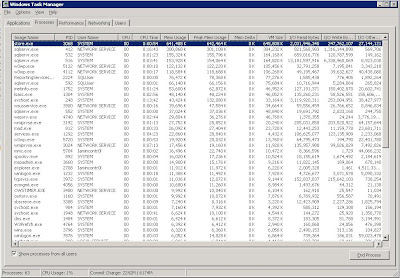
Keeping an eye on things as they are happening is a good way to get a deeper feel for how the various components of the server operate.
To do this:
Another "at a glance" tool is BGInfo by SysInternals.
Here is a shot of our TechNet Plus software SBS Premium based testbed/lab with the utility's image as a desktop background:
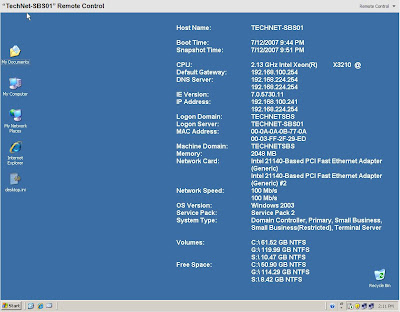
The above is one of the first things seen when logging on to the SBS box before the Server Management Console comes up.
An .ini file for BGInfo can be stored somewhere on the network and used to provide all of the servers on the network with the same settings. This provides a convenient way for us to see the same info on all of the servers.
SysInternal's Utilities Index.
Philip Elder
MPECS Inc.
Microsoft Small Business Specialists
*All Mac on SBS posts are posted on our in-house iMac via the Safari Web browser.
We get to know which ones sit behind shoddy Internet connections as there are a number of POP3 Connector errors on a regular basis.
We can see security warnings, audit warnings and the like.
However, there are a couple of key ways we can further get to know our SBS boxes and their peculiarities.
One is to setup the Task Manager so that we can get a more thorough look at what is happening on the SBS box at a glance:

Keeping an eye on things as they are happening is a good way to get a deeper feel for how the various components of the server operate.
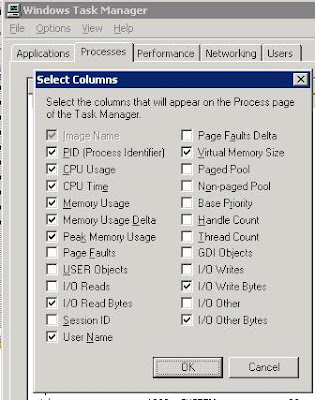
To do this:
- Open Task Manager
- Click View
- Select Columns
Click the following (I forget which ones are there by default so excuse any duplication): - PID
- CPU Usage
- CPU Time
- Memory Usage
Memory Usage Delta - Peak Memory Usage
- I/O Read bytes
- User Name
Virtual Memory Size - I/O Write Bytes
- I/O Other bytes
- Click OK

Another "at a glance" tool is BGInfo by SysInternals.
Here is a shot of our TechNet Plus software SBS Premium based testbed/lab with the utility's image as a desktop background:

The above is one of the first things seen when logging on to the SBS box before the Server Management Console comes up.
An .ini file for BGInfo can be stored somewhere on the network and used to provide all of the servers on the network with the same settings. This provides a convenient way for us to see the same info on all of the servers.
SysInternal's Utilities Index.
Philip Elder
MPECS Inc.
Microsoft Small Business Specialists
*All Mac on SBS posts are posted on our in-house iMac via the Safari Web browser.
Thursday, 12 July 2007
SBS 2K3 - All Versions: A further GP setting when setting up Remote Desktop Servers
Further to a Couple of GP settings for setting up Remote Desktop Servers post, there is another setting that is also important:

Disable the "Remove Windows Security item from the Start menu" GP setting. Make the change in the SBS Client Computer GPO.
This makes sure that the "Windows Security" option is available on the Start Menu. When it is there, one can train those who use the Remote Desktop servers or connect to their workstations at the office to lock their Remote Desktop session when they need to walk away from it for a couple of minutes.
It does not matter where that user is, they must lock that system before walking away.
Philip Elder
MPECS Inc.
Microsoft Small Business Specialists
*All Mac on SBS posts are posted on our in-house iMac via the Safari Web browser.

Disable the "Remove Windows Security item from the Start menu" GP setting. Make the change in the SBS Client Computer GPO.
This makes sure that the "Windows Security" option is available on the Start Menu. When it is there, one can train those who use the Remote Desktop servers or connect to their workstations at the office to lock their Remote Desktop session when they need to walk away from it for a couple of minutes.
It does not matter where that user is, they must lock that system before walking away.
Philip Elder
MPECS Inc.
Microsoft Small Business Specialists
*All Mac on SBS posts are posted on our in-house iMac via the Safari Web browser.
Windows 2003 Service Pack 2 - Intel ProSet teaming broken.
We got called in to a client's location because they could not figure out why their server was no longer connected to anything after a bunch of updates. It turns out that one of the updates was Windows Server 2003 Service Pack 2.
After a bit of investigation it was discovered that the adapters were showing that they were part of an adapter team, but there was no team entry in the Network Connections folder.
This is how the setup should look for the Intel ProSet adapter teaming:
LAN Adapter 1 (Connected)
LAN Adapter 2 (Connected)
LANTeam 1 (Connected) in fault tolerance mode.
After Server 2003 SP 2 it looked like:
LAN Adapter 1 (Connected)
LAN Adapter 2 (Connected)
Because it is the LANTeam adapter that has all of the actual network bindings attached to it, the server was throwing all sorts of fits. Active Directory, DNS, WINS, and more were throwing codes left, right, and centre.
To fix it temporarily, we broke the adapter teaming by removing one of the physical adapters from the team, and then set the appropriate static IP settings to it.
We didn't do any updating of the ProSet software for now, as timing was critical for them. They had been down since early that morning when the service pack was applied.
There are no guarantees that when we go back to install the newest ProSet version that the adapter teaming will work as it should either. We will need to test that beforehand!
We are hesitant as far as installing the newest ProSet 11.x. This newest version has been giving us problems with the inability to set the adapters into teaming mode for fault tolerance. This is without W2K Server SP2 on the boxes as they all tend to be SBS based. So, there are no guarantees that this newest version will work with SP 2 either!
The investigation is ongoing! ;)
UPDATE 2007-07-16: We have a Windows Server 2003 Standard R2 box that had version 11.1 of the ProSet installed on it. The Service Pack did not kill the team in this case. However, it did kill access to any of the ProSet tabs when bringing up the NIC's properties via the physical NIC's Configure button.
We will reinstall the original ProSet 11.1 to see if that brings back the tabs and thus the ability to control the Teaming feature. If not, we will install the newest version of ProSet to see if that works.
Philip Elder
MPECS Inc.
Microsoft Small Business Specialists
*All Mac on SBS posts are posted on our in-house iMac via the Safari Web browser.
After a bit of investigation it was discovered that the adapters were showing that they were part of an adapter team, but there was no team entry in the Network Connections folder.
This is how the setup should look for the Intel ProSet adapter teaming:
LAN Adapter 1 (Connected)
LAN Adapter 2 (Connected)
LANTeam 1 (Connected) in fault tolerance mode.
After Server 2003 SP 2 it looked like:
LAN Adapter 1 (Connected)
LAN Adapter 2 (Connected)
Because it is the LANTeam adapter that has all of the actual network bindings attached to it, the server was throwing all sorts of fits. Active Directory, DNS, WINS, and more were throwing codes left, right, and centre.
To fix it temporarily, we broke the adapter teaming by removing one of the physical adapters from the team, and then set the appropriate static IP settings to it.
We didn't do any updating of the ProSet software for now, as timing was critical for them. They had been down since early that morning when the service pack was applied.
There are no guarantees that when we go back to install the newest ProSet version that the adapter teaming will work as it should either. We will need to test that beforehand!
We are hesitant as far as installing the newest ProSet 11.x. This newest version has been giving us problems with the inability to set the adapters into teaming mode for fault tolerance. This is without W2K Server SP2 on the boxes as they all tend to be SBS based. So, there are no guarantees that this newest version will work with SP 2 either!
The investigation is ongoing! ;)
UPDATE 2007-07-16: We have a Windows Server 2003 Standard R2 box that had version 11.1 of the ProSet installed on it. The Service Pack did not kill the team in this case. However, it did kill access to any of the ProSet tabs when bringing up the NIC's properties via the physical NIC's Configure button.
We will reinstall the original ProSet 11.1 to see if that brings back the tabs and thus the ability to control the Teaming feature. If not, we will install the newest version of ProSet to see if that works.
Philip Elder
MPECS Inc.
Microsoft Small Business Specialists
*All Mac on SBS posts are posted on our in-house iMac via the Safari Web browser.
Wednesday, 11 July 2007
Virtual Server - Upgrading to SP1 - Restore Error Fix and some suggestions.
When upgrading to Service Pack 1 on Virtual Server 2005 R2 it is important that any virtual machines running on the server are shut down as opposed to saving their state before applying the Service Pack.
If their state was saved before the update, you will get the following error:

Do this for all of them, restart the Virtual Server service, and then proceed to start the VMs from the Virtual Server Web Console or via VMRCplus (the Virtual Machine Remote Control Client Plus is a pretty kewl little VM management utility).
The warning given in the VMRCplus console that the Virtual Machine additions (VMA) edition is out of date:

One small caveat just discovered with the VMRCplus utility: When trying to mount an ISO that is on the local Virtual Server x: drive, the VMRCplus utility brings a dialogue box up that is tied to the machine/workstation the utility is being run on. No list of available ISOs for that particular Virtual Server is there like can be seen in the Virtual Server Management Web Console.
When Service Packing the Virtual Server installations, it is also a perfect opportunity to also install any waiting OS updates on the host OS.
Once the upgrade has finished, and all of the VMs are up and running, the next step is to install the updated Virtual Machine additions on all of the VMs.
So far, on our VMs running W2K Server and Server 2K3 the previous VMA versions are seemingly gone so the VMA update is required. Upon logging on to the VM the Virtual Server will only allow the VMA installation. After the install and a reboot the VM will be good to go.
Virtual Server SP1 VMA version: 13.885
Virtual Server Vista VMA inital beta version: 13.709
Answer for the error curtesy of ASPDeveloper.net: Virtual Server 2005.
Philip Elder
MPECS Inc.
Microsoft Small Business Specialists
*All Mac on SBS posts are posted on our in-house iMac via the Safari Web browser.
If their state was saved before the update, you will get the following error:

"VirtualMachine" could not be restored because of a host processor type mismatch.If you see this error, stop the Virtual Server service and rename all of your virtual machine's .vsv files to .vsv.bak or the like.
Do this for all of them, restart the Virtual Server service, and then proceed to start the VMs from the Virtual Server Web Console or via VMRCplus (the Virtual Machine Remote Control Client Plus is a pretty kewl little VM management utility).
The warning given in the VMRCplus console that the Virtual Machine additions (VMA) edition is out of date:

One small caveat just discovered with the VMRCplus utility: When trying to mount an ISO that is on the local Virtual Server x: drive, the VMRCplus utility brings a dialogue box up that is tied to the machine/workstation the utility is being run on. No list of available ISOs for that particular Virtual Server is there like can be seen in the Virtual Server Management Web Console.
When Service Packing the Virtual Server installations, it is also a perfect opportunity to also install any waiting OS updates on the host OS.
Once the upgrade has finished, and all of the VMs are up and running, the next step is to install the updated Virtual Machine additions on all of the VMs.
So far, on our VMs running W2K Server and Server 2K3 the previous VMA versions are seemingly gone so the VMA update is required. Upon logging on to the VM the Virtual Server will only allow the VMA installation. After the install and a reboot the VM will be good to go.
Virtual Server SP1 VMA version: 13.885
Virtual Server Vista VMA inital beta version: 13.709
Answer for the error curtesy of ASPDeveloper.net: Virtual Server 2005.
Philip Elder
MPECS Inc.
Microsoft Small Business Specialists
*All Mac on SBS posts are posted on our in-house iMac via the Safari Web browser.
Mac on SBS - Microsoft Office for Mac 2004 & Parallels Coherence
We just received our Office Standard 2004 for Mac via Open Value licensing.
Integration with pre-2007 version documents and spreadsheets are seamless. Opening and modifying between the PC and Mac versions works well.
I am hoping that the Office for Mac version that is supposed to be shipping sometime later this year or early next year will share the same XML basis for its files as the current Office 2007 for PC. This will make working with files between Mac and PC that much simpler. Given that the PC Office 2003 and Mac Office 2004 versions work well together, I am trusting that we will see the same happen between the PC Office 2007 and Mac Office 2008.
Entourage, the Mac somewhat equivalent to Outlook e-mail client works somewhat okay integrated into our SBS based Exchange environment. It picks up the Inbox setup with the huge number of nested folders as well as the Calendar with the nested Calendars too.
Entourage 2004 is missing a huge chunk of functionality though. :(
I do believe that Parallels Coherence may be the single reason why Microsoft reversed their virtualization licensing intentions for Windows Vista Home editions. About 5 months ago, Microsoft announced that they were considering allowing us to run virtually any version of Vista in a virtualized environment.
Well, that was probably based on the assumption that the Mac user would be flipping back and forth between the Mac and Windows environment. In reality though, this is not the case.
Parallels Coherence is a feature that is identical to one of the new Server 2008 Terminal Services features (was originally SoftGrid on TS 2003): The ability to have an icon on the desktop that a user can click on and "run" an application. In reality, much like a Remote Desktop connection, all they are seeing is a "picture" of the application running. Everything is actually being done on the terminal server somewhere else.
So, the user clicks on the Outlook 2007 icon on their desktop, and up comes "Outlook 2007" seemingly running on Mac's OS X. The user is oblivious to the fact that nested somewhere on their Mac is a Vista environment with Office 2007 actually installed in it! With the Windows Vista environment unseen like that, the writing is on the wall as far as Joe User thinking that they are now running Office 2007 on their Mac.
Thus, we hear recently that Microsoft did an about face on Windows Vista virtualization: Only Vista Business and Ultimate can be virtualized.
On ZDNet: Microsoft flip-flops on Vista virtualization. Mentions the software vendor Parallels specifically.
We downloaded the trial version of Parallels and installed a trial version of Vista Business on it. Next up is adding the Virtualized Vista to our SBS domain with the Office 2007 following. From there we will start playing with Coherence. It is definitely something to look forward to!
Need QuickBooks on a Mac? Heh :D
Philip Elder
MPECS Inc.
Microsoft Small Business Specialists
*All Mac on SBS posts are posted on our in-house iMac via the Safari Web browser.
Integration with pre-2007 version documents and spreadsheets are seamless. Opening and modifying between the PC and Mac versions works well.
I am hoping that the Office for Mac version that is supposed to be shipping sometime later this year or early next year will share the same XML basis for its files as the current Office 2007 for PC. This will make working with files between Mac and PC that much simpler. Given that the PC Office 2003 and Mac Office 2004 versions work well together, I am trusting that we will see the same happen between the PC Office 2007 and Mac Office 2008.
Entourage, the Mac somewhat equivalent to Outlook e-mail client works somewhat okay integrated into our SBS based Exchange environment. It picks up the Inbox setup with the huge number of nested folders as well as the Calendar with the nested Calendars too.
Entourage 2004 is missing a huge chunk of functionality though. :(
- No Exchange based Tasks
- No Exchange based Notes
- No Public Folder shared Tasks or Notes
- Calendar Category functionality is extremely limited (versus Outlook 2003 or 2007)
I do believe that Parallels Coherence may be the single reason why Microsoft reversed their virtualization licensing intentions for Windows Vista Home editions. About 5 months ago, Microsoft announced that they were considering allowing us to run virtually any version of Vista in a virtualized environment.
Well, that was probably based on the assumption that the Mac user would be flipping back and forth between the Mac and Windows environment. In reality though, this is not the case.
Parallels Coherence is a feature that is identical to one of the new Server 2008 Terminal Services features (was originally SoftGrid on TS 2003): The ability to have an icon on the desktop that a user can click on and "run" an application. In reality, much like a Remote Desktop connection, all they are seeing is a "picture" of the application running. Everything is actually being done on the terminal server somewhere else.
So, the user clicks on the Outlook 2007 icon on their desktop, and up comes "Outlook 2007" seemingly running on Mac's OS X. The user is oblivious to the fact that nested somewhere on their Mac is a Vista environment with Office 2007 actually installed in it! With the Windows Vista environment unseen like that, the writing is on the wall as far as Joe User thinking that they are now running Office 2007 on their Mac.
Thus, we hear recently that Microsoft did an about face on Windows Vista virtualization: Only Vista Business and Ultimate can be virtualized.
On ZDNet: Microsoft flip-flops on Vista virtualization. Mentions the software vendor Parallels specifically.
We downloaded the trial version of Parallels and installed a trial version of Vista Business on it. Next up is adding the Virtualized Vista to our SBS domain with the Office 2007 following. From there we will start playing with Coherence. It is definitely something to look forward to!
Need QuickBooks on a Mac? Heh :D
Philip Elder
MPECS Inc.
Microsoft Small Business Specialists
*All Mac on SBS posts are posted on our in-house iMac via the Safari Web browser.
Tuesday, 10 July 2007
Blog Feature Addition... Snap Shots
We have added the Snap Shots to our blog because it looks like a pretty neat feature.
Hover the mouse over the little icon that appears after a link to another site, and you can see a preview of that site, RSS feed, and more.
Looks like a time saver for you and a winner as far as browsing efficiency is concerned.
If you don't like it, please leave a comment to let us know why!
If enough people say they don't like it, then it will be removed.
BTW, Snap has a pretty straight forward Terms & Conditions page before signing on. That is something that always gets read.
Philip Elder
MPECS Inc.
Microsoft Small Business Specialists
Hover the mouse over the little icon that appears after a link to another site, and you can see a preview of that site, RSS feed, and more.
Looks like a time saver for you and a winner as far as browsing efficiency is concerned.
If you don't like it, please leave a comment to let us know why!
If enough people say they don't like it, then it will be removed.
BTW, Snap has a pretty straight forward Terms & Conditions page before signing on. That is something that always gets read.
Philip Elder
MPECS Inc.
Microsoft Small Business Specialists
Labels:
Blog Feature,
Snap Shots
Mac on SBS - iTunes Add to Library import...
Hmmm....
A simple setting can mean the difference between a Mac running and a Mac not running when importing multimedia into iTunes.
Howz that? Well, if someone has a Windows Home Server, or other device with a large multimedia repository, one could end up in a storage pickle on their Mac.
If one wants to catalogue the contents of those folders on their Mac via iTunes, there is a setting therein that could cause a problem.
After clicking File-->Add to Library and navigating the Folder Chooser to the shared multimedia folder, iTunes goes off gathering a list of the contents of the folders. If, after starting that process, one walks away the little 160 GB drive on this particular iMac could have eventually been plugged up!
It seems that iTunes also pulls a copy of the multimedia file across the network onto the local Mac machine.
Ummm.... Not!
The following setting change is critical to avoid that kind of situation:
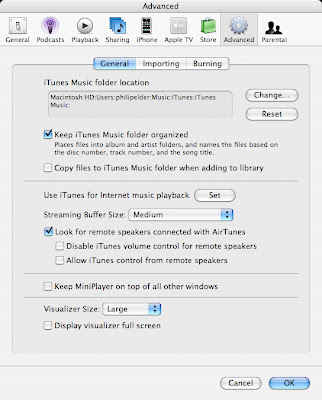
One needs to make sure to uncheck that option before starting the Add to Library process. This way all of the multimedia files are catalogued in iTunes only. :D
Might want to verify if iTunes on PC also does the same thing.
Philip Elder
MPECS Inc.
Microsoft Small Business Specialists
*All Mac on SBS posts are posted on our in-house iMac via the Safari Web browser.
A simple setting can mean the difference between a Mac running and a Mac not running when importing multimedia into iTunes.
Howz that? Well, if someone has a Windows Home Server, or other device with a large multimedia repository, one could end up in a storage pickle on their Mac.
If one wants to catalogue the contents of those folders on their Mac via iTunes, there is a setting therein that could cause a problem.
After clicking File-->Add to Library and navigating the Folder Chooser to the shared multimedia folder, iTunes goes off gathering a list of the contents of the folders. If, after starting that process, one walks away the little 160 GB drive on this particular iMac could have eventually been plugged up!
It seems that iTunes also pulls a copy of the multimedia file across the network onto the local Mac machine.
Ummm.... Not!
The following setting change is critical to avoid that kind of situation:

Copy files to iTunes Music folder when adding to library
One needs to make sure to uncheck that option before starting the Add to Library process. This way all of the multimedia files are catalogued in iTunes only. :D
Might want to verify if iTunes on PC also does the same thing.
Philip Elder
MPECS Inc.
Microsoft Small Business Specialists
*All Mac on SBS posts are posted on our in-house iMac via the Safari Web browser.
Labels:
Apple,
iTunes,
Mac,
Mac on SBS,
Windows Home Server
Monday, 9 July 2007
SBS - RWW Time Outs and Security
Quiz time folks! ;)
How many minutes before the RWW connection is killed when the "I'm using a public or shared computer" is checked?
How many minutes before it is killed with the box unchecked?
For all SBS users, there is nothing more important than having it trained into them over and over again to make sure that they always close and save their work and lock or log out of their workstation before walking away.
Even if it is for 5 minutes. That workstation and the data it accesses has to be protected.
Ever loose something because the program the data was residing in was closed due to an overnight forced reboot after an update?
Ever loose something because someone needed to remote into the workstation in the evening and nothing was closed or saved?
When it comes to remote access via the RWW, this little check box can mean the difference between the life and death of a company:
How many minutes before the RWW connection is killed when the "I'm using a public or shared computer" is checked?
How many minutes before it is killed with the box unchecked?
For all SBS users, there is nothing more important than having it trained into them over and over again to make sure that they always close and save their work and lock or log out of their workstation before walking away.
Even if it is for 5 minutes. That workstation and the data it accesses has to be protected.
Ever loose something because the program the data was residing in was closed due to an overnight forced reboot after an update?
Ever loose something because someone needed to remote into the workstation in the evening and nothing was closed or saved?
When it comes to remote access via the RWW, this little check box can mean the difference between the life and death of a company:
 So, Internet Café, public library, public kiosk, or anywhere where there is a danger someone will mess with the RWW connected laptop/workstation (yes, even the kids) that check box should always be left checked!
And if there is a need to walk away from that remote session for whatever reason, lock it! From the Start Menu, click "Windows Security" if you see it and then click the Lock Computer button.
If the Windows Security option is not on the Start Menu, then it is up to us administrators to provide a way for remotely connected users to lock their workstations.
To do this create a shortcut on the desktop and type the following in the command line:
rundll32.exe user32.dll, LockWorkStation
Click Next, name the Shortcut and click Finish. If needed, one can change the icon to whatever via Right Click-->Properties-->Shortcut Tab-->Change Icon button.
Copy that shortcut onto the network so that it is accessible to all users who remotely connect to their workstations and send them a note to put a copy of it on their own desktops and use it.
Or, enforce the Windows Security item be on the Start Menu via Group Policy.
Answers to the quiz:
Time out for Public/Shared: 20 minutes.
Time out for Public/Shared unchecked: 120 minutes.
Two hours eh? See why it is so critical?
Managing Windows XP Service Pack 2 Features Using Group Policy: XP SP2 GP Word Document.
Group Policy Settings Reference for Windows Server 2003 SP1: W2K3 SP1 GP Excel Spreadsheet.
Group Policy Settings Reference for Windows Server 2008: W2K8 GP Excel Spreadsheet.
Philip Elder
MPECS Inc.
Microsoft Small Business Specialists
SBS 2K3 R2 - Setup steps and resources.
We are running through some setup scenarios on SBS 2K3 Premium R2.
Here are some resources that come in handy:
If newer Service Packs exist, do a bit of searching to verify their compatibility with your SBS installation before installing them. A good example of this is Windows Server 2003 Service Pack 2 as there are lots of caveats on SBS (KB 555912) .
Our partitioning schemes (previous blog post) come via experience trying to recover multiple partitions on one drive or array. That can be extremely difficult. Sometimes, KISS really works. :D
UPDATE 2007-09-06: Reversed steps 13 and 15 to set them in the correct order!
UPDATE 2007-09-07: Added the Exchange registry settings for its seeming difficulty with Greylisting and Tarpitting and the RipCurl step.
Philip Elder
MPECS Inc.
Microsoft Small Business Specialists
Here are some resources that come in handy:
- Completing Setup: Microsoft Windows Small Business Server 2003 R2 (Word document download).
- Release Notes for Windows Small Business Server 2003 R2
- Install the base OS to the primary OS drive formatted leaving 10 GB unused on the drive during setup. All other drives/partitions should be left untouched at this time.
- Stop the continuing setup after the reboot by cancelling it.
- In between Phase 1 and Phase 2: Install relevant drivers, format the partitions and drives.
- Move the Swap File over to the partition created out of the above 10 GB. This partition can be used for the ISA URLCache as well.
- Verify all devices are recognized and happy.
- Run Phase 2 setup via the Setup icon on the desktop.
- We set the MSDE Engine, Users Shared Folders, Client Applications, and Sent Faxes to the same drive/partition.
- Finish the install by completing the ToDo tasks.
- Install the Premium Technologies with SQL Server 2005 Workgroup Edition followed by ISA 2004 SP1.
- Note that during the ISA CEICW one will need to recheck any extra settings at the Web Services Configuration step.
- Make sure that the Create Certificate is also left at the setting it chooses.
- Install the components and updates from the R2 Technologies CD.
- Complete the Post Exchange SP2 Must Dos (previous blog post).
- Update the Exchange registry settings for the Greylist problem that Exchange seems to be having: Exchange may not be retrying! (previous blog post)
- Install WSS 3.x in side-by-side mode (official SBS blog post on the matter). Why? Because the WSS 3.x and Outlook two way functionality may be required for WSS hosted calendars, or the Recycle Bin may be for those who "accidentally" delete files.
- Install WSUS 3.x afterwards (previous blog post on WSUS 3.x install experience).
- At the command prompt, run the appropriate osql commands to tame SQL's memory usage (previous blog post explanation).
- RipCurl the SBS R2 box for Vista and Office 2007 compatibility (previous blog post).

If newer Service Packs exist, do a bit of searching to verify their compatibility with your SBS installation before installing them. A good example of this is Windows Server 2003 Service Pack 2 as there are lots of caveats on SBS (KB 555912) .
Our partitioning schemes (previous blog post) come via experience trying to recover multiple partitions on one drive or array. That can be extremely difficult. Sometimes, KISS really works. :D
UPDATE 2007-09-06: Reversed steps 13 and 15 to set them in the correct order!
UPDATE 2007-09-07: Added the Exchange registry settings for its seeming difficulty with Greylisting and Tarpitting and the RipCurl step.
Philip Elder
MPECS Inc.
Microsoft Small Business Specialists
Labels:
SBS,
SBS 2003 R2,
SBS Install,
Small Business Server
Subscribe to:
Posts (Atom)