Showing posts with label Error Workaround. Show all posts

Friday, 14 September 2018

WARNING: Edge (Sync) Ate All Favourites - Favourites Gone!

We've been doing _a lot_ of work setting up a Grafana/InfluxDB/Telegraph monitoring and history system lately.

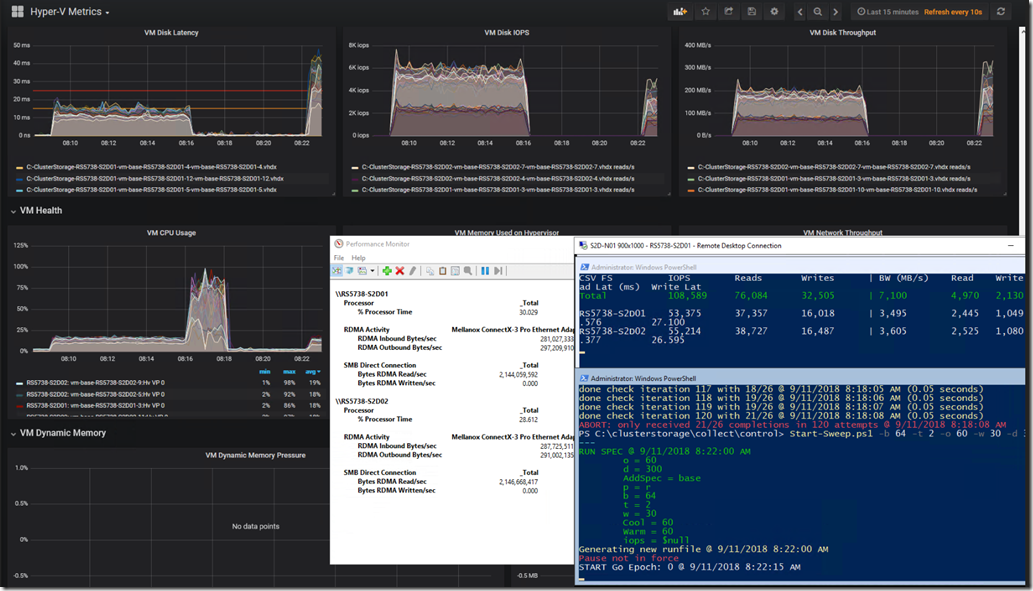
The following is our custom Kepler-64 Storage Spaces Direct 2-node cluster being tracked in a Grafana Dashboard that we've customized:
image

Grafana graphs, PerfMon RoCE RDMA Monitoring, and VMFleet Watch-AllCluster.PS1 (our mod)

Needless to say, a substantial number of links to various sites about running the above setup on both Windows and Ubuntu were lost after something seemingly went wrong. :(

Edge (Sync ?) Hiccups then Pukes

As we were quite busy throughout the day and Edge was being very uncooperative we started using Firefox for most of the browsing throughout the day.

image

Edge: Favourites Bar Shortcut Count Drastically Trimmed

The first response once things started misbehaving should have been was to use the Edge Favourites Backup feature and get them out!

When we opened Edge later in the day this is what we were greeted with:

image

Edge: Favourites Bar Shortcuts Gone!

As a small caveat one of the behaviours with Edge has been for it to either go unresponsive requiring a Task Manager Kill or when another Edge browser session was opened for it to not allow Paste or Right Click in the Address Bar or any Favourites, History, or other buttons to be shown.

So, Task Manager Kill? Nope. They were not there.

Log off and back on again? Nope.

Reboot the machine? Nope.

Both the Favourites Bar content and _all_ of our Favourites were gone.

Back Them Up!

During the above day when things started to misbehave the next step _should have been_ to grab one of the tablets they were syncing to and run a backup process without allowing the tablet to connect to WiFi and sync! Ugh, hindsight is 20/20. :P

And, much like the advice we always start out with when training users on the use of Office products the very first step they need to take is to _save_ their work before doing anything! And, once the work is done, to _save_ their work. Well, that advice is something that we will be taking from now on with regards to Edge and Favourites.

After a big day of Favourites building a backup should be taken.

So, Where Are Those Favourites?

Why, oh why do software vendors move my cheese?

In this case, the original location for those Favourites when using IE back in the day was OneDrive. If there was a hiccup somewhere between the number of different clients OneDrive Sync would append the name of the machine to the conflicting shortcuts and we'd be left with doing a quick Search & Destroy post mortem. No biggie. Not so with Edge.

Thanks to Michael B. Smith via a list we were pointed to:

The location that Edge stores those favourites is here:

  • Stored under %LOCALAPPDATA%\Packages\Microsoft.MicrosoftEdge_8wekyb3d8bbwe\AC\MicrosoftEdge\User\Default\DataStore\Data\nouser1\120712-0049\DBStore
  • Database Name: Spartan.edb

Change the somewhat hidden dropdown to Favourites and:

image

Some Edge Favourites Post Backup Import

What Does All This Mean? Edge Bug

It means that there's a serious bug somewhere in the Edge setup with Data Loss being one possible result.

It means that, for now one needs to run the Edge Export process to back those Favourites up after a serious day of adding to that list!

  1. In Edge click the Favourites/History/Downloads button
    • image
  2. Click the Favourites Star if they are not shown as above
  3. Click the Gear
  4. Click the Import from another browser button
    • image
  5. Click the Export to file button
    • image
  6. Choose a location and give the file a name
    • We drop ours in OneDrive to keep it backed up
    • image
    • Naming convention: DATE-TIME-Location.HTML

The above process will at least help mitigate any choke in the Edge Favourites setup that may happen.

Warning Note

IMPORTANT NOTE: Edge does not have any kind of parsing structure for the import process.

We cannot pick and choose what to import, and, if there are still Favourites _in the database_ they may disappear/be deleted when importing!

If the bulk of the Favourites are still there then an alternative to a wholesale import would be to open the backup .HTML page and click on the needed links and Favourite them again. *sigh*

Conclusion

What does all of this mean?

Considering that we've lost data there's a very serious problem here. In our case, we're talking about a very long and full day's worth of bookmarks/favourites gone. :(

For now, it means back those favourites up _a lot_ when doing critical work that requires knowledge keeping!

Oh, and we need to set aside some time to delve into the NirSoft utility linked to above to see if there are features in there to help mitigate this situation.

Philip Elder
Microsoft High Availability MVP
MPECS Inc.
Co-Author: SBS 2008 Blueprint Book
www.s2d.rocks !
Our Web Site
Our Cloud Service

Wednesday, 8 August 2018

QuickBooks Desktop Freezes: Running Payroll, Downloading Online Transactions, and Closing Company File - Workaround

There seems to be an issue with the Canadian version of Intuit QuickBooks where the software freezes when doing a payroll run, downloading online transactions into QuickBooks, and when closing the Company file.

The workaround is to do the following:

  1. Close your company file.
  2. Open a sample file within QuickBooks
  3. From the No Company Open window, select Open a sample file
  4. Select a sample company file
  5. Click Ok to the warning You're opening a QuickBooks Desktop sample company file.
  6. In the sample company file, go to the Employees menu > Pay Employees > Scheduled Payroll
  7. Click Start Scheduled Payroll.
  8. Click Continue.
  9. Select one of the employees listed and click Continue.
  10. Click Ok to the warning message.
  11. Click Create Pay Cheques.
  12. Click Yes to the Past Transactions message.
  13. Click Close

We have a confirmation with one of our accounting firm clients that had the problem that this "fixes" it at least for now.

Intuit Help Article: QuickBooks Desktop freezes trying to create paycheques (CA only)

Philip Elder
Microsoft High Availability MVP
MPECS Inc.
Co-Author: SBS 2008 Blueprint Book
www.commodityclusters.com
Our Web Site
Our Cloud Service

Wednesday, 9 May 2018

Remote Desktop Client: An authentication error has occurred. *Workaround

Updates last night included one for CredSSP CVE-2018-0886.

For those of us that are hesitant to patch our servers the instant a patch is available we'll be seeing RD Clients unable to connect for the period prior to our regression testing and release cycle.

Remote Desktop Connection

An authentication error has occurred.
The function requested is not supported.

Remote Computer: SERVERNAME
This could be due to CredSSP encryption oracle remediation.
For more information, see https://go.microsoft.com/fwlink/?linkid=866660

For now, the workaround on the remotely connecting RD Clients is to set the following registry key:

Windows Registry Editor Version 5.00

[HKEY_LOCAL_MACHINE\SOFTWARE\Microsoft\Windows\CurrentVersion\Policies\System\CredSSP]

[HKEY_LOCAL_MACHINE\SOFTWARE\Microsoft\Windows\CurrentVersion\Policies\System\CredSSP\Parameters]
"AllowEncryptionOracle"=dword:00000002

Copy and paste the above into Notepad and Save As "CredSSP.REG" in a quickly accessible location.

Double click on the created file and MERGE. An elevated Registry Editor session would also allow for import via the FILE menu.

Once the above registry setting is in-place reboot the client machine and the connection should work.

Happy Patching! :)

UPDATE 2018-05-09 @ 10:47 MST: A caveat:

It is better to update the server backend, if possible, before making the above registry change.

If that is _not_ possible, then after the updates have been applied on the server(s) make sure to _change_ the registry setting to its most secure setting.

UPDATE 2018-05-10 @ 17:38 MST:

Update sources:

Philip Elder
Microsoft High Availability MVP
MPECS Inc.
Co-Author: SBS 2008 Blueprint Book
Our Web Site
Our Cloud Service

Thursday, 26 October 2017

Fujitsu ScanSnap N1800: E-mail Button Greyed Out Fix

We have moved a ScanSnap N1800 onto a new greenfield setup in a side-by-side migration we've been running.

In this case, the Exchange server is on-premises with the appropriage Anonymous MFP Relay setup configured.

Searching about turned up what turned out to be a simple fix though not one we would prefer: Enable a mailbox in Exchange for the scanner's account.

Once we did that the e-mail button did indeed appear and work with subsequent scan and send tests being successful.

Note that the account being used has a rediculously long password that never changes and is restricted on the domain. So, the attack surface is relatively small.

Philip Elder
Microsoft High Availability MVP
MPECS Inc.
Co-Author: SBS 2008 Blueprint Book
Our Cloud Service
Twitter: @MPECSInc

Tuesday, 11 July 2017

ALPS “Touch Pad Diagnostics” Pop-Up Fix

One of our newly set up Windows 10 Enterprise 64-bit Toshiba Tecra Z50-C laptops was throwing the following pop-up seemingly at random:

image

ALPS Touch Pad Diagnostics

Collect Diagnostics
Press the button to collect the result to log file.

The pop-up got to be quite annoying very quickly.

Fix Steps

A quick search turned up the following:

1: Elevate a CMD
2: Copy and Paste the following into CMD:
reg add HKEY_LOCAL_MACHINE\SYSTEM\CurrentControlSet\services\SynTP\Parameters\Debug /v DumpKernel /d 00000000 /t REG_DWORD /f
3: Reboot

Conclusion

Note that the above registry setting is on one line. Once it was set up in the registry the problem went away

As always, make sure to test the fix first!

Philip Elder
Microsoft High Availability MVP
MPECS Inc.
Co-Author: SBS 2008 Blueprint Book
Our Cloud Service
Twitter: @MPECSInc

Tuesday, 10 January 2017

Server 2016 January 10 Update: KB3213986 – Cluster Service May Not Start Automatically Post Reboot

The January 10, 2017 update package (KB3213986) has a _huge_ caveat for those updating clusters especially with Cluster Aware Updating:

Known issues in this update:

Symptom
The Cluster Service may not start automatically on the first reboot after applying the update.

Workaround
Workaround is to either start the Cluster Service with the Start-ClusterNode PowerShell cmdlet or to reboot the node.

For those managing large cluster deploys this situation definitely leads to a need to evaluate the update procedure for this particular update.

Please keep this in mind when scheduling this particular update and have update resources set up to mitigate the problem.

Note that as of this writing, the cluster service stall on reboot is a one-time deal as far as we know. Meaning, once the update has been completed and the node has successfully joined the cluster there should be no further issues.

Philip Elder
Microsoft High Availability MVP
MPECS Inc.
Co-Author: SBS 2008 Blueprint Book
Our Cloud Service

Wednesday, 7 December 2016

AutoDiscover “Broken” in Outlook 2016

We have a client that has their services spread across a number of different cloud systems.

Recently, users had started “losing” their connection to their hosted Exchange mailbox with Outlook coughing up some really strange errors that were not very helpful.

We ran the gamut trying to figure things out since any calls to the hosted Exchange provider and eventually the company hosting their web site always came back with “There’s a problem with Outlook”.

Indeed.

What we’ve managed to figure out is that Outlook 2016 will _always_ run an AutoDiscover check even if we’re manually setting up the mailbox for _any_ Exchange ActiveSync (EAS) connection. It must be some sort of new “security” feature in Outlook 2016.

What does that mean?

It means that when something changes unbeknownst to us things break. :(

In this case the AutoDiscover setup in Outlook for EAS connections and the web host changing something on their end as things were working for a _long_ time before the recent problems. Or, a recent update to Outlook 2016 changed things on the AutoDiscover side that revealed what was happening on the www hosting side.

Okay, back to the problem at hand. This is the prompt we would get when setting up a new mailbox, or eventually all users started getting who already had mailbox connections:

image

Internet E-mail Name@Domain.com

Enter your user name and password for the following server:

Server: gator3146.hostgator.com

Well, our mailboxes are on a third party and not HostGator. So, on to chatting and eventually phoning them after opening a ticket with the Exchange host and hearing back that the problem was elsewhere.

Unfortunately, HostGator was not very helpful via chat or phone when we initially reached out. Outlook was always the problem they claimed.

So, we set up a test mailbox on the hosted Exchange platform and went to our handy Microsoft tool: Microsoft Remote Connectivity Analyzer.

We selected the Outlook Autodiscover option and ran through the steps setting up the mailbox information, then the CAPTCHA a few times ;-), and received the following results:

image

We now had concrete evidence that HostGator was not honouring the AutoDiscover.domain.com DNS setup we had for this domain which was not on their system.

A question was sent out to a fellow MVP on Exchange and their reply back was “HostGator had a URLReWrite rule in place for IIS/Apache that was grabbing the AutoDiscover polls from Outlook and sending them to their own servers.”

During that time we created the /AutoDiscover folder and put a test file in it. The problem still happened.

Okay, back on the phone with HostGator support. The first call had two “escalations” associated with it unfortunately with no results. A second call was made after seeing the MVP response with a specific request to HostGator: Delete the URLReWrite rule that was set up on this client’s site within the last month.

They could not do it. Nothing. Nada. Zippo. :(

So, for now our workaround was to move the DNS A record for @ (Domain.com) to the same IP as the hosted Exchange service’s AutoDiscover IP to at least get Outlook to fail on the initial domain poll.

Moral of the story?

We’re moving all of our client’s web properties off HostGator to a hosting company that will honour the setup we implement and use the Microsoft Remote Connectivity Analyzer to test things out thoroughly.

Philip Elder
Microsoft High Availability MVP
MPECS Inc.
Co-Author: SBS 2008 Blueprint Book
Our Cloud Service

Monday, 28 September 2015

Warning: Sage 50 2016 Server Manager will Reboot Without Prompting

We were installing the database manager on the backend server for a client.

It started the .NET 4.5.2 FULL installer then suddenly disappeared after a few minutes.

So, keep in mind that this one will need to be done when no one is accessing that backend server! Or for that matter that the user that we are working on setting up or updating will have their machine reboot spontaneously.

Also, Sage released this version as an “update”. We received quite a few calls from our accounting firms when they could no longer connect to their Sage/Simply data on the server.

In the end, it turned out that no prompt was given to the user that the “update” was actually an “upgrade”. 

Yo, Sage! A little warning would be appropriate please.

EDIT: Updated a bit for specifics.

Philip Elder
Microsoft Cluster MVP
MPECS Inc.
Co-Author: SBS 2008 Blueprint Book

Friday, 3 October 2014

HP Colour LaserJet M476dw Firmware Bug – DHCP Assigns Self IP for Gateway

After beating our collective heads against the wall wondering why our newly deployed HP Colour LaserJet M476dw refused to make SMTP connections for Scan to E-mail we found our source in the _very_ last place we expected.

image

IP Address Configured by: DHCP
IP Address: 192.168.75.6
SubNet Mask: 255.255.255.0
Gateway: 192.168.75.6

Note that the gateway address currently points to _itself_ instead of the router that is assigning the IPs.

This is the IPConfig /ALL output for one of the systems on the network:

image

Note the Gateway address is correctly pointing to the router.

What this means is that for now we are setting the IPv4 configuration to Manual and putting in the correct IP address for the Gateway:image

What a pain that has been.

Sure enough:image

The above status came out really quick and so did the test e-mail:

image

So, after all of the time we spent getting frustrated with the ISP, thinking they had blocked SMTP outbound, and everything else in between the least expected source for the problem has turned out to be the one.

NOTE: Printer firmware was updated to the most current version as of this writing.

NOTE TO SELF: Check the hanger bearing before replacing that rear-end! ;)

Philip Elder
Microsoft Cluster MVP
MPECS Inc.
Co-Author: SBS 2008 Blueprint Book

Chef de partie in the SMBKitchen ASP Project
Find out more at
Third Tier: Enterprise Solutions for Small Business

Wednesday, 5 February 2014

CaseWare Working Papers Error: Printer not activated, error code -30

We are seeing CaseWare Working Papers choke on a PDF Batch run with the following error:

image

CaseWare Working Papers - Activation Error

Printer not activated, error code -30

CaseWare has a KB on the issue: Printer issues with Windows 8.1.

Though in our case the OS is Windows 7 Enterprise x64 with the indicated update (2014.00.072) having already been applied to all systems.

As per the KB article we took a look into the registry with the key mentioned missing completely:

image

The affected systems have the printer though:

image

Our steps to get things going:

  1. Close CaseWare Working Papers and CaseView
  2. Create the required key: CaseView PDF 2014
  3. Right click on the new key and left click on Permissions
  4. Click the Add button
  5. Type: Everyone
  6. Click Check Names
  7. Click OK
  8. Check Full Control
    • image
  9. Click Apply and OK
  10. Leave the Registry Editor open
  11. Open CaseWare, a client or test file, and run a PDF Batch

We will now see a successful run of the batch:

image

Once that process has completed have a look at the registry key we created:

image

We are not 100% convinced that this is a "fix" or a workaround as things have been operating normally until just the other day.

Philip Elder
Microsoft Cluster MVP
MPECS Inc.
Co-Author: SBS 2008 Blueprint Book

Chef de partie in the SMBKitchen
Find out more at
Third Tier: Enterprise Solutions for Small Business

Tuesday, 21 January 2014

Somedays . . . IE11 Just Plain Stinks :(

There are times where IE 11's behaviours both in Windows 8 RTM and Windows 8.1 make no sense at all.

Bitly.com is a site we use _a lot_ to manage our links throughout our communications.

Here is what the site looks like in IE 11 on Windows 8 RTM today:

image

Now top that off with the Compatibility option having completely disappeared from any menu option and we have one frustrated user.

Oh, wait, no, the option has disappeared under the Gear but hit the ALT on the keyboard and:

image

There it is.

No Joy:

image

Okay, one last step before throwing the browser right out the window. Add the site to the Trusted Sites list.

Voila:

image

Jiminy Cricket, this process was frustrating enough for us, imagine what it must be like for users that may not know about Trusted Sites and Compatibility Mode.

What a complete waste of time and productivity to business users that need to jump through these hopes just to go about their daily business.

Yes, Firefox and Chrome (we won't run with Google product. Period.) are "options" but the business world runs on Microsoft products. Once would hope to believe that somehow things could be done in such a way that users are not impacted in such a way as to lose their productivity to this kind of thing. :(

Philip Elder
Microsoft Cluster MVP
MPECS Inc.
Co-Author: SBS 2008 Blueprint Book

Chef de partie in the SMBKitchen
Find out more at
Third Tier: Enterprise Solutions for Small Business

Thursday, 7 November 2013

StarTech 7.1 USB External Sound Card for Intel NUC Driver Error on Windows 8.1

We set up our first Intel NUC only to discover that the device has no built-in sound outputs beyond the HDMI interface. For folks that do not have an HDMI based monitor with built-in speakers, basically 99% of our world, this is a big hang-up for the product ... and an added expense against competitors like the Lenovo Tiny.

image

We plugged the device into a USB port on our NUC running Windows 8.1 and it picked up immediately. Though, we had one catch: The headphone jack was not working.

The StarTech chat mechanism on their Web site was not functioning correctly so we called in and were greeted with a friendly and very helpful technician.

In the end we had to download the driver, extract it after unblocking the ZIP file, and set its Compatibility Mode to XP Service Pack 3.

After a reboot we were able to set the default output to headphones:

image

We can now listen to our Dubstep and other fun bouncy stuff without disturbing the neighbours. :)

NOTE: The StarTech technician indicated a Windows 8.1 compatible driver should be available at some point soon.

Philip Elder
MPECS Inc.
Microsoft Small Business Specialists
Co-Author: SBS 2008 Blueprint Book

Chef de partie in the SMBKitchen
Find out more at
www.thirdtier.net/enterprise-solutions-for-small-business/

Windows Live Writer

Monday, 26 August 2013

Xbox Music Error: Can’t Play 0xc00d11cd (0x80004002)

This is pretty strange.

One of our workbench systems is tied into our Xbox Music Pass and happily sends tunes into the shop while working.

Wanting to start some tunes while remotely connected from the front office via RDP produced the following error:

image

Can’t play.

Please try again. If the problem continues, visit www.xbox.com/support to check for guidance.

0xc00d11cd (0x80004002)

Okay, tunes were working just fine yesterday evening while working in the shop so what gives?

We logged into the physical machine and attempted to play the tunes again. Sure enough, after logging in and hitting play on one of our playlists we heard tunes.

image

We now have 500 watts of THX certified sound happening! :D

Have finicky ears? Then check out the Logitech Speaker System Z906 THX certified speakers. They sound absolutely phenomenal.

The moral of the story? Xbox Music will _not_ work when connected via RDP session.

Philip Elder
MPECS Inc.
Microsoft Small Business Specialists
Co-Author: SBS 2008 Blueprint Book

Chef de partie in the SMBKitchen
Find out more at
www.thirdtier.net/enterprise-solutions-for-small-business/

Windows Live Writer

Friday, 23 August 2013

Dealing with an Emergency

Some days are a bit tougher than others.

image

Apparently the big gap the kitten used to get into the back side of the box holding up the garage heating system’s water tank was not the way he ultimately decided to exit.

One of the major lessons learned over the years when it comes to confronting a serious problem is first to _not_ panic.

If the situation was dire, then there may be a need to put the back against the wall and squat down all the while doing controlled breathing exercises to gain a hold on the rush of adrenalin, fears, and angst that is surely to be happening.

Taking that first step to be somewhat calm in the midst of what could be utter chaos is critical.

From there, we need to walk through and discover as many steps as we can that led to the problem we are facing. Finding out as much information about the circumstances prior to the emergency can be very helpful in figuring out a diagnosis and the next steps to get out of the situation.

Yes, folks may be hovering over and repeatedly interrupting us as we try and work our way back into a functioning system. A gentle, “We are working on the situation, we will update you as soon as there are any changes” will go a long way towards reducing those interruptions that can actually pose a grave threat to a successful completion of the task(s) at hand.

Make sure to have paper and pens/pencils in hand. Write everything down.

We should have our own laptop/ultrabook/tablet and a cell modem set up. Also, we need to have the client’s network audit notes open and available for immediate perusal. Using our own equipment would help keep things calm and on the level due to being familiar with our own equipment.

In other words, in as much as we possibly can, be prepared.

Oh, and use caution if a drive will be required to get to the client site!

image

Needless to say he was stuck in there for quite a while before yours truly rescued him by getting him out the same way he got into that hole that was _just_ enough for his head to fit through!

Philip Elder
MPECS Inc.
Microsoft Small Business Specialists
Co-Author: SBS 2008 Blueprint Book

Chef de partie in the SMBKitchen
Find out more at
www.thirdtier.net/enterprise-solutions-for-small-business/

Windows Live Writer

Tuesday, 23 April 2013

Move the Symantec SEM5.db file to another partition

We have an SBS 2008 Standard setup that’s getting really tight on the system drive.

We’ve pretty much moved everything and anything we can off of the system partition to keep space as free as possible.

One of the last pieces to be moved is the SEM5.db file that runs around 2GB or more.

To move that file we followed these instructions:

  1. Go to services.msc
  2. Stop the Symantec Endpoint Protection Manager Service
  3. Stop the Symantec Embedded Database Service
  4. Go to \Program Files\Symantec\Symantec Endpoint Protection Manager\db and cut the sem5.db file and paste it to the new drive
  5. Click Start
  6. Click run
  7. Type regedit
  8. Go to HKey_Local_Machine\system\CurrentControlSet\Services\ASANYs\Parameters\ click on the Parameters option in the right hand side column and change the path of the sem5.db database file to the new location as New Drive:\Folder name
    • Our folder: image
  9. Restart the Symantec Embedded Database Service from services.msc
    • NOTE: We were able to log on to the SEP Management Console once we had both services started at this point.
  10. Go to Administrative Tools
  11. Click on Data Sources (ODBC)
  12. Click on System DSN tab
  13. Click on Configure button
  14. Highlight the database tab and replace the path for the sem5.db file and ensure connectivity by clicking on Test Connection
  15. Go to Management Server configuration Wizard and perform the server reconfiguration

That freed up over 2GB of storage space which at this point for this particular SBS is _a lot_ of space to be had! :)

Philip Elder
MPECS Inc.
Microsoft Small Business Specialists
Co-Author: SBS 2008 Blueprint Book

Chef de partie in the SMBKitchen
Find out more at
www.thirdtier.net/enterprise-solutions-for-small-business/

Windows Live Writer

Thursday, 10 January 2013

Update KB2750149 Breaks Hyper-V 2012 Failover Clusters

It seems that a recent update is wreaking havoc on Hyper-V 2012 Failover Clusters.

If updates have not been run as of yet then avoid this one.

If things are not working as expected after a round of updates and this one was included uninstall and hopefully things come up as they should.

Error quote from the Forums post:

A weak event was created and it lives on the wrong object, there is a high chance this will fail, please review and make changes on your code to prevent the issue.

Version=1
EventType=AppHangB1
EventTime=130022261829914481
ReportType=1
Consent=1
ReportIdentifier=26cc3e6a-5a82-11e2-93f7-782bcb53a584
IntegratorReportIdentifier=26cc3e6b-5a82-11e2-93f7-782bcb53a584
NsAppName=mmc.exe
Response.type=4
Sig[0].Name=Application Name
Sig[0].Value=mmc.exe
Sig[1].Name=Application Version
Sig[1].Value=6.2.9200.16384
Sig[2].Name=Application Timestamp
Sig[2].Value=50109efd
Sig[3].Name=Hang Signature
Sig[3].Value=5707
Sig[4].Name=Hang Type
Sig[4].Value=138496
DynamicSig[1].Name=OS Version
DynamicSig[1].Value=6.2.9200.2.0.0.400.8
DynamicSig[2].Name=Locale ID
DynamicSig[2].Value=1033
DynamicSig[22].Name=Additional Hang Signature 1
DynamicSig[22].Value=5707c224bfa37e5b267a1680ece79add
DynamicSig[23].Name=Additional Hang Signature 2
DynamicSig[23].Value=c8c0
DynamicSig[24].Name=Additional Hang Signature 3
DynamicSig[24].Value=c8c0bc8698a6964e5cded02ffc06ca16
DynamicSig[25].Name=Additional Hang Signature 4
DynamicSig[25].Value=5707
DynamicSig[26].Name=Additional Hang Signature 5
DynamicSig[26].Value=5707c224bfa37e5b267a1680ece79add
DynamicSig[27].Name=Additional Hang Signature 6
DynamicSig[27].Value=c8c0
DynamicSig[28].Name=Additional Hang Signature 7
DynamicSig[28].Value=c8c0bc8698a6964e5cded02ffc06ca16
UI[3]=Microsoft Management Console is not responding
UI[4]=Windows can check online for a solution. If you close the program, you might lose information.
UI[5]=Check for a solution and close the program
UI[6]=Check for a solution and close the program
FriendlyEventName=Stopped responding and was closed
ConsentKey=AppHangXProcB1
AppName=Microsoft Management Console
AppPath=C:\Windows\System32\mmc.exe
ReportDescription=A problem caused this program to stop interacting with Windows.
NsPartner=windows
NsGroup=windows8

We tend to wait on updates with our managed clients.

It seems that regression testing for updates has not been up to the same standard it has been in the past at Microsoft.

So, we test here in-house beforehand. It is a part of our service offering.

Hat Tip: SBS Diva

Philip Elder
MPECS Inc.
Microsoft Small Business Specialists
Co-Author: SBS 2008 Blueprint Book

Windows Live Writer

Wednesday, 2 January 2013

Surface RT: Wireless/WiFi Can’t Connect – Workaround

We have been having WiFi connectivity issues with both Surface RT units since the December updates.

Prior to that we were connecting flawlessly no matter where we were with them.

A workaround for now is to do the following:

  1. Open RegEdit
  2. Navigate to Computer\HKey_Local_Machine\System\CurrentControlSet\Control\Class
    • image
  3. Search for AutoUse40MHz
    • Change from “1” to “0”
  4. Change Band from “6” to “4”.
  5. Reboot.

When the Surface RT finishes its reboot it will be forced to B/G only:

image

Considering file copies to USB run around 5MB/Second or thereabouts running at 54Mbps on the WiFi is not a really big hit in “performance” on the Surface RT.

To date, once we made these two changes the units have not had a WiFi problem.

Philip Elder
MPECS Inc.
Microsoft Small Business Specialists
Co-Author: SBS 2008 Blueprint Book

Windows Live Writer

Monday, 31 December 2012

Microsoft Surface RT: WiFi Connection Error/Won’t Connect

Both of our home based Microsoft Surface RT units recently became unable to connect to any wireless connection.

It seems that the recent December updates that were supposed to _fix_ WiFi connectivity issues on the Surface RT actually broke ours that had nary a problem before.

Our home wireless setup is three Cisco WAP4410N APs set up with the same SSID and three separate channels. All APs have WPA2-Personal AES encrypted keys and all three radio bands B/G/N enabled.

All three APs are connected to a power supply (not using PoE).

After some searching and questions out and about in the forums we participate in the following seems to be true:

  • Wireless N is the problem.
  • Surface RT will connect on B and/or G.
  • Surface RT WiFi connector forced into G will connect.
  • WAPs switched to B/G Only will allow Surface RT to connect.

On one Surface RT uninstalling, rebooting, and then re-installing the MARVELL WiFi device seemed to get things straight.

On the other though nothing worked. We tried all manner of getting the unit to connect with no success.

So, we logged into all three AP Web consoles and switched the APs over to B/G Mode and tried to connect the Surface RT. Sure enough, the unit connected almost instantaneously.

We then switched the APs back to B/G/N Mode and rebooted the troublesome Surface RT.

To date it has stayed connected to the wireless network.

For now, we at least know what to do to get the units to cooperate again.

Hopefully whatever was broken with the last round of updates will be fixed in the next round! :P

Philip Elder
MPECS Inc.
Microsoft Small Business Specialists
Co-Author: SBS 2008 Blueprint Book

Windows Live Writer

Friday, 3 August 2012

Troubleshooting QuickBooks Network Connectivity

The following is a re-post of our post to the SBS2K Yahoo list:

***

First place to start would be with their Network Test Tool. It will give you the full host of things missing/broken between the client and the server.

  1. Make sure the database manager is up to date and the exceptions are in the firewall on _both_ the server and the clients. We use a custom GPO setup for QB/Simply/LoBs.
  2. Make sure that none of the previous QuickBooks user services accounts are running and/or installed in Services.MSC.
    1. QuickBooksDB19
    2. QuickBooksDB22
    3. ETC.
      • Whatever the latest one is should be the only one running.
  3. You may need to use the registry editor to DELETE any references to the specific QuickBooksDB19 entries under SERVICES only (ignore Legacy).
    1. We have disabled the earlier versions in Services.msc only to have QB Database Manager re-enable them.
    2. Make sure that the QuickBooksDB22 or whatever has Read/Write at the NTFS level (we set share to EVERYONE=FULL) for the QB company files.
  4. Direct the QB Database Manager to scan and set the folder(s) that the QB company files reside in on the server.
  5. Once the above steps are run through your QB should work as expected.

As a rule we have not had to mess with anything network related on SBS 2008/2011 Standard to get QB working.

Philip Elder
MPECS Inc.
Microsoft Small Business Specialists
Co-Author: SBS 2008 Blueprint Book

*Our original iMac was stolen (previous blog post). We now have a new MacBook Pro courtesy of Vlad Mazek, owner of OWN.

Windows Live Writer

Sunday, 29 July 2012

How To Clean Up AD/DNS/Replication Links After A Failed SBS Destination OS Install or DCPromo

UPDATE: We moved the NTDSUtil step to the front of the pack.

Whenever we run into problems with getting the destination server online, for whatever reason, we have the option to do the following:

  • Restore the System State.
    • This means running the SourceTool again.
  • Restore the Server
    • Restore from ShadowProtect or other backup.
    • Caveat is that any incoming mail since the backup could be lost.
  • Clean up the Source Server
    • Clean DNS
    • Clean AD Sites & Services
    • Verify Global Catalogue
    • Seize FSMO Roles

Please keep in mind that these instructions are specific to situations where our destination has not made it far enough to install Exchange and its connectors on the Source SBS 2003 server.

We need to run the NTDSUtil step first:

We moved the NTDSUtil step to the fore as there are a few additional underlying bits that the utility removes that may help in the next SBS 2011 Standard OS run.

Our second step is in Active Directory Sites & Services

  • Remove the replication links for both servers
  • Source Server:
    • Delete NTDS Settings
    • Delete the Server Container
  • NOTE:

In Active Directory Users and Computers

  • Remove the Destination SBS 2011 from the Domain Controllers container

In DNS Forward Lookup Zones and Reverse Lookup Zones

  • Remove all references to the Destination Server in _msdcs.domain.local
    • DNS A Records
    • DNS N (Name Server tab)
    • IP Address
  • Remove all references to the Destination Server in Domain.Local
    • DNS A Records
    • DNS N (Name Server tab)
    • IP Address
  • Remove all references to the Destination Server in 192.168.99.x Subnet
    • DNS A
    • DNS N (Name Server tab)
    • IP Address

Once all references in AD and DNS have been removed we need to verify that our source is still a Global Catalogue server. This is done in AD Sites & Services.

Then, we reverse the FSMO Role transfer that happens early in the SBS 2011 OS install and configuration process.

We can verify the FSMO Role locations at the command prompt:

  • netdom query fsmo [Enter]

Once we have completed our clean-up steps we are ready to make our SBS 2011 Standard OS install run attempt.

If errors were due to a Schema Mismatch error then we check the AD version here:

  • Registry: HKLM\SYSTEM\CurrentControlSet\Services\NTDS\Parameters\<Schema Version>
    • Windows 2000 RTM with all Service packs = Schema version 13
    • Windows Server 2003 RTM with all Service packs = Schema version 30
    • Windows Server 2003 R2 RTM with all Service packs = Schema version 31
    • Windows Server 2008 RTM with all Service packs = Schema version 44
    • Windows Server 2008 R2 RTM with all Service packs = Schema version 47
    • Windows Server 2012 RC = Schema version 56

Our particular Schema version when working with SBS 2011 Standard after the SourcePrep Tool is run successfully is 47.

NOTE: The above steps are destructive! Please have a backup and make sure to verify what is being deleted _before_ the object is deleted!

Philip Elder
MPECS Inc.
Microsoft Small Business Specialists
Co-Author: SBS 2008 Blueprint Book

*Our original iMac was stolen (previous blog post). We now have a new MacBook Pro courtesy of Vlad Mazek, owner of OWN.

Windows Live Writer