Showing posts with label Active Directory. Show all posts

Monday, 15 October 2018

Server 2019 and ADDS: FRS Not Supported - Migrate to DFSR

We went to DCPromo a newly stood up Windows Server 2019 VM into an existing domain and it would not let us do so.

Suffice it to say, we needed to migrate File Replication Service (FRS) to Distributed File System Replication (DFSR).

The process is actually quite simple so long as Active Directory and replication are healthy.

Ned Pyle has an article that has three methods in it:

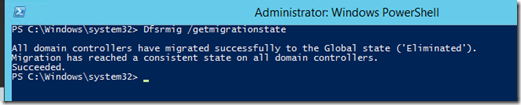
We followed method one as a just-in-case during business hours. No hiccups were experienced and once done:

image

A simple way to keep an eye on things is to open File Explorer and plug the following in the Address Bar: \\Domain.Com

So long as DNS is healthy and SYSVOL and NETLOGON are there the process is humming along as expected.

NOTE: Make sure a backup is taken of the PDCe and a System State as well!

Philip Elder
Microsoft High Availability MVP
MPECS Inc.
Co-Author: SBS 2008 Blueprint Book
www.s2d.rocks !
Our Web Site
Our Cloud Service

Wednesday, 1 November 2017

Error Fix: Event 7034 Service Control Manager - Server, BITS, Task Scheduler, Windows Management Instrumentation, Shell Hardware Detection Crashes

This has just recently started to pop up on networks we manage.

All of the following are Event ID 7034 Service Control Manager service terminated messages:

  • The Windows Update service terminated unexpectedly. It has done this 3 time(s).
  • The Windows Management Instrumentation service terminated unexpectedly. It has done this 3 time(s).
  • The Shell Hardware Detection service terminated unexpectedly. It has done this 3 time(s).
  • The Remote Desktop Configuration service terminated unexpectedly. It has done this 3 time(s).
  • The Task Scheduler service terminated unexpectedly. It has done this 3 time(s).
  • The User Profile Service service terminated unexpectedly. It has done this 3 time(s).
  • The Server service terminated unexpectedly. It has done this 3 time(s).
  • The IP Helper service terminated unexpectedly. It has done this 2 time(s).
  • The Device Setup Manager service terminated unexpectedly. It has done this 3 time(s).
  • The Certificate Propagation service terminated unexpectedly. It has done this 2 time(s).
  • The Background Intelligent Transfer Service service terminated unexpectedly. It has done this 3 time(s).
  • The System Event Notification Service service terminated unexpectedly. It has done this 2 time(s).

It turns out that all of the above are tied into SVCHost.exe and guess what:

Log Name: Application
Source: Application Error
Date: 10/23/2017 5:09:57 PM
Event ID: 1000
Task Category: (100)
Level: Error
Keywords: Classic
Computer: ABC-Server.domain.com
Description:
Faulting application name: svchost.exe_DsmSvc, version: 6.3.9600.16384, time stamp: 0x5215dfe3
Faulting module name: DeviceDriverRetrievalClient.dll, version: 6.3.9600.16384, time stamp: 0x5215ece7
Exception code: 0xc0000005
Fault offset: 0x00000000000044d2
Faulting process id: 0x138
Faulting application start time: 0x01d34c5c3f589fe7
Faulting application path: C:\Windows\system32\svchost.exe
Faulting module path: C:\Windows\System32\DeviceDriverRetrievalClient.dll

A contractor of ours that we deployed a greenfield AD and cluster for was the one who figured it out. WSUS and the Group Policy settings were deployed this last weekend with everything in our Cloud Stack running smoothly until then.

The weird thing is, we have had these settings in place for years now without any issues.

The following are the settings changed at both sites:

System/Device Installation
Specify search order for device driver source locations: Not Configured
2014-02-11: Enabled by Philip Elder.
2017-11-01: Not Configured by Philip Elder.
Specify the search server for device driver updates: Not Configured
2014-02-11: Enabled by Philip Elder.
2017-11-01: Not Configured by Philip Elder.

System/Driver Installation
Turn off Windows Update device driver search prompt: Not Configured
2017-10-28: Disabled by Philip Elder.
2017-11-1: Returned to Not Configured by Philip Elder

System/Internet Communication Management/Internet Communication settings
Turn off Windows Update device driver searching: Not Configured
2014-02-11: Disabled by Philip Elder.
2017-11-01: Not Configured by Philip Elder.

It is important to note that when working with Group Policy settings a comment should be made in each setting if at all possible. Then, when it comes to troubleshooting an errant behaviour that turns out to be Group Policy related we are better able to figure out where the setting is and when it was set. In some cases, a short description of the "Why" the setting was made helps.

Philip Elder
Microsoft High Availability MVP
MPECS Inc.
Co-Author: SBS 2008 Blueprint Book
Our Cloud Service
Twitter: @MPECSInc

Tuesday, 31 March 2015

Our Default OU and Group Policy Structure

Over the years between our experiences with the Small Business Server Organizational Unit (OU) and Group Policy Object (GPO) structures plus wearing out a few copies of Jeremy Moskowitz’s books we’ve come to hone our Group Policy configurations down to an _almost_ science. ;)

Today, with our own Small Business Solution (SBS) in production we use the following OU and GPO structure as a starting point:

imageWe tailor all GPO settings around the intended recipient of those settings.

We use the WMI filters to delineate desktop OS versus Server and DC based operating systems. Note that the GPOs for those two sets of systems are not present in the above snip.

They would be:

  • Default Update Services Client Computers Policy
  • Default Update Services Server Computers Policy

Both enable Client-Side Targeting for WSUS managed updating.

NOTE: We _never_ edit the Default Domain Policy or the Default Domain Controllers Policy. EVER!

When we need something we create the GPO and link it to the OU containing the intended recipient objects or we scope the GPO via Security Group membership.

Some GP Pearls

All GPOs scoped to computers have the User Configuration settings disabled while GPOs scoped to users have the Computer Configuration settings disabled.

image

We don’t use Group Policy Loopback Processing. There’s just too much room for unintended consequences. Our structure above gives us the flexibility we need to hone our GPO settings down to a user or computer if need be.

Filters are OU membership, Security Group membership, or WMI Filtering.

GPO settings are like Cascading Style Sheets. Settings cascade from the domain level down through the OU structure to the recipient object. The closer the GPO to that object the more weight that GPO’s settings have.

We do not duplicate settings or put opposite settings in GPOs further down the OU structure. We create and link our GPOs accordingly.

We always enable the Group Policy Central Store (blog post) on our DCs. This makes things so much easier in the long run!

We always enable the AD Recycle Bin and if at all possible have the Forest and Domain at the latest available OS version level.

We test any intended changes we intend to make in a lab setting on a restored version of our client’s networks first! We test _any_ and _all_ intended settings changes/additions in a lab first!

Philip Elder
Microsoft Cluster MVP
MPECS Inc.
Co-Author: SBS 2008 Blueprint Book

Thursday, 4 December 2014

Microsoft Ups Support Ticket to $499 – We Have a Great Alternative: Third Tier!

It seems that this may, or may not, depending on one’s thoughts of how Microsoft sees IT Pros in today’s “Cloud First Mobile First” be another shot at IT Pros that provide much of the front line support to SMB/SME clients.

I’ve been helping out with Third Tier for well over a year and a half now. I’ve been privileged to work on a team of amazing folks as well as work with a great group of IT Pros.

I believe that we at Third Tier offer a viable alternative to Microsoft’s $499 ticket (though I’m not sure what that will work out to in Canada as we pay substantially more than the US equivalent) for spot support or even ongoing support needs.

Given the experience our team has the Third Tier rate of $175/Hour is very reasonable. Active Directory, Exchange, Remote Desktop Services, Hyper-V, VMware, Cluster, and very soon a number of key vertical products and services to help our IT Pros get the job done right the first time!

Third Tier offers a Micro Staffing program where we can be a part of your IT Pro team for ongoing support challenges or staffing challenges. We can be a part of your team for a very reasonable cost.

I’m also excited about some of the things we’ve been working on at Third Tier to provide our IT Pros with a one-stop solution for their data centre that will allow them to provide IaaS and even our SBS (Small Business Solution) at a very reasonable cost per seat! More to come on that soon.

One final thought. If one is caught in a bind with a server down situation then the Microsoft ticket may be the best way. With Action Pack we still get BizCrit (Business Critical) support though via a call back model.

Our response model tends towards scheduled time for tickets as opposed to crash responses. So, please keep that in mind.

Here are some of the areas we can help you with:

  • Disaster Recovery Planning and Practice
  • Infrastructure planning, migration, support, and recovery
  • Active Directory and Group Policy planning, support, and recovery
  • Remote Desktop Services planning, support, and recovery
  • Exchange planning, migration, support, and recovery
  • SQL planning, migration, support, and recovery
  • Hyper-V planning, support, and recovery
  • Virtualization Solution Performance planning and support
  • Specialized Bookkeeping Support and Services
  • IT Business Models, Plans, Direction, Vision, and More

Whatever the task, we have a team member that can help. Not only that, one can expect the task to be done in short order and in a professional manner.

If you have not checked us out before please do now.

Philip Elder
Microsoft Cluster MVP
MPECS Inc.
Co-Author: SBS 2008 Blueprint Book

Chef de partie in the SMBKitchen ASP Project
Find out more at
Third Tier: Enterprise Solutions for Small Business

Tuesday, 25 March 2014

Use Group Policy Preferences to Reveal Extensions in Windows Explorer

We have a number of different default Group Policy Objects that are set up and linked to specific Organizational Units.

With the advent of a flat OU setup in Windows Server Essentials we made an active decision to maintain a similar OU structure to Small Business Server Standard as it made more sense from so many perspectives.

One of our default GPOs that is created and linked at the domain level is the Default Domain User Security Policy. Once created we edit the GPO's properties to disable Computer Configuration settings and set a comment in place for the date created and by whom.

image

In this GPO we have a number of settings but the one we are focusing on here has to do with the recent RTF zero-day vulnerability we are hearing about.

image

Under User Configuration --> Preferences --> Control Panel Settings --> Folder Options we see the above.

We set Show hidden files and folders and uncheck Hide extensions for known file types.

image

Since these settings are user oriented they will be picked up by users on their next logon.

Note that while these settings help users to understand what they are seeing nothing replaces training users to hover over links, not click on links in an e-mail, or be cautious about the sites they visit.

Philip Elder
Microsoft Cluster MVP
MPECS Inc.
Co-Author: SBS 2008 Blueprint Book

Chef de partie in the SMBKitchen ASP Project
Find out more at
Third Tier: Enterprise Solutions for Small Business

Monday, 26 August 2013

Domain Join Error: Cannot Complete This Function

In our newly recovered SBS 2008 environment we have not restored our client's Windows Server 2012 DC.

When attempting to join a freshly installed Windows 7 VM via http://connect we hit the following error:

13-08-26 BIO-Recovery - 02 Cannot complete this function ERROR

Connect Computer Error Details

ERROR: Connecting to the network

Cannot complete this function

Now, we then went and tried to join the VM manually and this is what we hit:

image

Computer Name/Domain Changes

The following error occurred attempting to join the domain "domain.local":

Cannot complete this function.

After verifying that DHCP was only handing out the recovered SBS as the only DNS server we went on to clean out DSSite.msc of the secondary DC and then on to DNS to clean up domain.local and _msdcs.domain.local.

Once we cleaned out the references to the now absent DC we had a successful domain join.

Moral of the story: If a now defunct DC still exists in Active Directory Sites and Services and/or DNS then clean-up including metadata clean-up (KB216498) may be required.

Philip Elder
MPECS Inc.
Microsoft Small Business Specialists
Co-Author: SBS 2008 Blueprint Book

Chef de partie in the SMBKitchen
Find out more at
www.thirdtier.net/enterprise-solutions-for-small-business/

Windows Live Writer

Friday, 19 July 2013

Some Thoughts on the Need for a Physical DC for Windows Server 2012 Hyper-V Clusters

Introduced in Windows Server 2012 was the ability to cold-boot a Hyper-V cluster without a DC present outside of the cluster setup.

One still needs Active Directory up and running _prior_ to standing up a new cluster in a greenfield deployment but that is pretty much the only “requirement” as far as DCs and clusters go.

The above KB tells us that we can make an exception in that greenfield setup to actually DCPromo _all_ of the nodes prior to standing up the cluster. Then we have our AD and are good to go so to speak.

We, however, prefer to have a standalone DC in place prior to running a greenfield cluster setup or introduce a new physical server box with Windows Server Standard that will be DCPromod into the existing domain and remain after the existing server systems are retired.

Why do we do this?

  • A separate/independent DC is needed for standing up a new cluster.
    • We don’t support the idea of running a DCPromo on all of the nodes in a new cluster and then backing them out afterwards.
  • DNS is absolutely critical when working on a cluster in a recovery/systems down situation.
    • No DNS can mean no RSAT management of the nodes.
  • AD can be needed for authentication purposes when making changes on the nodes.
    • We don’t log into the nodes very often. So, in a setting where domain admin credentials change on a somewhat regular basis we could be locked out.
  • Constrained Delegation for access to resources hosted elsewhere on the network can break without a live DC.
    • No access to that recovery ISO that we needed yesterday. :(
  • A physical DC is needed for high load VMs where timing gets skewed****.

For the cost of a small server and a Windows Server Standard license we can avoid so many headaches in the event that something goes wrong and we need to go into troubleshooting and recovery mode with our cluster.

Depending on the situation one can also build a fairly robust server configuration for that independent DC with a lot of storage. This is our preference where our cluster storage is fairly close to 100% utilized with dedicated LUNs for those VHD/VHDX files.

Then, if we run into a situation where an admin accidentally snapshots something and the VM goes Paused-Critical (previous blog post) we have some free storage to combine the AVHD and VHD files.

Keep in mind that we are talking about a two, three, or four node cluster running in a smaller setting where there may not be any other DCs present beyond the main office.

If there are branch offices with a local domain controller present one needs to carefully evaluate as to whether that standalone DC in the main office should be left out of the picture. Even in this type of situation we prefer to have an independent DC in the main office.

Philip Elder
MPECS Inc.
Microsoft Small Business Specialists
Co-Author: SBS 2008 Blueprint Book

Chef de partie in the SMBKitchen
Find out more at
www.thirdtier.net/enterprise-solutions-for-small-business/

Windows Live Writer

Tuesday, 4 June 2013

DNS on the Client: An Apology and a Learning Lesson

Well, as mentioned on the final line in our previous post here:

It is our job as IT “Professionals” to know the “WHY” things work so that we can set things up properly.”

And, thanks to my fellow MVP Dave Shackleford taking the time to make things a bit clearer in the comments of the blog post, I now have a clearer picture of DNS on the client side.

My mistake was pulling the server round-robin structures into client.

In the case of the client, it will _always_ poll the primary DNS (DNS0 on the NIC/DHCP) server for its resolution needs. If for any reason something happens to the primary to cause it to not answer the client will move to the secondary DNS (DNS1 on the NIC/DHCP) and poll that server for about an hour.

So, my apologies for the misleading information. Lesson learned.

And, as Dave points out, and is our experience, if something causes a break between the primary DNS server and the client moves to the router or an Internet based DNS server that client will not move back in-house for a period of time.

What this means is that we still stand by our original premise on how the on-premises network should be configured to only poll DNS servers internally.

In a pinch the edge device can be set to deliver DHCP and DNS to clients if the only DC/DNS server goes down or a secondary DC can have the DHCP Role enabled but not online for backup purposes.

Thanks again for reading! :)

Philip Elder
MPECS Inc.
Microsoft Small Business Specialists
Co-Author: SBS 2008 Blueprint Book

Chef de partie in the SMBKitchen
Find out more at
www.thirdtier.net/enterprise-solutions-for-small-business/

Windows Live Writer

Tuesday, 21 May 2013

Repeat After Me: DHCP and DNS Belong on a DC

When configuring any network one needs to have an understanding of just how DNS works.

If DNS is not set up correctly there are so many things that break it is not funny.

Unlike mail routing (MX records) that offer a priority system for directing mail to the final destination where the system compensates for an offline mail server DNS operates in a round robin fashion.

So, if DHCP is set up on a router and delivers the following IPs for the client’s DNS queries:

  • 192.168.99.5 (local DC)
  • 192.168.99.1 (router)
  • 8.8.8.8 (Google DNS server)

Guess how many times the client’s on-premises resource DNS queries, in general, will fail.

If you guessed “67%” then you would be right.

It seems that folks are missing the reason for “Domain” in “Domain Naming System” or DNS for short.

The primary excuse we’ve heard so far to set the above DNS server IP settings on clients and even Remote Desktop Services servers and other servers is:

  • I want my clients to be able to browse the Internet if the DC and DNS goes offline.

There is, however, a fatal flaw in that line of reason . . . the missing “Domain” in DNS.

Or, to be blunt: A lack of understanding how DNS works on-premises and on the Internet and why the two are separate from each other.

Let’s have a look at this very crude drawing:

image

The left hand box is the on-premises Domain network. On that network MYDC is authoritative for that domain. Everything inside the box boundary for the network belongs to that DC and its on-premises DNS setup.

MYDC is the Start of Authority (SOA) for that domain (DOMAIN.LOCAL).

Being that our MYDC has the SOA means that no other DNS server _anywhere on the planet_ will be an authority for that domain. At least, for _that_ particular domain name in that particular location.

Not to mention the Top Level Domain (TLD) .LOCAL is not to be found anywhere on the Internet either.

What that means is that any client that queries DNS where MYSQL is will get the correct IP address from the DC that hosts the on-premises _domain’s_ DNS because that server is _authoritative_ for that domain.

Now, what happens on the client if they query DNS for MYSQL.DOMAIN.LOCAL and Google/OpenDNS server IPs are on the client’s DNS “where to query” server list and they respond?

That query goes OUTSIDE of the domain network to Google or OpenDNS and the response back is, “I have no clue who, what, or where the chicken DOMAIN.LOCAL is. Check ROOT SERVERS.” And of course, they answer same.

So, we have 67% of our on-premises queries failing DNS resolution.

Let’s think about that for a moment.

. . .

67% of our DNS queries are FAILING.

That means poor network performance, network print problems, LoBs that depend on database/SQL connections losing their connections, improper RDP routing, and so much more.

The _proper_ way to configure a domain’s DNS is as follows:

  • On the only DC on the network
    • AD and DNS are properly integrated
    • DHCP on the server
      • Name Protection Set (Ticks on 2003):
      • image
      • Admin credentials set to update DNS with IP:image
  • The DC NIC properties:
    • IP: 192.168.33.5
    • SN: 255.255.255.0
    • GW: 192.168.33.1
    • DNS0: 192.168.33.5 (SELF ONLY)
      • AD integrated DNS takes care of delivering IPs for other DC with DNS on the network. There is NO reason to put any other IP in DNS1.
  • DHCP configuration:
    • Scope Options:
      • 003 Router: 192.168.33.1
      • 006 DNS Servers: 192.168.33.5 (and other AD integrated DC/DNS server IPs)
      • 015 DNS Domain Name: DOMAIN.LOCAL
    • That’s it. Google/OpenDNS server IPs DO NOT belong here.
  • DNS Server service
    • Forwarders Tab
      • OpenDNS IPs or ISP’s DNS server IPs (at least two).

DHCP belongs on the server. Period. Full-stop.

If DHCP is on the router with DNS pointers to Google/OpenDNS or ISP DNS servers served to the on-premises DHCP clients then changes need to be made to put DHCP back where it belongs. . . on the DC.

If there is a concern about the only DC going down and leaving the clients helpless then make sure the backups are good.

If a need for redundancy is there then install an HP MicroServer with a Standard license and DCPromo that box into the domain. Make sure replication and AD integrated DNS are functioning between the now two DCs on the domain (we’ve seen situations where the second DC or RODC had no SYSVOL due to broken replication).

Or install an online cold backup device but make sure that the primary server has Software Assurance as Cold Backup is an SA only option.

For Small Business Server networks there _is_ a caveat to having another DC on the domain when in a disaster recovery situation.

In the end, a good chunk of the problems on a network such as connectivity, Line of Business application problems, performance, and more can have their source in an improperly configured DNS structure.

It is our job as IT “Professionals” to know the “WHY” things work so that we can set things up properly.

Philip Elder
MPECS Inc.
Microsoft Small Business Specialists
Co-Author: SBS 2008 Blueprint Book

Chef de partie in the SMBKitchen
Find out more at
www.thirdtier.net/enterprise-solutions-for-small-business/

Windows Live Writer
Monday, 28 January 2013

Learning Group Policy the Jeremy Moskowitz Way

Look what arrived in the mail:

WP_20130128_010

Jeremy’s new _signed_ Group Policy book. :)

Jeremy is the best source for anything Group Policy. We’d surely love to attend one of his full week brain busting GP courses but timing for us has been difficult.

We highly recommend picking up a copy of this book. It is a handy reference and one of the best ways to learn Group Policy outside of one of his courses.

Philip Elder
MPECS Inc.
Microsoft Small Business Specialists
Co-Author: SBS 2008 Blueprint Book

Windows Live Writer

Tuesday, 18 September 2012

Group Policy Search on MSDN and a Windows Phone 7 App

Looking for a specific Group Policy setting?

image

This search tool will be very helpful when there is a need to figure out a setting or series of settings for a particular environment.

There is also a Windows Phone 7 App that works just as well as the online version. Check it out!

Hat Tip: Shay Levy

Philip Elder
MPECS Inc.
Microsoft Small Business Specialists
Co-Author: SBS 2008 Blueprint Book

Windows Live Writer

Friday, 24 August 2012

Active Directory Replication Status Tool

The Active Directory Replication Status Tool is definitely one that should be installed on all management (RSAT) machines that domain administrators use. It _requires_ .NET 4.0 and .NET 3.5.1 so may not be practical on domain DCs depending on security configurations for them.

image

This tool along with the required .NET installer files are definitely required on the Technician's Thumb Drive (Blog Category - check it out as there are lot's of goodies in there).

Hat Tip: Susan Bradley

Philip Elder
MPECS Inc.
Microsoft Small Business Specialists
Co-Author: SBS 2008 Blueprint Book

*Our original iMac was stolen (previous blog post). We now have a new MacBook Pro courtesy of Vlad Mazek, owner of OWN.

Windows Live Writer

Sunday, 29 July 2012

How To Clean Up AD/DNS/Replication Links After A Failed SBS Destination OS Install or DCPromo

UPDATE: We moved the NTDSUtil step to the front of the pack.

Whenever we run into problems with getting the destination server online, for whatever reason, we have the option to do the following:

  • Restore the System State.
    • This means running the SourceTool again.
  • Restore the Server
    • Restore from ShadowProtect or other backup.
    • Caveat is that any incoming mail since the backup could be lost.
  • Clean up the Source Server
    • Clean DNS
    • Clean AD Sites & Services
    • Verify Global Catalogue
    • Seize FSMO Roles

Please keep in mind that these instructions are specific to situations where our destination has not made it far enough to install Exchange and its connectors on the Source SBS 2003 server.

We need to run the NTDSUtil step first:

We moved the NTDSUtil step to the fore as there are a few additional underlying bits that the utility removes that may help in the next SBS 2011 Standard OS run.

Our second step is in Active Directory Sites & Services

  • Remove the replication links for both servers
  • Source Server:
    • Delete NTDS Settings
    • Delete the Server Container
  • NOTE:

In Active Directory Users and Computers

  • Remove the Destination SBS 2011 from the Domain Controllers container

In DNS Forward Lookup Zones and Reverse Lookup Zones

  • Remove all references to the Destination Server in _msdcs.domain.local
    • DNS A Records
    • DNS N (Name Server tab)
    • IP Address
  • Remove all references to the Destination Server in Domain.Local
    • DNS A Records
    • DNS N (Name Server tab)
    • IP Address
  • Remove all references to the Destination Server in 192.168.99.x Subnet
    • DNS A
    • DNS N (Name Server tab)
    • IP Address

Once all references in AD and DNS have been removed we need to verify that our source is still a Global Catalogue server. This is done in AD Sites & Services.

Then, we reverse the FSMO Role transfer that happens early in the SBS 2011 OS install and configuration process.

We can verify the FSMO Role locations at the command prompt:

  • netdom query fsmo [Enter]

Once we have completed our clean-up steps we are ready to make our SBS 2011 Standard OS install run attempt.

If errors were due to a Schema Mismatch error then we check the AD version here:

  • Registry: HKLM\SYSTEM\CurrentControlSet\Services\NTDS\Parameters\<Schema Version>
    • Windows 2000 RTM with all Service packs = Schema version 13
    • Windows Server 2003 RTM with all Service packs = Schema version 30
    • Windows Server 2003 R2 RTM with all Service packs = Schema version 31
    • Windows Server 2008 RTM with all Service packs = Schema version 44
    • Windows Server 2008 R2 RTM with all Service packs = Schema version 47
    • Windows Server 2012 RC = Schema version 56

Our particular Schema version when working with SBS 2011 Standard after the SourcePrep Tool is run successfully is 47.

NOTE: The above steps are destructive! Please have a backup and make sure to verify what is being deleted _before_ the object is deleted!

Philip Elder
MPECS Inc.
Microsoft Small Business Specialists
Co-Author: SBS 2008 Blueprint Book

*Our original iMac was stolen (previous blog post). We now have a new MacBook Pro courtesy of Vlad Mazek, owner of OWN.

Windows Live Writer

Friday, 27 July 2012

The ONLY Place To Snapshot A DC VM is in the Lab Right?

And that is only to work through all of the KBs that follow in this blog post to gain AD recovery skills right?

On one of the lists we are a part of there is an active discussion going on about having a second DC on a smaller network for "redundancy" purposes.

When it comes to an SBS Standard based network there are some caveats for that second DC whether it is virtual or physical:

As we have learned in our past recovery situations that second DC can actually be a hindrance instead of a help when there is a need to restore Small Business Server Standard.

Virtual DCs

Now, when everything is virtualized one may be tempted to snapshot a DC prior to making any changes to provide a "fall-back" if things go sideways.

Some things to consider via the mentioned KB:

  • DC should remain running continuously.
  • Do not pause the DC VM for long periods of time.
    • Problems may happen.
  • System State backups are critical but have a shelf life.
    • In multi-DC environments daily DC System State backups of at least two (2) DCs should be the norm.

When a DC is recovered back from a snapshot the following KB may be applicable:

Now, take all of the above and read the following:

The point we are making?

It's okay to have a DC or three in a virtual lab that are used to break and tear apart then step back using a snapshot to then run through the above processes to figure out the recovery path of a restored-from-snapshot DC VM.

However, in a production environment, whether it be our own or our client's location, DC VM snapshots should _never_ be used. Period.

A good backup, that is one that has been fully recovered to bare metal and/or hypervisor, along with a System State backup, are the only way to go. Then, being familiar with the above processes and caveats to having multiple DCs in a production environment is a must.

WS Backup & StorageCraft ShadowProtect

All of our current, as of Windows Server 2008 R2, smaller client networks with the exception of those running on Hyper-V failover clusters (Win2K8 R2) are running a single DC.

In most cases that DC is Small Business Server 2008/2011 Standard.

Why?

Because we test our client's backups on a quarterly basis as part of our ongoing services we provide them.

Test restoring our client's systems on a regular basis gives us full confidence in our ability to restore their single SBS/DC using ShadowProtect and in some cases the native Windows Server Backup.

Introducing a second DC into the mix, in the case of SBS networks, brings about caveats that we need not deal with (see first blog post link) especially when times may be stressful already.

The key to being confident in a single DC environment is in the backup solution set.

To repeat: Confidence in our backup solution is the key to our deploying a single DC solution.

If we are not versed in restoring the backups we deploy at our client sites, at that on a regular basis, then how can we have the confidence to recommend a single DC solution to our clients? If we don't restore our client's backups how will we be aware of what is needed if things really go sideways and a restore is required?

We _are_ confident in our backup solutions built upon Windows Server Backup and now especially on StorageCraft's ShadowProtect Version 4. SP v4 has proven that once again we will be deploying ShadowProtect at all of our client sites as the Hyper-V restore throughput problems we saw in the past are no more.

ShadowProtect's Hardware Independent Restore feature is also a must for P2V and V2V restore situations even between Hypervisor versions.

In the end, it is our preference to keep a single DC in our small to medium solution sets. KISS is our preference. And, a single DC with no snapshots taken follows that line of simplicity. Plus, recovery becomes that much simpler.

Philip Elder
MPECS Inc.
Microsoft Small Business Specialists
Co-Author: SBS 2008 Blueprint Book

*Our original iMac was stolen (previous blog post). We now have a new MacBook Pro courtesy of Vlad Mazek, owner of OWN.

Windows Live Writer

Monday, 22 August 2011

SBS 2008 and 2011 Active Directory Password Complexity

To manage the password setup in SBS 2008 and SBS 2011 Active Directory we use the SBS Console:

  1. Open the SBS Console.
  2. Click on the Users and Groups tab.
  3. If not already selected, click on the Users tab.
  4. Under Tasks click on Change password policies.
    • image
  5. Set the password policy settings accordingly.
    • image
  6. Click Apply and OK.
    1. NOTE: All users will be required to change their passwords on their next log on if any changes are made to these settings!

This wizard is normally used during the set up process only.

If this wizard is used somewhere in the middle of an SBS Migration or SBS Swing Migration the consequences may be dire. It is best left as the final step _after_ at least one week of the post-migrated server being in production.

Philip Elder
MPECS Inc.
Microsoft Small Business Specialists
Co-Author: SBS 2008 Blueprint Book

*Our original iMac was stolen (previous blog post). We now have a new MacBook Pro courtesy of Vlad Mazek, owner of OWN.

Windows Live Writer

Thursday, 7 July 2011

Transitioning From SBS At the 75 User/Device Limit How-To

The link came via the SBS2K Yahoo List.

Chris Puckett of Microsoft provides an excellent big picture view of how one would go about removing SBS from the picture once a client has grown past the 75 user/device limit.

The post by Chris:

SBS 2011 Standard still has a 75 user limit, so if you're already approaching 75 it might make more sense to go to Windows Server.  You can migrate away from SBS 2008 by adding new server(s) running Windows Server 2008 R2 as domain controllers to the domain.  Then add Exchange Server 2007/2010 server to migrate your mail to and a Sharepoint Server for that data.

There is no single document for this scenario, but you can treat SBS 2008 as Windows 2008 DC and Exchange/IIS server. The steps would not be much different. The only caveat is once you move the FSMO roles you have 21 days to complete the rest of the migration process and you would have to take care of licensing requirements
A basic outline would be

  1. ADprep SBS 2008 with the 08 R2 schema.
  2. Join WS08R2 DC as a secondary domain controller in the SBS 2008 Domain
  3. Install Exchange 2k7/2k10 on same server or different server.
  4. Move mailboxes/public folders, address book generation etc to the new server.. (there should be a guide on migrating exchange 2007 to 2010 on technet)
  5. Migrate any IIS websites they wish to keep
  6. Migrate any data they wish to keep to the new server (Sharepoint)
  7. If folder redirection/roaming profiles configured move that stuff over to the new server by updating the user account/group policy settings.
  8. Move FSMO roles and GC to WS08R2 (Might want to wait a few days to make sure everything is remaining operational as you have 21 days from this point).
  9. Uninstall Exchange 2007 from SBS 2008
  10. DCPromo down SBS 2008
  11. Remove the SBS 2008 server from the network

We have not run into this situation with any of our clients yet, but there are a few that are growing at a rate that may place them in this situation in the next year or two.

The above gives us an idea of how to go about keeping the core SBS features, but there are a few others that need to be considered when transitioning away from SBS:

  1. Replacing the TS Gateway services setup to maintain remote connectivity to internal desktops and RDS services.
  2. Replacing the Remote Web Workplace/Access portal with the Win2K8 R2 RDWeb application along with customizing it to meet a similar functionality to RWW/RWA.
  3. Utilizing an MMC structure much like the SBS Native Tools to start with but possibly looking to System Center for an SBS Console like management experience.

Philip Elder
MPECS Inc.
Microsoft Small Business Specialists
Co-Author: SBS 2008 Blueprint Book

*Our original iMac was stolen (previous blog post). We now have a new MacBook Pro courtesy of Vlad Mazek, owner of OWN.

Windows Live Writer

Tuesday, 7 June 2011

For A Good Read – Microsoft’s Windows 7 Threats and Countermeasures Guide

Microsoft recently released a complete guide to the security settings in Windows 7 and Windows Server 2008 R2 that provides a full explanation of each setting.

image

The guide is available here:

The document weighs in at 387 pages so it is quite comprehensive in its explanation of the various ways and means of securing and monitoring a Windows network.

On page 47 we find:

Audit object access
This security audit policy setting enables auditing of the event that is generated by a user who accesses an object—for example, a file, folder, registry key, or printer—that has a SACL that specifies a requirement for auditing.

How many of us have had to try and figure out which user or users are “accidentally” deleting data on a client’s network? Auditing object access is the way to find out.

Check out the guide as it is well worth it to read through and also to use as a reference.

Hat Tip: Yuri Diogenes

Philip Elder
MPECS Inc.
Microsoft Small Business Specialists
Co-Author: SBS 2008 Blueprint Book

*Our original iMac was stolen (previous blog post). We now have a new MacBook Pro courtesy of Vlad Mazek, owner of OWN.

Windows Live Writer

Tuesday, 31 May 2011

SBS 2003 to SBS 2011 AD and DNS Problem– _msdcs Folder Is Empty?

When we were performing the last clean up steps in our client’s SBS 2003 to SBS 2011 migration by removing all references to the source server’s IP, DNS A, and NS references in DNS Management we encountered this bit of strangeness:

image

Note that the folder icon is wrong and there was only an NS reference in that folder.

Searching around produced a lot of fluff with no real substance on how to fix the problem.

Our own SBS 2011 DNS Domain.local zone subfolder looks like the following:

image

After posing the question to some fellow MVPs, Michael B. Smith gave us the instructions we needed to fix things:

  1. Open Windows Explorer
  2. Navigate to: C:\Windows\System32\Config\
  3. Open an elevated command prompt.
  4. Net Stop NetLogon [Enter]
  5. Delete the following two files in the Config folder:
    • netlogon.dnb
    • netlogon.dns
    • image
  6. Net Start NetLogon [Enter]
  7. Verify in DNS that the _msdcs folder is now properly populated.
    • image

Thanks Michael!

Philip Elder
MPECS Inc.
Microsoft Small Business Specialists
Co-Author: SBS 2008 Blueprint Book

*Our original iMac was stolen (previous blog post). We now have a new MacBook Pro courtesy of Vlad Mazek, owner of OWN.

Windows Live Writer

Tuesday, 15 March 2011

AD DS Operation Failed – directory service is missing mandatory configuration – Event ID 2091 – FSMO Role Broken

We went to run a DCPromo on a temporary DC to remove it from a domain and received the following error:

image

Active Directory Domain Services Installation Wizard

The operation failed because:

Active Directory Domain Services could not transfer the remaining data in directory partition DC=ForestDNSZones,DC=DOMAIN,DC=LOCAL to Active Directory Domain Controller \\SBS.DOMAIN.LOCAL.

“The directory service is missing mandatory configuration information, and is unable to determine the ownership of floating single-master operation roles.

In the temporary DC’s Event Logs we found the following:

image

Log Name:      Directory Service
Source:        Microsoft-Windows-ActiveDirectory_DomainService
Date:          3/12/2011 12:29:37 PM
Event ID:      2091
Task Category: Replication
Level:         Warning
Keywords:      Classic
User:          ANONYMOUS LOGON
Computer:      TempDC.DOMAIN.LOCAL
Description:

Ownership of the following FSMO role is set to a server which is deleted or does not exist.
 
Operations which require contacting a FSMO operation master will fail until this condition is corrected.
 
FSMO Role: CN=Infrastructure,DC=ForestDnsZones,DC=DOMAIN,DC=LOCAL
FSMO Server DN: CN=NTDS Settings\0ADEL:b3541fc4-50cc-4c12-96be-e5239b314bea,CN=OLD-DC\0ADEL:da50a8ba-dbc7-4219-8d68-ffa03b38c030,CN=Servers,CN=Default-First-Site-Name,CN=Sites,CN=Configuration,DC=DOMAIN,DC=LOCAL
 
User Action:
 
1. Determine which server should hold the role in question.
2. Configuration view may be out of date. If the server in question has been promoted recently, verify that the Configuration partition has replicated from the new server recently.  If the server in question has been demoted recently and the role transferred, verify that this server has replicated the partition (containing the latest role ownership) lately.
3. Determine whether the role is set properly on the FSMO role holder server. If the role is not set, utilize NTDSUTIL.EXE to transfer or seize the role. This may be done using the steps provided in KB articles 255504 and 324801 on http://support.microsoft.com.
4. Verify that replication of the FSMO partition between the FSMO role holder server and this server is occurring successfully.
 
The following operations may be impacted:
Schema: You will no longer be able to modify the schema for this forest.
Domain Naming: You will no longer be able to add or remove domains from this forest.
PDC: You will no longer be able to perform primary domain controller operations, such as Group Policy updates and password resets for non-Active Directory Domain Services accounts.
RID: You will not be able to allocation new security identifiers for new user accounts, computer accounts or security groups.
Infrastructure: Cross-domain name references, such as universal group memberships, will not be updated properly if their target object is moved or renamed.

The referenced OLD-DC was an original Windows Server from eight years ago!

Long story short, make sure to open ADSIEdit _on the affected FSMO Role owner_ and make the necessary changes there. When we tried to change the required settings on TempDC we kept getting errors.

  1. Obtain the correct setting:
    1. On the affected role owner open ADSIEdit.
    2. Click on Default Naming Context [SBS.Domain.Local].
    3. Click on DC=Domain,DC=Local.
    4. Double click on CN=Infrastructure at the bottom of the list of folders.
    5. Locate the fSMORoleOwner attribute and click on it.
    6. Click the Edit button.
    7. CTRL+C to copy the contents of the attribute.
    8. Click CANCEL twice.
  2. Correct the problematic settings:
    1. Right click the ADSI Edit root and click on Connect to…
    2. Use the following connection point:
      1. DC=DomainDNSZones,DC=Domain,DC=Local
      2. image
    3. Click on Default Naming Context [SBS.Domain.Local] to populate it.
    4. Click on DC=DomainDNSZones,DC=Domain,DC=Local folder.
    5. Double click on CN=Infrastructure.
    6. Locate the fSMORoleOwner attribute and click on it.
    7. Click the Edit button.
    8. CTRL+V to paste the correct setting.
    9. Click OK and then Apply.
    10. Repeat steps 2.1-2.9 to correct DC=ForestDNSZones,DC=Domain,DC=Local.

Once the above steps were completed on the FSMO Role owner for Infrastructure we were able to properly demote the temporary DC.

NOTE

The error we kept receiving when trying to edit the FSMO Role owner setting on TempDC was the following:

image

ADSIEdit

Operation failed. Error code: 0x20ae
The role owner attribute could not be read.

000020AE: SvcErr: DSID-03152965, problem 5003 (WILL_NOT_PERFORM), data 0

The above message took a while to decipher that we were being told to move our FSMO editing operations over to the Role Owner!

Further Reading

Philip Elder
MPECS Inc.
Microsoft Small Business Specialists
Co-Author: SBS 2008 Blueprint Book

*Our original iMac was stolen (previous blog post). We now have a new MacBook Pro courtesy of Vlad Mazek, owner of OWN.

Windows Live Writer

Tuesday, 21 September 2010

Create Cluster Wizard Error: An enabled computer object for ‘TD-Cluster-01"’ was found.

We are on our second run through creating a cluster on our own network here.

After selecting the correct subnet for the management network and setting an IP for the cluster administration point we received the following error:

image

Create Cluster Wizard

An enabled computer object for ‘TD-Cluster-01’ was found. This usually means that the name is in use by another computer or cluster network name. If this is not the case then please disable or delete the Active Directory Computer Object.

After opening ADUC on our SBS v7 box we saw the following in our SBSServers OU:

image

We deleted the Computer account out of the SBSComputers OU and also removed the TD-Cluster-01 DNS A record under our domain’s forward lookup zone.

We then clicked Next in the Create Cluster Wizard after they were deleted.

The wizard went on to create the cluster successfully.

image

Philip Elder
MPECS Inc.
Microsoft Small Business Specialists
Co-Author: SBS 2008 Blueprint Book

*Our original iMac was stolen (previous blog post). We now have a new MacBook Pro courtesy of Vlad Mazek, owner of OWN.

Windows Live Writer