Wednesday, 18 November 2009

TechDays Calgary – WSUS Presentation Soon

My presentation on Best Practices in Architecting and Implementing Windows Server Update Services will be starting in just about an hour.

It is the last Server Track presentation of the day.

So far, the content here has been excellent and the quality of the speakers has also been excellent.

It was well worth the trip.

Philip Elder
MPECS Inc.
Microsoft Small Business Specialists
Co-Author: SBS 2008 Blueprint Book

*All Mac on SBS posts will not be written on a Mac until we replace our now missing iMac! (previous blog post)

Windows Live Writer

Tuesday, 17 November 2009

Office 2010 Beta – A Step In The Right Direction

Indeed, the Dev Team has fixed one of the most critical problems with the Release Candidate!

image

The above screenshot is of our own audit notes opened from a remote SharePoint library.

Since we use SharePoint a lot for our document collaboration, having the ability to open SharePoint documents remotely is absolutely critical to the way we do business. That bug put a quick end to the use of Office 2010 Release Candidate in our company.

It looks as though that will change as of tonight!

Philip Elder
MPECS Inc.
Microsoft Small Business Specialists
Co-Author: SBS 2008 Blueprint Book

*Our original iMac was stolen (previous blog post). We now have a new MacBook Pro courtesy of Vlad Mazek, owner of OWN.

Windows Live Writer

Office 2010 Beta Available For Download For TechNet Subscribers

It’s official, the Office 2010 Beta has arrived . . . at least for TechNet Plus subscribers:

image

We shall soon see if Microsoft has addressed some of the issues that plagued us with the Release Candidate as the Beta has been downloaded and will be trialed on the Asus Eee PC that is here in Calgary with me.

Our main concerns:

  • Remote documents stored in a SharePoint library will open properly.
  • Outlook Search does not keep breaking.
  • Recurring Calendar items do not get deleted when only one in the series is deleted.

Philip Elder
MPECS Inc.
Microsoft Small Business Specialists
Co-Author: SBS 2008 Blueprint Book

*Our original iMac was stolen (previous blog post). We now have a new MacBook Pro courtesy of Vlad Mazek, owner of OWN.

Windows Live Writer

TechDays: Three boxes & Hyper-V Server 2008 R2 = High Availability Virtualization

A really inexpensive way to build a High Availability virtualization solution:
+ 3x Core 2 box with Intel-VT enabled.
+ 2 NICs, 3 is better.
+ Switches and cables.
+ TechNet Plus for:
+ Storage Server 2008 for iSCSI Target
+ System Center Virtual Machine Manager
+ Microsoft OSs and servers for VMs

PC's 1 & 2 will have Hyper-V Server 2008 R2 installed.
PC 3 will have Storage Server to host the shared storage.

NIC 1: Local LAN for management.
NIC 2: VMs.
NIC 3: Cluster heartbeat.

From there, putting things together is fairly straight forward.

Another machine can be used to facilitate set up of the HA solution.

We have a few solutions coming that will be built on individual servers as well as on the Intel Modular Server so we will try to build some comprehensive guides for building the HA setup along with its management needs.

Philip

Sent from my SBS Integrated Windows Mobile® phone.
--
ExchangeDefender Message Security provided by MPECS Inc: Click below to verify authenticity
http://www.exchangedefender.com/verify.asp?id=nAHIaqqw011487&from=philipelder@mpecsinc.ca

Monday, 16 November 2009

Sierra Wireless 306 USB Modem Install On The MacBook Pro

We picked up a new Sierra Wireless 306 HSPA cellular modem on Friday.

Unfortunately, our carrier seemingly had issues getting it activated so we had no cellular modem available to us over the weekend. A call from them this morning, and a flip of some sort of switch and we now have connectivity on our Windows machines.

The MacBook Pro did not install the same way for the 306 as the previous Sierra Wireless 598 CDMA 3G modem.

Once the post install reboot was finished, we had the strangest message about a New Network Found when the 306 was plugged into the MacBook Pro.

When we clicked through the message, we were presented with the following nondescript, and really strange window:


09-11-16 Sierra Wireless - New Network.png

Now, our provider did not give us any information to fill out the requested fields.

After searching around for a while, some information on Sierra Wireless's Web site provided a clue as to what we needed to do. We say clue because the instructions linked to do not apply specifically to Snow Leopard as there are differences in the set up routine.

Note that in the above screenshot that the Apply button is no longer available. That is because it was available and clicked on even though no specific information was entered in any of the fields.

Strangely enough, even with the empty fields, the 3G Watcher utility's Connect button showed up after clicking Apply.


09-11-16 Sierra Wireless 3G Watcher.png

The new 3G HSPA network is significantly faster than the "3G" CDMA network that the Sierra Wireless 598 connected to. As a result, we will need to keep an eye on the data usage as a true 3Mb connection can add up very quickly.

Philip Elder

MPECS Inc.

Microsoft Small Business Specialists

Co-Author: SBS 2008 Blueprint Book


*Our original iMac was stolen (previous blog post). We now have a new MacBook Pro courtesy of Vlad Mazek, owner of OWN.

MVP Oliver Sommer Interview at TechEd Europe 2009

Have a few minutes to burn?

Fellow MVP Oliver Sommer, along with other Microsoft MVPs, were interviewed by Karen Young while attending TechEd Europe recently.

Besides Oliver’s interview, there are a number of other Microsoft MVPs from various disciplines interviewed by Ms. Young.

Check them out! :)

Philip Elder
MPECS Inc.
Microsoft Small Business Specialists
Co-Author: SBS 2008 Blueprint Book

*Our original iMac was stolen (previous blog post). We now have a new MacBook Pro courtesy of Vlad Mazek, owner of OWN.

Windows Live Writer

Presenting on WSUS At TechDays In Calgary On Wednesday!

A little while back, Kevin Kaminski gave a Windows 7 presentation to all of us at the Intel Technical Solutions Training event here in Edmonton.

Afterwards he and I got to chatting about various topics including the next TechDays event in Calgary which happens to be running tomorrow and Wednesday.

He was going to be giving three of the presentations at TechDays. After finding out which ones I volunteered to take over the WSUS Architecture presentation.

  • What:
    • TechDays Calgary - D2 S4 - Best Practices in Architecting and Implementing Windows Server Update Services (WSUS)
  • Where:
    • Palomino Room
  • When:
    • Wednesday November 18 @ 14:45Hrs (2:45PM)

So, if you have some time, need to get caught up on some in-depth technical information on Microsoft products in a short period of time, TechDays is the place to do it!

It is worth it.

UPDATE: Added the "I" in "he and I got to chatting" since I missed it the first time!

Philip Elder
MPECS Inc.
Microsoft Small Business Specialists
Co-Author: SBS 2008 Blueprint Book

*Our original iMac was stolen (previous blog post). We now have a new MacBook Pro courtesy of Vlad Mazek, owner of OWN.

Windows Live Writer

Saturday, 14 November 2009

What A BitLocker Encrypted Drive Looks Like On Another PC

It looks like this:

image

After refreshing the view it looks like this:

image

And, in Windows Explorer after clicking on the encrypted partition showing as G: with no file system indicator we get:

image

The above screenshots are from the Tecra S10’s 160GB spindle based hard disk that has since been replaced by an Intel X-25 M 160GB SSD.

The E: partition was the Active one that contained the BCD database and other files needed for the initial boot of the Windows 7 Enterprise.

The E: partition was actually a misguided attempt at setting up BitLocker with Windows 7 since the discovery that Windows 7 would create its own 100MB partition for the boot content was made after the fact.

This time around, we allowed Windows to install into the new SSD without touching any of the partitioning and we now have a BitLocker encrypted SSD in the Tecra S10 with nothing more than a small Active partition. The encryption process looks to be more CPU dependent that drive I/O dependent as the encryption time may have been reduced by 35%.

So, any guesses on whether the data in that encrypted partition is accessible? Perhaps by someone with a lot of horsepower like law enforcement or perhaps an organized crime syndicate of some sort . . . maybe.

For now, with BitLocker we have taken the best possible precautions at protecting the data on that drive and can be reasonably assured that the data will remain intact until we wipe the drive using a DoD 7 pass erase.

For that DoD 7 pass wipe we use a freeware product called Eraser. It is an excellent little utility that allows us to wipe as many drives as this particular system can handle (7+ drives).

Philip Elder
MPECS Inc.
Microsoft Small Business Specialists
Co-Author: SBS 2008 Blueprint Book

*Our original iMac was stolen (previous blog post). We now have a new MacBook Pro courtesy of Vlad Mazek, owner of OWN.

Windows Live Writer

Friday, 13 November 2009

Scorpion Software AuthAnvil Authentication Keyfob Tokens Have Arrived

While at the SMB Nation Fall Conference we took advantage of Scorpion Software’s bundled special.

We had a package arrive not long after we did that with five AuthAnvil tokens in it. Though they are not on the integration To Do list yet.

Once we have migrated our SBS to 2008, we will get in touch with Scorpion to schedule an installation training session that they are providing as part of the package.

Once we have done that, we will then have two factor authentication in place for our own network.

We will then begin to talk to our clients about augmenting their security setup with the AuthAnvil.

Scorpion Software has a good demonstration video here:

Check out some of the auditing features that are demonstrated near the end of the demo video. For folks that have one username for many tasks, AuthAnvil can actually track which user logged in using that account and from where.

This is a pretty neat product and should be a serious consideration for any organization dealing with sensitive client data.

Philip Elder
MPECS Inc.
Microsoft Small Business Specialists
Co-Author: SBS 2008 Blueprint Book

*Our original iMac was stolen (previous blog post). We now have a new MacBook Pro courtesy of Vlad Mazek, owner of OWN.

Windows Live Writer

Replacing a MacBook Pro Drive With An SSD and Upgrading the RAM

Okay, so we found this great video online that shows how to take things apart and put them back together.

Now, in the above case, the replacement hard drive seemingly had an OS already on it and according to the comments he used a cloning method in a previous video to do that.

Well, since the MacBook Pro had already been messed around with, tweaked, and essentially made non-standard, it was time to start fresh anyway.

Once we had the MacBook Pro opened up we started with the memory:

image

Note the Seagate 160GB 5400RPM SATA drive in the bottom left hand corner of the above shot.

We upgraded the memory using Kingston’s 4GB kit:

We then used a 160GB Intel X25-M second generation drive to replace the Maxtor:

image

Now, being that we do _a lot_ of hard drive upgrades and changes with a fresh install of the Windows OS, this process was supposed to be a no-brainer.

But, this is what we were greeted with when the MacBook Mac OS X Snow Leopard DVD booted up:

image

Since Windows would have the drive listed there despite the fact that it was untouched, the above screen was a bit disconcerting at first.

Just in case, we powered the unit down and pulled off the bottom cover to verify that all connections were properly seated which they were.

While we were at it, we tied the SSD up to our data mule via SATA to USB adapter and the drive showed up with no problems.

After installing it back into the MacBook Pro and booting back up into the setup routine, the Utilities menu item seemed to be the next logical place to look … at least for us Mac OS X n00bs anyway! ;)

Under that menu was an item called Disk Utility. We clicked on that and there was the SSD:

image

The only Disk Utility option that permitted us to do anything to the drive was Erase:

image

Note the Format was wrongly set to Case Sensitive. The second run through the OS X Snow Leopard install we left things at their default.

Once the format was finished we saw:

image

Forty minutes later we had a freshly installed Mac OS X and off we went to install the Mac Applications, Office 2008 for Mac, and all of the available updates.

Now, there may be a better way of getting a fresh drive available for OS X install in the Utilities menu, so please feel free to offer your way of doing things.

BTW, the RAM upgrade was actually done before the drive swap. It made a bit of a difference when multiple programs were open when swapping between them.

But, the SSD drive upgrade totally changed the performance characteristics of the MacBook Pro.

  • From off to logon screen is 16 seconds.
  • From logon to full dashboard functionality is less that 5 seconds.
    • The dashboard is pretty full.
  • Shutdown from the point of clicking the final shutdown button is 3 seconds.

The unit was pretty quick relative to the other portables that are used around here, but the SSD has made a huge difference in its performance.

Next up will be to pick up a copy of Parallels and install Windows to enable RWW/RDP and TS Gateway functionality to access client systems for management purposes.

Philip Elder
MPECS Inc.
Microsoft Small Business Specialists
Co-Author: SBS 2008 Blueprint Book

*Our original iMac was stolen (previous blog post). We now have a new MacBook Pro courtesy of Vlad Mazek, owner of OWN.

Windows Live Writer

Thursday, 12 November 2009

MacBook – You can’t turn on FileVault to protect the home folder of this user account.

Ack!

After finally figuring out how to get the MacBook to recognize the new Intel SSD (another post coming on this one), we ran into this lovely roadblock when enabling the home folder encryption setup called FileVault:

image

You can’t turn on FileVault to protect the home folder of this user account.

The home folder is located on a volume that isn’t in Mac OS Extended format.

Um, when we installed OS X 10.6 via the MacBook Pro DVD we chose the Mac OS Extended format for the hard drive. Though, we also included case sensitivity along with journaling.

So, what gives?

A few searches for the error turned up the following:

Essentially, we need to reinstall the OS via the DVD. Since this is a fresh install, it is not a really big deal. Apparently FileVault cannot be enabled when the disk was formatted to include case sensitivity in its structures.

This is a bit weird since the underlying OS for Snow Leopard is a UNIX derivative where case sensitivity has been a part of the OS setup since the beginning.

We have now learned that the type of disk format we use during an initial set up of any Mac will impact future uses of that Mac.

BTW, gotta love the non-descript error eh? It’s not like we haven’t seen those before in the Windows world! ;)

Philip Elder
MPECS Inc.
Microsoft Small Business Specialists
Co-Author: SBS 2008 Blueprint Book

*Our original iMac was stolen (previous blog post). We now have a new MacBook Pro courtesy of Vlad Mazek, owner of OWN.

Windows Live Writer

Using One USB Flash Drive To Install Different Windows OSs

We have run into a bit of a snag when we try and reuse the same USB flash drives to install the various Windows operating systems being installed on laptops, workstations, desktops, and servers.

What we were doing was keeping a copy of the OS in a folder and copying it onto the flash drive after deleting whatever was on the drive. We would rename the drive to indicate what OS was on it.

Well, we have been receiving BCD errors whenever we boot from the the reused flash drive.

So, here is what we do to make sure we get a nice clean start every time.

Software needed:

Now, once we have Virtual CloneDrive installed on the workstation, to keep things simple we create a series of folders with the OS’s name on our workbench system desktop.

We then copy the respective OS’s ISO file into that folder.

When we need to change the OS on the USB flash drive we delete the files on it, mount the ISO using Virtual CloneDrive, and copy that ISO’s content onto the flash drive.

This seems to work with no hassles.

To prep a flash drive for booting on a Vista or 7 machine:

  1. Start –> cmd –> right click and Run As Administrator.
  2. Click through the UAC.
  3. Diskpart [Enter]
  4. List Disk [Enter]
    • A list of disks in the system will appear. The USB flash drive should be pretty obvious due to its small size.
  5. Select Disk x [Enter]
    • Again, select the USB flash drive listed above by number.
  6. Clean [Enter]
  7. Create Partition Primary [Enter]
  8. Select Partition 1 [Enter]
  9. Active [Enter]
  10. Format fs=fat32 quick [Enter]
  11. Assign [Enter]
  12. Exit [Enter]

The autorun dialogue should pop up after completing the above procedure with the list of options available for a newly inserted USB flash drive.

At some point we might actually get into Windows Deployment Services . . . but that will not happen until we actually have some time! 8)

Philip Elder
MPECS Inc.
Microsoft Small Business Specialists
Co-Author: SBS 2008 Blueprint Book

*Our original iMac was stolen (previous blog post). We now have a new MacBook Pro courtesy of Vlad Mazek, owner of OWN.

Windows Live Writer

Force Eject a CD/DVD From the MacBook Pro

In the process of swapping the 160GB 5400RPM Hitachi hard drive for an Intel 160GB second generation SSD, there was a disk in the optical drive that would not come out when the eject button was pressed.

Now, on the MacBook Pro optical drive there is no pinhole for us to use a paperclip or the like to force eject a disk in the drive.

It turns out that all we needed to do was hold down the trackpad button prior to powering up the MacBook Pro.

Sure enough, after holding the button down and powering up the unit out came that disk.

Philip Elder
MPECS Inc.
Microsoft Small Business Specialists
Co-Author: SBS 2008 Blueprint Book

*Our original iMac was stolen (previous blog post). We now have a new MacBook Pro courtesy of Vlad Mazek, owner of OWN.

Windows Live Writer

Trend Micro – Reset the Security Dashboard Password

We are doing the last of our Trend Micro A/V product removals and replacement with Symantec EndPoint Protection.

Our Trend odyssey has unfortunately been long and very painful:

So painful in fact, we paid for a one year SEP subscription and did the R&R for free at all of our clients that had the Trend product installed at.

The password for this last client is not being recognized. So, our notes must be out of date as the password must have been changed without those notes being updated or perhaps the product hiccupped yet again.

To change that admin password:

  1. Go to the <installed drive>\Program Files\Trend Micro\Security server\PCCSRV\Private directory.
  2. Open the ofcserver.ini file using Notepad or any text editor
  3. Look for the Master_Pwd= parameter under the [INI_SERVER_SECTION] section.
  4. Replace the Master_Pwd= value with 70.
    • Remove the !encrypt! portion too.
  5. Save and close the ofcserver.ini file.
  6. Restart TM Security server  Master Service.
  7. Log into the Security dashboard  and type 1 as the password.

We now have the ability to manage if that was what we needed, or now to remove the product completely from all of our workstations and servers on this network.

Philip Elder
MPECS Inc.
Microsoft Small Business Specialists
Co-Author: SBS 2008 Blueprint Book

*Our original iMac was stolen (previous blog post). We now have a new MacBook Pro courtesy of Vlad Mazek, owner of OWN.

Windows Live Writer

Wednesday, 11 November 2009

HP TouchSmart iQ816 Wall Mount Completed and How-To

One of the tasks we needed to accomplish was the wall mounting of an HP TouchSmart iQ816 PC.

The HP recommended VESA compatible mount was set up in such a way that it could only mount to a wall stud as we were not confident in using any form of plugs for such a heavy item.

The product we ended up using to mount the iQ816 was made by Ergotron:
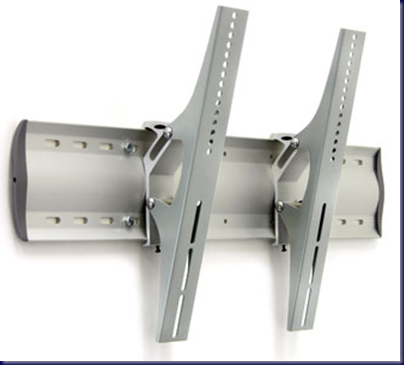
image

Now, the above image and the actual product are a bit deceiving as far as the tilting mechanism was concerned.

After pulling everything out of the box and seeing how loose the two arms seemed to be in the tilt, there was some doubt about how the actual tilt would work.

Once the iQ816 was mounted on the arms and installed onto the wall bracket there was no more doubt though:

image

Somehow there was enough resistance due to the weight of the iQ816 to allow the tilting motion to rest wherever we set it in the Ergotron product’s full range of motion.

Note the minimal clearance between the cupboards above the iQ816. This was quite intentional. To get that clearance though, we needed to remove the plastic cap on the wall bracket and slide the arms holding the iQ816 onto the wall bracket from the side shown. The arms were mounted to the iQ816 before sliding onto the wall bracket.

The cap’s screw hole can be seen in the middle of the cap above.

This next shot is not so clear, but gives a pretty good idea of how the final mounting looks from the front:

image

My best friend will be making up a cap that matches the pattern of the cupboards along with their colour to go over the mounting bracket seen to the right of the iQ816. Unfortunately the wall studs were not quite centered to the opening of the desk.

The TouchSmart units are really neat. Our client really likes them.

Tools needed for this project:

  • Cordless drill (18v Milwaukee in our case)
  • 3/16” drill bit for lag bolt pilot holes.
  • Bit, adapter, and socket to drive in lag bolts.
  • 3/8” socket wrench to finish tightening.
  • Laser sight stud finder with integrated 360Deg levels.
  • 36’ level to level the wall bracket.
  • Contractor quality tape measure.
  • 12” carpenter’s square.

The iQ816 required four spacers between its VESA bracket and the Ergotron arms as well as two washers per bolt when mounting the arms to the back of it.

The tape measure, square, and the laser site on the stud finder were used to pinpoint the desk’s centre relative to the wall behind the iQ816.

Once the studs were located, we measured out where the wall bracket needed to be relative to the placement of the iQ816. We then drilled our first pilot hole for the top left corner of the wall bracket.

Using the level and tape measure we were able to find and drill the other three pilot holes.

We then placed the wall bracket on the wall and started the first lag bolt on the top left. Once the lag bolt had grabbed enough (tacked in place) we then started the top right after which we finished off the two bottom bolts.

When all four bolts were tacked in, we then drove them into the stud using the drill until they were just touching the wall bracket. We left them snug enough to allow us to move the bracket and use the level to make sure that it was indeed level before tightening things up.

Once level, we carefully tightened up the top left lag bolt all the while making sure to maintain level. We then tightened up the bottom right bolt, then the bottom left, and finally the bottom right.

Keep in mind that the lag bolts can be over tightened. If this happens, the wall bracket will actually break through the outer skin of the wall board thus compromising its integrity.

This in turn could lead to a failure of the mount itself as it may loosen up the wall bracket over time as the user tilts the iQ816 up and down and the bracket works its way into the wall board.

Thus, it is important to pay attention and listen to the tightening process while using the socket wrench.

We cleaned up any wall board dust and wood before we installed the proprietary iQ816 VESA bracket onto the back of the unit as well as removed the two feet at the bottom. Supplied with the kit were a couple of caps to go in the holes where the feet used to be.

We then installed the Ergotron arms using the spacers as well as washers against the bolt head as already mentioned.

Once the unit was on the wall bracket, the cap at the end was back on, we wired up the HP power block in between the Ergotron mounting arms behind the iQ816.

Thus, we had a pretty neat and clean desk space for our client to work on.

Philip Elder
MPECS Inc.
Microsoft Small Business Specialists
Co-Author: SBS 2008 Blueprint Book

*Our original iMac was stolen (previous blog post). We now have a new MacBook Pro courtesy of Vlad Mazek, owner of OWN.

Windows Live Writer