Showing posts with label MacBook Pro. Show all posts

Monday, 30 May 2011

Office for Mac Standard 2011 with Service Pack 1

We are in the process of getting ready to re-install the OS on our MacBook Pro.

Prior to doing so, we were looking for the newest Microsoft Office for Mac on the Microsoft Licensing Web site since we have our Office for Mac licensed under Open Value Agreement.

image

The download is a healthy 1,033MB or just a hair over 1GB in size!

The reason for the reload?

The MacBook Pro has been sitting on the shelf due to our being so busy for quite a while now. Guess what? It was not AD integrated and neither the user nor the master passwords were documented. It happens. :)

Fortunately it does not contain any critical data in the encrypted user setup.

Philip Elder
MPECS Inc.
Microsoft Small Business Specialists
Co-Author: SBS 2008 Blueprint Book

*Our original iMac was stolen (previous blog post). We now have a new MacBook Pro courtesy of Vlad Mazek, owner of OWN.

Windows Live Writer

Friday, 8 October 2010

LaCie d2 Quadra 1 TB PC to Mac Fail

We performed a data recovery operation on an older PC that was successful. We were eventually able to create a ShadowProtect image of the original drive.

The customer brought in a LaCie d2 Quadra 1 TB USB hard disk for us to copy the recovered data onto. Once they dropped off the USB drive we set up a partition on it and copied the data over to the drive.

Our customer decided to purchase an iMac to replace the ageing PC that we had here in the shop.

Once we had the data copied onto the LaCie drive we got it back to them.

This was about a week ago.

Since then we have been in almost constant contact as the LaCie absolutely refused to show the partition we created on their iMac. When the drive was plugged into the iMac the LaCie Setup Assistant would pop up and ask them to format the LaCie drive.

We had them bring the d2 Quadra back to the shop and sure enough when we plugged the drive into any of our Windows machines the partition with the recovered data would show up.

So, we plugged the LaCie drive into our own MacBook Pro and up popped the LaCie Setup Assistant. We tried to close that, find the partition in Finder, and to see if the Mac’s disk management utility would see it which all failed.

There seems to be some sort of firmware/software intercept built into the LaCie drive that hides any existing partitions on the drive from any Mac based system even though those partitions show up just fine on a Windows machine.

We burned about half an hour trying to see if there were any other options to gain access to the partitions without having to run that Setup Assistant utility which would probably flatten the drive. There were none that we could see.

So, now we are copying the customer’s recovered data to one of our 2.5” USB drives formatted FAT32 and will loan it to them so that they can get their data onto the Mac.

The LaCie Setup Assistant needs to be tweaked to check for any existing partitions if plugged into a Mac for the first time and allow access to those partitions. We will not be recommending this product to anyone from now on.

Philip Elder
MPECS Inc.
Microsoft Small Business Specialists
Co-Author: SBS 2008 Blueprint Book

*Our original iMac was stolen (previous blog post). We now have a new MacBook Pro courtesy of Vlad Mazek, owner of OWN.

Windows Live Writer

Saturday, 3 April 2010

Test Post from Mars Edit

This is a test post via Mars Edit to see if the signature comes out the way we expect it to. The Preview Pane in Mars Edit may not be telling us exactly how Blogger will be interpreting the code we eventually upload.


UPDATE: While the Mars Edit Preview Pane was putting all of the signature lines together on the same line despite the name, company name, and the MSBS being on separate lines within the code, Blogger interpreted things correctly and inserted a {br /}. Note that the { is a < for coding purposes.


Philip Elder
MPECS Inc.
Microsoft Small Business Specialists


Co-Author: SBS 2008 Blueprint Book

*Our original iMac was stolen (previous blog post). We now have a new MacBook Pro courtesy of Vlad Mazek, owner of OWN.

MacBook Blogging written from Mars Edit

Monday, 14 December 2009

MacBook Pro - Funky TrackPad Behaviour

While working on a BES 4.x install onto an SBS 2003 server, the MacBook Pro was serving as the source for the instructions via Safari: How to install BlackBerry Enterprise Express on a SBS 2003 Premium on the SmallBizServer.net site.

One of the little gizmos that I came back with after shopping around in the Microsoft Company Store was a Plasma Ball (WikiPedia). You know, the one with the little arcs inside of it that will follow the finger when it touches the glass ball.

The kids thing the ball is absolutely _kewl_!

The instruction page was already up, so the MacBook Pro was left alone for a while during the necessary steps on the part of the SmallBizServer.net site that was showing.

After completing those steps, the MacBook Pro's TrackPad was behaving _very_ strange. The mouse pointer would jump about or seemingly right click (CTRL+Click) at will.

It took a few minutes to figure out what was going on because the Tecra S10's touchpad was not affected by the ball at all. One reboot later and the MacBook's TrackPad was still misbehaving.

The realization that happened was the fact that the plasma ball was plugged in after the page was brought up. Sure enough, when the plasma ball was turned off the TrackPad began to behave again.

Now there is a really strange one for the books!

Philip Elder

MPECS Inc.

Microsoft Small Business Specialists

Co-Author: SBS 2008 Blueprint Book

*Our original iMac was stolen (previous blog post). We now have a new MacBook Pro courtesy of Vlad Mazek, owner of OWN.

Windows Live Writer

Monday, 16 November 2009

Sierra Wireless 306 USB Modem Install On The MacBook Pro

We picked up a new Sierra Wireless 306 HSPA cellular modem on Friday.

Unfortunately, our carrier seemingly had issues getting it activated so we had no cellular modem available to us over the weekend. A call from them this morning, and a flip of some sort of switch and we now have connectivity on our Windows machines.

The MacBook Pro did not install the same way for the 306 as the previous Sierra Wireless 598 CDMA 3G modem.

Once the post install reboot was finished, we had the strangest message about a New Network Found when the 306 was plugged into the MacBook Pro.

When we clicked through the message, we were presented with the following nondescript, and really strange window:


09-11-16 Sierra Wireless - New Network.png

Now, our provider did not give us any information to fill out the requested fields.

After searching around for a while, some information on Sierra Wireless's Web site provided a clue as to what we needed to do. We say clue because the instructions linked to do not apply specifically to Snow Leopard as there are differences in the set up routine.

Note that in the above screenshot that the Apply button is no longer available. That is because it was available and clicked on even though no specific information was entered in any of the fields.

Strangely enough, even with the empty fields, the 3G Watcher utility's Connect button showed up after clicking Apply.


09-11-16 Sierra Wireless 3G Watcher.png

The new 3G HSPA network is significantly faster than the "3G" CDMA network that the Sierra Wireless 598 connected to. As a result, we will need to keep an eye on the data usage as a true 3Mb connection can add up very quickly.

Philip Elder

MPECS Inc.

Microsoft Small Business Specialists

Co-Author: SBS 2008 Blueprint Book


*Our original iMac was stolen (previous blog post). We now have a new MacBook Pro courtesy of Vlad Mazek, owner of OWN.

Friday, 13 November 2009

Replacing a MacBook Pro Drive With An SSD and Upgrading the RAM

Okay, so we found this great video online that shows how to take things apart and put them back together.

Now, in the above case, the replacement hard drive seemingly had an OS already on it and according to the comments he used a cloning method in a previous video to do that.

Well, since the MacBook Pro had already been messed around with, tweaked, and essentially made non-standard, it was time to start fresh anyway.

Once we had the MacBook Pro opened up we started with the memory:

image

Note the Seagate 160GB 5400RPM SATA drive in the bottom left hand corner of the above shot.

We upgraded the memory using Kingston’s 4GB kit:

We then used a 160GB Intel X25-M second generation drive to replace the Maxtor:

image

Now, being that we do _a lot_ of hard drive upgrades and changes with a fresh install of the Windows OS, this process was supposed to be a no-brainer.

But, this is what we were greeted with when the MacBook Mac OS X Snow Leopard DVD booted up:

image

Since Windows would have the drive listed there despite the fact that it was untouched, the above screen was a bit disconcerting at first.

Just in case, we powered the unit down and pulled off the bottom cover to verify that all connections were properly seated which they were.

While we were at it, we tied the SSD up to our data mule via SATA to USB adapter and the drive showed up with no problems.

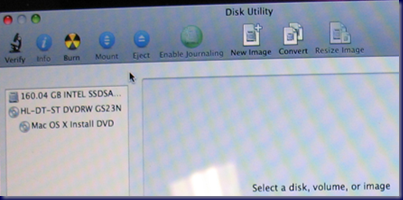
After installing it back into the MacBook Pro and booting back up into the setup routine, the Utilities menu item seemed to be the next logical place to look … at least for us Mac OS X n00bs anyway! ;)

Under that menu was an item called Disk Utility. We clicked on that and there was the SSD:
image

The only Disk Utility option that permitted us to do anything to the drive was Erase:

image

Note the Format was wrongly set to Case Sensitive. The second run through the OS X Snow Leopard install we left things at their default.

Once the format was finished we saw:

image

Forty minutes later we had a freshly installed Mac OS X and off we went to install the Mac Applications, Office 2008 for Mac, and all of the available updates.

Now, there may be a better way of getting a fresh drive available for OS X install in the Utilities menu, so please feel free to offer your way of doing things.

BTW, the RAM upgrade was actually done before the drive swap. It made a bit of a difference when multiple programs were open when swapping between them.

But, the SSD drive upgrade totally changed the performance characteristics of the MacBook Pro.

  • From off to logon screen is 16 seconds.
  • From logon to full dashboard functionality is less that 5 seconds.
    • The dashboard is pretty full.
  • Shutdown from the point of clicking the final shutdown button is 3 seconds.

The unit was pretty quick relative to the other portables that are used around here, but the SSD has made a huge difference in its performance.

Next up will be to pick up a copy of Parallels and install Windows to enable RWW/RDP and TS Gateway functionality to access client systems for management purposes.

Philip Elder
MPECS Inc.
Microsoft Small Business Specialists
Co-Author: SBS 2008 Blueprint Book

*Our original iMac was stolen (previous blog post). We now have a new MacBook Pro courtesy of Vlad Mazek, owner of OWN.

Windows Live Writer

Thursday, 12 November 2009

MacBook – You can’t turn on FileVault to protect the home folder of this user account.

Ack!

After finally figuring out how to get the MacBook to recognize the new Intel SSD (another post coming on this one), we ran into this lovely roadblock when enabling the home folder encryption setup called FileVault:

image

You can’t turn on FileVault to protect the home folder of this user account.

The home folder is located on a volume that isn’t in Mac OS Extended format.

Um, when we installed OS X 10.6 via the MacBook Pro DVD we chose the Mac OS Extended format for the hard drive. Though, we also included case sensitivity along with journaling.

So, what gives?

A few searches for the error turned up the following:

Essentially, we need to reinstall the OS via the DVD. Since this is a fresh install, it is not a really big deal. Apparently FileVault cannot be enabled when the disk was formatted to include case sensitivity in its structures.

This is a bit weird since the underlying OS for Snow Leopard is a UNIX derivative where case sensitivity has been a part of the OS setup since the beginning.

We have now learned that the type of disk format we use during an initial set up of any Mac will impact future uses of that Mac.

BTW, gotta love the non-descript error eh? It’s not like we haven’t seen those before in the Windows world! ;)

Philip Elder
MPECS Inc.
Microsoft Small Business Specialists
Co-Author: SBS 2008 Blueprint Book

*Our original iMac was stolen (previous blog post). We now have a new MacBook Pro courtesy of Vlad Mazek, owner of OWN.

Windows Live Writer

Force Eject a CD/DVD From the MacBook Pro

In the process of swapping the 160GB 5400RPM Hitachi hard drive for an Intel 160GB second generation SSD, there was a disk in the optical drive that would not come out when the eject button was pressed.

Now, on the MacBook Pro optical drive there is no pinhole for us to use a paperclip or the like to force eject a disk in the drive.

It turns out that all we needed to do was hold down the trackpad button prior to powering up the MacBook Pro.

Sure enough, after holding the button down and powering up the unit out came that disk.

Philip Elder
MPECS Inc.
Microsoft Small Business Specialists
Co-Author: SBS 2008 Blueprint Book

*Our original iMac was stolen (previous blog post). We now have a new MacBook Pro courtesy of Vlad Mazek, owner of OWN.

Windows Live Writer

Wednesday, 21 October 2009

Apple MacBook Pro - Simplicity And Elegance In Packaging

When I first received the MacBook Pro from Vlad, the first thing that impressed me about the package was the Apple branded high quality bag with a rather large slip cord that the MacBook's box came in.

So, the initial impression of the entire packaging was one of elegance.

Once the box was out of the bag, it was not difficult to see that a lot of thought went into the presentation of the MacBook's external packaging.

As much as we may not want to admit it, first impressions can make or break a deal, can really make or break our experiences with a product, or even make or break our initial contact with a prospect.

And, I must admit that Apple has really hit this one out of the park!

Upon opening up the box, the MacBook was laying in a cove of sorts with a black tab wrapped over it that had Designed by Apple in California in white lettering. The box itself being white in colour left no hint of brown cardboard anywhere.

Wow!

Pull up on the tab and the MacBook Pro gets lifted up enough to grab and pull out of the box. The unit itself along with the A/C adapter had a clear plastic wrap around them as protection. The wrap ends had resealable non-stick strips holding them down. So no there was no sticky mess to deal with.

Now, the kicker: The plastic wrap had a distinctive pattern and way about how it was wrapped around the MacBook Pro and the adapter. The pattern reminded me of the days when folks used to take care to wrap a package in the heavy brown paper with the folds just so and the corners buttoned down in a very symmetrical way. Think hospital corners in the sheets here.

Once the MacBook Pro was out of the box and I was able to have a closer look at the unit I was very impressed with its simplicity and elegance. The design of the MacBook is very clean and crisp with every line and curve having a purpose.

There is a very good reason why Mac users identify with their Mac and have a fairly strong attachment to it. It all starts with the unpacking experience. And it truly is an experience.

But then reality came home to roost:IMAG0194.png

As great as the whole unpacking experience and first impression was, the reality is that our systems, whether Mac or PC, are very complicated machines that sometimes don't behave as we would expect them too.

Not to worry though, I am still very impressed with the MacBook Pro. Apple has done an amazing job putting together a product that folks can get very excited about.

And, they are learning that users need Exchange integration to actually get some work done! ;)

Posted with MarsEdit that does support uploading to Blogger's Picasa Web Albums natively. Now hopefully the use of DIV tags instead of P tags makes the paragraphs look cleaner than the last post. MarsEdit gets the nod as editor of choice for us on the MacBook Pro!

Philip Elder

MPECS Inc.

Microsoft Small Business Specialists

Co-Author: SBS 2008 Blueprint Book


*Our original iMac was stolen (previous blog post). We now have a new MacBook Pro courtesy of Vlad Mazek, owner of OWN.

Excel 2008 Mac Excel 2007 PC Version Weirdness

Probably the one biggest hiccup that happens when working on the same Excel 2007 native (XLSX) spreadsheet at one point on the MacBook Pro and then on the PC is a mysterious margin change.

We have a number of fairly complicated quotation sheets that we have built in Excel on the PC.

When we set up the quote on the PC, then go in and tweak it later on via the MacBook Pro, the MacBook refuses to PDF or print the spreadsheet in the same manner as the PC.

For some really strange reason, the Mac will shift the right margin to the left by two columns (1 Pt each) and thus refuses to print the page out as we would expect.

Here is a screen clip of one of our quote sheets in Print Preview mode on a PC:

image

Note the fact that there is a border on the right hand side one column to the right of the Amount column. In the above screen clip, the Mac would actually clip off the column to the left of the bold boundary as well as the Amount column.

Go back to the PC though, and we will see the above properly formatted printout in the same worksheet after working on it with the MacBook Pro.

The other bit of weirdness that happens is the intermittent disabling of the auto-calculate feature in the Excel spreadsheet.

While working on this evening’s quote the sheet was mysteriously not updating any changes made. It took a few seconds and a settings check to figure out that the auto-calculate was turned off. This was after the quote was worked on while on the MacBook Pro.

When it comes to a multi-platform setup where both Macs and PCs are used to collaborate on projects, it is a really good idea to be familiar with these types of hiccups between platforms.

Philip Elder
MPECS Inc.
Microsoft Small Business Specialists
Co-Author: SBS 2008 Blueprint Book

*Our original iMac was stolen (previous blog post). We now have a new MacBook Pro courtesy of Vlad Mazek, owner of OWN.

Windows Live Writer

Monday, 19 October 2009

iMac - In-Place Leopard to Snow Leopard Post Upgrade Printer Choke

We received a call from one of our clients that runs 100% Mac systems on their network.


Apparently, they could not connect to the Internet, send e-mail, or print. Thinking that perhaps there was a problem within the Leopard OS X itself, they did an in-place upgrade to Snow Leopard.


Well, that did not fix the problem. So we received a call.


When we got there, there was no DNS resolution, no ability for the iMac to get anywhere even on the internal peer-to-peer network.


After poking around in the Network Settings, the network adapter was set to pull the iMac's IP address via DHCP and seemed to release and renew without a problem.


At first glance, the DNS field was not empty and the IP address that was in there did not register. It took a minute for the realization to hit: They had the IP address of their own iMac set as the DNS server!


No wonder there was nothing coming in. As soon as we deleted the iMac's IP address and released and renewed the IP the network's own DNS servers showed up and we had connectivity.


The e-mail issue turned out to be some in correct settings in their Mac Mail program while the Ricoh Aficio MP C2050 was another problem altogether.


Out of all of the troubleshooting time spent there, most of it was spent on getting the iMac to reconnect to the copier.


Knowing how an in-place upgrade can kill any already existing drivers we downloaded the newest printer driver set from Ricoh's Web site and installed it. We deleted the two Ricoh printers in the iMac's Printers and reinstalled using the copier's IP address and the correct LPR queues.


Still no joy though.


In the end, we needed to perform essentially what is a ground level reset of the entire printing subsystem in OS X.


This is the Apple KB article that we needed in order to fix the problem:


It is important to note that we were unable to fix the problem by clicking on the "-" sign to remove the printers. We needed to perform the drastic measure in the KB:


Resetting the printing system in Mac OS X 10.5.x

To use the Reset Printing System feature in Mac OS X 10.5.x, follow these steps:

  1. Choose System Preferences from the Apple menu.
  2. Choose Print & Fax from the View menu.
  3. Control-click on list of printers on the left side of the window, then choose "Reset printing system" from the contextual menu.
    • If you don't see a list of printers, Control-click on the text "Click + to add a printer or fax" and select "Reset printing system..."

Once we reset the printing system we were able to install the copier via LPR using its two queues, one for black and white and the other for colour printing.


Written using MarsEdit on the MacBook Pro. This blog post editor looks promising as I know enough HTML to be dangerous. We shall see if it can upload images to Blogger's Picasa Web Albums to clinch the deal.


Philip Elder

MPECS Inc.

Microsoft Small Business Specialists

Co-Author: SBS 2008 Blueprint Book


*Our original iMac was stolen (previous blog post). We now have a new MacBook Pro courtesy of Vlad Mazek, owner of OWN.

Friday, 16 October 2009

MacBook – Blogger Blog Editing With Ecto = Fail If Using Native Picasa Web Albums

Attempt number one at finding a blog post editor for Mac OS X: Ecto.

Simple and straight forward, but unfortunately no native support for Picasa Web Albums where Blogger posts images to.

Ecto does support Flikr, but why start a whole new location for images when our Picasa Web Albums account is only 20% full after close to three years of blogging?

While the editing abilities of Ecto are pretty good, due to the incompatibility with the Blogger native image location we unfortunately have to give Ecto a fail.

On to the next editor . . .

Windows Live Writer may be a bit clunky, but at least it works with the native tools.

Philip Elder
MPECS Inc.
Microsoft Small Business Specialists
Co-Author: SBS 2008 Blueprint Book

*Our original iMac was stolen (previous blog post). We now have a new MacBook Pro courtesy of Vlad Mazek, owner of OWN.

Windows Live Writer

Thursday, 15 October 2009

MacBook - Change The Default Search Provider In Safari

One of the pesky things about the Safari browser on the MacBook (Snow Leopard) is the fact that the Google search engine is hard coded into the browser's search bar:

image

Unlike Internet Explorer, we cannot go and change that default search provider without mucking about in the underlying code or downloading a third party utility to do it for us.

So, we ended up downloading a third party utility called Glims.
Once Glims was installed, getting the search provider changed in Safari required only a few clicks:
  1. Open Safari.
  2. Click on the down arrow just to the left of Google.
  3. A drop down list of search engines will come up.
  4. Click on the desired search engine: image
  5. The check mark should now be on the search engine of choice.
  6. From then on, when Safari opens the default search engine will be Bing in the case of our choice.
Our first line of search is Bing, if we are unable to turn up any satisfactory results we resort to Google or others depending on what we are searching for.

Philip Elder

MPECS Inc.

Microsoft Small Business Specialists

Co-Author: SBS 2008 Blueprint Book


*Our original iMac was stolen (previous blog post). We now have a new MacBook Pro courtesy of Vlad Mazek, owner of OWN.