Showing posts with label Solid-State Drives. Show all posts

Thursday, 10 January 2019

Server Storage: Never Use Solid-State Drives without Power Loss Protection (PLP)

Here's an article from a little while back with a very good explanation of why one should not use consumer grade SSDs anywhere near a server:

While the article points specifically to Storage Spaces Direct (S2D) it is also applicable to any server setup.

The impetus behind this post is pretty straight forward via a forum we participate in:

  • IT Tech: I had a power loss on my S2D cluster and now one of my virtual disks is offline
  • IT Tech: That CSV hosted my lab VMs
  • Helper 1: Okay, run the following recovery steps that help ReFS get things back together
  • Us: What is the storage setup in the cluster nodes?
  • IT Tech: A mix of NVMe, SSD, and HDD
  • Us: Any consumer grade storage?
  • IT Tech: Yeah, the SSDs where the offline Cluster Storage Volume (CSV) is
  • Us: Mentions above article
  • IT Tech: That's not my problem
  • Helper 1: What were the results of the above?
  • IT Tech: It did not work :(
  • IT Tech: It's ReFS's fault! It's not ready for production!

The reality of the situation was that there was live data sitting in the volatile cache DRAM on those consumer grade SSDs that got lost when the power went out. :(

We're sure that most of us know what happens when even one bit gets flipped. Error Correction on memory is mandatory for servers for this very reason.

To lose an entire cache worth across multiple drives is pretty much certain death for whatever sat on top of them.

Time to break-out the backups and restore.

And, replace those consumer grade SSDs with Enterprise Class SSDs that have PLP!

Philip Elder
Microsoft High Availability MVP
MPECS Inc.
Co-Author: SBS 2008 Blueprint Book
www.s2d.rocks !
Our Web Site
Our Cloud Service

Tuesday, 23 January 2018

Storage Spaces Direct (S2D): Sizing the East-West Fabric & Thoughts on All-Flash

Lately we've been seeing some discussion around the amount of time required to resync a S2D node's storage after it has come back from a reboot for whatever reason.

Unlike a RAID controller where we can tweak rebuild priorities, S2D does not offer the ability to do so.

It is with very much a good thing that the knobs and dials are not exposed for this process.

Why?

Because, there is a lot more going on under the hood than just the resync process.

While it does not happen as often anymore, there were times where someone would reach out about a performance problem after a disk had failed. After a quick look through the setup the Rebuild Priority setting turned out to be the culprit as someone had tweaked it from its usual 30% of cycles to 50% or 60% or even higher thinking that the rebuild should be the priority.

S2D Resync Bottlenecks

There are two key bottleneck areas in a S2D setup when it comes to resync performance:
  1. East-West Fabric
    • 10GbE with or without RDMA?
    • Anything faster than 10GbE?
  2. Storage Layout
    • Those 7200 RPM capacity drives can only handle ~110MB/Second to ~120MB/Second sustained
The two are not the mutually exclusive culprit depending on the setup as they both can play together to limit performance.

The physical CPU setup may also come into play but that's for another blog post. ;)

S2D East-West Fabric to Node Count

Let's start with the fabric setup that the nodes use to communicate with each other and pass storage traffic along.

This is a rule of thumb that was originally born out of a conversation at a MVP Summit a number of years back with a Microsoft fellow that was in on the S2D project at the beginning. We were discussing our own Proof-of-Concept that we had put together based on a Mellanox 10GbE and 40GbE RoCE (RDMA over Converged Ethernet) fabric. Essentially, at 4-nodes a 40GbE RDMA fabric was _way_ too much bandwidth.

Here's the rule of thumb we use for our baseline East-West Fabric setups. Note that we always use dual-port NICs/HBAs.
  • Kepler-47 2-Node
    • Hybrid SSD+HDD Storage Layout with 2-Way Mirror
    • 10GbE RDMA direct connect via Mellanox ConnectX-4 LX
    • This leaves us the option to add one or two SX1012X Mellanox 10GbE switches when adding more Kepler-47 nodes
  • 2-4 Node 2U 24 2.5" or 12/16 3.5" Drives with Intel Xeon Scalable Processors
    • 2-Way Mirror: 2-Node Hybrid SSD+HDD Storage Layout
    • 3-Way Mirror: 3-Node Hybrid SSD+HDD Storage Layout
    • Mirror-Accelerated Parity (MAP): 4 Nodes Hybrid SSD+HDD Storage Layout
    • 2x Mellanox SX1012X 10GbE Switches
      • 10GbE RDMA direct connect via Mellanox ConnectX-4 LX
  • 4-7 Node 2U 24 2.5" or 12/16 3.5" Drives with Intel Xeon Scalable Processors
    • 4-7 Nodes: 3-Way Mirror: 4+ Node Hybrid SSD+HDD Storage Layout
    • 4+ Nodes: Mirror-Accelerated Parity (MAP): 4 Nodes Hybrid SSD+HDD Storage Layout
    • 4+ Nodes: Mirror-Accelerated Parity (MAP): All-Flash NVMe cache + SSD
    • 2x Mellanox Spectrum Switches with break-out cables
      • 25GbE RDMA direct connect via Mellanox ConnectX-4/5
      • 50GbE RDMA direct connect via Mellanox ConnectX-4/5
  • 8+ Node 2U 24 2.5" or 12/16 3.5" Drives with Intel Xeon Scalable Processors
      • 4-7 Nodes: 3-Way Mirror: 4+ Node Hybrid SSD+HDD Storage Layout
      • 4+ Nodes: Mirror-Accelerated Parity (MAP): 4 Nodes Hybrid SSD+HDD Storage Layout
      • 4+ Nodes: Mirror-Accelerated Parity (MAP): All-Flash NVMe cache + SSD
      • 2x Mellanox Spectrum Switches with break-out cables
        • 50GbE RDMA direct connect via Mellanox ConnectX-4/5
        • 100GbE RDMA direct connect via Mellanox ConnectX-4/5
    Other than the Kepler-47 setup we always have at least a pair of Mellanox ConnectX-4 NICs in each node for East-West traffic. It's our preference to separate out the storage traffic and the rest.

    All-Flash Setups

    There's a lot of talk in the industry about all-flash.

    It's supposed to solve the biggest bottleneck of them all: Storage!

    The catch is, bottlenecks are moving targets.


    Drop in an all-flash array of some sort and all of a sudden the storage to compute fabric becomes the target. Then, it's the NICs/HBAs on the storage _and_ compute nodes, and so-on.

    If you've ever changed a single coolant hose in an older high miler car you'd see what I mean very quickly. ;)

    IMNSHO, at this point in time, unless there is a very specific business case for all-flash and the fabric in place allows for all that bandwidth with virtually zero latency, all-flash is a waste of money.

    One business case would be for a cloud services vendor that wants to provide a high IOPS and vCPU solution to their clients. So long as the fabric between storage and compute can fully utilize that storage and the market is there the revenues generated should more than make up for the huge costs involved.

    Using all-flash as a solution to a poorly written application or set of applications is questionable at best. But, sometimes, it is necessary as the software vendor has no plans to re-work their applications to run more efficiently on existing platforms.

    Caveat: The current PCIe bus just can't handle it. Period.

    A pair of 100Gb ports on one NIC/HBA can't be fully utilized due to the PCIe bus bandwidth limitation. Plus, we deploy with two NICs/HBAs for redundancy.

    Even with the addition of more PCIe Gen 3 lanes in the new Intel Xeon Scalable Processor Family we are still quite limited in the amount of data that can be moved about on the bus.

    S2D Thoughts and PoCs

    The Storage Spaces Direct (S2D) hyper-converged or SOFS only solution set can be configured and tuned for a very specific set of client needs. That's one of its beauties.

    Microsoft remains committed to S2D and its success. Microsoft Azure Stack is built on S2D so their commitment is pretty clear.

    So is ours!

    Proof-of-Concept (PoC) Lab
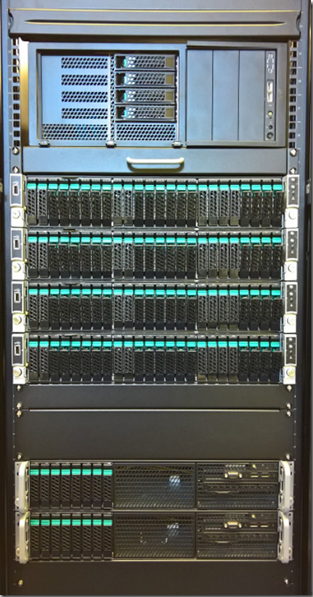
    S2D 4-Node for Hyper-Converged and SOFS Only
    Hyper-V 2-Node for Compute to S2D SOFS
    This is the newest edition to our S2D product PoC family:
    Kepler-47 S2D 2-Node Cluster

    The Kepler-47 picture is our first one. It's based on Dan Lovinger's concept we saw at Ignite Atlanta a few years ago. Components in this box were similar to Dan's setup.

    Our second generation Kepler-47 is on the way to being built now.
    Kepler-47 v2 PoC Ongoing Build & Testing

    This new generation will have an Intel Server Board DBS1200SPLR with an E3-1270v6, 64GB ECC, Intel JBOD HBA I/O Module, TPM v2, and Intel RMM. OS would be installed on a 32GB Transcend 2242 SATA SSD. Connectivity between the nodes will be Mellanox ConnectX-4 LX running at 10GbE with RDMA enabled.

    Storage in Kepler-47 v2 would be a combination of one Intel DC P4600 Series PCIe NVMe drive for cache, two Intel DC S4600 Series SATA SSDs for performance tier, and six HGST 6TB 7K6000 SAS or SATA HDDs for capacity. The PCIe NVMe drive will optional due it is cost.

    We already have one or two client/customer destinations for this small cluster setup.

    Conclusion

    Storage Spaces Direct (S2D) rocks!

    We've invested _a lot_ of time and money in our Proof-of-Concepts (PoCs). We've done so because we believe the platform is the future for both on-premises and data centre based workloads.

    Thanks for reading! :)

    Philip Elder
    Microsoft High Availability MVP
    MPECS Inc.
    Co-Author: SBS 2008 Blueprint Book
    Our Web Site
    Our Cloud Service

    Friday, 4 November 2011

    Spindled Based Hard Drives Are Getting Scarce – An Opportunity For SSDs

    Hard drives through pretty much all channels at this point are either in limited supply, require us to purchase a motherboard and CPU with each, or a server that can hold the number of drives we require.

    We are also seeing prices going up as a 2TB Seagate XT drive we paid $150 for a few months back is now $210 and rising sometimes daily!

    What this means is that we are looking to SSD to fill in the gaps.

    At the smaller capacities the overall system cost to include an 80GB or 160GB Intel 320 series SSD is not too much higher with the performance benefits far outweighing that cost.

    Thus we have an opportunity to possibly sell SSDs into client situations where we may not have had that option before.

    And, once the client’s users have worked on an SSD based system for a while they will probably notice the performance differences when working on systems with spindle based storage. From thereon in we will probably be deploying SSDs in almost all workstations going into those clients.

    On the server side, where we once had a $150 difference between the 300GB 15K 2.5” Seagate SAS drives and the Intel 300GB 320 Series SSD that gap has pretty much been eliminated. Now, selling 300GB Intel 320 Series SSDs into a server setting has become quite easy.

    Not only that, we can demonstrate quite clearly to our server clients that the SSDs have a clear advantage over spindled drives in performance but also in lower power consumption and less heat (means less cooling required).

    In the end, if SSD demand does indeed rise significantly we win in that the higher volumes means the costs for those drives will come down. With lower costs, we will see even greater SSD adoption.

    Philip Elder
    MPECS Inc.
    Microsoft Small Business Specialists
    Co-Author: SBS 2008 Blueprint Book

    *Our original iMac was stolen (previous blog post). We now have a new MacBook Pro courtesy of Vlad Mazek, owner of OWN.

    Windows Live Writer

    Tuesday, 22 March 2011

    Product Review – Intel’s New 510 Series SSDs At AnandTech

    We have been anticipating Intel’s third generation (G3 code) SSDs for quite a while now. They were due to be released late last year, or at least they were initially.

    AnandTech has a great review of the interim product release of the Intel SSD 510 Series that utilizes a third party’s controller (Marvell) but still relies on Intel 34nm (G2 code) NAND.

    Note the initial lackluster performance reports in the review. Though, later on in the article AnandTech goes through a series of built in-house performance tests that show the Intel SSD 510 to be a much stronger performer.

    So far, we have been installing the 160GB Intel X25-M SSD into almost all laptops that go out the shop door due to their exponential performance increase over a standard spindle based hard disk.

    Since most, if not all, of our clients host their data on an SBS server and the 160GB of space more than meets our client’s laptop storage needs needs we will be hard pressed to install a 250GB Intel 510 Series SSD (currently around $695/unit).

    For now, we will wait to see what the third generation SSDs bring to market.

    In the mean time we are looking into sourcing an OCZ 240GB Vertex 3! :)

    Philip Elder
    MPECS Inc.
    Microsoft Small Business Specialists
    Co-Author: SBS 2008 Blueprint Book

    *Our original iMac was stolen (previous blog post). We now have a new MacBook Pro courtesy of Vlad Mazek, owner of OWN.

    Windows Live Writer

    Wednesday, 23 February 2011

    Encryption via BitLocker Or Other with SSDs Is Essentially A Must As There May Be No Sure Erase For Flash Based Devices

    While we are focusing on Solid-State Drives (SSDs) for this post, it goes without saying that encryption is a must for any client that has sensitive data being stored on their laptop hard disk.

    With a spindle based hard disk we can slave the drive to our Data Mule system here in the shop and run a utility that does a DoD 7 Pass wipe on the drive and be reasonably confident that the data has indeed been wiped beyond what any normal recovery efforts may access.

    image

    The freeware product’s Web site can be found here:

    There is a really good discussion on the product’s forums about how to “erase” flash based devices.

    Erasing SSD Data

    An article brought to our attention by a client of ours has a data security question mark when it comes to removing or erasing data on flash based devices.

    The above article links through to the following study:

    image

    About page three of the study we see that the researchers created a device that allowed them to gain full access to the actual flash chips within the flash based device:

    image

    The Ming the Merciless device helped them to discover data remnants stored in areas of the flash device that may have been accessible at one point due to the way the flash device’s wear-level software (Flash Translation Layer or FTL in the study) works.

    If we are reading the study right, then the only way to truly protect any data stored on a system based SSD, external SSD, or other flash device is to have that device fully encrypted.

    In our case that would mean that all laptops would need to be encrypted using BitLocker and all external devices would be encrypted using BitLocker To Go.

    When it comes time to retire the device, it will get totally destroyed by whatever method comes in handy. In our case a drill would be the method of choice.

    Philip Elder
    MPECS Inc.
    Microsoft Small Business Specialists
    Co-Author: SBS 2008 Blueprint Book

    *Our original iMac was stolen (previous blog post). We now have a new MacBook Pro courtesy of Vlad Mazek, owner of OWN.

    Windows Live Writer

    Friday, 26 November 2010

    Toshiba Tecra S11 Core i7-620M 160GB X25-M WinSAT Score

    We have just completed configuring a number of new Toshiba Tecra S11 laptops with 160GB X25-M Intel SSDs.

    Our own Tecra S10 WinSAT scores can be found here:

    The Tecra S10’s scores were:

    • Disk  Sequential 64.0 Read              203.74 MB/s        7.3
    • Disk  Random 16.0 Read                    39.33 MB/s        6.3
    • Disk  Sequential 64.0 Write              88.15 MB/s          6.3
    • Total Run Time 00:01:25.32

    The Tecra S11’s scores were as follows:

    • Disk  Sequential 64.0 Read                   240.75 MB/s          7.5
    • Disk  Random 16.0 Read                       215.20 MB/s          7.8
    • Disk  Sequential 64.0 Write                  103.40 MB/s          6.6
    • Total Run Time 00:01:10.07

    The second stat in the S10’s numbers must have been an anomaly. We will revisit the WinSAT test on that unit to see how the performance has stood up over time.

    There is a tangible performance difference on the Core i7-620M based Tecra S11 versus the Core 2 Duo T9600. The system is a lot more responsive in so many ways.

    So, it is not surprising to see that the SSD performance on the new S11 takes a step up versus the previous generation.

    In the end, the cost of the SSD is more than made up by our client’s users increased productivity.

    While one of the drivers for having the SSD installed has been Windows XP Mode on Windows 7, most of our client’s line of business applications have come up to date and are Windows 7 compatible. There are still a few hold outs, but for the most part XP Mode is slowly being deprecated.

    Philip Elder
    MPECS Inc.
    Microsoft Small Business Specialists
    Co-Author: SBS 2008 Blueprint Book

    *Our original iMac was stolen (previous blog post). We now have a new MacBook Pro courtesy of Vlad Mazek, owner of OWN.

    Windows Live Writer

    Monday, 30 August 2010

    Client How-To Videos: Camtasia V7 Production and Rendering

    We recently purchased some Camtasia licenses for our company to create videos of various user related tasks such as adding multiple mailboxes into Outlook 2010, connecting and using the Remote Web Workplace, RDP via TS Gateway, and others.

    The use of Camtasia to create videos specific to each of our clients has had an amazing impact on them. So far, every single time we have created a new video to answer a specific question, or provided an overall guide for everyone in the client’s office, we received a 110% positive feedback.

    Camtasia and creating these user oriented How-To videos has become a Killer App in our ability to build a business relationship with our clients.

    After capturing the relevant video of the task, we edit the clips in Camtasia studio adding the relevant callouts.

    This is the title of a video we just finished producing for a client that signed up for the OWN Hosted Exchange services we provide:

    image

    Using Camtasia Studio, we can zoom in on certain events that are taking place on the desktop we have recorded to help provide focus for the viewer:

    image

    Note that the callout provides feedback to the viewer and helps them to know what bits of information are needed for each of the fields. Of course, in the video those bits get filled out right before their eyes!

    image

    Once we have created the video that we are going to send to our client and upload to the Companyweb SharePoint site, we need to render that video.

    In the Task Manager, this is what the rendering does to the Core 2 Extreme QX9650 series system with Windows 7 Enterprise x64 in Processes:

    image

    This is what the Performance tab looks like:

    image

    Once the rendering starts, Camtasia is quite capable of pushing this system to its limits. So, any Core i5 or Core i7 based system should be able to do a good job of rendering the project video quite efficiently.

    Camtasia does look to take advantage of all 4 cores on this system, so having a quad core system will improve rendering times over a dual core system.

    We have a pair of Intel X25-M series SSDs in RAID 0 for this system too. So, in effect the drive subsystem should not be a bottleneck in any way for the rendering process.

    Philip Elder
    MPECS Inc.
    Microsoft Small Business Specialists
    Co-Author: SBS 2008 Blueprint Book

    *Our original iMac was stolen (previous blog post). We now have a new MacBook Pro courtesy of Vlad Mazek, owner of OWN.

    Windows Live Writer

    Wednesday, 16 June 2010

    USB 3.0 – Is It Worth It?

    We are gearing up to do some testing here in the shop of some new USB 3.0 gear.

    The components:

    We will use a standard 7200 RPM Seagate SATA drive to provide the baseline for performance. We will then use a Western Digital 150GB VelociRaptor and an Intel 80GB G2 code SSD drive to push the USB 3.0 bus to its limits.

    We already know that USB 2.0 gives us a real world throughput of about 35MB/second.

    We have seen eSATA give us around 60-70MB/second in our own real world testing and usage of the connection.

    So, we look forward to seeing if USB 3.0 is all its cut out to be.

    Once we have a good idea of what the speed advantages are, we will install the Vantec USB 3.0 PCI-E Host Card into one of our lab servers with an SBS 2008 OS installed. We will configure the SBS Backup to run once an hour. Hopefully we will be able to gain some insight as to whether the Vantec card will work with our servers.

    Philip Elder
    MPECS Inc.
    Microsoft Small Business Specialists
    Co-Author: SBS 2008 Blueprint Book

    *Our original iMac was stolen (previous blog post). We now have a new MacBook Pro courtesy of Vlad Mazek, owner of OWN.

    Windows Live Writer

    Wednesday, 5 May 2010

    Intel SSD Expected Lifetime And Gross Data Throughput Capabilities

    While working on the previous post on Intel SSDs configured in the Intel Modular Server SAN, the twelfth slide in the IMS IDF2009 presentation was a real eye opener:

    image

    Note the numbers for the amount of data that can be written to the X25-E series drives as well as the two X25-M series drives!

    • X25-E Series
      • 3 Years of random writes
      • 1-2 Petabytes of data volume
    • X25-M Series in a Client setting
      • 5 Years of random writes
      • 35 Terabytes of data volume
    • X25-M Series in a Datacenter setting
      • 3 Years of random writes
      • 7.5-15 Terabytes of data volume respectively

    Those numbers give us a view of Intel’s expected lifetime for their Solid-State Drives in terms of the total volume of data to be written to them.

    On initial view, the numbers seem relatively small volume wise. But, given the fact that we deal with some substantial amounts of static data both on servers and workstations we need to be mindful of the actual volume of data written to the disk over its expected lifetime.

    Once we have a server OS and whatever applications installed on the disks, we are probably going to fall fairly far below the 20GB/day listed for the Intel X25-M series drives in a Client setting for example.

    Intel Source:

    Philip Elder
    MPECS Inc.
    Microsoft Small Business Specialists
    Co-Author: SBS 2008 Blueprint Book

    *Our original iMac was stolen (previous blog post). We now have a new MacBook Pro courtesy of Vlad Mazek, owner of OWN.

    Windows Live Writer

    Intel Modular Server and Intel Solid-State Drive Performance IDF2009 Presentation

    The 2009 Intel Developer Forum presentations are all available online here:

    Of particular interest to us is the presentation on configuring Intel X25-M or X25-E Solid-State Drives with the 2.5” drive MFSYS25 series Intel Modular Server.

    image

    This particular presentation runs about an hour is chock full of good information comparing the performance characteristics of traditional spindle based SAS drives and Intel’s Solid-State Drives.

    There are some pretty good explanations of the various features and abilities of the Intel Modular Server too.

    A point in the session that we have focused on here has to do with the actual I/O performance (IOPs) of the onboard SAN storage in the IMS (MFSYS25) with either SAS or SSD drives installed:

    image

    Note that when it comes to actual disk performance, the read and write throughput (MB/Sec) numbers are important, but those numbers become a moot point if the hard drive’s IOPs capabilities are relatively low.

    IOPs (Wikipedia), or the number of Input/Output Operations Per Second a drive is capable of can make or break a server setup whether it is serving a very busy database or a series of IMS SAN located VHDs for VMs running in a cluster.

    Even the largest RAID 10 array can perform quite poorly if the drives running in that RAID array have a relatively low IOPs capability.

    image

    Based on our own experiences with the Intel X25-M series Solid-State Drives, the above SSD performance slide is quite realistic considering that the X25-E series drives have an even higher IOPs capability than the X25-M drives.

    The Solid-State Drives do indeed trump the traditional spindle based drives, even with a spindle rotational speed of 15,000 RPM, by huge margins.

    So, our storage configurations need to be planned based on what each server node will be doing or storage sharing with the other nodes.

    A blog post will follow to develop our thoughts on IMS storage options.

    Philip Elder
    MPECS Inc.
    Microsoft Small Business Specialists
    Co-Author: SBS 2008 Blueprint Book

    *Our original iMac was stolen (previous blog post). We now have a new MacBook Pro courtesy of Vlad Mazek, owner of OWN.

    Windows Live Writer

    Tuesday, 2 February 2010

    So, Just How Fast? 160GB X25-M Versus 250GB WD SATA – Both In Acer TM6592 Series

    For comparison’s sake, we did the following tests on Acer TravelMate TM6592 series laptops with a fresh install of Windows 7 Enterprise x64 OS. Both laptops have the same CPU and RAM configuration as well as BIOS version.

    This TM6592 is using the factory installed 250GB Western Digital WD2500BEVS SATA hard disk:

    C:\Windows\system32>winsat disk
    Windows System Assessment Tool
    > Running: Feature Enumeration ''
    > Run Time 00:00:00.00
    > Running: Storage Assessment '-seq -read -n 0'
    > Run Time 00:00:15.74
    > Running: Storage Assessment '-ran -read -n 0'
    > Run Time 00:00:13.56
    > Running: Storage Assessment '-scen 2009 -drive C:'
    > Run Time 00:01:26.55
    > Running: Storage Assessment '-seq -write -drive C:'
    > Run Time 00:00:13.29
    > Running: Storage Assessment '-flush -drive C: -seq'
    > Run Time 00:00:08.55
    > Running: Storage Assessment '-flush -drive C: -ran'
    > Run Time 00:00:13.01
    > Running: Storage Assessment '-hybrid -ran -read -n 0 -ransize 4096'
    NV Cache not present.
    > Run Time 00:00:00.09
    > Running: Storage Assessment '-hybrid -ran -read -n 0 -ransize 16384'
    NV Cache not present.
    > Run Time 00:00:00.05
    > Disk  Sequential 64.0 Read                  44.80 MB/s          5.2
    > Disk  Random 16.0 Read                     1.25 MB/s          3.5
    > Responsiveness: Average IO Rate         5.79 ms/IO          5.1
    > Responsiveness: Grouped IOs               13.61 units          6.3
    > Responsiveness: Long IOs                   21.19 units          6.1
    > Responsiveness: Overall                     288.42 units          6.0
    > Responsiveness: PenaltyFactor                0.0
    > Disk  Sequential 64.0 Write                 54.38 MB/s          5.5
    > Average Read Time with Sequential Writes  7.824 ms       5.1
    > Latency: 95th Percentile                     15.855 ms          4.9
    > Latency: Maximum                             40.617 ms          7.9
    > Average Read Time with Random Writes   8.321 ms         4.9
    > Total Run Time 00:02:32.26

    This TM6592 is using a second generation Intel X25-M 160GB SSD:

    C:\>winsat disk
    Windows System Assessment Tool
    > Running: Feature Enumeration ''
    > Run Time 00:00:00.00
    > Running: Storage Assessment '-seq -read -n 0'
    > Run Time 00:00:04.41
    > Running: Storage Assessment '-ran -read -n 0'
    > Run Time 00:00:00.36
    > Running: Storage Assessment '-scen 2009 -drive C:'
    > Run Time 00:01:20.96
    > Running: Storage Assessment '-seq -write -drive C:'
    > Run Time 00:00:07.86
    > Running: Storage Assessment '-flush -drive C: -seq'
    > Run Time 00:00:01.19
    > Running: Storage Assessment '-flush -drive C: -ran'
    > Run Time 00:00:01.19
    > Running: Storage Assessment '-hybrid -ran -read -n 0 -ransize 4096'
    NV Cache not present.
    > Run Time 00:00:00.00
    > Running: Storage Assessment '-hybrid -ran -read -n 0 -ransize 16384'
    NV Cache not present.
    > Run Time 00:00:00.00
    > Disk  Sequential 64.0 Read                263.91 MB/s          7.6
    > Disk  Random 16.0 Read                   243.05 MB/s          7.9
    > Responsiveness: Average IO Rate       4.29 ms/IO          5.7
    > Responsiveness: Grouped IOs            16.37 units          4.6
    > Responsiveness: Long IOs                 100.06 units          1.9
    > Responsiveness: Overall                   1638.23 units          1.9
    > Responsiveness: PenaltyFactor                1.0
    > Disk  Sequential 64.0 Write                 99.40 MB/s          6.5
    > Average Read Time with Sequential Writes  0.427 ms       7.9
    > Latency: 95th Percentile                     1.671 ms          7.9
    > Latency: Maximum                             2.033 ms          7.9
    > Average Read Time with Random Writes   0.489 ms       7.9
    > Total Run Time 00:01:36.63

    By the numbers:

    • 250GB SATA drive:
      • Disk  Sequential 64.0 Read       44.80 MB/s          5.2
      • Disk  Random 16.0 Read            1.25 MB/s          3.5
      • Disk  Sequential 64.0 Write       54.38 MB/s          5.5
      • Total Run Time 00:02:32.26
    • 160GB SSD drive:
      • Disk  Sequential 64.0 Read       263.91 MB/s          7.6
      • Disk  Random 16.0 Read          243.05 MB/s          7.9
      • Disk  Sequential 64.0 Write        99.40 MB/s          6.5
      • Total Run Time 00:01:36.63

    Given the above numbers, it is not difficult to justify the extra cost of the 160GB SSD to our clients. The performance increase is so _huge_, that they see payback in a matter of weeks.

    Philip Elder
    MPECS Inc.
    Microsoft Small Business Specialists
    Co-Author: SBS 2008 Blueprint Book

    *Our original iMac was stolen (previous blog post). We now have a new MacBook Pro courtesy of Vlad Mazek, owner of OWN.

    Windows Live Writer

    Wednesday, 30 December 2009

    Asus Eee PC 1000HE WinSat Disk SSD performance

    Since we have been on the topic of WinSat performance in the various configurations we have had here in the shop with Intel’s new second generation solid-state drives, we did not test the Netbook that started the whole thing off!

    So, here are the results:

    C:\>winsat disk
    Windows System Assessment Tool
    > Running: Feature Enumeration ''
    > Run Time 00:00:00.00
    > Running: Storage Assessment '-seq -read -n 0'
    > Run Time 00:00:07.49
    > Running: Storage Assessment '-ran -read -n 0'
    > Run Time 00:00:01.03
    > Running: Storage Assessment '-scen 2009 -drive C:'
    > Run Time 00:01:02.59
    > Running: Storage Assessment '-seq -write -drive C:'
    > Run Time 00:00:13.43
    > Running: Storage Assessment '-flush -drive C: -seq'
    > Run Time 00:00:03.26
    > Running: Storage Assessment '-flush -drive C: -ran'
    > Run Time 00:00:02.67
    > Running: Storage Assessment '-hybrid -ran -read -n 0 -ransize 4096'
    NV Cache not present.
    > Run Time 00:00:00.05
    > Running: Storage Assessment '-hybrid -ran -read -n 0 -ransize 16384'
    NV Cache not present.
    > Run Time 00:00:00.03
    > Disk  Sequential 64.0 Read                133.19 MB/s          7.0
    > Disk  Random 16.0 Read                    122.65 MB/s          7.3
    > Responsiveness: Average IO Rate        2.43 ms/IO          6.7
    > Responsiveness: Grouped IOs             13.21 units          6.4
    > Responsiveness: Long IOs                   11.57 units          7.3
    > Responsiveness: Overall                    152.89 units          6.6
    > Responsiveness: PenaltyFactor               0.0
    > Disk  Sequential 64.0 Write                73.57 MB/s          6.1
    > Average Read Time with Sequential Writes  1.192 ms       7.5
    > Latency: 95th Percentile                     2.361 ms          7.4
    > Latency: Maximum                             157.421 ms          7.5
    > Average Read Time with Random Writes    1.440 ms       7.9
    > Total Run Time 00:01:31.76

    The specific Asus Eee PC 1000HE SSD performance variables we look at:

    • Disk  Sequential 64.0 Read                133.19 MB/s          7.0
    • Disk  Random 16.0 Read                    122.65 MB/s          7.3
    • Disk  Sequential 64.0 Write                73.57 MB/s          6.1
    • Total Run Time 00:01:31.76

    This was the Toshiba Tecra S10’s 160GB Intel SSD’s Winsat performance (previous blog post) the last time we measured it.

    Here are the Tecra S10’s single 160GB SSD read/write stats that we retook today:

    • Disk  Sequential 64.0 Read              215.06 MB/s        7.4
    • Disk  Random 16.0 Read                    63.50 MB/s        6.7
    • Disk  Sequential 64.0 Write              87.69 MB/s          6.3
    • Total Run Time 00:01:28.20

    It looks as though the I/O bottleneck has been dealt a serious blow on both configurations. Though, the S10’s Random Read number does look a little low relative to the Netbook.

    The Netbook is running Windows 7 Professional x86 (32bit) with no BitLocker Drive Encryption while the Tecra S10 is running Windows 7 Enterprise x64 (64bit) with BitLocker Drive Encryption enabled.

    All in all, bumping out the 160GB 5400RPM SATA drive in the Netbook was a _really good decision_!

    Philip Elder
    MPECS Inc.
    Microsoft Small Business Specialists
    Co-Author: SBS 2008 Blueprint Book

    *Our original iMac was stolen (previous blog post). We now have a new MacBook Pro courtesy of Vlad Mazek, owner of OWN.

    Windows Live Writer

    Thursday, 24 December 2009

    160GB Pair of Intel G2 SSD’s RAID 1 and RAID 0 Performance On A W5590 Xeon Workstation

    While putting together the trading station for our client, we did some bench testing of the Intel solid-state drives in two RAID array configurations.

    The system configuration:

    • Intel S5520SC Workstation Board
      • BIOS 42, BMC 0.45, FRU/SDR 21
    • Intel W5590 Xeon Processor (second is going into an identical setup)
    • 12GB Kingston KVR1333 ECC Registered RAM
    • 160GB Intel SSD -G2R5 Code pair of drives
    • On Board Chipset LSI based RAID
    • Intel SC5650WS Workstation Chassis with 1,000Watt PSU
    • PNY nVidia Quadro NVS 450 PCI-E x16 (4 monitors)
    • ATI FirePro 2450 PCI-E x16 (4 monitors)
    • Windows 7 Ultimate x64 Edition

    The Intel SSDs are using the factory default firmware and no trim tools have been installed. The RAID Web Console 2 was installed but the SSD trim tools built into it were not enabled either for both tests.

    Here is the WinSat output for the RAID 1 configuration:

    C:\Windows\system32>winsat disk
    Windows System Assessment Tool
    > Running: Feature Enumeration ''
    > Run Time 00:00:00.00
    > Running: Storage Assessment '-seq -read -n 0'
    > Run Time 00:00:03.71
    > Running: Storage Assessment '-ran -read -n 0'
    > Run Time 00:00:00.31
    > Running: Storage Assessment '-scen 2009 -drive C:'
    > Run Time 00:00:55.51
    > Running: Storage Assessment '-seq -write -drive C:'
    > Run Time 00:00:07.55
    > Running: Storage Assessment '-flush -drive C: -seq'
    > Run Time 00:00:01.42
    > Running: Storage Assessment '-flush -drive C: -ran'
    > Run Time 00:00:01.37
    > Running: Storage Assessment '-hybrid -ran -read -n 0 -ransize 4096'
    NV Cache not present.
    > Run Time 00:00:00.00
    > Running: Storage Assessment '-hybrid -ran -read -n 0 -ransize 16384'
    NV Cache not present.
    > Run Time 00:00:00.00
    > Disk  Sequential 64.0 Read               504.89 MB/s         7.9
    > Disk  Random 16.0 Read                  242.46 MB/s         7.9
    > Responsiveness: Average IO Rate     1.52 ms/IO          7.5
    > Responsiveness: Grouped IOs          11.60 units          6.9
    > Responsiveness: Long IOs                 3.62 units          7.8
    > Responsiveness: Overall                  42.01 units          7.2
    > Responsiveness: PenaltyFactor              0.0
    > Disk  Sequential 64.0 Write             97.07 MB/s          6.5
    > Average Read Time with Sequential Writes 0.997 ms     7.6
    > Latency: 95th Percentile                     1.791 ms          7.8
    > Latency: Maximum                             5.227 ms          7.9
    > Average Read Time with Random Writes   0.879 ms          7.9
    > Total Run Time 00:01:10.57

    And here is the raw output for the RAID 0 configuration:

    C:\Windows\system32>winsat disk
    Windows System Assessment Tool
    > Running: Feature Enumeration ''
    > Run Time 00:00:00.00
    > Running: Storage Assessment '-seq -read -n 0'
    > Run Time 00:00:04.13
    > Running: Storage Assessment '-ran -read -n 0'
    > Run Time 00:00:00.26
    > Running: Storage Assessment '-scen 2009 -drive C:'
    > Run Time 00:00:51.11
    > Running: Storage Assessment '-seq -write -drive C:'
    > Run Time 00:00:04.30
    > Running: Storage Assessment '-flush -drive C: -seq'
    > Run Time 00:00:01.11
    > Running: Storage Assessment '-flush -drive C: -ran'
    > Run Time 00:00:01.09
    > Running: Storage Assessment '-hybrid -ran -read -n 0 -ransize 4096'
    NV Cache not present.
    > Run Time 00:00:00.00
    > Running: Storage Assessment '-hybrid -ran -read -n 0 -ransize 16384'
    NV Cache not present.
    > Run Time 00:00:00.02
    > Disk  Sequential 64.0 Read           537.33 MB/s          7.9
    > Disk  Random 16.0 Read              375.88 MB/s          7.9
    > Responsiveness: Average IO Rate        0.76 ms/IO          7.9
    > Responsiveness: Grouped IOs             8.99 units          7.3
    > Responsiveness: Long IOs                     1.69 units          7.9
    > Responsiveness: Overall                      15.21 units          7.9
    > Responsiveness: PenaltyFactor                0.0
    > Disk  Sequential 64.0 Write             197.47 MB/s          7.3
    > Average Read Time with Sequential Writes    0.947 ms     7.7
    > Latency: 95th Percentile                     1.719 ms          7.9
    > Latency: Maximum                             5.686 ms          7.9
    > Average Read Time with Random Writes   0.952 ms          7.9
    > Total Run Time 00:01:02.78

    Taking the above statistics we get:

    • RAID 1 configuration:
      • Disk  Sequential 64.0 Read        504.89 MB/s         7.9
      • Disk  Random 16.0 Read           242.46 MB/s         7.9
      • Disk  Sequential 64.0 Write         97.07 MB/s          6.5
      • Total Run Time 00:01:10.57
    • RAID 0 configuration:
      • Disk  Sequential 64.0 Read         537.33 MB/s          7.9
      • Disk  Random 16.0 Read            375.88 MB/s          7.9
      • Disk  Sequential 64.0 Write        197.47 MB/s          7.3
      • Total Run Time 00:01:02.78

    It is pretty clear that having the SSDs in a RAID 0 or RAID 10 configuration will provide a significant performance advantage in real world usage.

    The write speed more than doubled when the drives were striped and took a huge step for the random read tests as well.

    So, what do the numbers translate to? They translate to extremely fast OS loads, application loads, RAM cache like behaviour for any swap file activity, and an all around great user computing experience.

    For anyone that generates revenue on system setups and the speed that they accomplish their computing tasks, this is one rig to consider.

    By the way, the peak power consumed by the box was 195Watts under load. The average power usage while running its various tasks was 110-120Watts as measured by the APC BR1500LCD UPS. Only the workstation was connected to the UPS.

    When the components for the second workstation arrive, we will run the same tests but with an add-in RAID controller to see if that further improves disk I/O performance.

    Philip Elder
    MPECS Inc.
    Microsoft Small Business Specialists
    Co-Author: SBS 2008 Blueprint Book

    *Our original iMac was stolen (previous blog post). We now have a new MacBook Pro courtesy of Vlad Mazek, owner of OWN.

    Windows Live Writer

    Tuesday, 22 December 2009

    Intel 160GB SSD Performance In the Tecra S10 Versus RAID 0 2x 80GB SSDs on DX38BT

    The following is the output of the WinSat disk test on the Windows 7 Enterprise x64 Toshiba Tecra S10 with an Intel 160GB SSD installed:

    C:\Windows\system32>winsat disk
    Windows System Assessment Tool
    > Running: Feature Enumeration ''
    > Run Time 00:00:00.00
    > Running: Storage Assessment '-seq -read -n 0'
    > Run Time 00:00:04.79
    > Running: Storage Assessment '-ran -read -n 0'
    > Run Time 00:00:00.87
    > Running: Storage Assessment '-scen 2009 -drive C:'
    > Run Time 00:01:03.66
    > Running: Storage Assessment '-seq -write -drive C:'
    > Run Time 00:00:09.03
    > Running: Storage Assessment '-flush -drive C: -seq'
    > Run Time 00:00:03.85
    > Running: Storage Assessment '-flush -drive C: -ran'
    > Run Time 00:00:02.45
    > Running: Storage Assessment '-hybrid -ran -read -n 0 -ransize 4096'
    NV Cache not present.
    > Run Time 00:00:00.01
    > Running: Storage Assessment '-hybrid -ran -read -n 0 -ransize 16384'
    NV Cache not present.
    > Run Time 00:00:00.02
    > Disk  Sequential 64.0 Read             203.74 MB/s          7.3
    > Disk  Random 16.0 Read                    39.33 MB/s          6.3
    > Responsiveness: Average IO Rate       0.88 ms/IO          7.9
    > Responsiveness: Grouped IOs             10.02 units          7.2
    > Responsiveness: Long IOs                     7.13 units          7.6
    > Responsiveness: Overall                      71.52 units          6.9
    > Responsiveness: PenaltyFactor                0.0
    > Disk  Sequential 64.0 Write              88.15 MB/s          6.3
    > Average Read Time with Sequential Writes  1.143 ms     7.5
    > Latency: 95th Percentile                     2.246 ms          7.5
    > Latency: Maximum                             207.342 ms          7.3
    > Average Read Time with Random Writes   1.048 ms         7.9
    > Total Run Time 00:01:25.32

    It is important to note that the above stats are on a _laptop_!

    Now, let’s have a look at what two 80GB SSDs in a RAID 0 configuration via the onboard Intel DX38BT (Intel product site) chipset RAID gives us with Windows 7 Enterprise x64:

    C:\Windows\system32>winsat disk
    Windows System Assessment Tool
    > Running: Feature Enumeration ''
    > Run Time 00:00:00.00
    > Running: Storage Assessment '-seq -read -n 0'
    > Run Time 00:00:05.36
    > Running: Storage Assessment '-ran -read -n 0'
    > Run Time 00:00:00.59
    > Running: Storage Assessment '-scen 2009 -drive C:'
    > Run Time 00:00:56.94
    > Running: Storage Assessment '-seq -write -drive C:'
    > Run Time 00:00:06.47
    > Running: Storage Assessment '-flush -drive C: -seq'
    > Run Time 00:00:02.16
    > Running: Storage Assessment '-flush -drive C: -ran'
    > Run Time 00:00:01.69
    > Running: Storage Assessment '-hybrid -ran -read -n 0 -ransize 4096'
    NV Cache not present.
    > Run Time 00:00:00.02
    > Running: Storage Assessment '-hybrid -ran -read -n 0 -ransize 16384'
    NV Cache not present.
    > Run Time 00:00:00.01
    > Disk  Sequential 64.0 Read              461.83 MB/s          7.9
    > Disk  Random 16.0 Read                  282.86 MB/s          7.9
    > Responsiveness: Average IO Rate        1.41 ms/IO          7.6
    > Responsiveness: Grouped IOs              11.15 units          6.9
    > Responsiveness: Long IOs                     9.11 units          7.4
    > Responsiveness: Overall                    101.50 units          6.8
    > Responsiveness: PenaltyFactor                0.0
    > Disk  Sequential 64.0 Write               164.71 MB/s          7.2
    > Average Read Time with Sequential Writes  0.721 ms       7.8
    > Latency: 95th Percentile                     1.960 ms          7.7
    > Latency: Maximum                             147.954 ms          7.5
    > Average Read Time with Random Writes  0.782 ms          7.9
    > Total Run Time 00:01:13.77

    Now, given the hardware differences between the two configurations, this is obviously an unfair comparison. However, they do provide a good reference point for the solid-state drive’s capabilities.

    Here are the Tecra S10’s single 160GB SSD read/write stats:

    • Disk  Sequential 64.0 Read              203.74 MB/s        7.3
    • Disk  Random 16.0 Read                    39.33 MB/s        6.3
    • Disk  Sequential 64.0 Write              88.15 MB/s          6.3

    Here is the DX38BT 80GB x2 RAID 0 read/write stats:

    • Disk  Sequential 64.0 Read              461.83 MB/s          7.9
    • Disk  Random 16.0 Read                  282.86 MB/s          7.9
    • Disk  Sequential 64.0 Write              164.71 MB/s          7.2

    What do these loosely put together stats that tell us?

    That the Intel second generation Solid-State drives are _fast_!

    Realistically, the above stats show that the on board RAID has the ability to improve disk I/O quite substantially when the drives are striped together.

    The Tecra S10:

    • Intel T9600 2.8GHz
    • 4GB RAM
    • 160GB Intel SSD

    The desktop:

    • Intel QX9650 Core 2 Quad Extreme
    • 4GB KVR1333 series Kingston RAM
    • Intel DX38BT BoneTrail
    • 80GB Intel SSD x2 RAID 0 via on board chipset

    We will test some additional configurations as they pass through our shop.

    Given the above stats we may look to start using a pair of 80GB SSDs for our SBS 2008 OS drives to help reduce the OS’s boot times.

    Philip Elder
    MPECS Inc.
    Microsoft Small Business Specialists
    Co-Author: SBS 2008 Blueprint Book

    *Our original iMac was stolen (previous blog post). We now have a new MacBook Pro courtesy of Vlad Mazek, owner of OWN.

    Windows Live Writer

    Wednesday, 16 December 2009

    Intel Hot Swap 2.5” to 3.5” Adapter Tray Enables Intel SSD Hot Swap RAID – AXX25DRVADPTR

    We had a really difficult time getting our hands on these adapters:

    image

    The adapter is actually upside down in the above image.

    Flipped over, the SATA and power connectors on the 2.5” drive line up perfectly with the hot swap backplane connector to allow for the smaller drive to be used in 3.5” drive hot swap backplanes.

    With these trays we can look at configuring a RAID 1 array or RAID 10 array of SSDs for I/O intensive needs for things such as OS or Exchange databases.

    We can also offer an option to update some of our existing client servers with these trays and a couple of Intel SSDs to speed things up significantly.

    Philip Elder
    MPECS Inc.
    Microsoft Small Business Specialists
    Co-Author: SBS 2008 Blueprint Book

    *Our original iMac was stolen (previous blog post). We now have a new MacBook Pro courtesy of Vlad Mazek, owner of OWN.

    Windows Live Writer

    Friday, 13 November 2009

    Replacing a MacBook Pro Drive With An SSD and Upgrading the RAM

    Okay, so we found this great video online that shows how to take things apart and put them back together.

    Now, in the above case, the replacement hard drive seemingly had an OS already on it and according to the comments he used a cloning method in a previous video to do that.

    Well, since the MacBook Pro had already been messed around with, tweaked, and essentially made non-standard, it was time to start fresh anyway.

    Once we had the MacBook Pro opened up we started with the memory:

    image

    Note the Seagate 160GB 5400RPM SATA drive in the bottom left hand corner of the above shot.

    We upgraded the memory using Kingston’s 4GB kit:

    We then used a 160GB Intel X25-M second generation drive to replace the Maxtor:

    image

    Now, being that we do _a lot_ of hard drive upgrades and changes with a fresh install of the Windows OS, this process was supposed to be a no-brainer.

    But, this is what we were greeted with when the MacBook Mac OS X Snow Leopard DVD booted up:

    image

    Since Windows would have the drive listed there despite the fact that it was untouched, the above screen was a bit disconcerting at first.

    Just in case, we powered the unit down and pulled off the bottom cover to verify that all connections were properly seated which they were.

    While we were at it, we tied the SSD up to our data mule via SATA to USB adapter and the drive showed up with no problems.

    After installing it back into the MacBook Pro and booting back up into the setup routine, the Utilities menu item seemed to be the next logical place to look … at least for us Mac OS X n00bs anyway! ;)

    Under that menu was an item called Disk Utility. We clicked on that and there was the SSD:

    image

    The only Disk Utility option that permitted us to do anything to the drive was Erase:

    image

    Note the Format was wrongly set to Case Sensitive. The second run through the OS X Snow Leopard install we left things at their default.

    Once the format was finished we saw:

    image

    Forty minutes later we had a freshly installed Mac OS X and off we went to install the Mac Applications, Office 2008 for Mac, and all of the available updates.

    Now, there may be a better way of getting a fresh drive available for OS X install in the Utilities menu, so please feel free to offer your way of doing things.

    BTW, the RAM upgrade was actually done before the drive swap. It made a bit of a difference when multiple programs were open when swapping between them.

    But, the SSD drive upgrade totally changed the performance characteristics of the MacBook Pro.

    • From off to logon screen is 16 seconds.
    • From logon to full dashboard functionality is less that 5 seconds.
      • The dashboard is pretty full.
    • Shutdown from the point of clicking the final shutdown button is 3 seconds.

    The unit was pretty quick relative to the other portables that are used around here, but the SSD has made a huge difference in its performance.

    Next up will be to pick up a copy of Parallels and install Windows to enable RWW/RDP and TS Gateway functionality to access client systems for management purposes.

    Philip Elder
    MPECS Inc.
    Microsoft Small Business Specialists
    Co-Author: SBS 2008 Blueprint Book

    *Our original iMac was stolen (previous blog post). We now have a new MacBook Pro courtesy of Vlad Mazek, owner of OWN.

    Windows Live Writer

    Wednesday, 21 October 2009

    160GB Intel SSD Gen 2 Performance = WOW!

    There have been a few blog posts here on the new second generation Intel Solid-State drives (post category search) lately.

    A while back, we put together a box for a client that included an EVGA nVidia based motherboard (EVGA category search). We have had quite the odyssey with this particular system.

    The Raptors have consistently broken the RAID 10 array we created via the onboard RAID setup. There has been no rhyme or reason to the array breaking. We even replaced the entire drive set with brand new drives hoping that it would be fixed. No joy there.

    Each time the box visited the shop we made sure to update the BIOS on the motherboard and we were still hit with broken arrays.

    So, we removed three of the four Raptors leaving the one behind for storage.

    We installed a single Intel X25-M 160GB second generation SSD.

    We then installed Windows 7 Ultimate x64 retail in 12 minutes using our OCZ ATV Turbo as the source.

    Both the SSD and Windows 7 Ultimate retail were provided to our client at no cost along with the labour to install all of their needed applications. We needed to make sure that we made things right.

    The scary thing is that the single Intel SSD boots the entire Windows 7 Ultimate OS from start to finish in about 15 seconds! 15 Seconds!!!

    We define a completed boot as having the ability to click on the Start Button and open any program in the recent list or pinned there.

    Even a set of four VelociRaptors configured in a RAID 10 array can’t touch that and they are fast too!

    Since installing an Intel 80GB SSD in the Netbook, and soon the Tecra will be getting a 160GB version, bumping out the spindle for an SSD has been an easy sell to our clients.

    They can see the visible excitement in me when I am demonstrating a full OS boot in 20 seconds on a Netbook with Windows 7 Pro and an SSD for a drive. Then the application performance for opening them as well as flipping around between open windows and more is pretty impressive on a Netbook.

    Philip Elder
    MPECS Inc.
    Microsoft Small Business Specialists
    Co-Author: SBS 2008 Blueprint Book

    *Our original iMac was stolen (previous blog post). We now have a new MacBook Pro courtesy of Vlad Mazek, owner of OWN.

    Windows Live Writer

    Saturday, 17 October 2009

    Contracted to Build a Boss Dual W5580 Trading System

    One of our long time clients has delved into currency trading and is using a proprietary monitoring and graphing application for the various world currencies being watched and traded.

    Their current system is a high performance system we put together for them six years ago.

    That system was based on a P4 with HyperThreading, Windows XP Pro and 1GB of RAM. We had our client bring the system here to the shop to run various process monitoring utilities on the PC while the proprietary application was up and running.

    We were looking for a couple of specific things:

    • How many simultaneous threads was the app capable of tossing towards the CPU.
    • How many threads were involved in generating a new graph and what happens during the graph generation.

    What we discovered was an application that is capable of taking advantage of as many “cores” as possible.

    The last test we ran was the generation of a new graph with everything else going on in the background. The new graph being generated pegged one of the “cores” on the system, so that particular process was single threaded . . . maybe.

    Now that we had a pretty good overview of how the application performed, we now knew some key performance needs:

    • The ability to bin a core or multiple cores up for a demanding process was critical.
    • The ability to handle more than 4 simultaneous threads was also a priority due to the way the software operated.
    • The more RAM we had in the system, the better.
    • We need the ability to drive 8 monitors.
    • We need to eliminate the disk I/O bottleneck.

    So, the configuration we have come up with for the system to be built to meet our client’s needs will be as follows:

    We expect the ability of each of the Xeon Processors to bin one or two cores upwards to gain the needed extra performance will make this rig fit our client’s needs perfectly.

    Using the second generation Intel Solid-State Drives plus a second generation Intel RAID controller aught to help us virtually eliminate any disk subsystem bottlenecks.

    The extra RAM and the 64bit capabilities of Windows 7 Ultimate round out the setup.

    The workstation board S5520SC has a Trusted Platform Module version 1.2. Since we are installing Windows 7 Ultimate x64 Edition on this setup and due to the sensitivity of the tasks being accomplished by the user we will be encrypting the contents of any partition created with BitLocker.

    In the end, the system should provide our client with exactly the responsiveness they are looking for in a system and also protect everything on the system via encryption.

    Philip Elder
    MPECS Inc.
    Microsoft Small Business Specialists
    Co-Author: SBS 2008 Blueprint Book

    *Our original iMac was stolen (previous blog post). We now have a new MacBook Pro courtesy of Vlad Mazek, owner of OWN.

    Windows Live Writer

    Saturday, 10 October 2009

    80GB 2nd Gen Intel SSD in an Asus Eee PC Netbook

    A while back, we blogged about installing Windows 7 Ultimate x86 on an Asus Eee PC:

    The fact that the OS ran really smooth on the Netbook with 2GB of RAM installed on it was pretty kewl.

    Well, we just received a shipment of second generation 80GB Intel X25-M SATA Solid-State Drives just before I came back from Vegas.

    With a little bit of time on my hands, I decided to install one of the SSDs into the above mentioned Asus Eee PC and install Windows 7 Professional x86 instead of Ultimate.

    The box:

    image

    The package is seemingly larger than would be expected for a 2.5” SATA drive form factor.

    But, once the box was opened, there was a good reason for the extra packaging space:

    image

    Underneath the cardboard tray the drive itself sat in was space for an adapter to install the drive into a standard 3.5” hard drive space along with the needed mounting screws.

    Rounding things out are the installation manual on paper and CD as well as a MY SSD ROCKS! sticker that went onto the LCD cover of the Eee PC once the OS was installed successfully.

    The Eee PC came with a weak 160GB 5400RPM Hitachi (we have a 50%+ fail rate for their drives in laptops) though the actual space utilized by the OS, Office 2007, and the Live applications was about 25GB-35GB. So, there would be lots of room to spare on the 80GB SSD.

    The installation method of choice for spot Windows 7 OS installs is via USB flash drive.

    Now, no two USB flash drives are alike. And, for any shop that depends on timely file transfers to and from a USB flash drive the cheap 8-12MB/Sec drives are out of the picture.

    We bench tested a number of USB flash drives and came out with the 4GB OCZ ATV Turbo (OCZUSBATVT4G) as having the best overall performance at 35MB/Sec read speeds and 30-35MB/Sec Write speeds.

    The 4GB OCZ ATV Turbo was the flash drive that was used to install Windows 7 Professional x86 on the Asus Eee PC.

    Okay, so we have the OS on the ATV Turbo, it is active and good to boot from. Once we had booted into the setup process we clicked through and assigned the full 80GB to the OS.

    Can anyone guess how long it took the OS to install on the Netbook from the point where we clicked Next?

    Well, during the first part of the OS install the ATV Turbo’s LED was blinking pretty furiously with the Eee PC’s HDD light blinking intermittently.

    Once the first reboot happened the HDD light remained lit almost constantly.

    The entire OS install routine from the point where the Next button was clicked and we could click on the Start button after the OS desktop appeared and have it respond was 14 minutes.

    That is just mindboggling for an Intel Atom N280 processor in a Netbook!

    The next test for the SSD will be to see how it affects the battery life in the Netbook. With the Hitachi SATA installed we were getting an average of 7 hours of battery life. So, this will be the next step.

    Once back in the shop we will run some hard drive benchmarks to get some real world numbers.

    The next machine to get an SSD will be the Toshiba Tecra S10 that this blog post is being written on. Since 80GB is a bit too small, an external laptop sized USB/eSATA hard drive will be levelled with BitLocker To Go and travel with it for extra storage.

    Again, it will be interesting to see what kind of performance increases as well as battery life increases the SSD installation will yield.

    So far, we are very impressed with the Intel X25-M SATA Solid-State Drive.

    Philip Elder
    MPECS Inc.
    Microsoft Small Business Specialists
    Co-Author: SBS 2008 Blueprint Book

    *Our original iMac was stolen (previous blog post). We now have a new MacBook Pro courtesy of Vlad Mazek, owner of OWN.

    Windows Live Writer