Showing posts with label Eee PC. Show all posts

Saturday, 16 July 2011

Device Manager Unknown Device? VEN_10DE and DEV_0AA3 – Check the PCI Database

After publishing our post on the Eee PC unknown chipset device (Asus Eee PC – Unknown Hardware - Coprocessor VEN_10DE&DEV_0AA3) that we needed to search for we received a couple of great pointers in a comment on that post.

The PCI Database makes it pretty straightforward for us to figure out what the device is and who made it.

  1. Figure out the Vendor Code:
    1. VEN_10DE = 0x10DE
      1. image
  2. Figure out the Device Code:
    1. DEV_0AA3 = 0x0AA3
      1. image
  3. Highlight and search for the Chip Description and:
    1. Bing Search Results for nForce 730i SMBus Controller (http://www.bing.com/search?q=nForce+730i+SMBus+Controller&src=IE-SearchBox&FORM=IE8SRC)
    2. Result number four:
      1. image
    3. Click through and:
      1. image

Wow, that was _so_ much simpler than trying to sift our way through all of the chaff that came up in our original searching.

Note that nForce driver v15.51 looks to be the most current version available for this chipset.

Another pointer given was to the Driver Easy utility site. Essentially, they keep track of every driver providing a one stop shop for loading the most recent drivers on a freshly installed OS (non-OEM image).

A technician’s license is $0.99/Computer loaded. For a small IT shop that does not keep a lot of driver content readily available this would be a good way of saving time for those one-off OS loads as it would save a lot of time hunting around for the right drivers.

For larger shops there would need to be an evaluation against current practices to see if there was value in using the Driver Easy tool.

Philip Elder
MPECS Inc.
Microsoft Small Business Specialists
Co-Author: SBS 2008 Blueprint Book

*Our original iMac was stolen (previous blog post). We now have a new MacBook Pro courtesy of Vlad Mazek, owner of OWN.

Windows Live Writer

Thursday, 14 July 2011

Asus Eee PC – Unknown Hardware - Coprocessor VEN_10DE&DEV_0AA3

We have an Asus Eee PC 1201N that we have had here in the shop for a while. When we set it up we searched around for an unknown piece of hardware in the Device Manager and came up blank.

image

When we brought up the Hardware ID for the device:

image

Coprocessor Properties

PCI\VEN_10DE&DEV_0AA3&SUBSYS_84021043&REV_B1

Searching for the Device ID string brought up lots and lots of fluff.

Since the device was probably associated with the nVidia ION chipset we downloaded the latest ION driver:

image

After downloading and installing the driver the unknown device status remained.

After digging into the results for the device string a bit more we came across a site that wanted us to pay for the supposedly associated download. However, the site did give us a clue:

  • “ . . . for your nVidia MCP79 Coprocessor.”

So, off we went to search out a driver based on the above. It took quite a while to find the needle in the haystack:

That forum post had a link to a Dell driver download. We clicked the Other Versions link see if there was a newer version of the driver which there was:

image

The download auto-installed the driver after it completed. We were able to then see that our unknown was now known:

image

The ReadMe.TXT file had enough information in it to point us to the generic nVidia download that also contains that driver set:

image

NFORCE Driver 15.56 WHQL approved.

Note behind the browser window we can see the various nVidia drivers installed by the Dell version. The nVidia NFORCE download shows the same list plus graphics related drivers so it is quite a bit heavier.

What we needed to do to resolve the unknown hardware after the fact:

  1. Download the newest nVidia ION driver and install it.
  2. Download the newest nVidia NFORCE driver and install it.

A link to nVidia’s Web site:

Philip Elder
MPECS Inc.
Microsoft Small Business Specialists
Co-Author: SBS 2008 Blueprint Book

*Our original iMac was stolen (previous blog post). We now have a new MacBook Pro courtesy of Vlad Mazek, owner of OWN.

Windows Live Writer

Wednesday, 30 December 2009

Asus Eee PC 1000HE WinSat Disk SSD performance

Since we have been on the topic of WinSat performance in the various configurations we have had here in the shop with Intel’s new second generation solid-state drives, we did not test the Netbook that started the whole thing off!

So, here are the results:

C:\>winsat disk
Windows System Assessment Tool
> Running: Feature Enumeration ''
> Run Time 00:00:00.00
> Running: Storage Assessment '-seq -read -n 0'
> Run Time 00:00:07.49
> Running: Storage Assessment '-ran -read -n 0'
> Run Time 00:00:01.03
> Running: Storage Assessment '-scen 2009 -drive C:'
> Run Time 00:01:02.59
> Running: Storage Assessment '-seq -write -drive C:'
> Run Time 00:00:13.43
> Running: Storage Assessment '-flush -drive C: -seq'
> Run Time 00:00:03.26
> Running: Storage Assessment '-flush -drive C: -ran'
> Run Time 00:00:02.67
> Running: Storage Assessment '-hybrid -ran -read -n 0 -ransize 4096'
NV Cache not present.
> Run Time 00:00:00.05
> Running: Storage Assessment '-hybrid -ran -read -n 0 -ransize 16384'
NV Cache not present.
> Run Time 00:00:00.03
> Disk  Sequential 64.0 Read                133.19 MB/s          7.0
> Disk  Random 16.0 Read                    122.65 MB/s          7.3
> Responsiveness: Average IO Rate        2.43 ms/IO          6.7
> Responsiveness: Grouped IOs             13.21 units          6.4
> Responsiveness: Long IOs                   11.57 units          7.3
> Responsiveness: Overall                    152.89 units          6.6
> Responsiveness: PenaltyFactor               0.0
> Disk  Sequential 64.0 Write                73.57 MB/s          6.1
> Average Read Time with Sequential Writes  1.192 ms       7.5
> Latency: 95th Percentile                     2.361 ms          7.4
> Latency: Maximum                             157.421 ms          7.5
> Average Read Time with Random Writes    1.440 ms       7.9
> Total Run Time 00:01:31.76

The specific Asus Eee PC 1000HE SSD performance variables we look at:

  • Disk  Sequential 64.0 Read                133.19 MB/s          7.0
  • Disk  Random 16.0 Read                    122.65 MB/s          7.3
  • Disk  Sequential 64.0 Write                73.57 MB/s          6.1
  • Total Run Time 00:01:31.76

This was the Toshiba Tecra S10’s 160GB Intel SSD’s Winsat performance (previous blog post) the last time we measured it.

Here are the Tecra S10’s single 160GB SSD read/write stats that we retook today:

  • Disk  Sequential 64.0 Read              215.06 MB/s        7.4
  • Disk  Random 16.0 Read                    63.50 MB/s        6.7
  • Disk  Sequential 64.0 Write              87.69 MB/s          6.3
  • Total Run Time 00:01:28.20

It looks as though the I/O bottleneck has been dealt a serious blow on both configurations. Though, the S10’s Random Read number does look a little low relative to the Netbook.

The Netbook is running Windows 7 Professional x86 (32bit) with no BitLocker Drive Encryption while the Tecra S10 is running Windows 7 Enterprise x64 (64bit) with BitLocker Drive Encryption enabled.

All in all, bumping out the 160GB 5400RPM SATA drive in the Netbook was a _really good decision_!

Philip Elder
MPECS Inc.
Microsoft Small Business Specialists
Co-Author: SBS 2008 Blueprint Book

*Our original iMac was stolen (previous blog post). We now have a new MacBook Pro courtesy of Vlad Mazek, owner of OWN.

Windows Live Writer

Thursday, 26 November 2009

Updating The Asus Eee PC’s BIOS

To update the Eee PC’s BIOS is a pretty simple affair with a few catches:

  1. Download the latest BIOS from Asus’ Web site.
  2. Extract the BIOS ROM file.
    • image
  3. Rename the file to 1000HE.ROM
  4. Make sure the Eee PC A/C adapter is plugged in.
  5. Copy the 1000HE.ROM file to the root of a FAT32 USB flash drive.
  6. Power down the Eee PC.
  7. Power up the Eee PC.
  8. Press ALT + F2 key combination at the BIOS/Splash screen.
  9. The built-in flash utility will pick up the 1000HE.ROM file and flash it.
  10. Once finished, power down the Eee PC.
  11. Pull the USB flash drive.
  12. Power the unit up.
  13. Press F2 to enter setup (may need F1 after that).
  14. Verify that the BIOS version is the same as downloaded.

We are flashing the 1000HE because the newer BIOS firmware has added support for Windows 7 features.

Philip Elder
MPECS Inc.
Microsoft Small Business Specialists
Co-Author: SBS 2008 Blueprint Book

*Our original iMac was stolen (previous blog post). We now have a new MacBook Pro courtesy of Vlad Mazek, owner of OWN.

Windows Live Writer

Asus Eee PC Drivers Available For Windows 7

We posted a while back about our drive conversion to an Intel Solid-State as well as installing Windows 7 Pro on our Asus Eee PC 1000HE (previous blog post).

Since Asus has new Eee PC products that are now out with Windows 7 Starter edition, drivers should be available for our existing Eee PC.

They are:

image

And:

image

Just don’t expect them to come down too quick though:

image

Not sure where the 14.4K modem speeds are coming from, but _wow_ are the download speeds so 1994! Albeit, the downloads were initiated via the direct download link to avoid installing yet another download manager.

Philip Elder
MPECS Inc.
Microsoft Small Business Specialists
Co-Author: SBS 2008 Blueprint Book

*Our original iMac was stolen (previous blog post). We now have a new MacBook Pro courtesy of Vlad Mazek, owner of OWN.

Windows Live Writer

Saturday, 10 October 2009

80GB 2nd Gen Intel SSD in an Asus Eee PC Netbook

A while back, we blogged about installing Windows 7 Ultimate x86 on an Asus Eee PC:

The fact that the OS ran really smooth on the Netbook with 2GB of RAM installed on it was pretty kewl.

Well, we just received a shipment of second generation 80GB Intel X25-M SATA Solid-State Drives just before I came back from Vegas.

With a little bit of time on my hands, I decided to install one of the SSDs into the above mentioned Asus Eee PC and install Windows 7 Professional x86 instead of Ultimate.

The box:
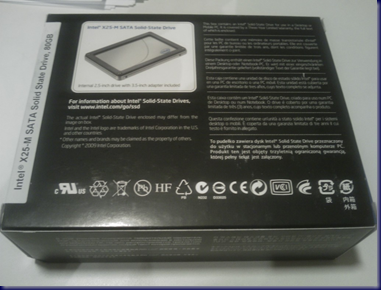
image

The package is seemingly larger than would be expected for a 2.5” SATA drive form factor.

But, once the box was opened, there was a good reason for the extra packaging space:
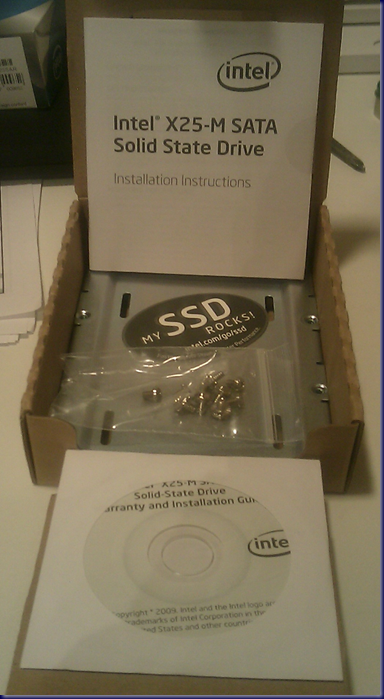
image

Underneath the cardboard tray the drive itself sat in was space for an adapter to install the drive into a standard 3.5” hard drive space along with the needed mounting screws.

Rounding things out are the installation manual on paper and CD as well as a MY SSD ROCKS! sticker that went onto the LCD cover of the Eee PC once the OS was installed successfully.

The Eee PC came with a weak 160GB 5400RPM Hitachi (we have a 50%+ fail rate for their drives in laptops) though the actual space utilized by the OS, Office 2007, and the Live applications was about 25GB-35GB. So, there would be lots of room to spare on the 80GB SSD.

The installation method of choice for spot Windows 7 OS installs is via USB flash drive.

Now, no two USB flash drives are alike. And, for any shop that depends on timely file transfers to and from a USB flash drive the cheap 8-12MB/Sec drives are out of the picture.

We bench tested a number of USB flash drives and came out with the 4GB OCZ ATV Turbo (OCZUSBATVT4G) as having the best overall performance at 35MB/Sec read speeds and 30-35MB/Sec Write speeds.

The 4GB OCZ ATV Turbo was the flash drive that was used to install Windows 7 Professional x86 on the Asus Eee PC.

Okay, so we have the OS on the ATV Turbo, it is active and good to boot from. Once we had booted into the setup process we clicked through and assigned the full 80GB to the OS.

Can anyone guess how long it took the OS to install on the Netbook from the point where we clicked Next?

Well, during the first part of the OS install the ATV Turbo’s LED was blinking pretty furiously with the Eee PC’s HDD light blinking intermittently.

Once the first reboot happened the HDD light remained lit almost constantly.

The entire OS install routine from the point where the Next button was clicked and we could click on the Start button after the OS desktop appeared and have it respond was 14 minutes.

That is just mindboggling for an Intel Atom N280 processor in a Netbook!

The next test for the SSD will be to see how it affects the battery life in the Netbook. With the Hitachi SATA installed we were getting an average of 7 hours of battery life. So, this will be the next step.

Once back in the shop we will run some hard drive benchmarks to get some real world numbers.

The next machine to get an SSD will be the Toshiba Tecra S10 that this blog post is being written on. Since 80GB is a bit too small, an external laptop sized USB/eSATA hard drive will be levelled with BitLocker To Go and travel with it for extra storage.

Again, it will be interesting to see what kind of performance increases as well as battery life increases the SSD installation will yield.

So far, we are very impressed with the Intel X25-M SATA Solid-State Drive.

Philip Elder
MPECS Inc.
Microsoft Small Business Specialists
Co-Author: SBS 2008 Blueprint Book

*Our original iMac was stolen (previous blog post). We now have a new MacBook Pro courtesy of Vlad Mazek, owner of OWN.

Windows Live Writer

Monday, 14 September 2009

The Verdict Is In: Eee PC and Windows 7 = ~7 Hours Of Battery Life

We posted earlier about loading Windows 7 on a new Asus Eee PC (previous blog post).

Last weekend there was some writing to do but I did not want to lug home the Tecra S10. It was used, on battery, for about a couple of hours in total on the weekend.

This morning we had an on-site to install four new workstations on our client’s SBS 2003 network. The Eee PC was not plugged in to charge up before the service call.

The on-site started at 0830Hrs (830AM) this morning and ended at 1330Hrs (130PM) this afternoon. The Eee PC finally gave up around 13:15Hrs which was about 15 minutes too soon! :)

All in all, the unit gave us about 7 hours of uninterrupted work time while on battery with an active wireless N (2Hrs) and a cellular modem (5Hrs).

Note that the Eee PC 1000HE comes with an 8700mAh (62Wh) battery versus the smaller 6500mAh batter in other Eee PCs. Bigger cells means a longer on-battery life.

The unit was plugged in when we got back to the shop and took about three or so hours to charge fully while off.

Having the ability to run the unit on the battery while doing service calls is pretty critical in that some of the server closets we work in have no available sockets or are running their 15Amp circuit to the max already.

Having a laptop, or the Netbook, while working at a client site is truly a necessity. Having access to the Internet via cellular modem allows us to download drivers, do research on any problems we may be faced with, update our service requests, or any other mundane Internet related task that should not be done from a server . . . especially a client’s server.

Philip Elder
MPECS Inc.
Microsoft Small Business Specialists
Co-Author: SBS 2008 Blueprint Book

*All Mac on SBS posts will not be written on a Mac until we replace our now missing iMac! (previous blog post)

Windows Live Writer

Friday, 11 September 2009

Windows 7 Ultimate x86 On An Eee PC with N280 Atom and 2GB RAM

Unfortunately the Asus Eee PC 1000HE is not x64 capable.

However, it was not a difficult decision to install Windows 7 on the new Asus Eee PC we picked up for shop duties, some of the longer forthcoming trips, as well as quick client trips.

Remember our experiences installing Windows 7 on the Toshiba Tecra S1? They were actually quite pleasantly surprising.

  • Toshiba Tecra S1 laptop
    • Intel Pentium M 1.7GHz
      • Single Core
      • 400MHz Front Side Bus
      • 1MB Level 2 Cache
      • 24.5 Watt Thermal Design Power (TDP)
    • 1GB RAM

Now, let’s look at the Netbook:

  • The Asus Eee PC
    • Intel N280 Atom 1.66GHz
      • Single Core with HyperThreading
      • 667MHz Front Side Bus
      • 512KB Level 2 Cache
      • 2.5 Watt Thermal Design Power

Pound for pound, we are looking at 10% of the S1’s power consumption (TDP) and at least as good as, if not better, all around performance on the Eee PC. The major performance boost on the Eee PC will be the HyperThreading capability of the Intel Atom as well as the front side bus speed. The Pentium M is only a single core unfortunately.

That translates to about 2 hours of battery life on the stock battery with the Tecra S1 and at least ? hours for the Eee PC. The box and book says that it can run about 6 hours on the somewhat larger battery included with this model. We shall see.

Last night’s first battery only run after a full charge yielded about 2.5 hours on 33% battery consumption. So, the number may not be far off.

A nice feature of the Eee PC’s 945 chipset is that it supports Aero and all of the Aero goodness in Windows 7. Also, the x86 version of Windows 7 picked up all of the hardware components with the exception of the Asus proprietary button device. Windows 7 x86 also picked up all of the SBS 2003 delivered printer drivers and setup without a hiccup too.

The big difference between the full sized Tecra and the Eee PC is the screen. The Eee PC’s small screen may be good for odd jobs and the like, but other than typing out this blog post on it and the other odd jobs it will be tasked with, the smaller screen is definitely a liability . . . at least until we get use to it! ;)

The small keyboard will also be a bit of a task to get used to for big fingers and thumbs. We have somewhere in the neighbourhood of 5 different keyboard styles around here including desktop keyboards and the various laptops and now Netbook. So, switching between them becomes a blend of touch typing with a bit of hunt & peck when the keyboard is not so familiar.

Finally, the touchpad leaves something to be desired. That goes without saying for any laptop. An external mouse such as the Logitech VX Revolution, or any wireless mouse, is a necessity for anyone that does not like touchpads. That is the case here.

Philip Elder
MPECS Inc.
Microsoft Small Business Specialists
Co-Author: SBS 2008 Blueprint Book

*All Mac on SBS posts will not be written on a Mac until we replace our now missing iMac! (previous blog post)

Windows Live Writer