Showing posts with label Windows 7 Features. Show all posts

Wednesday, 9 May 2012

Group Policy Settings Reference for Windows and Windows Server Excel Spreadsheets

Microsoft downloads:

image

Note the new spreadsheet for Windows Server 2012 (8).

image

The spreadsheets support Pivot Tables so it is fairly straightforward to find a specific or group of settings. The Excel Find feature allows for a quick search of the content.

Philip Elder
MPECS Inc.
Microsoft Small Business Specialists
Co-Author: SBS 2008 Blueprint Book

*Our original iMac was stolen (previous blog post). We now have a new MacBook Pro courtesy of Vlad Mazek, owner of OWN.

Windows Live Writer

Friday, 29 July 2011

Windows Thin PC On Its Way

We have been so busy lately that we have not had a chance to log onto the Microsoft Licensing portal and download the most current version of the Microsoft Desktop Optimization Pack (MDOP) and other products.

Today, we are downloading MDOP 2011 and Windows Thin PC both of which are a Windows Desktop Software Assurance Benefit:

image

We will drop Windows Thin PC into a VM to check out its base install size and its features. We are looking to deploy the OS on a bunch of Asus Eee PCs configured with 1GB of RAM and Compact Flash storage for a VDI setup in the near future.

MDOP has been an excellent SA benefit for us since Microsoft acquired the SysInternals toolset and turned that into an SA benefit. It is worth the look. We have SA + MDOP on all of our desktops and VMs based on retail packaged Windows 7 Pro, Vista Business and XP Pro.

Machines change so much around here that OEM does not make sense. Microsoft Action Pack desktop OS licenses could be used to add SA onto if there was a need for it but we are careful around the licensing language for the desktop OS.

Philip Elder
MPECS Inc.
Microsoft Small Business Specialists
Co-Author: SBS 2008 Blueprint Book

*Our original iMac was stolen (previous blog post). We now have a new MacBook Pro courtesy of Vlad Mazek, owner of OWN.

Windows Live Writer

Tuesday, 17 May 2011

Reinstall Internet Explorer 8 (IE8) on Windows 7

Here is how to reinstall IE8 on Windows 7.

  1. Open the Control Panel.
  2. Programs and Features.
  3. Turn Windows Features on or off.
    • image
  4. Uncheck IE8.
    • image
  5. Reboot.
  6. Run through again and check IE8.
  7. Reboot.

From here: Windows 7 Forums: How can I reinstall IE 8 for windows 7 (sic)

Philip Elder
MPECS Inc.
Microsoft Small Business Specialists
Co-Author: SBS 2008 Blueprint Book

*Our original iMac was stolen (previous blog post). We now have a new MacBook Pro courtesy of Vlad Mazek, owner of OWN.

Windows Live Writer

Monday, 20 December 2010

Legacy Taxprep T1, T2, and T3 Apps on Windows XP Mode

Now that many of our accounting firm clients are moving over to Windows 7 as the primary desktop operating system we have run into a roadblock of sorts with the legacy versions of Taxprep’s accounting applications.

That roadblock has to do with running any legacy version of Taxprep on a Windows 7 machine whether we install it locally or try and run it via a network install. The older the version of Taxprep the less likely we can shoehorn it into Windows 7 and it will fail to run.

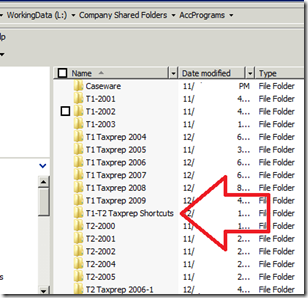
So, to mitigate this we created a folder that we keep in the network install location:
image

In that folder is a set of shortcuts to the network versions of the Taxprep applications:

image

We drop a copy of that folder of shortcuts into the following location in the Windows XP Mode VM:

image

Once Windows 7 has picked up on the new folder we place a shortcut to it on the user’s Windows 7 desktop.

They can then run whatever Taxprep version they need to via XP Mode.

Another option may be Microsoft’s App-V though some of our accounting firm clients do not have the required licensing in place yet.

In the rare case where a partner wants to have access to those legacy programs while outside of the main office we will install the legacy versions directly into the Windows XP Mode VM and place the shortcuts into a folder on their desktop.

Philip Elder
MPECS Inc.
Microsoft Small Business Specialists
Co-Author: SBS 2008 Blueprint Book

*Our original iMac was stolen (previous blog post). We now have a new MacBook Pro courtesy of Vlad Mazek, owner of OWN.

Windows Live Writer

Friday, 26 November 2010

Windows 7 Enterprise Upgrade Edition

Okay, so we cannot plug in a Windows 7 Enterprise OS based flash drive and do an in-place upgrade of Windows 7 Professional.

This is important to note when it comes to any time quoting for things like replacing spindle based hard disks with Intel X25-M SSDs and expecting to drop the OEM default recovery on the SSD and then upgrade to Windows 7 Enterprise using the client’s Software Assurance.

Windows 7 Enterprise will always have a fresh install requirement if the base OS was Windows 7 Professional.

The Windows 7 Enterprise Upgrade version will upgrade certain prior Windows Vista versions though.

Philip Elder
MPECS Inc.
Microsoft Small Business Specialists
Co-Author: SBS 2008 Blueprint Book

*Our original iMac was stolen (previous blog post). We now have a new MacBook Pro courtesy of Vlad Mazek, owner of OWN.

Windows Live Writer

Wednesday, 24 November 2010

Laptop Start-up – Stalled At “Please Wait …”

We have been seeing a few situations where a laptop that is not connected to any wired or wireless network connection will hang at “Please wait” for quite a long time.

It took a long time to figure out the right search terms to bring up the above Forums post.

image

While the general consensus among folks on the forum post is to disable the NLA Service, this will kill any connection that the laptop may have to a Home Group, disable the laptop’s ability to change default printers based on location, and more.

So, we suggest trying to set the NLA Service to Automatic (Delayed Start). If that still causes the stall at start up, then change the service to Manual so that the OS can still fire up the service if it is required.

Once the setting change is complete, the laptop should boot up and display the logon screen in essentially the same amount of time whether connected to a network or not.

Hat Tip: Kevin Atkey

Philip Elder
MPECS Inc.
Microsoft Small Business Specialists
Co-Author: SBS 2008 Blueprint Book

*Our original iMac was stolen (previous blog post). We now have a new MacBook Pro courtesy of Vlad Mazek, owner of OWN.

Windows Live Writer

Monday, 25 October 2010

Favorite Sync Now In Windows Live Essentials 2011

It has been a bit of a struggle to figure out what happened to the Live Toolbar ability to sync Internet Explorer’s Favorites.

After searching around we came upon Windows Live Mesh, now called Sync, that allows is to synchronize our Favorites folder across many different systems.

With the introduction of the Tega v2 we now have_a lot_ of devices to keep shared profile data synchronized across. The Live Toolbar helped to keep things sorted out when it came to IE Favorites.

image

Now that we have that worked out . . . for now . . . we have some addition profile tweaks to complete such as adding SharePoint libraries to Windows 7’s Favorites list (previous blog post) on the Tega v2.

Posted via Tega v2 entirely by touch. This will take some getting used to. A small Bluetooth keyboard is now on the To Do list for this week.

Philip Elder
MPECS Inc.
Microsoft Small Business Specialists
Co-Author: SBS 2008 Blueprint Book

*Our original iMac was stolen (previous blog post). We now have a new MacBook Pro courtesy of Vlad Mazek, owner of OWN.

Windows Live Writer

Wednesday, 20 October 2010

How To Highlight, Right Click, And Print More Than 15 Files

There seems to be a certain limitation in Windows that for some can be quite the burden.

For some folks there is a need to highlight a bunch of files and have them print to a printer right away. One would assume that the process would be simple:

  1. Highlight the files.
  2. Right click on the group and click on Print.

Here are our right click options when 15 files are highlighted:

image

Note the option to print is there.

When we go ahead and highlight 16 documents we see the following menu offered:

image

We have lost the ability to print those documents.

The answer came from this KB article:

Resolution

HKCU\Software\Microsoft\Windows\CurrentVersion\Explorer
Name : MultipleInvokePromptMinimum
Type : DWORD
Range: 1 - 16 (decimal)
Default : 15 (decimal)

For some, an actual decimal number like 128 may work where the number 16 may not actually allow for more than 15 files to be highlighted and printed.

image

Once we logged off and back on again we were able to highlight more than 15 documents:

image 

Caution Note: In testing this out on the above Word documents we encountered a huge system stall while Word fired itself up and subsequently started to print the documents. YMMV.

Philip Elder
MPECS Inc.
Microsoft Small Business Specialists
Co-Author: SBS 2008 Blueprint Book

*Our original iMac was stolen (previous blog post). We now have a new MacBook Pro courtesy of Vlad Mazek, owner of OWN.

Windows Live Writer

Tuesday, 3 August 2010

Windows 7, Windows Explorer, and SharePoint Foundation Allowing Quick Library Content Access

We have blogged about this subject before:

Here is a quick way to get a SharePoint Foundation library folder into Windows 7 to make it quickly available for content access via Windows Explorer or for saving content to the library without having to upload it.

In this example we will use the default Shared Documents folder while being accessed from _outside_ the SBS network that is via the Internet.

The process is the same for inside the SBS network, but one needs to keep in mind that the shortcut created should be aptly named.

  1. Open the SharePoint Foundation site.
    • image
  2. Click on the library link Shared Documents.
  3. Click on the Library link under Library Tools.
    • image
  4. On the menu that comes up, click on Open with Explorer.
    1. image
  5. A Windows Security box will pop up to authenticate.
    1. \Username
    2. My 1nsanely l0ng pass phraz3!
    • image
    • A Windows Explorer window will pop up.
  6. Click in the Address Bar so that the Internet address for the library is shown.
    • image
    • Note the address URL.
  7. Click on the folder icon just to the left of “http: . . .” and drag it down until a black bar shows under Favorites and the menu option Create link in Favorites comes up.
    1. image
  8. Right click on the newly created Favorite and click on Rename. Give it a name like WWW – Shared Documents.

Most of the recent Microsoft Office products will see the list of Favorites and allow for users to open or save content to the library.

But, some applications such as PDF readers or creators do not. So, one can click on the Favorites star folder to bring up the list of shortcuts then right click and hold on the newly created one and drag it over to Desktop. Left click on the Create shortcuts here menu item after releasing the right mouse button.

One can then use the application’s Save As dialogue to navigate to the Desktop and double click on the shortcut to the SharePoint library.

Philip Elder
MPECS Inc.
Microsoft Small Business Specialists
Co-Author: SBS 2008 Blueprint Book

*Our original iMac was stolen (previous blog post). We now have a new MacBook Pro courtesy of Vlad Mazek, owner of OWN.

Windows Live Writer

Thursday, 18 February 2010

So Just How Long Does it Take To BitLocker To Go a 1.5TB USB Hard Disk?

_A Long Time_ !!

As an experiment, we began a BitLocker To Go encryption process on a 1.5TB USB external hard disk.

The process was initiated last night, ran until this morning, then ran all day while we were in session.

This is where the process is at after resuming it about 15 minutes ago:

image

The moral of the story? An eSATA version would be _a lot_ faster than this! Though it too would take a long time.

Total time to get to the above percentage? Probably somewhere in the neighbourhood of 18 hours so far!

Philip Elder
MPECS Inc.
Microsoft Small Business Specialists
Co-Author: SBS 2008 Blueprint Book

*Our original iMac was stolen (previous blog post). We now have a new MacBook Pro courtesy of Vlad Mazek, owner of OWN.

Windows Live Writer

Tuesday, 19 January 2010

Some Really Good Windows 7 God Mode Hacks

Fellow MVP Tim Barrett has come up with a pretty good list of God Mode hacks here:

There are a lot of little things in the blog post that can be put together to improve a technician’s efficiency big time.

Check it out! :)

Philip Elder
MPECS Inc.
Microsoft Small Business Specialists
Co-Author: SBS 2008 Blueprint Book

*Our original iMac was stolen (previous blog post). We now have a new MacBook Pro courtesy of Vlad Mazek, owner of OWN.

Windows Live Writer

Friday, 4 December 2009

A Windows 7 Feature I Like – Windows Explorer Check Boxes

The little things about a product can make or break the way we think about it.

One thing I _really_ like in Windows Explorer is the ability to select items using check boxes:

image

In previous Windows OSs we needed to hold the CTRL key while clicking to select or deselect any items.

Not anymore. We can fly through the items list not working about clicking on something or hitting the wrong keyboard to wipe out the already selected items.

To enable the feature:

  1. Open Windows Explorer
  2. Tap the ALT key on the keyboard to drop down the menu items if not visible.
  3. Click Tools.
  4. Click Folder Options.
  5. Click the View tab.
  6. Scroll down to the Use check boxes to select items and check it.
  7. Apply and OK.

While you are at it, uncheck the Hide extensions for known files types. Why this setting is enabled out of the box is unknown, but not being able to work with a file’s extension can be a real pain.

Philip Elder
MPECS Inc.
Microsoft Small Business Specialists
Co-Author: SBS 2008 Blueprint Book

*Our original iMac was stolen (previous blog post). We now have a new MacBook Pro courtesy of Vlad Mazek, owner of OWN.

Windows Live Writer