This article at Network World is a real eye opener as far as rootkits are concerned: Vista's UAC spots rootkits, tests find.
The kicker? If the user cancelled the UAC prompt when the rootkit tried to install itself the install was dead in the water ... nada ... kaput ... done did be toast!
To say that again: Rootkit tries to install, user clicks CANCEL when they are prompted by UAC, they will not get infected.
Now how about that!
For all of the "pain" around UAC, that to us is a "killer app" folks in more ways than one and with the pun too!
The article is a good read, and provides some not so surprising results for rootkit cleaning not-so-success rates and then some.
Now, to continue on training our client's users to not turn the UAC off and to be wary if they were not doing something to bring about the prompt in the first place.
You see dark figures lurking in a dark cubby hole down the street seemingly looking right at you, what you going to do? Assess and make a decision pronto! That rootkit is no different ... street smarts = Internet smarts!
There is no product out there that can handle these situations better than a well trained user!
Philip Elder
MPECS Inc.
Microsoft Small Business Specialists
*All Mac on SBS posts are posted on our in-house iMac via the Safari Web browser.
Showing posts with label Vista Features. Show all posts
Showing posts with label Vista Features. Show all posts
Wednesday, 24 September 2008
Thursday, 29 November 2007
Windows Vista - Using the DiskPart Command to Create a Bootable USB Flash Drive
One of the neat additions to the DiskPart command in Windows Vista is the ability to work directly with USB flash drives.
Plug a flash drive into an XP box, run diskpart from the command prompt and:
Because of that, we now have a method of creating a bootable USB Flash drive with very little grief for our WinPE environment.
The previous method still could still be used: System Builder Tip: Creating a Bootable USB Drive (previous blog post).
Here is the process:

From there we can copy the DOS system files onto it for the minimal memory setup required by a BIOS update, or we can copy the WinPE boot files and WinPE boot image onto it to boot to WinPE.
Things just got a little simpler. :)
UPDATE 2010-02-04: Added the "Assign" and "Quick" to the above steps. One to get the drive letter and the other to avoid a long wait for the format.
Philip Elder
MPECS Inc.
Microsoft Small Business Specialists
*All Mac on SBS posts are posted on our in-house iMac via the Safari Web browser.
Plug a flash drive into an XP box, run diskpart from the command prompt and:
- list disk [Enter]
Because of that, we now have a method of creating a bootable USB Flash drive with very little grief for our WinPE environment.
The previous method still could still be used: System Builder Tip: Creating a Bootable USB Drive (previous blog post).
Here is the process:
- On a Vista system plug in the USB flash drive to an available USB port (ReadyBoost compatible is best)
- Start-->diskpart [Enter] (UAC Prompt)
- list disk (USB flash drive will show in the list - Disk 1 for this example)
- sel disk 1
- clean
- create par primary
- sel par 1
- act
- format fs=fat32 quick (note that USB HDDs will need to be NTFS)
- assign
- exit
We now have an active partition formatted with the FAT32 files system on the USB Flash drive.Setup of 2GB Flash Drive for WinPE Boot
From there we can copy the DOS system files onto it for the minimal memory setup required by a BIOS update, or we can copy the WinPE boot files and WinPE boot image onto it to boot to WinPE.
Things just got a little simpler. :)
UPDATE 2010-02-04: Added the "Assign" and "Quick" to the above steps. One to get the drive letter and the other to avoid a long wait for the format.
Philip Elder
MPECS Inc.
Microsoft Small Business Specialists
*All Mac on SBS posts are posted on our in-house iMac via the Safari Web browser.
Tuesday, 13 November 2007
Windows Vista - Windows XP Resetting the MBR - cursor blink at boot after recovery
After restoring a system via Ghost, which we are no longer using, or via ShadowProtect Version 3.0 (fixed in 3.1), one may need to reset the Master Boot Record (MBR) and Boot Sector on the new hard disk, replaced hard disk, or disk RAID array.
The key indicator that there is a problem is the blinking cursor in the top left corner of the screen after trying to reboot into the now recovered/restored OS.
The process has changed a bit as far as the command structure in Windows Vista versus Windows XP.
For Windows Vista:
Links:
MPECS Inc.
Microsoft Small Business Specialists
*All Mac on SBS posts are posted on our in-house iMac via the Safari Web browser.
The key indicator that there is a problem is the blinking cursor in the top left corner of the screen after trying to reboot into the now recovered/restored OS.
The process has changed a bit as far as the command structure in Windows Vista versus Windows XP.
For Windows Vista:
- Boot the Vista DVD
- Choose the Repair option at the Install Screen (bottom left corner link)
- Click on the Command Prompt option
- bootrec /fixmbr [Enter]
- bootrec /fixboot [Enter]
- Exit [Enter]
- Restart into the OS.
- Boot the Windows XP CD
- F6 if RAID drivers are required and install when prompted
- Repair Windows
- Logon to the Recovery Console
- fixmbr \Device\HardDisk0 [Enter]
- fixboot c: [Enter]
- Exit [Enter]
- Restart into the OS.
Links:
- MS KB 927392: How to use the Bootrec.exe tool in the Windows Recovery Environment to troubleshoot and repair startup issues in Windows Vista
- MS KB 314058: Description of the Windows XP Recovery Console (provides an alternate way to get to the Recovery Console via the Startup folder on XP)
- Windows XP Product Documentation: Fixboot
- Windows XP Product Documentation: Fixmbr
MPECS Inc.
Microsoft Small Business Specialists
*All Mac on SBS posts are posted on our in-house iMac via the Safari Web browser.
Thursday, 1 November 2007
Windows Vista - BitLocker Error - "system boot information has changed"
Now that we have BitLocker enabled on some of our systems, we have run into a real annoying quirck with it:
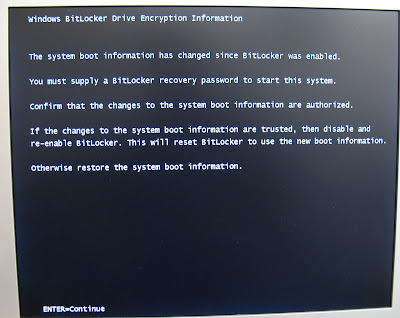
This screen is happening every time we boot the system.
Since we are testing things, the machine is not setup on our domain yet.
What we can tell from searching is that we need to make some settings changes to the local machine's Group Policy, or at the domain Group Policy level before enabling BitLocker on any machine attached to the SBS domain.
For a standalone system if BitLocker has already been enabled and the error is showing itself, disable BitLocker, decrypt the system drive, and reset the TPM.
Then do the following:
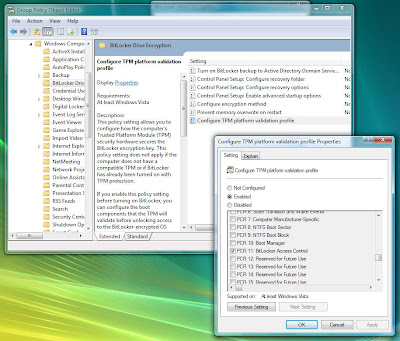
You can test that the settings have taken by rebooting the system after pausing the encryption process at 1%. Note that a UAC prompt will happen after clicking the Pause button on the BitLocker encryption process window.
In our test on the stand alone system, it worked. We were no longer prompted for the BitLocker key when rebooting. We unplugged the system - did not remove the battery - and let it sit a while to make sure. Again, the system came backup without a BitLocker password prompt.
For an SBS domain attached system where the SBS server has been RipCurled (previous blog post), one would make the settings change to the Windows Vista Group Policy Object from a Vista box logged in as the domain admin.
Once logged into the Vista workstation and GPMC.msc is run, this is what you will see:

Information on the workaround was found on the TechNet Forums: BitLocker requests encryption key at every reboot.
The BitLocker Team Blog - which hasn't been updated for a long time ... hint ... hint ...
By the way, a very critical consideration in all this is: What will happen to the BitLocker setup when a BIOS update is done? We will definitely be watching out for the next JOE update to test that one!
And secondly, the TPM on both the DQ965GF series and the DQ35JOE are both 1.2 compliant ... meaning that they will work with BitLocker with no issues.
Philip Elder
MPECS Inc.
Microsoft Small Business Specialists
*All Mac on SBS posts are posted on our in-house iMac via the Safari Web browser.

Windows BitLocker Drive Encryption InformationWhen setting up BitLocker, it gets us to create a text file with that password in it. We put that file onto a network share.
The system boot information has changed since BitLocker was enabled.
You must supply a BitLocker recovery password to start this system...
This screen is happening every time we boot the system.
Since we are testing things, the machine is not setup on our domain yet.
What we can tell from searching is that we need to make some settings changes to the local machine's Group Policy, or at the domain Group Policy level before enabling BitLocker on any machine attached to the SBS domain.
For a standalone system if BitLocker has already been enabled and the error is showing itself, disable BitLocker, decrypt the system drive, and reset the TPM.
Then do the following:
- gpedit.msc
- Administrative Templates
- Windows Components
- BitLocker Drive Encryption
- Disable by unchecking all PCR settings BUT 11
- Start-->CMD [Enter] (in search)
- GPUpdate /force

Reboot the system, reinitialize the TPM and run the BitLocker Drive Encryption tool to create another key and encrypt the drive.GPEdit.msc Vista TPM PCR Settings Edited
You can test that the settings have taken by rebooting the system after pausing the encryption process at 1%. Note that a UAC prompt will happen after clicking the Pause button on the BitLocker encryption process window.
In our test on the stand alone system, it worked. We were no longer prompted for the BitLocker key when rebooting. We unplugged the system - did not remove the battery - and let it sit a while to make sure. Again, the system came backup without a BitLocker password prompt.
For an SBS domain attached system where the SBS server has been RipCurled (previous blog post), one would make the settings change to the Windows Vista Group Policy Object from a Vista box logged in as the domain admin.
Once logged into the Vista workstation and GPMC.msc is run, this is what you will see:

Note all of the extra Vista related policy settings that are accessible when managing the SBS Vista Group Policy Object from a Windows Vista machine.SBS Vista Group Policy Object
Information on the workaround was found on the TechNet Forums: BitLocker requests encryption key at every reboot.
The BitLocker Team Blog - which hasn't been updated for a long time ... hint ... hint ...
By the way, a very critical consideration in all this is: What will happen to the BitLocker setup when a BIOS update is done? We will definitely be watching out for the next JOE update to test that one!
And secondly, the TPM on both the DQ965GF series and the DQ35JOE are both 1.2 compliant ... meaning that they will work with BitLocker with no issues.
Philip Elder
MPECS Inc.
Microsoft Small Business Specialists
*All Mac on SBS posts are posted on our in-house iMac via the Safari Web browser.
Wednesday, 31 October 2007
Windows Vista - Now ... Just Exactly What is in What Edition Again?!?
We have our Retail (Fully Packaged Product - FPP) boxed XP Pro and Vista Business on which we base our Open Value Software Assurance benefits.
We are eligible for the Windows Vista Ultimate upgrade or Windows Vista Enterprise upgrade editions with our Software Assurance Benefits.
Okay, now ... can someone tell us simply and clearly: What is the difference between Windows Vista Ultimate and Enterprise features in one page or less ... preferably via a grid?
Microsoft's Windows Vista Choose an Edition site does not clarify that.
So, we click the link at the bottom of the Vista Comparison Grid:
With a little bit of searching, we came up with this excellent Windows Vista Edition comparison article at Paul Thurrott's SuperSite for Windows: Windows Vista Review
Part 2: Understanding the Vista Product Editions. We are provided with a grid, and the answer to the question we were asking.
The answer is: The primary difference between the two editions is the inclusion of Media Center features along with the Media Center Extensions and DVD making software in Vista Ultimate Edition.
For us, the differences are important as we need to explain to our client's senior partners the edition options that can be installed on their systems. We may also be required to run some training for our client's partners on the Ultimate feature set either here or on-site.
Philip Elder
MPECS Inc.
Microsoft Small Business Specialists
*All Mac on SBS posts are posted on our in-house iMac via the Safari Web browser.
We are eligible for the Windows Vista Ultimate upgrade or Windows Vista Enterprise upgrade editions with our Software Assurance Benefits.
Okay, now ... can someone tell us simply and clearly: What is the difference between Windows Vista Ultimate and Enterprise features in one page or less ... preferably via a grid?
Microsoft's Windows Vista Choose an Edition site does not clarify that.
So, we click the link at the bottom of the Vista Comparison Grid:
Large, global organizations with complex IT infrastructures should consider Windows Vista Enterprise edition.Therein we find a link to Vista Enterprise's features. Still, we don't find a grid to compare to other Vista editions.
With a little bit of searching, we came up with this excellent Windows Vista Edition comparison article at Paul Thurrott's SuperSite for Windows: Windows Vista Review
Part 2: Understanding the Vista Product Editions. We are provided with a grid, and the answer to the question we were asking.
The answer is: The primary difference between the two editions is the inclusion of Media Center features along with the Media Center Extensions and DVD making software in Vista Ultimate Edition.
For us, the differences are important as we need to explain to our client's senior partners the edition options that can be installed on their systems. We may also be required to run some training for our client's partners on the Ultimate feature set either here or on-site.
Philip Elder
MPECS Inc.
Microsoft Small Business Specialists
*All Mac on SBS posts are posted on our in-house iMac via the Safari Web browser.
Wednesday, 12 September 2007
Windows Vista - BitLocker caveat - Or maybe not?
Looking forward to incorporating full encryption via the new Windows Vista BitLocker Drive Encryption? We are, and so are our clients who have a huge exposure with client data on all of their laptops.
EFS was not a foolproof option. BitLocker is.
However, a little beforehand research is in order.
One needs to have at least two (2) volumes created before installing Windows Vista.
At least that is how it reads until about the middle of the Help article where it states that if you only have one volume, you can use the BitLocker Drive Preparation Tool to "help get your system ready for BitLocker by creating the required second partition".
From the Windows Vista Help for BitLocker:
To the Windows Vista team that wrote this particular Help item, please clarify whether we need to have two partitions/volumes before we install the OS or not. The above Help article certainly, at least in our opinion, doesn't make things clear.
Philip Elder
MPECS Inc.
Microsoft Small Business Specialists
*All Mac on SBS posts are posted on our in-house iMac via the Safari Web browser.
EFS was not a foolproof option. BitLocker is.
However, a little beforehand research is in order.
One needs to have at least two (2) volumes created before installing Windows Vista.
At least that is how it reads until about the middle of the Help article where it states that if you only have one volume, you can use the BitLocker Drive Preparation Tool to "help get your system ready for BitLocker by creating the required second partition".
From the Windows Vista Help for BitLocker:
Set up your hard disk for BitLocker Drive EncryptionFrom the above mentioned Knowledge base article:
Before you can turn on BitLocker Drive Encryption you need to make sure that your computer's hard disk has the following:
At least two volumes. If you create a new volume after you have already installed Windows, you will have to reinstall Windows before turning on BitLocker [emphasis ours].
One volume is for the operating system drive (typically drive C) that BitLocker will encrypt, and one is for the active volume, which must remain unencrypted to start the computer. The size of the active volume must be at least 1.5 gigabytes (GB). Both partitions must be formatted with the NTFS file system.
Note
The terms partition and volume are often used interchangeably. On most computers, they are the same: one partition equals one volume. On larger computer systems, however, it is possible to have a single volume span several partitions. BitLocker installs on a simple volume, where one volume equals one partition.
If you do not already have two partitions, you can use the BitLocker Drive Preparation Tool to help get your system ready for BitLocker by creating the required second partition [emphasis ours].
If you are using Windows Vista Ultimate, you can download and install the BitLocker drive preparation tool from Ultimate Extras. Download and install the Ultimate extra called BitLocker and EFS enhancements. After you have installed this tool, type BitLocker into the Start menu search box, and then double-click BitLocker Drive Preparation Tool to run the tool. After the tool runs, you must restart your computer before turning on BitLocker.
If you are using Windows Vista Enterprise, you can get the BitLocker drive preparation tool through these standard support channels:
Microsoft Volume Licensing Services
Microsoft Services Premier Support
Additional information about the BitLocker drive preparation tool is available in Knowledge base article KB# 930063.
If your computer meets these requirements, you can turn on BitLocker.
To turn on BitLocker
Click to open BitLocker. If you are prompted for an administrator password or confirmation, type the password or provide confirmation.
Click Turn on BitLocker.
Follow the instructions in the BitLocker Setup wizard.
How to obtain the BitLocker Drive Preparation ToolWe don't have a free system with a TPM at the moment. So, we won't be able to run through the setup procedure to figure out just what is up.
Windows Vista Ultimate
If you are using Windows Vista Ultimate, follow these steps to obtain the tool:
- Click Start, type Windows Update in the Start Search box, and then press ENTER.
- Click Check for updates.
- Click View available Extras.
- Click to select the BitLocker and EFS enhancements check box, and then click Install.
To the Windows Vista team that wrote this particular Help item, please clarify whether we need to have two partitions/volumes before we install the OS or not. The above Help article certainly, at least in our opinion, doesn't make things clear.
Philip Elder
MPECS Inc.
Microsoft Small Business Specialists
*All Mac on SBS posts are posted on our in-house iMac via the Safari Web browser.
Wednesday, 13 June 2007
Windows Vista - Feature? Maybe... Pictures in disk found.
A bit of an odd-ball, but someone has looked close enough at the Windows Vista hologram disk to find what looks to be a picture of three fellows embedded in it.
Go figure!
You can see the images here on Sugiero's Blog: Windows Vista Virtual Easter Egg.
Thanks to Todd Bishop: Reports: Microscopic image hidden on Vista disc.
Got a microscope? :D
UPDATE 2007-06-14: Heh ... an anti-piracy technique eh? :D
The Windows Vista News blog has the low down on just what is really happening: Taking a detailed look at Windows Vista DVD hologram:
I think the feature is pretty kewl! :D
Philip Elder
MPECS Inc.
Microsoft Small Business Specialists
Go figure!
You can see the images here on Sugiero's Blog: Windows Vista Virtual Easter Egg.
Thanks to Todd Bishop: Reports: Microscopic image hidden on Vista disc.
Got a microscope? :D
UPDATE 2007-06-14: Heh ... an anti-piracy technique eh? :D
The Windows Vista News blog has the low down on just what is really happening: Taking a detailed look at Windows Vista DVD hologram:
The real story is interesting, but conspiracy theorists will be disappointed to learn that it is not the result of a deliberate attempt to deceive. The photo displays members of the team who worked on the Windows Vista DVD hologram design. Microsoft’s Anti-Piracy Team designed a counterfeit-resistant digital "watermark" for the non-encoded surface of Windows Vista DVDs. The photo in question is only one of multiple images contained in the hologram design, all of whose inclusion serves to make it more difficult to replicate a Windows Vista DVD. The other images are of old master works of art that are in the public domain. These images are part of numerous other security measures that have been designed into our media, packaging and certificates of authenticity. Hence, even though this image has been reproduced on the Web, there are many other features providing further security.And, head on back to Sugiero's blog to see a few more images embedded in the disk.
I think the feature is pretty kewl! :D
Philip Elder
MPECS Inc.
Microsoft Small Business Specialists
Labels:
Vista Features,
Windows Vista


Thursday, 24 May 2007
Windows Vista - Opening Component Services
There is no direct shortcut or icon to open Component Services in Windows Vista.
To do so, run the following:

%windir%\system32\comexp.msc
Found via the MSDN Forums: Component Services.
Philip Elder
MPECS Inc.
Microsoft Small Business Specialists
To do so, run the following:

%windir%\system32\comexp.msc
Found via the MSDN Forums: Component Services.
Philip Elder
MPECS Inc.
Microsoft Small Business Specialists
Labels:
Component Services,
Vista Features,
Windows Vista
Wednesday, 9 May 2007
System Builder Tips: Windows Vista - OEM Branding how to
I finally found the way (not that I was looking too hard ;)) to brand a Windows Vista OEM based system like so:
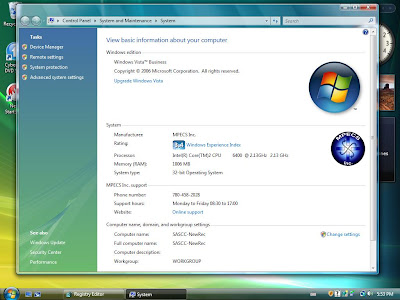
Note our logo, our support info, and a link ot our Web site.
Windows XP was basically an oeminfo.ini with the company support information and an oemlogo.bmp of the logo copied into %windir%\system32.
On Windows Vista, one needs to follow these steps:
Windows Registry Editor Version 5.00
[HKEY_LOCAL_MACHINE\SOFTWARE\Microsoft\Windows\CurrentVersion\OEMInformation]
"HelpCustomized"=dword:00000000
"Logo"="c:\\windows\\system32\\oobe\\OEMLOGO.BMP"
"SupportHours"="Monday to Friday 08:30 to 17:00"
"Manufacturer"="MPECS Inc."
"SupportPhone"="780-458-2028"
"SupportURL"="www.mpecsinc.ca"
Change the above entries to your own company's information and away you go.
The OEM logo is bitmap and must be named OEMLogo as per the registry setting. You can experiment with names and types to see what works best for you.
Our bitmap logo is 88 pixels by 88 pixels in size and is 24 bits in depth.
Philip Elder
MPECS Inc.
Microsoft Small Business Specialists

Note our logo, our support info, and a link ot our Web site.
Windows XP was basically an oeminfo.ini with the company support information and an oemlogo.bmp of the logo copied into %windir%\system32.
On Windows Vista, one needs to follow these steps:
- modify a registry entry
- Copy the bitmap into %windir%\system32\oobe
Windows Registry Editor Version 5.00
[HKEY_LOCAL_MACHINE\SOFTWARE\Microsoft\Windows\CurrentVersion\OEMInformation]
"HelpCustomized"=dword:00000000
"Logo"="c:\\windows\\system32\\oobe\\OEMLOGO.BMP"
"SupportHours"="Monday to Friday 08:30 to 17:00"
"Manufacturer"="MPECS Inc."
"SupportPhone"="780-458-2028"
"SupportURL"="www.mpecsinc.ca"
Change the above entries to your own company's information and away you go.
The OEM logo is bitmap and must be named OEMLogo as per the registry setting. You can experiment with names and types to see what works best for you.
Our bitmap logo is 88 pixels by 88 pixels in size and is 24 bits in depth.
Philip Elder
MPECS Inc.
Microsoft Small Business Specialists
Labels:
OEM,
System Builder Tips,
Vista Features,
Windows Vista
Friday, 20 April 2007
The Character Map - How to get those special characters without mucking about with fonts.
I was typing up a note that needed a copyright symbol inserted.
In Word 2007 it was pretty straight forward.
Go to the Insert Tab and click on the Symbol icon on the ribbon:

However, what do we do when we are working in Notepad or Wordpad and have need for symbols?
In Windows XP and Windows Vista you will find the character map for inserting all sorts of different symbol characters with the Character Map feature.
In Windows XP:
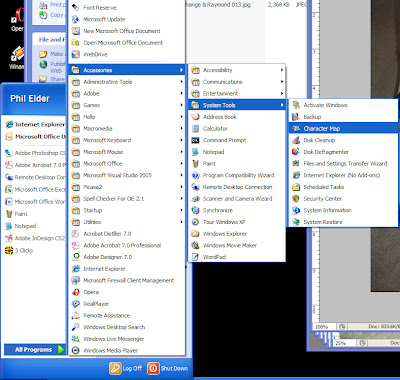
In Windows Vista:
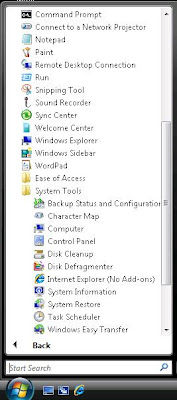
It is the second option under the System Tools folder.
Both the XP and Vista Character Map versions are pretty much the same.
Here they are side by side:
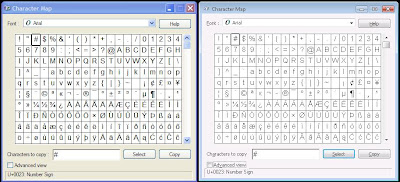
The XP version is the one on the left.
Essentially, find the character you need, double click on it and it gets copied to the clipboard.
Flip back to Notepad, or the program you are using, and paste the character in.
Done.
It is helpful to get the "é" in Resumé. ;)
Philip Elder
MPECS Inc.
Microsoft Small Business Specialists
In Word 2007 it was pretty straight forward.
Go to the Insert Tab and click on the Symbol icon on the ribbon:

However, what do we do when we are working in Notepad or Wordpad and have need for symbols?
In Windows XP and Windows Vista you will find the character map for inserting all sorts of different symbol characters with the Character Map feature.
In Windows XP:

In Windows Vista:

It is the second option under the System Tools folder.
Both the XP and Vista Character Map versions are pretty much the same.
Here they are side by side:

The XP version is the one on the left.
Essentially, find the character you need, double click on it and it gets copied to the clipboard.
Flip back to Notepad, or the program you are using, and paste the character in.
Done.
It is helpful to get the "é" in Resumé. ;)
Philip Elder
MPECS Inc.
Microsoft Small Business Specialists
Labels:
Vista Features,
Windows Vista,
Windows XP,
XP Features
Monday, 16 April 2007
Windows Vista - Internet Connectivity Evaluation Tool
Microsoft is offering an Internet Connectivity Evaluation Tool to evaluate a user's Internet connection, or the router that is used to connect to the Internet for Vista compatibility.
After reading the terms of the License agreement, I get a bit of a kick out of the following at clause 12:
Remember, we deal with small to medium businesses that can be wiped out by a full technology failure. Our own clients are protected, as we have worked very hard on DRP related "insurance" for their company.
But, there are a lot of companies out there that do not have any sort of real backup and DRP in place.
Once you have agreed to the terms you will be greeted with the following software add-on install request:

The machine this test is running on is an XP Pro SP2 box.
The XP Pro SP2 box is running behind SBS 2K3 Premium R2 with ISA 2004 SP2 installed and configured. ISA has all current patches and the SBS box has been RipCurled. W2K3 SP2 is not installed at this time.
Here are our results:

The NAT portion of the test failed and cascaded to the other portions of the test except for the Multiple Simultaneous States Test which ISA passes with no problems.
The bottom half of the page:

In reading the results information below the initial failed test, I can see the references pertaining to IPv6 being relevant as we do not have IPv6 installed and configured on the SBS/ISA box at this time.
So, what exactly are we talking about as far as the IPv6 stuff? I am not too sure yet. We need to wait and see as far as Internet wide implementation. And, we need to do a bunch of IPv6 learnin! ;)
As far as we can see with our production SBS/Vista implementations, Vista is functioning 100% with few complications.
UPDATE 07-04-16: The D-Link DI-624 Rev. C (Firmware 2.53) passed tests available to XP with the exception of the UPnP feature. I am updating the firmware to see if the test is successful after that.
I will hook up a Vista box to the unit to test again when I have a bit more time.
Philip Elder
MPECS Inc.
Microsoft Small Business Specialists
After reading the terms of the License agreement, I get a bit of a kick out of the following at clause 12:
LIMITATION ON AND EXCLUSION OF REMEDIES AND DAMAGES. You can recover from Microsoft and its suppliers only direct damages up to U.S. $5.00. You cannot recover any other damages, including consequential, lost profits, special, indirect or incidental damages.Why do I get a kick out of it? Because, our company, like other VARs or Integrated Solution Providers are on the hook when the software breaks! We are the ones directly responsible for our client's business well being.
Remember, we deal with small to medium businesses that can be wiped out by a full technology failure. Our own clients are protected, as we have worked very hard on DRP related "insurance" for their company.
But, there are a lot of companies out there that do not have any sort of real backup and DRP in place.
Once you have agreed to the terms you will be greeted with the following software add-on install request:

The machine this test is running on is an XP Pro SP2 box.
The XP Pro SP2 box is running behind SBS 2K3 Premium R2 with ISA 2004 SP2 installed and configured. ISA has all current patches and the SBS box has been RipCurled. W2K3 SP2 is not installed at this time.
Here are our results:

The NAT portion of the test failed and cascaded to the other portions of the test except for the Multiple Simultaneous States Test which ISA passes with no problems.
The bottom half of the page:

In reading the results information below the initial failed test, I can see the references pertaining to IPv6 being relevant as we do not have IPv6 installed and configured on the SBS/ISA box at this time.
So, what exactly are we talking about as far as the IPv6 stuff? I am not too sure yet. We need to wait and see as far as Internet wide implementation. And, we need to do a bunch of IPv6 learnin! ;)
As far as we can see with our production SBS/Vista implementations, Vista is functioning 100% with few complications.
UPDATE 07-04-16: The D-Link DI-624 Rev. C (Firmware 2.53) passed tests available to XP with the exception of the UPnP feature. I am updating the firmware to see if the test is successful after that.
I will hook up a Vista box to the unit to test again when I have a bit more time.
Philip Elder
MPECS Inc.
Microsoft Small Business Specialists
Labels:
ISA,
SBS,
Vista Features,
Windows Vista
Tuesday, 20 March 2007
System Builder Tips: Windows Vista - The so called Activation Workaround?
All one has to do is search for Vista Activation Workaround.
There are tons of people out there claiming to have a process to work around the Windows Vista Activation process to extend the "trial" period of the OS 120 days to indefinitely.
Alex over at the Windows Genuine Advantage blog basically debunks the workarounds based on the rearm and skiprearm commands.
He then explains the reasoning behind the supposed loophole in activation as a tool for us System Builders to make sure our clients receive a machine that has the full 30 day pre-activation period for the OS.
He even provides a command: slmgr -dlv to verify the activation count down timer has not changed after running the above workarounds!
Okay, so has anyone really tested the so called workarounds? That is, use the above command to verify the count down timers, or to actually run a machine utilizing the rearm & skiprearm commands?
Time will tell.
Philip Elder
MPECS Inc.
Microsoft Small Business Specialists
There are tons of people out there claiming to have a process to work around the Windows Vista Activation process to extend the "trial" period of the OS 120 days to indefinitely.
Alex over at the Windows Genuine Advantage blog basically debunks the workarounds based on the rearm and skiprearm commands.
He then explains the reasoning behind the supposed loophole in activation as a tool for us System Builders to make sure our clients receive a machine that has the full 30 day pre-activation period for the OS.
He even provides a command: slmgr -dlv to verify the activation count down timer has not changed after running the above workarounds!
Okay, so has anyone really tested the so called workarounds? That is, use the above command to verify the count down timers, or to actually run a machine utilizing the rearm & skiprearm commands?
Time will tell.
Philip Elder
MPECS Inc.
Microsoft Small Business Specialists
Labels:
System Builder Tips,
Vista Features,
Windows Vista
Thursday, 1 March 2007
Windows Vista - Use the operating system free for 4 months
I like this one tip by Ed Bott on his ZDNet blog:
When nearing the 30 day mark of the trail period:
From an elevated CMD prompt: slmgr.vbs -rearm
Reboot and your are done.
One can install Vista, then setup a simple script to run at the 29 day mark to essentially extend the trial period for another 30 days without having to either reactivate, or reinstall the OS. Voila, you have up to four months to play around with it!
You can find the tip here: Vista Hands On #9: User Vista for four months, free.
Philip Elder
MPECS Inc.
Microsoft Small Business Specialists
When nearing the 30 day mark of the trail period:
From an elevated CMD prompt: slmgr.vbs -rearm
Reboot and your are done.
One can install Vista, then setup a simple script to run at the 29 day mark to essentially extend the trial period for another 30 days without having to either reactivate, or reinstall the OS. Voila, you have up to four months to play around with it!
You can find the tip here: Vista Hands On #9: User Vista for four months, free.
Philip Elder
MPECS Inc.
Microsoft Small Business Specialists
Labels:
Vista Features,
Windows Vista
Thursday, 22 February 2007
System Builder Tip: Get the Winternal's Admin Pack - Or Vista SA & Get it Free!
Mark Minasi's Supporting Windows Vista audio CDs that I purchased a little while ago just paid for itself a thousand times over.
How?
He mentions during his introduction on CD 1 that the Winternal's Admin Pack would soon be introduced as one of the free parts of Vista's Software Assurance benefits.
So, off to Winternal's site I go to find out more. They do indicate that the Admin Pack is available for the time being, but soon to be only offered to Vista Software Assurance clients with a link to the Vista SA site.
On the Vista SA site, check out those tools at the bottom that are going to be included as well!
(Best Daffy Duck) Ohhh Booyyy! Ohh Booyyy!
Vista Software Assurance is really kewl!
SKU for Open Value Year 1: 66J-01283 (minimum 5 on the first order & 3 year commitment).
Vista Business Retail SKU: 66J-00002
If you need to use the Admin Pack tools now, go for it. One can save you from having to flatten a domain for a changed and forgotten SBS Admin password, or from having to muck around trying to figure out how to use the "tools" that are out there to do it. We have had very little success with those "tools".
We have worked with a company that has the Admin Pack tools, and they demonstrated the method to change the domain admin password in one server reboot on one of our virtual SBS test boxes. I was impressed to say the least.
Legit is where it's at! :D
Philip Elder
MPECS Inc.
Microsoft Small Business Specialists
How?
He mentions during his introduction on CD 1 that the Winternal's Admin Pack would soon be introduced as one of the free parts of Vista's Software Assurance benefits.
So, off to Winternal's site I go to find out more. They do indicate that the Admin Pack is available for the time being, but soon to be only offered to Vista Software Assurance clients with a link to the Vista SA site.
On the Vista SA site, check out those tools at the bottom that are going to be included as well!
(Best Daffy Duck) Ohhh Booyyy! Ohh Booyyy!
Vista Software Assurance is really kewl!
SKU for Open Value Year 1: 66J-01283 (minimum 5 on the first order & 3 year commitment).
Vista Business Retail SKU: 66J-00002
If you need to use the Admin Pack tools now, go for it. One can save you from having to flatten a domain for a changed and forgotten SBS Admin password, or from having to muck around trying to figure out how to use the "tools" that are out there to do it. We have had very little success with those "tools".
We have worked with a company that has the Admin Pack tools, and they demonstrated the method to change the domain admin password in one server reboot on one of our virtual SBS test boxes. I was impressed to say the least.
Legit is where it's at! :D
Philip Elder
MPECS Inc.
Microsoft Small Business Specialists
Sunday, 18 February 2007
Windows Vista - the new MSPaint
The new version of MSPaint in Windows Vista ROCKS!
Why?
How many of our clients have any form of image editing software on their machines other than MSPaint? Generally, for most clients not directly connected to some sort of publishing industry, it is unlikely.
So, when I need to create a quick How-To manual while on-site, I have to use the XP Pro based MSPaint. Trimming images from screen shots using this process is painful at best. After so many years of doing it, I pretty much know the default dpi x dpi of the various message windows and pop-ups! ;*)
The kewlest new feature, yes it is deliberately misspelled, is the CROP feature! No more CTRL-E cut the width and height, rotate, CTRL-E, cut the width and height, and so on, and so on! Throw in a whole bunch of CTRL-Zs to step back too! Even with a good idea of the height and width of a screen shot item it would generally take three or four edits to get each side cropped!
On Vista, I click on IMAGE, CROP. Then, I drag my mouse from opposite corner to opposite corner of just the item I want, Right Click, select crop, and voila! Save and done...Just saved myself oodles of time for some of the more complex quick Help Manuals that I sometimes need to create on the spot.

This one feature is definitely a step up!
Philip Elder
MPECS Inc.
Microsoft Small Business Specialists
Why?
How many of our clients have any form of image editing software on their machines other than MSPaint? Generally, for most clients not directly connected to some sort of publishing industry, it is unlikely.
So, when I need to create a quick How-To manual while on-site, I have to use the XP Pro based MSPaint. Trimming images from screen shots using this process is painful at best. After so many years of doing it, I pretty much know the default dpi x dpi of the various message windows and pop-ups! ;*)
The kewlest new feature, yes it is deliberately misspelled, is the CROP feature! No more CTRL-E cut the width and height, rotate, CTRL-E, cut the width and height, and so on, and so on! Throw in a whole bunch of CTRL-Zs to step back too! Even with a good idea of the height and width of a screen shot item it would generally take three or four edits to get each side cropped!
On Vista, I click on IMAGE, CROP. Then, I drag my mouse from opposite corner to opposite corner of just the item I want, Right Click, select crop, and voila! Save and done...Just saved myself oodles of time for some of the more complex quick Help Manuals that I sometimes need to create on the spot.

This one feature is definitely a step up!
Philip Elder
MPECS Inc.
Microsoft Small Business Specialists
Labels:
Vista Features,
Windows Vista
Friday, 16 February 2007
System Builder Tips: Windows Vista Feature: During install ... USB drive live!
I am sure that there are a lot of people who have been caught in "floppy hell" when it comes to installing operating systems with some sort of special controller card or on board controller.
I am installing Vista Ultimate onto one of our small form factor Pentium D machines along with Office 2007 to take with me to client's locations for demonstrations.
This particular box has a 2 port SATA RAID controller in it.
Vista could not find any drivers and requested some. The demo box has no built in optical or floppy drive. There is an optical drive connected via USB for the install only.
I connected a USB floppy with the driver in it, and Vista scanned it, pulled the driver, and the installation now continues. No reboot for a drive to be connected!
To me, that is a pretty neat feature. I don't know how many times I have been caught by an OS that requested a driver from a floppy only!
It gives me the impression that I can now keep a USB flash drive with the requisite drivers that can be used with future Vista and hopefully Longhorn installs!
Philip Elder
MPECS Inc.
Microsoft Small Business Specialists
I am installing Vista Ultimate onto one of our small form factor Pentium D machines along with Office 2007 to take with me to client's locations for demonstrations.
This particular box has a 2 port SATA RAID controller in it.
Vista could not find any drivers and requested some. The demo box has no built in optical or floppy drive. There is an optical drive connected via USB for the install only.
I connected a USB floppy with the driver in it, and Vista scanned it, pulled the driver, and the installation now continues. No reboot for a drive to be connected!
To me, that is a pretty neat feature. I don't know how many times I have been caught by an OS that requested a driver from a floppy only!
It gives me the impression that I can now keep a USB flash drive with the requisite drivers that can be used with future Vista and hopefully Longhorn installs!
Philip Elder
MPECS Inc.
Microsoft Small Business Specialists
Thursday, 15 February 2007
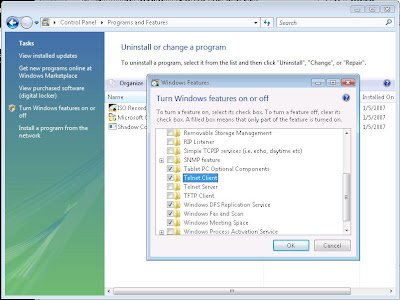
Vista - Telnet Client not Installed by Default
I went to test a POP3 server connection from one of our Vista remote clients, and discovered that the Telnet client was not installed by default.
In the Vista default view:
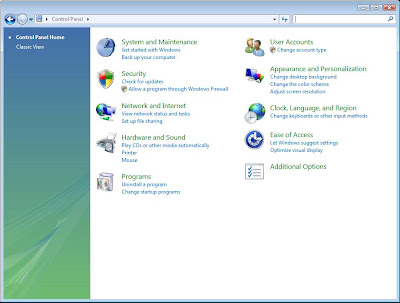
Click on the green Programs Link. You will be taken to the following page:
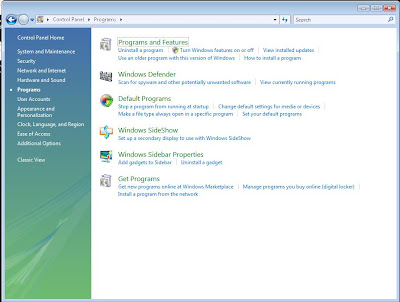
The link with the shield, Turn Windows features on or off, is the next one to click on.
You will be greeted with the now famous UAC (User Access Control):

From there, you can choose to install whatever Vista feature you are looking for:
Then, you will be done.
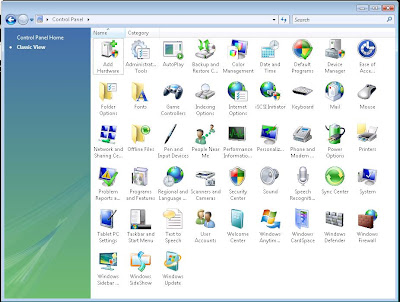
If you are a bit of a traditionalist, as I am, then you can switch to the Classic View, and click on the icon!
Now, off to find the source of my POP3 problem!
Windows Vista User Access Control on TechNet:
And, Microsoft's Windows Vista homepage.
Philip Elder
MPECS Inc.
Microsoft Small Business Specialists
In the Vista default view:

Click on the green Programs Link. You will be taken to the following page:

The link with the shield, Turn Windows features on or off, is the next one to click on.
You will be greeted with the now famous UAC (User Access Control):

From there, you can choose to install whatever Vista feature you are looking for:

Then, you will be done.
If you are a bit of a traditionalist, as I am, then you can switch to the Classic View, and click on the icon!

Now, off to find the source of my POP3 problem!
Windows Vista User Access Control on TechNet:
And, Microsoft's Windows Vista homepage.
Philip Elder
MPECS Inc.
Microsoft Small Business Specialists
Labels:
Learning Vista,
Vista Features,
Windows Vista
Subscribe to:
Posts (Atom)