Showing posts with label Companyweb. Show all posts

Monday, 14 November 2011

SBS 2008 and SharePoint Errors 3760 and 27745

We have spent the better part of the day troubleshooting an SBS 2008 Companyweb that went offline this morning without any real indication of _why_ that happened.

The server has been up for about 30 days with no SharePoint updates applied for at least a couple of update cycles.

  • Error 1: 3760 (A few of these just before things went offline)
    • SQL Database ‘ShareWebDb’ on SQL server instance ‘…’ not found.
  • Error 2: 27745 (happens every second or more)

      Log Name:      Application
      Source:        Windows SharePoint Services 3
      Date:          09/06/2011 12:02:30
      Event ID:      27745
      Task Category: General
      Level:         Error
      Keywords:      Classic
      User:          N/A
      Computer:      xxxxxxxx.local
      Description:
      The description for Event ID 27745 from source Windows SharePoint Services 3 cannot be found. Either the component that raises this event is not installed on your local computer or the installation is corrupted. You can install or repair the component on the local computer.

      #50071: Unable to connect to the database SharePoint_Config_xxx-xxx-xxxx-xxxx-xxxxxxxxxxxx on xxxxxx\Microsoft##SSEE.  Check the database connection information and make sure that the database server is running.

We went through a very long process of trying to figure out the source of the problem.

Both Companyweb and the SharePoint Administration sites were offline.

Ultimately, the steps we took are to be found in this Experts Exchange Question:

About two thirds of the way down is a transcript of the process Microsoft Product Support Services took to figure out what the problem was. The lines below are the ones relevant to our own situation with the lines starting with an asterisk (*) being steps we did on our own.

  • Tried to browse companyweb, came up with error:  HTTP 404   The webpage cannot be found
  • Tried to browse Sharepoint central Administration, get the error: HTTP 404   The webpage cannot be found
  • Ran the PSconfig and gave the error: Unhandled exception has occurred in your application
  • Checked if the database were attached in SQL and found them there.
  • Ran PSconfig and failed again.
  • We checked CLICONFG and found that TCP/IP was listed on enabled protocols.
  • On a working machine, it was (sic) a disabled protocol.
  • image
  • Left = Bad | Right = Good
  • We moved it to disabled protocol.
  • * We restarted the Microsoft##SSEE service and SP Timer service.
  • Ran psconfig and this time it was successful.
  • Browsed to Sharepoint central admin and it was working.
  • * Ran the Credential Management step in SP Operations.
  • image
  • * Restarted IIS: IISReset /Noforce
  • NOTE: We had to manually shut IIS down and restart as it hung at “Stopping”.
  • * Refreshed SP Admin site and all was good.
  • Browsed companyweb and that was successful.

It is very important to note that an out-of-band management module such as the iDRAC Enterprise, HP iLO Advanced, Intel RMM, or other KVM over IP should be used.

The RD Gateway service consistently stopped and stayed down during our troubleshooting processes. An IP restricted direct to SBS RDP rule in the firewall would be a good second option though not perfect if the OS stops in its tracks!

While we tried to outline every step we took troubleshooting this process, there may be a few steps that we missed documenting in the process.

As always, have a backup of that server before making any changes!

Philip Elder
MPECS Inc.
Microsoft Small Business Specialists
Co-Author: SBS 2008 Blueprint Book

*Our original iMac was stolen (previous blog post). We now have a new MacBook Pro courtesy of Vlad Mazek, owner of OWN.

Friday, 6 August 2010

SharePoint Foundation 2010 Preliminary Observations

Now that we have been able to work first hand with SharePoint Foundation 2010, we are beginning to _really_ like it.

  • Learning curve is minimal due to already being used to using the Office Ribbon.
  • Task placement on the ribbon is very intuitive.
  • Site creation and management is a lot more intuitive.

We have begun to customize our in-house SharePoint Foundation 2010 Companyweb site around the way we have been wanting to work with SharePoint since version 3’s introduction.

Timing was such that we did not have any available to set up a separate server for a WSS v3 configuration. So, we stuck it out with a combination of file shares, SharePoint v2 on our SBS, and SharePoint v3 (our WWW) hosted by OWN.

Our current SBS 2003 R2 server which is now officially out of the SBS role was way too tired to take on the task of running SharePoint v2 and v3 side-by-side.

Given the fact that we will be using our Companyweb to store virtually all of our live documentation, archives, and more we have moved the SharePoint Foundation 2010 content database onto a dedicated SQL 2008 x64 server.

We did start working with the new Companyweb before the content databases were moved over to SQL so we saw a significant improvement in the Companyweb site’s performance after the move.

For those clients where SharePoint will be used a lot, a separate SQL server configuration would be an important performance consideration.

Have a great weekend and thanks for reading! :)

Philip Elder
MPECS Inc.
Microsoft Small Business Specialists
Co-Author: SBS 2008 Blueprint Book

*Our original iMac was stolen (previous blog post). We now have a new MacBook Pro courtesy of Vlad Mazek, owner of OWN.

Windows Live Writer

Tuesday, 8 September 2009

SBS 2008 Remote Web Workplace Plus Its URL DNS Requirements

Perhaps one of the more common questions seen on various forums are around the Remote Web Workplace or accessing the SBS server domain via some sort of remote access method.

The simplest out of the box way to access the SBS Domain is via the Remote Web Workplace.

The portal was put in place for SBS 2003 and was and is the Killer App for SBS and small business.

When the user first hits the SBS 2008 RWW site, they will see the following:

image

A username and password request with the requisite visual cues indicating that the site is as secure as their banking site (third party trusted certificate installed).

As a side note, there is no reason to run with the SBS self-issued certificate anymore. The administration grief involved with maintaining remote connectivity via Windows Mobile, Windows desktop OSs and Outlook is too costly in the long run. A GoDaddy certificate is absolutely inexpensive to purchase and install.

Sean Daniel even has a great blog post on how to install that GD certificate:

So, we have our brand new SBS 2008 (setup checklist post) or migrated SBS 2008 (Our Migration Guide) ready to fly into production.

One of the most critical steps to complete before any new or migrated server is put into production is the following:

  1. The client’s Web domain registrar is sourced and the logon information for managing that domain is acquired.
  2. The client’s Web domain host is sourced and the logon information for their Control Panel or other such domain details management is discovered.
  3. The URL for the Remote Web Workplace on SBS 2008 is settled on with the client.
  4. The DNS A record pointing to the SBS 2008’s gateway ISP IP is set in place in the domain hosting DNS management console or Control Panel.

Out of the box, SBS 2008 sets the following domain during the Internet Address Wizard (using one of our domains as an example):

  • remote.sbshosting.ca

However, during the Internet Address Wizard we can click on the Advanced link and change the prefix “remote” to whatever we need such as “mail” or “smtp” if the DNS A already exists for the client’s external IP address.

Okay, so we have our client’s domain hosting all figured out, the next step is to take note of the various URLs used to access the various SBS server services using one of our own domains as an example:

The RWW portal once logged in looks like:

image

For most users, the simplest way to gain access to their remotely accessible resources is to start in one spot. That is the RWW.

  • Outlook Web Access
  • Remote Desktop connection with the list of computers restricted to the user presented. No computers allowed? Then no list at all.
  • Companyweb SharePoint site link.
  • The ability to manage the additional links listed under the three standard RWW buttons.
  • The user can change their pass phrase in RWW or Outlook Web Access.

For those that are a bit more advanced in their abilities to get around SBS remote access they can bookmark or save shortcuts for the various needs.

From there, we can explore the Office 2007 and SharePoint integration then get really into some of the efficiencies presented with both plus Windows 7 (previous blog post).

In our experience, once the business owner has seen the Remote Web Workplace and all of its remote access goodness in action SBS 2008 becomes a very easy sell.

Philip Elder
MPECS Inc.
Microsoft Small Business Specialists
Co-Author: SBS 2008 Blueprint Book

*All Mac on SBS posts will not be written on a Mac until we replace our now missing iMac! (previous blog post)

Windows Live Writer

Saturday, 5 September 2009

SBS 2008 – MFP/Copier To Scan To E-mail Destined To A Companyweb SharePoint Library How To

One of our clients picked up a new Konica Minolta copier (previous blog post).

One of the requirements for the new copier was to have it scan documents and e-mail them to various users on the network. Another requirement was to have the copier scan documents to a folder.

Well, the folder idea was a bit of a pain due to the password rotation policies in place. We would end up either requiring that a restricted user be created with a pass phrase that never changes, or look for another method.

Since the copier was able to scan to e-mail, the simplest solution seemed to be to have it e-mail the attached PDF or other file to a Companyweb SharePoint Library.

The process was much easier said than done, though we managed to get things ironed out this afternoon with a lot of patience on the part of our client contact.

So, here are the steps we took in the order we took them along with a couple of errors we made during the whole process. Because of that, please read the entire post before heading out to make these configuration changes.

Configure the E-mail Enabled SharePoint Library

The first step in this process is to create the new document library that will be the destination for our copier e-mailed attachments.

We need to be logged into a workstation as either the domain admin or with a user account that has admin rights to the Companyweb site.

We click on the Site Actions button near the top right of the site and we create our new library:

image

Add a description if need be and click the Create button. Make sure to pay very careful attention to the information inputted in these fields.

Once the library is created, click on the Scans link now below the Fax Center in our own situation to bring it up:
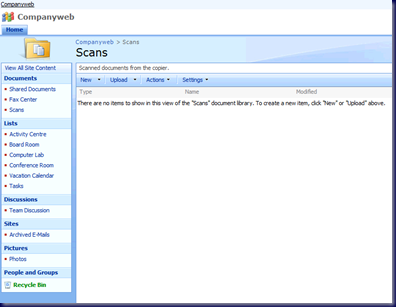
image

Create a New Receive Connector

Our next step is done on the SBS 2008 server itself.

In the Exchange Management Console, here we are using Windows SBS Native Tools Management, we need to get to the Hub Transport role under the Server Configuration Node:

image

Right click anywhere under the Receive Connectors list and click on New Receive Connector:

image 

We name the Receive Connector. In our case we called it Copier Send to E-mail.

After clicking next, we will leave the default local SMTP receive settings alone when it comes to the local IP addresses.

image

Take note however, that the FQDN setting needs to be filled out with the SBS server’s Fully Qualified Domain Name: MY-SBS.MySBSDomain.Local.

Next we have the From IPs. This is where we input the copier’s IP address. We added both copiers if they decided they wanted the other one e-mail enabled,

image

Once we click Next we are given a summary of the changes about to be made. We then clicked the New button to make it happen.

Receive Connector Properties

Once the Receive Connector has been created, we need to tweak it a bit to allow for anonymous SMTP connections from our two copier IP addresses.

Right click on the Copier Send To E-mail connector and click on Properties.

Click on the Authentication tab and make sure none of the check boxes are checked:

image

Then click on the Permissions Groups tab and put a check mark beside the Anonymous users setting:

image 

Our last step with regards to our Receive Connector is to run an Exchange Management Shell command to set the anonymous permissions into play:

  • Get-ReceiveConnector "Copier Send To E-mail" | Add-ADPermission -User "NT AUTHORITY\ANONYMOUS LOGON" -ExtendedRights "ms-Exch-SMTP-Accept-Any-Recipient"

Open the Exchange Management Shell by right clicking on it and then clicking on Run As Administrator.

Copy and paste the above command into the Management Shell. Note that the name of the Receive Connector in our example needs to be changed to whatever you have named the Receive Connector in order for things to work as expected.

This is what a successful command will look like:

image

We now have our SBS Exchange set up to allow the copiers to relay e-mail containing any scanned items through it.

Create An E-mail Enabled Contact

Our last step in this process is to create an e-mail enabled contact.

The e-mail address we created for the library was: Scans@companyweb. Companyweb is not a known or enabled e-mail domain anywhere in our SBS setup other than the SharePoint library and Exchange.

There may be a need for users to e-mail content into the library via their Outlook client, so we create the new contact.

Coming back to our open Windows SBS Native Tools Management console with the Exchange Management Console opened, we need to click on the Recipient Configuration node.

In the right hand Actions column click on New Mail Contact.

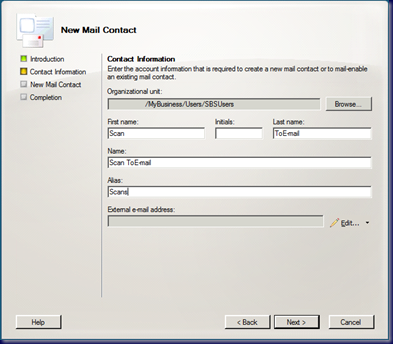
Fill out the Contact Information taking care to note that the Alias should be the same value as the e-mail address prefix (_____@MySBSDomain.Local):
image

Click the Edit button next to the pencil to get:

image

Now for clarification’s sake, have a look at what was typed into the E-mail address field in this pop-up and head back up to the SharePoint library e-mail address. Notice any difference?

When everything was put together we could not get an e-mail to the SharePoint library but we could to the users when a scan was initiated at the copier. Somehow, through the whole process the e-mail address was seemingly case sensitive in Exchange and/or in the SharePoint library. The other possibility was that the address in the copier was different and the copier was case sensitive for e-mail.

Either way:

  • Make sure the e-mail address used is consistent case sensitivity wise throughout the set up process.

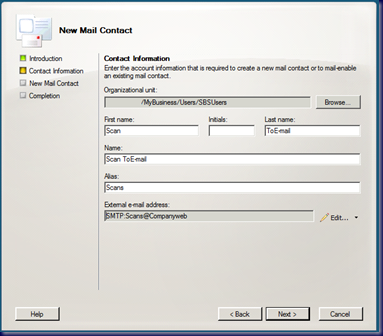
With that in mind, our input should have been: Scans@companyweb as it was in the SharePoint library.

Here is the filled out Contact Information step:
image

After clicking Next we are presented with a summary of the settings. Click the New button and we will now have an e-mail contact that will show up in the GAL thus allowing

Restart the Microsoft Exchange Transport Service

Once we have all of our configuration changes in place, as an extra precaution we restarted the Transport Service:

image

Test Scans

So, once we have the configuration in place everything should work as expected right?

Well . . . no.

The photocopier folks had their training person in to work with our client’s users on learning the copier and its features.

We did not have the scan to e-mail enabled before they arrived. When things did not work as expected, they made some changes on the copier according to our client contact.

Now, the copier needs to send e-mail to that library. The library uses what is essentially an Internet non-existent e-mail domain.

Here is the setting change that was made:

image

Notice the problem setting?

Our local Shaw SMTP server setting was put in the place of our client’s SBS IP address.

E-mail would flow to the users but not to the library.

Once we corrected that, we still could not get e-mail to flow.

We fired up the Exchange E-mail tracking to find out if the copier was even connecting to the server:

image

It was, but the e-mail was not reaching the library.

This is when we figured out that the only anomaly that we could see in the entire chain of events was the case in the e-mail address.

Once we had the e-mail address case settings the same in the:

  • Copier address list.
  • Exchange e-mail enabled contact.
  • SharePoint document library

We had the following result:

image

Our first PDF scan hits the library!

One of the neat things about this setup is the Alerts feature in SharePoint libraries. If there are one or two folks responsible for keeping the library tidy then anytime an e-mail attachment hits the library they can put the bug in someone’s ear to take care of it.

Overview steps:

  1. Configure the E-mail Enabled SharePoint Library.
  2. Create a New Receive Connector.
  3. Modify the Receive Connector's Properties.
  4. Create an E-mail Enabled Contact.
  5. Restart the Microsoft Exchange Transport Service.
  6. Test Scans and Troubleshooting.

Links

The above was brought about via a combination of resources:

Philip Elder
MPECS Inc.
Microsoft Small Business Specialists
Co-Author: SBS 2008 Blueprint Book

*All Mac on SBS posts will not be written on a Mac until we replace our now missing iMac! (previous blog post)

Windows Live Writer

Wednesday, 2 September 2009

SBS 2008 Disk 2 – WSS Repair No Go

Okay, so we are not getting anywhere with repairing our Companyweb site that was toasted by the SharePoint Service Pack 2 (previous blog post) update.

We ran the gamut, including the SBS Blog’s SharePoint SP2 Failed Install post and even trying out David Moisan’s PowerShell steps:

So far, nothing has worked.

So, in goes SBS 2008 Disk 2 with the component repair routines:

image

We start up the SharePoint setup:

 image

image 

The verdict?

image

Okay, so the install routine says it worked. But, what about the Companyweb site?

We need to reboot first! :|

image

No joy:

image

Susan Bradley has pointed us into the direction we are going to head into next:

We need to backup the Windows Internal databases, rip it out, uninstall WSS, reinstall WSS in stand-alone mode, restore the databases, and finally reattach them.

We are two for two WSS SP2 install failures now.

More to come … ;)

Philip Elder
MPECS Inc.
Microsoft Small Business Specialists
Co-Author: SBS 2008 Blueprint Book

*All Mac on SBS posts will not be written on a Mac until we replace our now missing iMac! (previous blog post)

Windows Live Writer

Tuesday, 1 September 2009

SBS 2008 – SharePoint Services Service Pack 2 Choke

We have mentioned in the past to hold off on installing that service pack:

We happened to have one of our SBS 2008 hosting servers come free today, so we took a chance on installing SharePoint v3 Service Pack two and sure enough things went sideways.

The default fix from the SBS Blog does not work for us either:

Another aspect to this situation: The Service Pack kills the TS Gateway service and thus kills any possibility of gaining remote access to the box via RWW or RDP.

If VPN is not configured on the box, which is the case in many of our client locations, then we would be in a real pickle.

Updating Rule #1: Always have an out-of-band management access on servers being updated.

Some of them are:

Otherwise we are asking someone to go to the console to log on and either get the services back up and running, reboot the server, or help with the troubleshooting process. All are not very viable options.

So, now we are in the process of troubleshooting the hosed SharePoint install. Fortunately we have out-of-band access.

Philip Elder
MPECS Inc.
Microsoft Small Business Specialists
Co-Author: SBS 2008 Blueprint Book

*All Mac on SBS posts will not be written on a Mac until we replace our now missing iMac! (previous blog post)

Windows Live Writer

Monday, 1 June 2009

SharePoint Document Library Explorer View Disappears After SBS 2008 UR2

Pretty much all of our SBS 2008 boxes have Update Rollup 2 installed on them.

What we have been seeing is the following in a document library after UR2 has been installed:

image

Notice anything missing?

For avid users of SharePoint, where there is a need to transfer files between the Companyweb site and file shares on SBS, the Explorer View capability is critical. This applies whether we are in the office or working remotely.

It is even more critical for those of us that have gotten use to Windows 7’s ability to tie SharePoint document libraries into the Libraries Feature (previous blog post).

This is what the View dropdown menu should look like:

image

Thanks to Susan Bradley, a pointer to the SBS 2008 UR2 was made and the necessary fix which is to be found on the Official SBS Blog:

We need to Enable Client Integration under the Authentication Providers section in  SharePoint Application Management:

image

image

Once we clicked the Yes radio button and then the Save button, the document library menu would show the Explorer View option.

We did not experience the Read Only problem, just the missing Explorer View menu item so far.

Philip Elder
MPECS Inc.
Microsoft Small Business Specialists
Co-Author: SBS 2008 Blueprint Book

*All Mac on SBS posts will not be written on a Mac until we replace our now missing iMac! (previous blog post)

Windows Live Writer

Saturday, 16 May 2009

Signing Into the SharePoint Site Via the Windows 7 Favorite Link

As we have mentioned in our previous blog post on Windows 7 and SharePoint integration, one of the really kewl new features in Windows 7 is the ability to Favorite a SharePoint library for quick access.

There is a small catch that we need to be aware of when trying to sign into the SharePoint library via the Windows 7 Favorite though:

09-05-16 SharePoint Sign On

Note the backslash just before the username. If that backslash is not there, Windows 7 will send the credentials in Domain\FirstLast format and SharePoint does not seem to like that.

Put .\FirstLast for the credentials and the local machine name will appear on the left of the backslash.

Now that we have figured that out, our access to the SharePoint library is quick and easy.

Note that the first time a document is opened in the library, we may be prompted for credentials too. Those credentials need to be in the same format as above.

Philip Elder
MPECS Inc.
Microsoft Small Business Specialists
Co-Author: SBS 2008 Blueprint Book

*All Mac on SBS posts will not be written on a Mac until we replace our now missing iMac! (previous blog post)

Windows Live Writer

Thursday, 14 May 2009

With Windows 7 and SharePoint, Who Needs A VPN? And … It Network Drive Maps!

This is a pretty neat new feature available to us:

image

After logging onto a remote SharePoint site, open a SharePoint library and change the view to Explorer View. In this case, the above screenshot is showing the Shared Documents folder on our SBS 2008 Advanced Blueprint SharePoint site.

Catch what is happening yet?

The screenshot above was taken after opening the remote SharePoint library in Explorer Mode and on a whim, clicking in the address bar and pulling the folder icon over to the Favorites after the full path was shown.

Voila! We have our shortcut to the SharePoint library!

Now, what happens when we have logged off and back on again?

When we log on, click on the Libraries icon on the Task Bar, we can click on the Shared Documents favorite. When we do, we are presented with the standard SharePoint credentials request. Once we have authenticated, we are in!

Talk about an absolutely huge time saver. There is literally no more need for a VPN connection!

There is already a list of clients in my head that this feature alone will justify the upgrade to SBS 2008 with SharePoint v3 and Windows 7 as soon as it arrives.

The sweet spot: No more VPN bandwidth overhead. Everything is riding inside of an HTTPS tunnel!

The above screenshot’s site URL:

  • \\remote.mysbsdomain.ca@SSL@987\DavWWWRoot\sites\SBS2008AB\Shared Documents

And, the cat’s meow:

  • net use r: “\\remote.mysbsdomain.ca@SSL@987\DavWWWRoot\sites\SBS2008AB\Shared Documents”

The net use command will call for credentials. But, it works! :D

UPDATE: Okay, the CMD window that was used to make the initial R: connection allowed us to browse the folders, but the R: drive did not show up properly in Windows Explorer.

Philip Elder
MPECS Inc.
Microsoft Small Business Specialists
Co-Author: SBS 2008 Blueprint Book

*All Mac on SBS posts will not be written on a Mac until we replace our now missing iMac! (previous blog post)

Windows Live Writer

Wednesday, 13 May 2009

SBS 2008 Side-By-Side From SBS 2003

What an adventure this job has been!

I am still in Calgary. :)

The messes we have uncovered have caused no end of struggle to make things work in our migrating this client to SBS 2008.

The biggest issue we are working on right now is an unstable Companyweb SharePoint v2 database (SQL 2005 integrated on SBS 2003 R2 Premium) that refuses to keep its connection with SharePoint. There is 80GB, yes Gigabytes, of data in this site and we need to somehow get all of it!

The proper way:

We have managed to use BeyondCompare V3 to save us from having to figure out which files we have managed to copy over to one of the local workstations.

Our two remaining options are SharePoint Database Explorer or bringing the 80GB worth of databases up with us on a ShadowProtect image and try and attach those databases to a fresh and stable install of SharePoint V2.

Never a dull moment. :D

Philip Elder
MPECS Inc.
Microsoft Small Business Specialists
Co-Author: SBS 2008 Blueprint Book

*All Mac on SBS posts will not be written on a Mac until we replace our now missing iMac! (previous blog post)

Windows Live Writer

Tuesday, 12 May 2009

SBS 2008 – Hang On Before Installing WSS SP2

We have just had our freshly installed SBS 2008 Companyweb get toasted by the Windows SharePoint Services Service Pack 2 update.

One of the lessons we have learned, whether we are talking about SBS 2003 or SBS 2008, is to make sure we backup the server before running each product group updates (previous blog post).

In this case, WSS v3 SP2 was the second last update to be run along with an SBS 2008 specific update.

So, we are fortunate that this particular server has not gone into production yet.

To save time, we are restoring the entire box from backup, which is the last optional step on our checklist anyway, and then running with the SBS 2008 update only.

While this is our first Companyweb SharePoint site toasted by WSS v3 SP2, it is not the first we have heard of the Companyweb site getting toasted.

The Official SBS Blog:

The troubleshooting steps did not work for us. Given the speed of this particular box, a restore is only going to take about 15-25 minutes. That will be a lot quicker and safer than:

Philip Elder
MPECS Inc.
Microsoft Small Business Specialists
Co-Author: SBS 2008 Blueprint Book

*All Mac on SBS posts will not be written on a Mac until we replace our now missing iMac! (previous blog post)

Windows Live Writer

Tuesday, 3 March 2009

SBS 2008 – Companyweb - NT Authority\Network Service Login Failed

We have seen this error after applying some of the most recent SQL updates. As of yet, we have not managed to pinpoint the source of the breakage yet, but we know it is happening elsewhere:

We found out about it when we went to move the Windows SharePoint Services databases on a new SBS 2008 installation that had already received the updates.

The move process choked with a message indicating that the process will need to be finished manually.

From there, we received a “Cannot connect to configuration database” for both the SharePoint Admin and Companyweb sites.

Up to now, the amount of time we have put into this situation has been way beyond what we should have put into it. We are cutting our losses and restoring SBS to the night before the updates when everything was known to be working. Fortunately we are working with one of our lab SBS 2008 boxes and a relatively fresh install.

From there, we will see if we can determine just what broke what, or even if the NT Authority\Network Service Login Failed error existed at that point. If so, perhaps we will be able to get to the bottom of it prior to attempting the move since the error was the catalyst in SharePoint’s failing altogether.

As an afterthought, make sure to verify that Microsoft##SSEE is happy in the SBS 2008 Application Log before running the SharePoint Move Data Wizard. This way things do not go any further than trying to troubleshoot the Network Service login failure.

Philip Elder
MPECS Inc.
Microsoft Small Business Specialists

*All Mac on SBS posts will not be written on a Mac until we replace our now missing iMac!

Windows Live Writer

Friday, 27 February 2009

SBS 2008 – Companyweb and SharePoint Internet Collaboration a Big Plus

On SBS 2003, giving external users access to other SharePoint sites within the SBS SharePoint v2 framework was difficult to do. Especially if the external users were not to have access to the root Companyweb SharePoint site.

In SBS 2008, this is no longer the case. When we go to create a new site collection dedicated to a collaborative task, we can set the permissions on that site respective of any other SharePoint site on the SBS 2008 box.

For example, we have a new project collaboration need for our upcoming SBS 2008 Advanced Blueprint book. So, we would create a new site collection on one of our SBS 2008 server and give it the following URL:

09-02-25 SBS 2008 - SharePoint V3 External Collaboration

Create Site Collection: SBS 2008 Advanced Blueprint

Now, we need at least 4 user CALs for this particular project dedicated to this task as we are going to give the collaborators a username and password that have been set up for this collaborative task.

Those usernames would be set up with permissions on the new site collection along with any of our internal SBS users, such as mine, and we are good to go. None of the default SBS 2008 SharePoint user groups will be given access to the new site collection. The external users would not be in the default SBS 2008 SharePoint groups either, so no access to the root Companyweb.

Anyone with no need to access the collaborative site will not have access to it. The same is true with the search and any search results for a particular user that does not have permissions to a particular site collection.

Creating a collaborative environment within SharePoint on SBS 2003 was probably one of the more troubling requests we could receive for a single server client site scenario for those that wanted to keep things in-house.

UPDATE: As per Nathan’s comment, the :987/ was missed in the original Internet facing URL. Fixed. Thanks!

Philip Elder
MPECS Inc.
Microsoft Small Business Specialists

*All Mac on SBS posts will not be written on a Mac until we replace our now missing iMac!

Windows Live Writer

Monday, 23 February 2009

SBS 2008 SharePoint 987 and ISA 2006 Non-Standard SSL Ports

If there comes a time to work with a Web site that uses a nonstandard SSL port for its setup, then ISA will not allow the Web browser on through to the site.

For those of us running ISA 2006 SP1 to protect our now migrated domains to SBS 2008, or to manage our client’s SBS 2008 domains where the Companyweb SharePoint site now uses port 987 for its SSL connections from within our ISA protected network, there will be a need to allow that port through ISA 2006 SP1.

The same need applies for those that need to connect to remote SBS 2008 Companyweb sites via SBS 2003 SP1 and R2 Premium networks protected by ISA 2004 SP3.

To correct this, a utility is needed to modify the allowed SSL ports list in ISA. We use the ISA Tunnel Port Editor (ISAtrpe) utility that can be had from the ISATools.org site: ISATools.org ISA 2004 downloads. The download is about 2/3 of the way down the list.

09-02-23 SBS 2008 and ISA 2006 - SSL Port configuration

ISA Tunnel Port Editor

In the above screenshot, we are looking at a vanilla ISA 2006 SP1 install on Windows Server 2003 R2 Standard.

So, we would do the following to get things happening:

  1. LowPort: 987
  2. HighPort: 987
  3. TunnelPortName: SBSSharePoint
  4. Click the Add Tunnel Range button.
  5. Wait a minute or two.
  6. An “Added SBSSharePoint successful!” message will appear when done. Click the OK button.
  7. The newly added port should be listed in the ports list as shown below.

Note that if the port addition is done via an RDP session, the RDP session may be broken. It should be reestablished close to the end of the procedure.

09-02-23 SBS 2008 and ISA 2006 - SSL Port configuration with SharePoint

ISA Tunnel Port Editor with Port 987 Added

Once the procedure has completed, close the Tunnel Editor.

Direct access, or access via the Remote Web Workplace, to any remote Companyweb SharePoint site will work after this.

Philip Elder
MPECS Inc.
Microsoft Small Business Specialists

*All Mac on SBS posts will not be written on a Mac until we replace our now missing iMac!

Windows Live Writer

Saturday, 7 February 2009

SBS 2008 – Practice Creative Suite Clients Sync with Companyweb Contacts List via Outlook

A while back we posted about migrating Practice Creative Suite (previous post) from an SBS 2003 Premium RTM domain to a new SBS 2008 Standard domain with 100% Windows Vista Business machines on it.

One of the requirements the firm has with Practice CS is the ability to link and synchronize an Outlook Contacts folder with the client list in Practice CS. This gives them to the ability to keep their contacts up to date in both programs.

On the old SBS 2003 domain, the contacts were set up in an Exchange Public folder.

On the new SBS 2008 domain, the preference was to have the contacts also available via the Companyweb SharePoint site. This would enable users to have a third, and sometimes quicker, place to gain access to the client contact lists.

So, we exported the entire public folder structure to a PST file, then used our test user account to import that PST into separate Contacts folders within Outlook.

We then set up the needed Contacts lists in the Companyweb site, linked them to Outlook, and copied the contacts from the Outlook folder they were imported into to the SharePoint linked contacts.

Once the Outlook-Companyweb synchronization process finished and we were sure that the original Outlook Contacts folder matched with the new Companyweb Contacts list, we moved into Practice CS.

Practice CS can have a two way synchronization setup with an Outlook Contacts folder. We discovered that it did not matter where the folder resided, Exchange Public Folders, the Companyweb Contacts list, or Outlook itself as Practice CS could synchronize with any of them.

We did discover one small Gotcha though. When we set up the synchronization relationship with the Companyweb Contacts list via the user’s Outlook, Practice CS wanted to import the entire contents of the Companyweb Contacts list even though most of the clients were in the Practice CS clients list already.

We needed to empty the Companyweb Contacts list, then run the synchronization with Practice CS. Practice CS then copied its client list into the Companyweb Contacts list via Outlook.

Practice CS required that we set up a “Filter” in the synchronization setup. We elected to set the filter based on Client ID with a base number of 0000 and a maximum number of 9999999. If we set the minimum and maximum based on the current Client IDs, any clients with numbers lower or higher than that in the filter would not be synchronized.

The beauty of this new setup is the ability to gain access to the clients list via Practice CS, Outlook, Outlook Search, Windows Vista Search, Companyweb, the Companyweb Search feature, Windows Search 4.0, and the Companyweb via the Internet at https://remote.sbs2008.ca:987.

Philip Elder
MPECS Inc.
Microsoft Small Business Specialists

*All Mac on SBS posts will not be written on a Mac until we replace our now missing iMac!

Windows Live Writer

Friday, 9 January 2009

SBS 2008 - PDF Search in Companyweb SharePoint

Here are some excellent instructions for enabling the SharePoint spiders to crawl and index PDF files and their text content: SharePoint Server 2007 and SharePoint Services V3 PDF search and indexing.

While the post does have the correct icon for us to download and install, though the name in the post and the actual file name are different, we need a new version of the iFilter for 64bit systems: Adobe - Acrobat : For Windows : Adobe PDF iFilter 9 for 64-bit ...


  • The correct file name for the XML edit: icpdf_3.gif
In a nutshell:
  1. Download the above iFilter v9 from Adobe's site.
  2. Extract the installer from PDFiFilter64installer.zip.
  3. Click Start and right click on Command Prompt and Run as administrator.
  4. Click Continue at the UAC prompt.
  5. net stop iisadmin [Enter]
  6. In Windows Explorer, double click on the PDFFilter64installer file.
  7. Copy the PDF icon to C:\Program Files\Common Files\Microsoft Shared\Web Server Extensions\12\Template\Images
  8. In the C:\Program Files\Common Files\Microsoft Shared\Web server extensions\12\Template\Xml\ directory edit the DOCICON.XML file.
  9. Paste the following into the (ByExtension) section that is sorted alphabetically by extension (ours went under the "onetoc2" extension):
  10. (mapping key="pdf" value="icpdf_3.gif") (Change the round brackets to Greater or Less Than as Blogger's editor does not like them)
  11. There will be a need to save the modified XML file to the server's desktop and then copy it back into the XML folder through two UAC prompts.
  12. Back at the command prompt: net start iisadmin [Enter]
  13. Click Start and type Windows SBS Native Tools Management [Enter] in Search.
  14. Click on the IIS Manager.
  15. Under the SS-SBS (MySBSDomain) click on Application Pools.
  16. Right click on the following and Recycle them:
    • DefaultAppPool
    • SBS Sharepoint AppPool
    • SBS Web Applications application pool
    • SBS Web Workplace AppPool
    • SharePoint Central Administration v3
    • Post the PDFs.
  17. Or, instead of recycling the services, append the System Path with: C:\Program Files\Adobe\Adobe PDF iFilter 9 for 64-bit platforms\bin\ and reboot!

The update to the System path is suggested in the Adobe installation instructions.

Once the SharePoint application pools have been recycled, we will see:


PDF document icons

One very, very important thing to remember: Upload the PDF files AFTER the Adobe PDF iFilter is installed so that the files are indexed. Otherwise, they will not be indexed until they are touched!

This is very important if there are thousands of PDF files to place into a document library or libraries.

UPDATE: Added the System Path variable to be appended in the last step, and made some grammar error corrections.

Philip Elder
MPECS Inc.
Microsoft Small Business Specialists

*All Mac on SBS posts are posted on our in-house iMac via the Safari Web browser.

Tuesday, 30 December 2008

SBS 2008 - Companyweb + Outlook Anywhere = Smooth

This is just too kewl:


Companyweb and Outlook Anywhere

Take a look at the content in the Outlook Reading Pane. The highlighted document in the list above it is actually in the Companyweb\Shared Documents folder back in the office.

The edit to the Word document was accomplished by opening it through Outlook 2007 that is connected back to SBS via Outlook Anywhere (RPC/HTTPS). We opened it in Offline Mode, and edited the file while in Offline Mode. Keep in mind that if there will be a need to edit files in Offline Mode, they should be checked out for the duration of those offline edits.

Now that we are diving into SBS 2008 installs on a larger scale, supporting SBS 2008, and along with the writing of the SBS 2008 Blueprint book, there has been a need to discover as many of the "hidden" features SBS 2008 has to offer. Given the vast number of features in the product, many can remain "hidden" for years! ;)

Outlook 2007 plus the SBS 2008 Companyweb Internal Web site certainly demonstrates a very powerful reason to upgrade. Things operate very smoothly between them.

Time savings can be another reason to consider an upgrade for a small company especially when the cost for support runs over one hundred dollars per hour. When Office 2007 is installed on a workstation in an SBS 2008 network and Outlook is fired up for the first time, it picks up the user's setup via the server.

Yes, okay, Outlook 2003 does that too. But, Outlook 2007 actually goes one step further and picks up the Outlook Anywhere settings (RPC/HTTPS) and puts them in place for us. There is at least a couple minutes of time saved, one possible post Office install step the tech can no longer forget, and thus a support call that has been avoided. It is one less step on that setup checklist.

Further Reading:

Philip Elder
MPECS Inc.
Microsoft Small Business Specialists

*All Mac on SBS posts are posted on our in-house iMac via the Safari Web browser.

Monday, 29 December 2008

SBS 2008 - Windows SharePoint Services Considerations Plus Not One Recycle Bin, But Two!

One of the primary reasons we did not move too many of our client's primary data storage onto the Companyweb site in the SBS 2003 time frame was the lack of an ability to recover those "accidentally" deleted items.

All of that has changed with the introduction of Windows SharePoint Services version 3 and the built-in Recycle Bin system.

The catch for us implementing WSS V3 on SBS 2003 was the inherent limitations of the 32bit OS that was already loaded down with a number of different SBS related and third party related services. Thus, we only implemented in a limited number of client settings where WSS would be used, but not cause too much additional stress (especially RAM related) on SBS 2003.

With SBS 2008 and the WSS v3 product that drives the new Companyweb Internal Web site, we are seeing a whole new opportunity. We can utilize the out of the box Companyweb on SBS 2008 to a great extent and not worry too much about RAM or database limitations for our small to medium sized clients.

We have the flexibility to tie Companyweb and any other WSS based Site in an SBS 2008 Premium based installation into SQL 2008 which will give us a lot of headroom when it comes to site performance. Tying SharePoint into SQL 2008 also alleviates much of the data volume concerns we have had to date ... though both site performance and database sizes will be tied to the physical server box's configuration.

Have a client that wants to have an Internet facing WSS v3 site? Then SPLA the Windows OSs needed and SQL 2008 Web Edition for them as that will put their licensing costs at dollars per day depending on the end configuration as opposed to licensing SQL 2008 Web Edition per processor on Open Value or Open License which is very expensive.

So, back to the Recycle Bin business:


Companyweb SharePoint User Recycle Bin

The user has deleted the document, and it now sits in the Recycle Bin waiting for them or someone else to delete it. If there are a large number of items in the bin, clicking on the item selection box just above the first item's check box will select everything.

Okay, in our above screenshot, once deleted from the Recycle Bin where does that document go?

When logged onto a workstation with our Domain Admin account, or on the server itself, we can open the Companyweb site and navigate to the Site Collection Recycle Bin setup:

  1. Click on Site Actions near the top right of the page
  2. Click on Site Settings.
  3. Click on the Recycle Bin link under Site Collection Administration

You will see the following:

SharePoint Admin Recycle Bin - User Bin View

Of course, the User Recycle Bin is empty because the user has already emptied it. Now, there was a momentary lapse of reason on the user's part and they now realize that the file that was deleted from the Recycle Bin was still needed!

Not to fear! We now have a Recycle Bin's Recycle Bin!

SharePoint Admin Recycle Bin - Admin Bin View

We can restore that file! Nice and simple isn't it? :)

Not only that, when we restore that file, it goes back to its original location on the Companyweb site, not back into the User Recycle Bin.

BTW, it is important to note that the Recycle Bin system in WSS v3 also works when the user is using Explorer View to work with site content.

This one feature will save us a huge amount of pain over "lost" or accidentally deleted files on the Companyweb or any other WWS v3 site we manage on behalf of our clients.

Some links for you:

Philip Elder
MPECS Inc.
Microsoft Small Business Specialists

*All Mac on SBS posts are posted on our in-house iMac via the Safari Web browser.

Saturday, 29 November 2008

SBS 2008 and Office Live Small Business

Office Live Small Business (OLSB) has some integration within SBS 2008. It can be found in the SBS Console. The OLSB has two elements to it:
  1. The Office Live Small Business Applications site (SharePoint).
  2. The Office Live Small Business Web site.

Out of the box, this is what is included with the default Office Live Small Business Applications site:

  • 50MB of storage space.
  • 5 Users for the Business Applications site (SharePoint).
Now, the Office Live Small Business Applications may indeed have a place for those small offices that do not have a Small Business Server installed.

But, for clients with more than 5 users and a need for way more than 50MB, here are the associated costs:

Office Live Small Business Per User Costs

Now, factor in the need for additional storage:

Office Live Small Business Per GB Costs

For those clients that have SBS 2003 or SBS 2008 setup and are utilizing the CompanyWeb site internally and externally the Office Live Business Applications site and its associated costs will not make much sense. This is especially true if their CompanyWeb or additional SharePoint setups have been customized for their business workflows and systems.

Essentially, the out-of-the-box setup of the Office Live Small Business Application Web site makes sense for a start up company with no on site SBS server. The Office Live site can be customized to a degree to at least give the company a collaborative starting place on the Web.

The Office Live Small Business Web site on the other hand comes with 500MB out of the box. For most small business Web sites, this will more than suffice. The costs to add more storage space are identical to the above Business Application storage costs.

One thing to keep in mind: The URL for the Office Live Small Business Web site can be rather long. In the case of our Springer Spaniels Limited site the URL came out to: http://springerspanielslimited.web.officelive.com/.

Philip Elder
MPECS Inc.
Microsoft Small Business Specialists

*All Mac on SBS posts are posted on our in-house iMac via the Safari Web browser.

Monday, 28 July 2008

SBS - Companyweb and Office 2007 Documents

When there is a need to setup document libraries for Office 2007 documents, the current SBS SharePoint V2 Companyweb site does not know what to do with them.

To get that fixed, David Overton has an excellent post: How to get Companyweb (Windows SharePoint Services v2) to work with Office 2007.

Take note that one will need to run the following on each workstation, XP or Vista, that will access the Office 2007 documents on Companyweb:
reg add HKCU\Software\Microsoft\Office\12.0\Common\Internet /v OpenDocumentsReadWriteWhileBrowsing /t REG_DWORD /d 01
This command is via David's post, but must be emphasized as the Office 2007 documents will always open in Read Only mode without it.

As per David's post which links to the following Knowledgebase article: KB 870853: Office 2003 and 2007 Office documents open read-only in Internet Explorer.

David, thanks for sharing that. It has come in very handy!

Philip Elder
MPECS Inc.
Microsoft Small Business Specialists

*All Mac on SBS posts are posted on our in-house iMac via the Safari Web browser.