Showing posts with label Supporting Vista. Show all posts

Monday, 17 November 2008

Vista Error - You can't save here. Please choose another location.

While working on some screenshots, there was a need to figure out what folder the current screenshot needed to be saved in.

In Windows Vista, the top right corner of the Save As dialogue box has the search function built in.

Once a keyword was punched into the search to verify that the right folder was selected, there were a lot of screenshots in the folder, the Save button was clicked on.

This is the error that came up:


Save As
You can't save here. Please choose another location

That was a pretty puzzling one at first.

After clicking the "X" to the right of the search term to eliminate the search results and clicking the Save button again and it worked.

A bit of a strange hang up, but it looks as though the search results eliminate any reference to the current folder the search was initiated in.

This hiccup happens in both the Save and Save As dialogue boxes on Windows Vista for any application that offers the search box in the top left corner and a search was initiated with the results showing.

Philip Elder
MPECS Inc.
Microsoft Small Business Specialists

*All Mac on SBS posts are posted on our in-house iMac via the Safari Web browser.

Wednesday, 1 October 2008

Vista and Outlook 2007 Search Broken? Search results may be incomplete...

When things are crazy busy, we tend to put up with things until we have the time to fix whatever is nagging at us, or the problem is interfering with our workflow.

Well, this Outlook/Vista problem has been nagging for a while, though not to the point where it was interfering with things ... until yesterday.

Synnex (Search Results)

Search results may be incomplete because items are still being indexed. Click here for more details.

It seems that the search feature was working fine at one point, then it became broken. A direct correlation cannot be pulled as far as the why things broke, but if memory serves correctly, Vista Service Pack 1 was the Anti-Trust modification for the search feature (Ars Technica) may be the culprit.

No matter what, and even on whichever Vista SP1 machine, the same results happened when searching for something in Outlook 2007.

Some Internet searching around did not turn up too much in the way of fixes for the problem. There are a number of somewhat relevant posts on the Vistax64 Forums with no real resolution to the problem.

The solution turned out to be to download the new Windows Search 4.0, install, reboot, and let the indexer run.

After the reboot, and a short time with the system online, the search results were as follows:

Synnex (Search Results)

Your search returned a large number of results. Narrow your search, or click here to view all results.

The time it took to index everything was relatively short.

And, now our searches work.

An update search in the WSUS v3 SP1 console for "Windows Search" or "KB940157" turned up nothing. Not sure why that is as we would like to deploy the update to our Vista installations. For now, we will run the update on all of our own Vista installs and link to it in a broadcast e-mail to our Vista based client users.

Finally, search works! :)

Philip Elder
MPECS Inc.
Microsoft Small Business Specialists

*All Mac on SBS posts are posted on our in-house iMac via the Safari Web browser.

Wednesday, 10 September 2008

Vista - Event ID 1511, 1515 Profile loss to TEMP

We had a strange Vista hiccup this afternoon with one of our clients: She was working in Word, opened a template to begin a project and the system literally hiccuped hiccupped her out.

When she logged back in, her profile was initialized in temporary mode with no messages at all indicating that there was a problem.

She knew there was a problem though because from there on in she was essentially answering all of the same initial questions one would get when logging onto the system for the first time.

Her profile was in C:\Users\Temp.

We tried to recover the profile by checking the settings in the registry, but they were correct.

We tried to rename her original local profile folder, but when she logged in she still received the TEMP folder as her profile location.

The errors associated:

Log Name: Application
Source: User Profile Service
Date: 9/9/2008 2:45:06 PM
Event ID: 1511
Task Category: None
Level: Warning
Keywords: Classic
User: domain\UserName
Computer: MyComputer
Description: Windows cannot find the local profile and is logging you on with a temporary profile. Changes you make to this profile will be lost when you log off.

and

Log Name: Application
Source: Microsoft-Windows-User Profiles Service
Date: 9/9/2008 2:45:06 PM
Event ID: 1515
Task Category: None
Level: Warning
Keywords: Classic
User: domain\UserName
Computer: MyComputer
Description: Windows has backed up this user profile. Windows will automatically try to use the backup profile the next time this user logs on.
It was a bit of a strange puzzle, but a bit of searching turned up the cure:
  1. Reboot
  2. Log on as a local admin other than the user with the profile problem.
  3. Copy the old C:\Users\%UserName% contents to a network location.
  4. Delete the C:\Users\%UserName% directory
  5. Delete Delte the C:\Users\TEMP directory
  6. Regedit
  7. HKEY_LOCAL_MACHINE\SOFTWARE\Microsoft\Windows NT\CurrentVersion\ProfileList
  8. Find the SID for the user with the corrupted profile and delete it (profile directory will be C:\Users\%UserName%.
  9. Reboot.
  10. Logon with the affected user's account.
The profile will recreate itself and work just as it should. Copy the contents of the original profile back into their respective places.

For Exchange integrated and My Documents redirected sites the contents will essentially be the user's Desktop and Favorites folders. Keep in mind that the Offline Files feature may take time to synchronize for large profiles and Outlook may take some time to build up the OST file.

Links:

Note that no message was displayed to the user.

Philip Elder
MPECS Inc.
Microsoft Small Business Specialists

*All Mac on SBS posts are posted on our in-house iMac via the Safari Web browser.

Wednesday, 3 September 2008

Windows Vista - Network Map does not display computers running Windows XP

The network map feature in Windows Vista is available to those in a peer-to-peer setup, or on a domain network where the Group Policy setting as been enabled.

Network Mapping disabled on a domain.

From the TechNet Library: Network Map Does Not Display Computers Running Windows XP.

XP needs to have the Link-Layer Topology Discovery (LLTD) protocol installed and enabled in order for the Windows Vista Network Map feature to capture an XP machine's presence.

The download: Link Layer Topology Discovery (LLTD) Responder (KB922120).

Note that the download is for XP SP2 automatic install only with the following instructions on how to get it into XP SP3:
  1. From any Explorer window (not IE) click on "Tools" -> "Folder Options" -> "View" tab.
  2. Enable the radio button labeled "Show hidden files and folders" and uncheck the "Hide extensions for known file types".
  3. Download the installer file from here (if you don't already have it)
  4. Rename it to something like LLTD.exe (unless you really want to type out "WindowsXP-KB922120-v5-x86-ENU.exe") and put it in the root of your
    C: drive.
  5. Go to Start -> Run, and type in "cmd" (without the quotes) and hit Enter.
  6. When the black command prompt comes up, type in "cd c:\" (minus
    quotes) and hit Enter.
  7. Now type in "LLTD.exe -x:c:\LLTD" (again, minus quotes). This will extract all the files in to a new folder called c:\LLTD.
  8. Open that folder with an Explorer window, and there will be another folder inside it called "SP2QFE". Open that, find the file named "rspndr.sys", and copy it inside your c:\Windows\system32\drivers directory.
  9. Also in the "SP2QFE" folder, find the "rspndr.exe" and copy it inside your c:\Windows\System32 directory.
  10. Finally in the IP Folder, find the "rspndr.inf" file , and copy it inside your c:\Windows\inf directory.
  11. Now back in the command prompt enter "cd C:\Windows\system32" and then enter "rspndr.exe -i". This will actually install the LLTD.
  12. When it completes, you should get a notice stating that it's installed.
  13. Go to your Network Interface Card and verify that you see Link Layer Topology Discovery.
The above information and XP SP3 install instructions come to us via Jon Heese of the V8SHO Mailing List.

Thanks for that Jon!

Philip Elder
MPECS Inc.
Microsoft Small Business Specialists

*All Mac on SBS posts are posted on our in-house iMac via the Safari Web browser.

Wednesday, 27 August 2008

Vista - Stop 0x0000004e - PFN List Corrupt

We were putting together a new Vista x64 box for some VMs to run on Virtual PC.

We went to install Vista Ultimate SP1 x64 and received a strange BSOD:

Stop 0x0000004e PFN_List_Corrupt
Now, this box has been used once or twice in the past couple of months. However, it was behaving quite strange. So, yesterday we put in a new set of drives for the RAID 1 array and went to reinstall the OS.

Thinking that the problem may have been with having too much RAM, even though SP1 is not supposed to have that problem, we pulled the two 2GB sticks leaving 2GB in the machine.

Sure enough, the OS installed.

After a shutdown and reinstall of the 2GB sticks we started seeing the system behave strangely to the point where it would not function at all.

We rebooted, hit the F8 key to get into the boot selection key, then it ESC to get to the Memory Diagnostic Tool.

This is what we were greeted with:


Windows Memory Diagnostics Tool

Yes, we have a hardware problem. At least it is now confirmed.

Once the system had rebooted as indicated it would when the test was finished we saw:

Bad Memory

Too bad the DQ35JO doesn't light up the slot the bad memory is in like the server systems do.

After a little bit of troubleshooting, we had the culprit and put in to Kingston for an RMA.

Philip Elder
MPECS Inc.
Microsoft Small Business Specialists

*All Mac on SBS posts are posted on our in-house iMac via the Safari Web browser.

Friday, 15 August 2008

Live OneCare Online Freebie Scan

Need a quick snoop through a system that may not have A/V or its A/V is seemingly not working?

Windows Live OneCare Free PC Safety Scan.

A Service Agreement will need to be accepted, then an ActiveX program will need to be installed on the system to enable the scan. Make sure to disable pop-up blockers for this site.

Once the ActiveX program is in place, the following will be presented:


OneCare safety scanner beta (for Vista)

This particular screenshot comes via one of our x64 Vista machines.

Note that the UAC will happen for the ActiveX install, and the initialization of the downloads that happen after clicking the Next button above.

Once the downloaded programs initialize themselves, the scan proceeds:

OneCare safety scanner beta: Status: scanning your computer.

The safety scan took about 3 minutes to run on this system.

Once finished, we were in the clear ... and we got an ad asking us to protect our PC with WLOC.

No viruses or spyware found

The above all-clear screen is what followed the "No thanks" to the ad request screen.

We chose to share the results with Microsoft.

All in all, this could be the out one may need when a virus prevents the installation of a local A/V product ... hopefully.

Philip Elder
MPECS Inc.
Microsoft Small Business Specialists

*All Mac on SBS posts are posted on our in-house iMac via the Safari Web browser.

Tuesday, 29 July 2008

Windows Vista Service Pack 1 Retail Part Numbers

Finding the Windows Vista fully packaged product (retail) part numbers can be a bit of a struggle via the Internet or even our supplier's Web sites.

Different key words for different folks.

Here are the Windows Vista SP1 retail edition part numbers:
  • 66G-02689 Windows Vista Home Basic SP1
  • 66I-02387 Windows Vista Home Premium SP1
  • 66J-06353 Windows Vista Business SP1
  • 66R-02261 Windows Vista Ultimate SP1
All full retail editions come with both the x86 (32bit) and x64 (64bit) DVDs.

We sell retail into client locations as the foundation for our desktop OS virtualization setups. We then add on Windows Vista Software Assurance (>$75/Yr) and the Microsoft Desktop Optimization Pack for Software Assurance (>$20/Yr) for each required desktop VM on an Open Value Agreement with 3 year spread payment option.

For virtualization where we require a fine tuned desktop via Group Policy, or Line of Business Application compatibility across a number of remote client users, we have a good thing going with this setup.

Philip Elder
MPECS Inc.
Microsoft Small Business Specialists

*All Mac on SBS posts are posted on our in-house iMac via the Safari Web browser.

Monday, 23 June 2008

Vista x64 RTM - Stop 0x0000000A on EVGA nForce 790i Ultra SLI Mainboard + EVGA Support A++

The system we put together based on the EVGA nForce 790i Ultra SLI Motherboard (previous blog post) had a similar install issue as the Intel boards we work with: Vista setup would not run with more than 2GB installed.

We eventually had a successful install of Windows Vista Ultimate x64 RTM on the system. Once the OS booted up fine with the 2GB of RAM, we shut the system down and installed the additional 2GB for a total of 4GB DDR3 RAM.

When we went to boot the system up, we were greeted with a BSOD Stop Error: 0x0000000A with no indicators as to the problem.

Having struggled with Blue Screens to this point, it was time to place a quick call to EVGA support. For one, to test their product support system as it looked good from their Web site, and to see if there was a quick fix.

The requisite phone menu system was in place to guide us through to the correct support technician. Once the button presses were finished, and our call was transferred, the unthinkable happened: We did not wait on hold and got to speak to someone on the NA continent!

James was the EVGA support technician who helped answer the quick question: Who, what, where, and why are we getting this particular Windows stop error?

We were pointed to: MS Knowledge Base article 929777: Error message when you try to install Windows Vista on a computer that uses more than 3 GB of RAM: "STOP 0x0000000A".

From the description:
This problem occurs if the following conditions are true:
  • The computer uses more than 3 GB of RAM.
  • The computer uses a storage system that is running the Storport miniport driver.
  • The computer uses a controller that uses 32-bit direct memory access(DMA).
In our case, the first point definitely qualifies us for this issue.

We were given a support case ID by James, and we concluded the call, but not before indicating to him that in this day and age of off-shoring tech support and long hold times, we were really impressed by the level of tech support provided by EVGA.

With the system off, the extra 2GB of RAM was removed again, we booted the system up, and applied Windows Vista Service Pack 1. The service pack installed in very short order.

Once complete, the system was shut down, the 2GB of RAM reinstalled, and the system booted up again.

No BSOD! :D

Completed QX6850, EVGA nForce 790i Ultra SLI in an Antec Nine Hundred

The above picture was taken quite late at night. We don't get a break on sunshine here! It stays light well past 22:00hrs (10PM) now. Otherwise, the LEDs would stand out a bit more.

Neat rig. Our client is sure to be quite happy with the end result. The final system configuration can be found in our previous blog post: EVGA nForce 790i Ultra SLI Motherboard near the bottom.

Philip Elder
MPECS Inc.
Microsoft Small Business Specialists

*All Mac on SBS posts are posted on our in-house iMac via the Safari Web browser.

Saturday, 7 June 2008

Windows Vista - Asus A8N32-SLI 0x8004245F Install Error

We were asked to rebuild a client's existing AMD based box.

The motherboard was an Asus A8N32-SLI board with a 2GHz AMD part on it.

Once we started the Vista setup, the first thing that was readily apparent was the very long time the setup was taking to get to the initial install screen.

Once we did get to the setup screen, entered our key, and set Windows to install to the only hard drive available we were presented with:

Install Windows
Windows could not create a partition on disk 0. The error occurred while preparing the computer's system volume. Error code: 0x8004245F
Prior to this setup attempt we had imaged and wiped the drive on our newly restored data mule system. No physical errors showed themselves during these pretty intensive operations.

When searching the Internet, we only came up with one result on the Asus Forums: Topic : [Problem]Vista 64 install fails during HD partitioning.

The response was to verify that the motherboard did not have RAID mode enabled for the single drive setup.

When we rebooted the system and headed into the BIOS, we eventually found the setting for the SATA controller and it was indeed set to RAID mode.

After making the necessary changes in the BIOS, we again booted into the Windows Vista setup.

This time, the initial setup phase still took quite a while though not as long as the previous attempt.

Once we went through the setup steps and chose our partition to install to things continued on as expected.

Thanks to Ventsislav on the Asus Forum for the tip.

Philip Elder
MPECS Inc.
Microsoft Small Business Specialists

*All Mac on SBS posts are posted on our in-house iMac via the Safari Web browser.

Thursday, 29 May 2008

Java Setup Errors 2755 and 1624 on Windows Vista

We had a really strange fight to get the Jave runtime to install on a client's Vista Business SP1 laptop.

No matter what we tried while logged in as the user we would always get:

Java Setup: Internal Error 2755. 1624, ...

Note that the install .msi file is not in a temp folder but under its own subfolder.

Just in case we emptied out the Temp folders both under the user's profile and under the %windir% to no avail.

We went to the Java Manual Download page and downloaded the full Offline version for Windows.

Still we did not get anywhere.

A bit of searching turned up the following in Sun's Java forums: Java Install / Autoupdate - Help Please:J2RE Installation fails - "Internal Error 2755. 1624, ".

We followed each suggestion as we progressed down the various posts. None of them worked until the post by JimDenver on 09/18/07 to start the .msi install from the folder listed in the error.

We did that and we were eventually greeted with:

Java Setup - Progress: Installing Java

The install kept going until it hit the "Registering Components" phase. Then it just sat there.

We left it alone for about 5 minutes which was an abnormally long time for an install on a laptop as powerful as the one we were working with.

One of the notes in the forum posts talks about antivirus or antispyware blocking the install. So, we brought up the Task Manager and sure enough for every CPU cycle the Windows Installer was taking up Windows Defender was taking up twice as much. It looked as though there was a competition going on between the two.

We killed the Windows Defender process and within seconds the Java install showed:

Java Setup - Complete

Just to make sure the Windows Defender blockage did not cause any further issues, we went to the Verify Java Version page and ran the test. We were given a successful install of Java 1.6.6 page!

Philip Elder
MPECS Inc.
Microsoft Small Business Specialists

*All Mac on SBS posts are posted on our in-house iMac via the Safari Web browser.

Friday, 16 May 2008

Microsoft Desktop Optimization Pack Links

These links should have been with the last post! :D

Microsoft Desktop Optimization: A snapshot of the toolset included in MDOP:


The above PDF is here: Microsoft Diagnostics and Recovery Toolset.

Philip Elder
MPECS Inc.
Microsoft Small Business Specialists

*All Mac on SBS posts are posted on our in-house iMac via the Safari Web browser.

Friday, 4 April 2008

Windows Vista SP1 OEM Part Numbers

Here is a list of Vista SP1 OEM part numbers for your system builds.

Windows Vista Business x86/x64:
  • 66J-05542: Windows Vista Business x86 SP1 1 Pack
  • 66J-05530: Windows Vista Business x86 SP1 3 Pack
  • 66J-05523: Windows Vista Business x64 SP1 1 Pack
  • 66J-05916: Windows Vista Business x64 SP1 3 Pack
Windows Vista Ultimate x86/x64:
  • 66R-02031: Windows Vista Ultimate x86 SP1 1 Pack
  • 66R-02037: Windows Vista Ultimate x86 SP1 3 Pack
  • 66R-02034: Windows Vista Ultimate x64 SP1 1 Pack
  • 66R-02039: Windows Vista Ultimate x64 SP1 3 Pack
Windows Vista Home Premium x86/x64:
  • 66I-02059: Windows Vista Home Premium x86 SP1 1 Pack
  • 66I-01966: Windows Vista Home Premium x86 SP1 3 Pack
  • 66I-01939: Windows Vista Home Premium x64 SP1 1 Pack
  • 66I-01970: Windows Vista Home Premium x64 SP1 3 Pack
These are the most common versions that we have our systems built on.

The Microsoft OEM Partner Center.

Philip Elder
MPECS Inc.
Microsoft Small Business Specialists

*All Mac on SBS posts are posted on our in-house iMac via the Safari Web browser.

Thursday, 27 March 2008

Vista Setup Error - Windows is unable to find a system volume that meets its criteria for installation.

When doing a bare metal setup of Windows Vista Ultimate, we were faced with the following error:

Windows Vista Error: Windows is unable to find a system volume that meets its criteria for installation.

The puzzling thing for us was the list of available hard disks for partitioning.

A quick search of the error turned up the following: MS KB 938984: Error message when you try to install Windows Vista: "Windows is unable to find a system volume which meets its criteria for installation".

From the KB article:
You experience this symptom if the following conditions are true:
  • In the BIOS, a universal serial bus (USB) removable device is set as the start device, or the USB removable device is set to a higher priority than the first hard disk drive in the start order.
  • You attach a non-bootable USB device to a USB port before you start the computer.
  • You try to install Windows Vista from DVD installation media.
While we did have a USB flash drive plugged into the system at boot with the necessary RAID controller drivers on it, the flash drive partition was not set to Active so one would assume that it would not even appear in the available boot devices.

A reboot into the BIOS revealed that this was not the case. The USB flash drive was listed, though not the first one in the available drives to boot from. However, the BIOS setting for "Boot USB Devices First" was set to enabled.

Since we had already successfully updated the BIOS from our Technician's Thumb Drive, we had no need to further boot from a USB device so we disabled the boot to USB first setting.

Thus, the second bullet was indeed the culprit for us.

Once we were back into the Vista setup, we were able to load the RAID drivers and continue the setup without issue.

A much simpler alternative would be to pull the USB flash drive until such time as the drivers were needed! But, that was not so obvious at first. ;)

Philip Elder
MPECS Inc.
Microsoft Small Business Specialists

*All Mac on SBS posts are posted on our in-house iMac via the Safari Web browser.

Friday, 14 March 2008

MySBS/ConnectComputer and Windows Vista with SP1

Just a quick note to let you know that when adding a computer with Windows Vista SP1 already integrated, one does not need to patch the Vista machine to get ConnectComputer to run properly and pull the local profile.

Philip Elder
MPECS Inc.
Microsoft Small Business Specialists

*All Mac on SBS posts are posted on our in-house iMac via the Safari Web browser.

Monday, 3 March 2008

Windows Vista SP1 is available to MS OEMs

Folks, if you are signed up with the Microsoft OEM Partner Program, you have access to the DVD image containing both individual Windows Vista x86 and x64 Service Packs.

The download file comes down as a .IMG, but can be renamed to .ISO and burned to DVD. One can also virtually mount the ISO to extract the individual service pack files.

We now have a number of avenues for obtaining the Service Pack as far as we can tell. It would be a good idea to find one and get the Service Pack and test it.

The Windows Vista TechCenter.

Philip Elder
MPECS Inc.
Microsoft Small Business Specialists

*All Mac on SBS posts are posted on our in-house iMac via the Safari Web browser.

Windows Vista with SP1 Integrated + WAIK Now Available

Windows Vista with Service Pack 1 DVD ISO images are now available on the Open Licensing portal as well as to TechNet Plus subscribers. Also keep in mind that there is a new WAIK for Windows Vista SP1 as well as Windows Server 2008: Automated Installation Kit (AIK) for Windows Vista SP1 and Windows Server 2008. Note that this is close to a 1.2GB download!

Philip Elder
MPECS Inc.
Microsoft Small Business Specialists

*All Mac on SBS posts are posted on our in-house iMac via the Safari Web browser.

Monday, 7 January 2008

Windows Vista - Control Panel icons missing - Compmgmt.msc not working

When we first came across this issue, restarting the Software Licensing service would bring the icons back or the ability to start the Computer Management console.

However, they would disappear randomly after that.

Microsoft has a Knowledgebase article on it: KB936686 Icons are missing from Control Panel, or you cannot start Control Panel, the Welcome Center, or games in Windows Vista.

This in turn leads us to: KB929637 Icons are missing from Control Panel, or you cannot start Control Panel, the Welcome Center, or games in Windows Vista which requested that we contact PSS via the link:
This link seems to be the primary method that Microsoft is providing for obtaining hotfixes. There is a secondary link there for phone numbers with the hint of "support costs" associated with it. From the KB article:
Note If additional issues occur or any troubleshooting is required, you might have to create a separate service request. The usual support costs will apply to additional support questions and issues that do not qualify for this specific hotfix. To create a separate service request, visit...
For us, being on the spot at the client, a possible 8 hour wait was not acceptable, so we went to our "Back Door" (previous blog post):
The concierge emailed the hotfix to us within 10 minutes.

There are x86 and x64 flavours to this hotfix, so make sure to obtain both.

Philip Elder
MPECS Inc.
Microsoft Small Business Specialists

*All Mac on SBS posts are posted on our in-house iMac via the Safari Web browser.

Thursday, 27 December 2007

QuickBooks 2008 - Install on Windows Vista

Just as we were finishing up the setup on a new laptop for one of our accounting company clients, Intuit's new QuickBooks 2008 (QB) showed up in the mail.

When we first fire up the setup procedure we are greeted with:


Guided or Expert Install?

We chose the Expert method since we need to see just what is happening.

We now have a number of options that were not present in previous versions of QuickBooks available to us:

Multi-User Host - Standard - Server Install Options

The first option would be used for those who are installing in a peer to peer situation and require more than one user to access the company file.

Keep in mind that larger company files that have not been purged of previous years' data should be setup with a full Gigabit infrastructure. Otherwise reports and other types of operations may take some time to complete.

The second option is the standard stand-alone setup. This is the default method for installing QB on a stand-alone workstation where no shared access would be required.

The third is to install a TSR to serve the company files from a server share on the network. A separate post will cover this.

In this case, we are installing on a system that will only be accessing QB' files via a network share so we will install using option 2.

We are installing QB on a new Acer TravelMate 6592G with a factory install of Windows Vista.

This next step may or may not happen depending on how up to date the workstation is:


Install .NET 1.1 Runtime

Once we have installed .NET, we are warned about the need to close any open windows or programs.

We are then greeted with an entirely new key code page:


License Number and Product Number

For those who obtain their install media via a QuickBooks Support subscription, the proper codes will be in a letter that accompanies the install media.

Once we have our correct codes entered, we were surprised to see the following:

Do you want to use Google Desktop in QuickBooks?

Google Desktop integration with QuickBooks? From the paragraph just above the "More About Privacy" button.
Google Desktop is customized to protect the privacy of your QuickBooks data. Existing users of Google Desktop may want to adjust your preferences to protect your data.
This definitely bears more investigation as we are getting prepared to install QB08 on our accounting systems here in the office.

For now, we will be answering "NO" to that question. We will run through the "Guided Installation" method on a Vista VM with undo disks enabled to see how this question is posed along with any other "surprises" that may appear there.

Once the installation routine has finished:
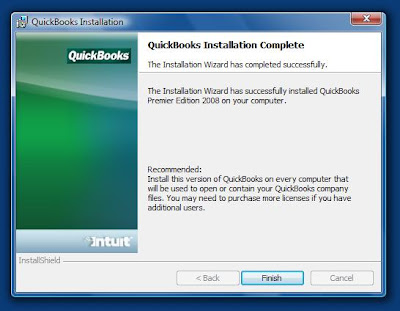
QuickBooks Installation Complete

We are no longer forced to reboot the system in order to initiate the QBUpdate Agent that runs in the background on the system.

We use the Sample company file to activate QB and to run the update process.

When we go to open the Sample company file we are greeted with:

Warning

You do not have sufficient permissions to the specified folder. ...
Note that the Sample company file is still in the \Program Files\Intuit\ folder and thus the permissions error.

All in all, other than the Google integration (our opinion), QB 2008 runs flawlessly on Windows Vista.

Note that updates will be required:
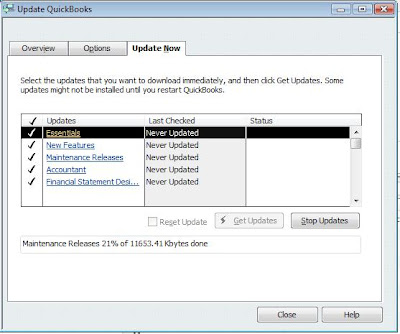
Update QuickBooks

And, they will require a reboot after the QB restart to install them:

You must restart your systems for the configuration changes made to QuickBooks to take effect.Close [sic] all other applications and click OK to restart now.
Kudos to Intuit for making things right!

Philip Elder
MPECS Inc.
Microsoft Small Business Specialists

*All Mac on SBS posts are posted on our in-house iMac via the Safari Web browser.

Friday, 21 December 2007

Windows Vista - Caseware Working Papers 2006 Compatibility

We are in the process of installing our first Windows Vista based laptop at one of clients that run a large accounting practice.

Other than the usual fight to get QuickBooks 2007 installed on Windows Vista, we ran into an interesting error during the install of Caseware Working Papers:

The following files did not self-register or unregister

Once we were into the Caseware 2006 program though, everything seemed to start up as it should.

We opened an existing file, worked through its contents and previewed the reports in Caseview with no issues.

It does turn out that there is an update that addresses any Windows Vista compatibility issues: Download the version recommended and update Caseware for Vista compatibility.

Philip Elder
MPECS Inc.
Microsoft Small Business Specialists

*All Mac on SBS posts are posted on our in-house iMac via the Safari Web browser.

Tuesday, 18 December 2007

Windows Vista - Simply 2008 EFT Module Issue

We have already chronicled some of our challenges with the new version of Simply Accounting 2008 on Windows Vista and SBS.

We have a new client that uses the Simply EFT (Electronic Funds Transfer) module.

In this case, we installed a new Vista Business workstation and configured everything to run with the exception of the EFT module.

Because our client carried forward the Company File EFT settings from the previous system, we were not expecting any issues. However, when they went to run their payroll, the EFT file creation failed every time the process ran.

The EFT module installs to: C:\Program Files\SimplyEFT with the data being created in a subdirectory called C:\Program Files\SimplyEFT\Data.

The problem we were running into was the EFT program did not have permission to create the EFT file in the Data directory.

Our options were the following:
  1. Create a new Company EFT setup and have the output written to an EFT folder under the user's Documents folder
  2. Change the NTFS permissions on the Data folder to allow Write/Change
Our client did not want to go through with recreating their company's EFT setup, so we went with option two.

After the permission change, they were able to run the EFT process and upload the file to their bank with no issues.

Philip Elder
MPECS Inc.
Microsoft Small Business Specialists

*All Mac on SBS posts are posted on our in-house iMac via the Safari Web browser.