Showing posts with label SQL 2008. Show all posts

Thursday, 12 August 2010

SQL Server Install Error: Rule “Restart Computer” failed.

So, we get this error when we go to install a new instance of SQL 2008 on a dedicated Windows Server 2008 Standard x64 box:

image

Rule Check Result

Rule “Restart computer” failed.

A computer restart is required. You must restart this computer before installing SQL Server.

But, we _just_ restarted it because of that error?!?

A quick search turned up the following:

The Forum post suggest that we look at the following registry key:

  • HKEY_LOCAL_MACHINE\SYSTEM\CurrentControlSet\Control\Session Manager\PendingFileRenameOperations

Sure enough, when we look into the registry, we find the culprit:

image

We deleted the content in that key since whatever the HP driver was trying to do it was failing at it miserably.

image

Of course, we Exported the Session Manager key _before_ deleting the content!

When we click the Re-run button in the SQL Server 2008 Setup window we were greeted with:

image

Restart Computer: Passed

We were good to go on installing that needed instance.

Philip Elder
MPECS Inc.
Microsoft Small Business Specialists
Co-Author: SBS 2008 Blueprint Book

*Our original iMac was stolen (previous blog post). We now have a new MacBook Pro courtesy of Vlad Mazek, owner of OWN.

Windows Live Writer

Thursday, 29 April 2010

On a Deployment

We have been on-site since last Friday deploying three new servers.

  • Small Business Server 2008
  • Windows Server 2008 x64
    • Two instances of Microsoft SQL Standard for Small Business x64
  • Windows Server 2008 R2
    • Terminal Services serving RemoteApps via the Remote Web Workplace

This particular solution replaced the existing SBS 2003 and Windows Server 2003 TS box.

We did not migrate because the source domain was too messed up.

Posting will probably remain light for the rest of the week and into next due to the volume of client work that we are dealing with both with this deployment and other client needs.

Philip Elder
MPECS Inc.
Microsoft Small Business Specialists
Co-Author: SBS 2008 Blueprint Book

*Our original iMac was stolen (previous blog post). We now have a new MacBook Pro courtesy of Vlad Mazek, owner of OWN.

Windows Live Writer

Wednesday, 31 March 2010

Moving The AutoDesk Vault Out of SQL 2005 Express On Windows XP Pro And Into SQL 2008 Standard

We have been having a bit of an adventure taking a client’s maxed SQL 2005 Express based AutoDesk Vault 2008 database content into a full SQL 2008 Standard database structure and then tying it into AutoDesk Vault 2009 and AutoDesk DMS 2009.

Note that an overview of the actual steps to get things going happen at the bottom of the post. What follows is the ongoing odyssey that we have had trying to follow the various AutoDesk instructions and posts online that we pulled up for the various errors we encountered.

It is important to have the Advanced Configuration Guide at hand for this process. Note that the link below is a search for it since any links on the AutoDesk forums seem to be broken:

The SQL instance upgrade  process required is as follows:

  1. Install SQL 2008 Express and Upgrade the AutoDeskVault instance.
    • image
  2. Upgrade the SQL 2008 Express instance using the SQL 2008 Standard install routine in maintenance mode.
    • image
    • Note the version difference between the two screenshots.

Now, in this case the Vault and its respective database are running on top of Windows XP Professional. So, we end up with the following when running SQL 2008 Standard in maintenance mode to upgrade the instance:

image As a result, we took the safe route and did the following:

  1. Installed SQL 2008 Express x64 on the soon to be SQL 2008 Standard server
  2. Detached the databases from the workstation SQL 2008 Express AutoDeskVault instance
  3. Copied them over to the SQL 2008 server
  4. Install SQL 2008 Express Edition:
    1. image
    2. image 
    3. image
    4. image
    5. image
    6. image   
  5. Attach the AutoDesk Vault and other databases to SQL 2008 Express now installed on the server.
  6. Run the maintenance mode install routine from the SQL 2008 Standard DVD to upgrade the AutoDeskVault instance.
  7. Reset the SA password to the AutoDesk defaults just in case.

Make sure that if SQL 2005 Management Express is installed that it is removed before installing the SQL 2008 Management Express tools.

There are also some key steps that need to happen on the SQL 2008 Standard instance such as disabling the password security features and more.

As always, it is a good idea to make sure to read through the documentation carefully and then work them to the particular circumstances we happen to be in! ;)

***

This post has been sitting open since we started this whole process this yesterday!

It turns out that we were bitten by the SQL 2008 Standard _For Small Business_ bug. How is that?

Well, we went to do the Edition Upgrade via the SQL Server Installation Center:

image

We keyed in our product key and ran through _all_ of the steps until we hit a roadblock that said we were unable to install the current SQL edition on the OS we were installing it on.

That really took us for a loop as we had already gone through and installed this particular SQL 2008 Standard (now for Small Business) on its own with no problems.

So, we ended up detaching the Vault databases from the SQL 2008 Express that we had installed on the server (we were following the AutoDesk instructions to the letter), moving the databases into a safe place, uninstalling SQL 2008 Express, installing SQL 2008 Standard for Small Business, and reattaching the databases.

From there, we installed the AutoDesk Data Management Server. Note that disk swaps are a part of the install process!

Or so we thought …

image

There is some cleanup that needs to happen before we can move forward.

So, we deleted:

image

Click the Re-test button and:

image

When we checked the SQL DATA folder to make sure it was empty we found nothing, so the second part of the error must be the one.

And so it was:

image

Now, we are talking about _25GB_ of file storage here. So, we will rename the \ProgramData\Autodesk root folder to Autodesk – Old and retry.

image

TIP: We always label the OS partition after the server name, that is why the label in the above screenshot is greyed out. This gives us an at-a-glance “which server am I on?” look which comes in handy when managing large numbers of servers throughout the day.

We are now good to go:

image

And subsequently:

image

And, finally we are greeted with a successful ADMS 2009 install:

image

When we fired up the ADMS 2009 console we received:

image

Pre-existing Database(s) Detected 

Once the process completed we had a fresh ADMS 2009 install using fresh databases.

To get the Vault data in, we needed to detach the fresh Vault and the fresh KnowledgeVaultMaster databases in ADMS.

First, the fresh Vault:

image

Vault “Vault” was successfully detached.

The view from within the SQL Management Studio for the AUTODESKVAULT instance:
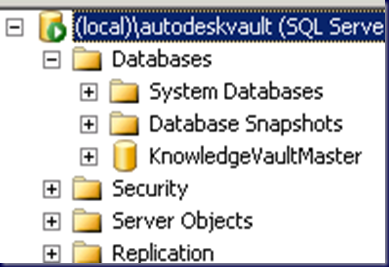
image

So, the ADMS detach actually removes the database from the instance.

From there:

image

Vault “KnowledgVaultMaster” was successfully detached.

And again from within the SQL Management Studio:

image

So, before we go and attach the original databases, we moved the needed databases into the SQL DATA folder, and then the VaultServer\FileStore content into the new location.

Once the FileStore move has completed, we go to Attach Master Vault _in_ ADMS:

image

And the actual database and log files before being attached in Windows Explorer:

image

In ADMS we receive an error:image

Error

Cannot attach database ‘KnowledgeVaultMaster’ since it is of the wrong database type.

Ouch. So, off to the SQL Management Studio we go to attach the database manually.

After manually attaching the Db via SQL Management Studio and reopening ADMS 2009 we received:

image

Your Vault Master database appears to be out of date. You need to migrate before continuing. Would you like to migrate now? Choosing ‘No’ will exit the server console.

Okay, so we need to figure out how to get the setup to recognize that the server name has been changed!

We ended up with another error!

image

Error

If server ‘<servername>’ is intended to be a member of a replicated environment, please install Autodesk Productstream Replicator. If this computer has been recently renamed, please update the site via the server console command line options.

The command line was a bit of a task to find since we could not get into the ADMS 2009 console on our SQL server and our virtualized ADMS 2008 PC we are using as a reference does not bring anything relevant up in the help topics?!?

Here we find the proper syntax:

  We ran the command line to get things going and it did not work:

image

Autodesk Data Management Server Console 2009

The database must be the same version as this Autodesk data management server, but the migration process failed to update the database to the same level as the server.

This indicates a serious problem with your server installation – the server console will now exit.

So, after all of this, here we sit with nothing in hand but an installed instance of SQL 2008 Standard for Small Business named AUTODESKVAULT, and an ADMS 2009 console that refuses to work with any database and Vault File Content configuration we throw at it.

It _will_ open if no databases are attached to the AUTODESEKVAULT instance though. And, therein lies the clue to what we needed to do.

The Solution

While all of this was going on, we were able to finally clean up the original machine running as a VM on one of our Hyper-V servers here in the shop to get a successful ADMS backup! This, after updating the VM’s SQL 2005 Express with SQL 2008 Express too.

So, we transported that backup back to the client and ran the restore into ADMS 2009. We needed to make sure that the SQL DATA directory was empty as well as the FileStore location before running the restore.

After two to three hours we received:

image

Autodesk Data Management Server Console 2009

The restore operation has been successfully finished.

Wow! We were finally somewhere close to bringing this setup back online!

And we did . . . finally!

An overview of the path from start to an actual finish for the process we needed to use:

  1. ShadowProtect backup the workstation AI and ADMS are installed on.
  2. Restore that SP image to VM.
  3. Run ADMS backup to USB or network location.
  4. Install SQL 2008 Express and upgrade the AUTODESKVAULT instance to SQL 2008.
  5. Run ADMS backup to USB or network location
    • Yes, we will have two backups! One before being touched and one after.
  6. Install standalone server OS and update.
  7. Install SQL 2008 Standard for Small Business AUTODESKVAULT instance.
    1. Install in Windows/SQL Authentication Mixed Mode
    2. Set the SA password to the required AutoDesk default.
  8. Install the latest SQL 2008 service pack and updates.
  9. Install ADMS 2009 (2010 may work the same way).
    1. It will discover the SQL instance and use it.
  10. In ADMS detach the new Vault.
  11. In ADMS detach the new KnowledgeVaultMaster.
  12. In ADMS, right click on the root folder and click on Restore.
  13. Navigate to the backup folder created earlier and choose it.
    • image
  14. Once complete, a message will indicate that the restore was either successful or had failed.
    1. If successful, the needed databases will now be found in the SQL DATA folder on the server and in SQL Management Studio Express.
    2. Database user permissions will be restructured according to the new server setup.
  15. Update the AutoDesk products on the workstations.
  16. Once complete, open the Vault Explorer on the workstation.
  17. Set the logon to Auto Logon.
  18. Right click on the root folder in the Vault and Get Entire Folder.
    • image
  19. Done.

The most significant roadblock we ran into in this process had to do with the break in following the AutoDesk instructions to the letter. Because of the SQL version we had, which any SBS 2008 Premium site will have BTW, we were unable to complete the Edition Upgrade step.

This is one place where running the scenario virtually first would have saved us a lot of time when it came time to run the changes on the production network.

Philip Elder
MPECS Inc.
Microsoft Small Business Specialists
Co-Author: SBS 2008 Blueprint Book

*Our original iMac was stolen (previous blog post). We now have a new MacBook Pro courtesy of Vlad Mazek, owner of OWN.

Windows Live Writer

Thursday, 25 February 2010

Set Up The AutoDesk Vault On SQL Server 2008

When configuring a server ahead of time to host a full version SQL database, one very important piece of information needs to be followed when configuring that first SQL instance:

image

The instance name needs to be AUTODESKVAULT. If the instance has a different name, then the AutoDesk management server installation will want to install its own SQL Express instance.

Since this particular client needs a full version of SQL due to the size of their database, we need that full version instance available when we are running the setup routine.

Philip Elder
MPECS Inc.
Microsoft Small Business Specialists
Co-Author: SBS 2008 Blueprint Book

*Our original iMac was stolen (previous blog post). We now have a new MacBook Pro courtesy of Vlad Mazek, owner of OWN.

Windows Live Writer

Wednesday, 24 February 2010

Installing SQL 2008 on Windows Server 2008 R2

There are a couple of small caveats when installing SQL Server 2008 on top of the Windows Server 2008 R2 OS.

One is that we need to make sure that the .NET Framework 3.5 is installed _before_ we run setup:

image

The other caveat came up when we ran the initial SQL setup routine:

image

The routine wanted a restart before we got to installing the actual SQL bits.

Oh, and one more thing. Make sure to download the appropriate SQL 2008 service pack and have it ready to install once all of the SQL instances are installed.

image

During the install, SQL will test the firewall setup to make sure the appropriate ports are available:

image

Specifically:

In our case, our needed instance port will be 1433 TCP and then the required SQL Browser service port of 1434 UDP:

image

In this case we have an SBS 2003 R2 Premium site that requires a dedicated SQL instance for their AutoCAD Vault setup. But, the management portion of the software is unable to be installed on SBS 2003.

So, we needed another box with SQL. Unfortunately, the client was not willing to go much beyond dropping in a budget Windows Server 2008 R2 box with SQL licenses for the needed number of users at this point.

So, we now have the needed SQL setup in place to get things up and running.

Philip Elder
MPECS Inc.
Microsoft Small Business Specialists
Co-Author: SBS 2008 Blueprint Book

*Our original iMac was stolen (previous blog post). We now have a new MacBook Pro courtesy of Vlad Mazek, owner of OWN.

Windows Live Writer

Monday, 23 November 2009

What Version of SQL Is That?

We have a client that needs to update a Line of Business application that is using a SQL 2005 Express instance.

The LoB has a major update coming down the pipe and the product developer has stated that we need to have SQL 2005 SP2 at the minimum to support the newest features in the update.

The following SQL version comes via a screenshot of SQL Server Management Studio Express:

image

Okay, so, now what version and service pack level are we at?

Apparently SP2+Q954606 (GDR):

image

The above screenshot was taken from this site:

The SQLSecurity.com site has an extremely comprehensive list of each version level depending on which SQL patches were installed.

So, we now know that we have SQL 2005 Service Pack 2 installed with Service Pack 3 looming in the near future and that our LoB can be safely updated.

Philip Elder
MPECS Inc.
Microsoft Small Business Specialists
Co-Author: SBS 2008 Blueprint Book

*All Mac on SBS posts will not be written on a Mac until we replace our now missing iMac! (previous blog post)

Windows Live Writer

Tuesday, 29 September 2009

SQL 2008 Setup and SAP + .NET No Goes

As part of the migration we did last weekend we needed to set up a SQL backend for both SAP and a .NET based application. The .NET app tied their proprietary data as well as SAP data together for a domain user app along with a Web client facing data publishing page.

Essentially their users manage the data in SAP as well as the client stuff found in another database all together with their clients having Web based access to their own data.

So, we discovered a number of important things along the way.

+ SAP will not work if the SAP database resides in SQL 2008. At least the version we were working with which was very recent. ODBC errors happened when trying to connect. When we nuked SQL 2008 and put 2005 on the server and attached the databases in SQL 2005 SAP was happy.

+ The .NET application had some internal structures that refused to run due to the SQL 2008 version. SQL 2005 fixed those errors too.

We placed a copy of the original databases in the appropriate directories before attaching them in SQL 2008. So, after switching to SQL 2005 we were no further behind.

By the way, SQL 2005 would not allow us to attach the databases that were touched by SQL 2008. We always try and work with copies of the original data for situations just like this.

When it came to getting the .NET app, resident on another server, to communicate with SQL, the following port exclusions in the SQL server's Windows Firewall with Advanced Security were needed:
+ The port the SQL instance was on (default is 1433).
+ The SQL Browser port at UDP 1434.

Once we had things straightened out with the SQL version, ports needed, and the user permissions setup within the databases we were good to go.

All servers were running Server 2008 Standard x64 SP2.

Philip

Sent from my SBS Integrated Windows Mobile® phone.
--

ExchangeDefender Message Security provided by MPECS Inc: Click below to verify authenticity

http://www.exchangedefender.com/verify.asp?id=n8U0OdI8015660&from=philipelder@mpecsinc.ca

Tuesday, 26 August 2008

TechNet Plus: SQL 2008 RTM bits available for download

A little behind the gun on this one:


TechNet Plus: SQL 2008 Downloads

With our being on the SBS 2008 beta, a couple of test runs at installing the product were done in the blind ... meaning no reads.

Needless to say, we did not get very far. :)

Things have changed a bit on the install and configuration front between SQL 2005 and SQL 2008. Time to do some reading.

Some related links:

That last one could be very important for us SBSers in relation to SBS 2008 Premium Edition with SQL 2008 included.

Philip Elder
MPECS Inc.
Microsoft Small Business Specialists

*All Mac on SBS posts are posted on our in-house iMac via the Safari Web browser.

Tuesday, 11 March 2008

Heroes Happen Here - Edmonton

The Heroes Happen Here tour will be in Edmonton on Thursday.

The event is full and there is quite the waiting list.

If you registered, but are not able to attend, please visit Microsoft's Events Site and cancel your registration so that the seat can be released for someone waiting in the wings. A quick link was also included in the registration email sent out after you registered.

Releasing your seat will also make it easier for those managing the registration table to work with fewer no-shows.

This should be a fun event, with lots of information and demos of Microsoft's new products. Maybe even some swag for the attendees to take home too.

I personally will be helping in the "Experts Booth". That aught to be a lot of fun.

And, I may even know an answer or two! ;)

Philip Elder
MPECS Inc.
Microsoft Small Business Specialists

*All Mac on SBS posts are posted on our in-house iMac via the Safari Web browser.